Track the time you spend on each matter, add costs such as filing fees, and bill the client. Everything lives on the client’s Accounting tab, with the totals at the top.
Time needed: about 4 minutes.
Step 1
Open the client's Accounting tab
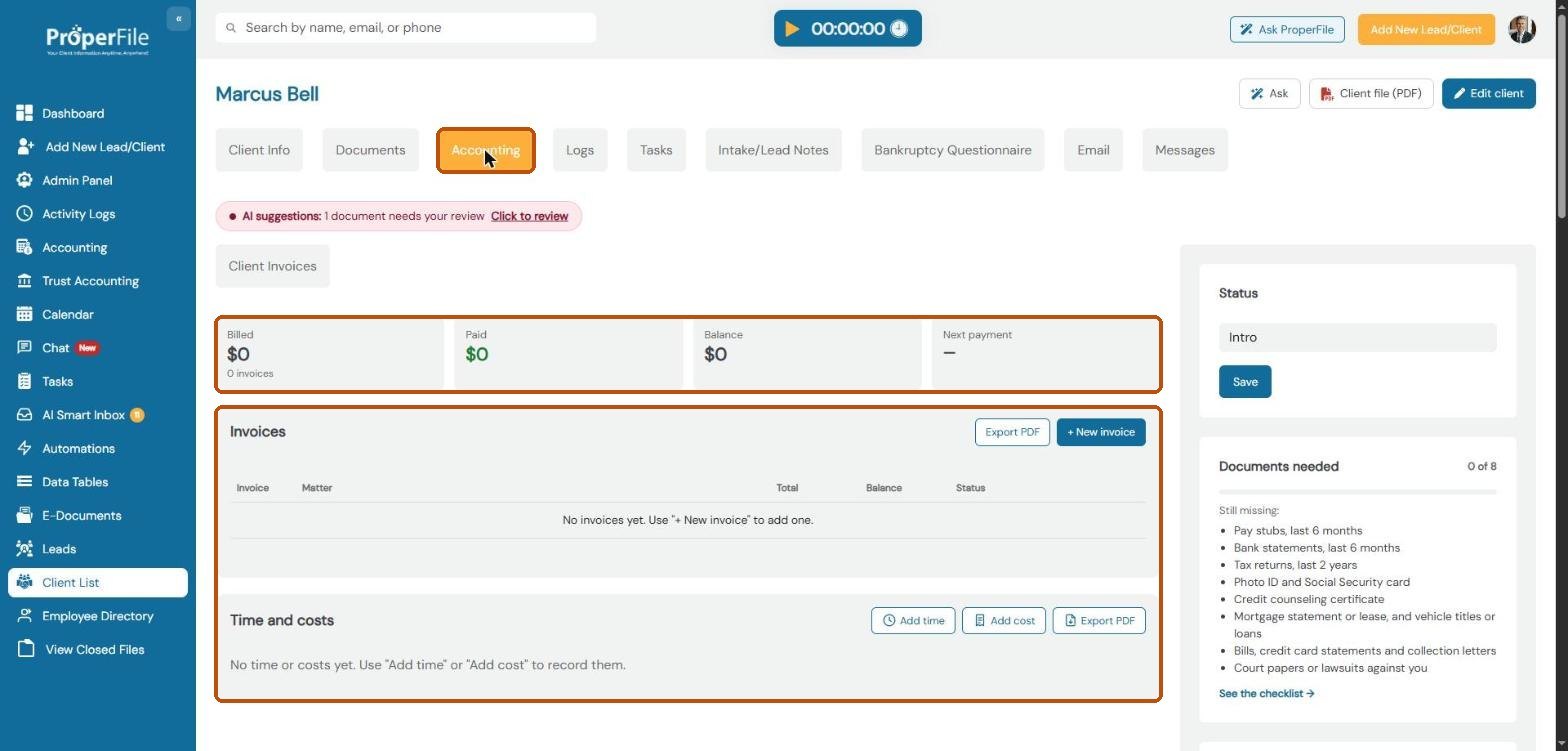
Open the client, choose the matter under All Services/Matters, and click the Accounting tab. At the top you’ll see what’s been Billed, Paid, the Balance and the Next payment. Below are the matter’s Invoices and its Time and costs.
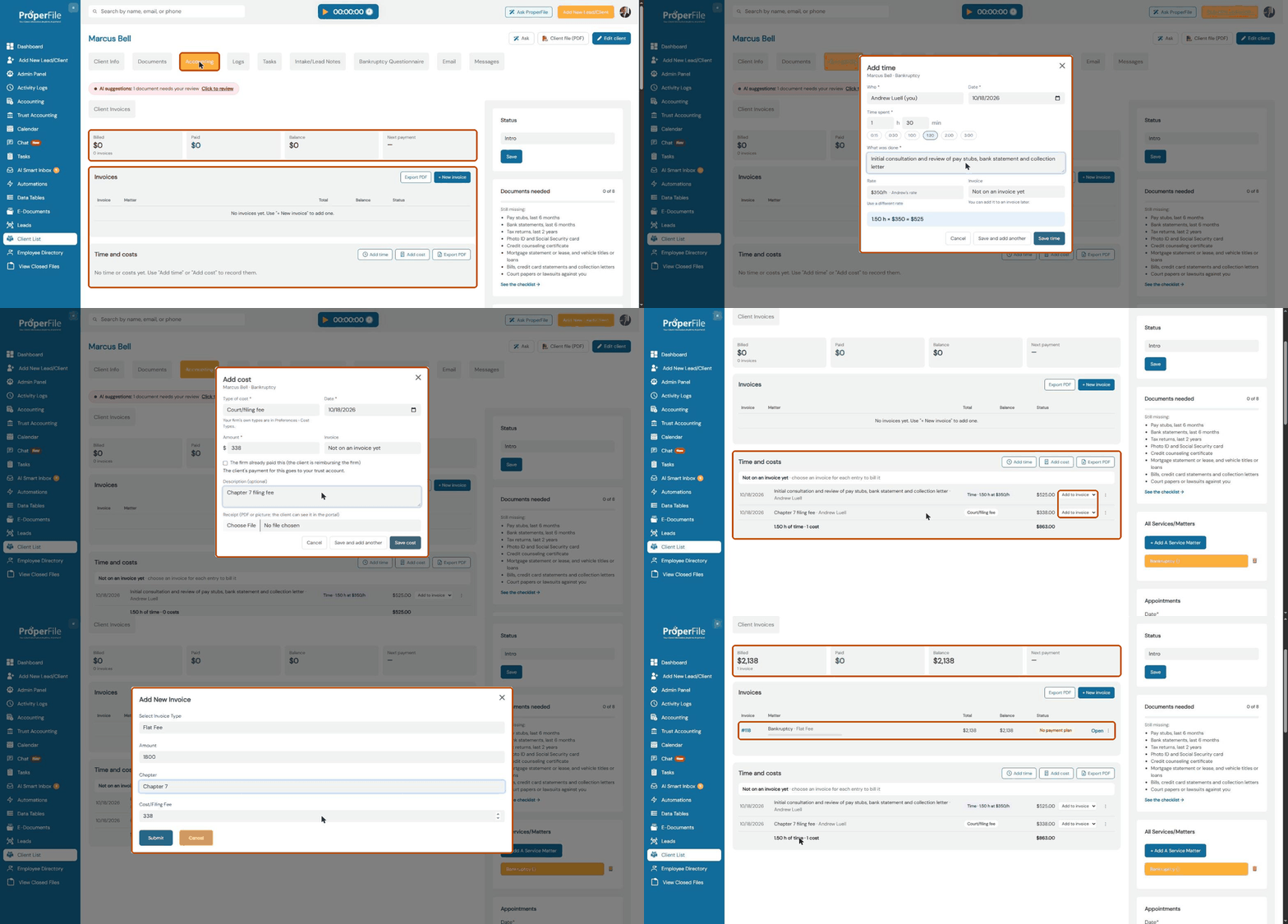
Watch it: from time entry to invoice
Step 2
Add time
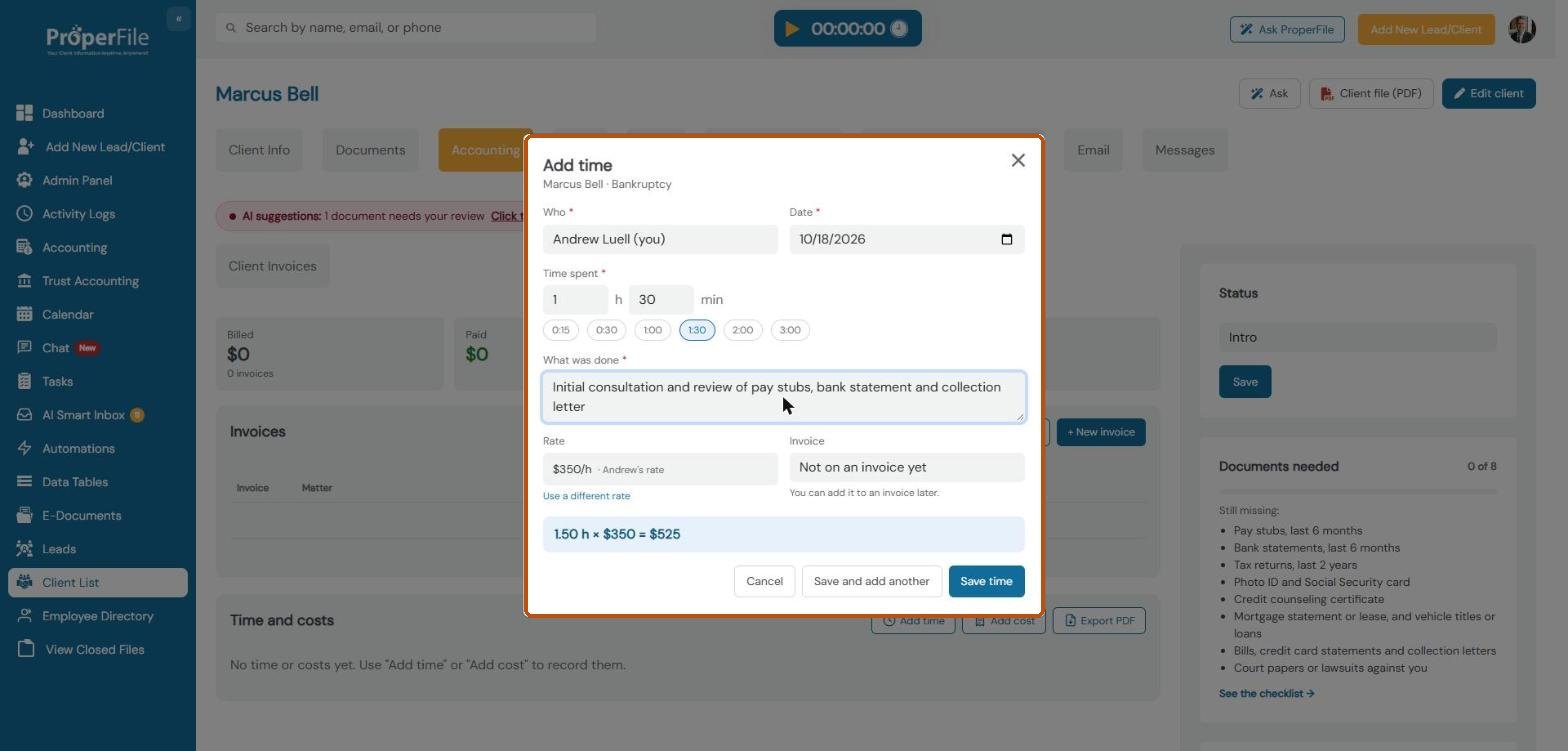
Click Add time. Choose who did the work and the date, set the Time spent (or click 0:15, 0:30, 1:00, 1:30, 2:00 or 3:00), and describe What was done. ProperFile fills in that person’s hourly rate and shows the total. Click Use a different rate to charge another rate, and pick an Invoice now or later. Click Save time, or Save and add another.
Tip: the timer at the top of every page tracks your time as you work: click the play button to start it, and stop it when you’re done; it asks which client the time is for. Started from a task, it shows the task’s name and saves the time to that task’s client (see Tasks). Time is rounded up to the next tenth of an hour.
Step 3
Add a cost
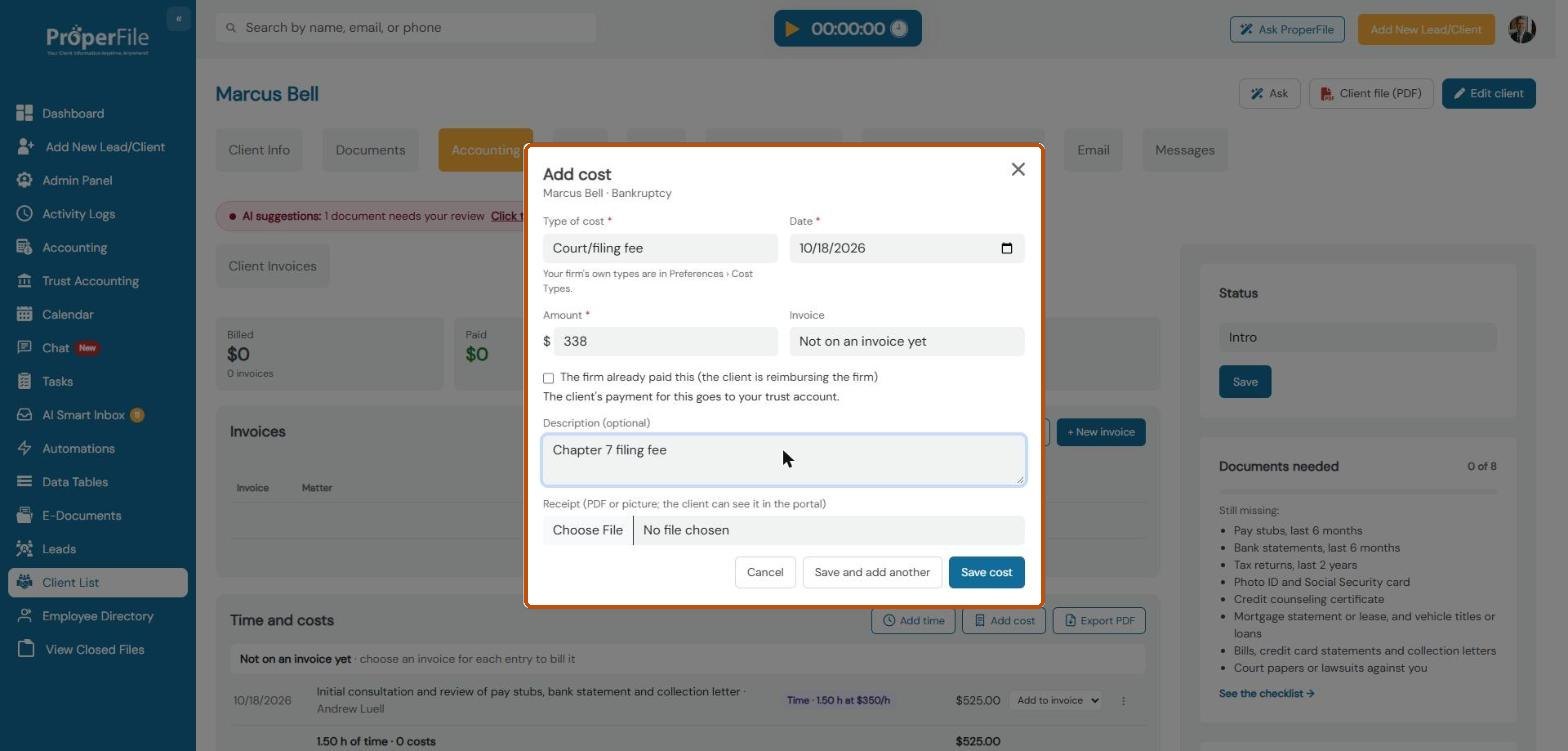
Click Add cost for costs such as filing fees, service of process or an interpreter. Choose the Type of cost, the date and the amount, add a description, and attach the receipt if you have one (the client can see it in the portal). Tick The firm already paid this if the client is reimbursing the firm. Click Save cost.
Tip: your firm’s own cost types are set up in Preferences, under Cost Types.
Step 4
Bill your time and costs
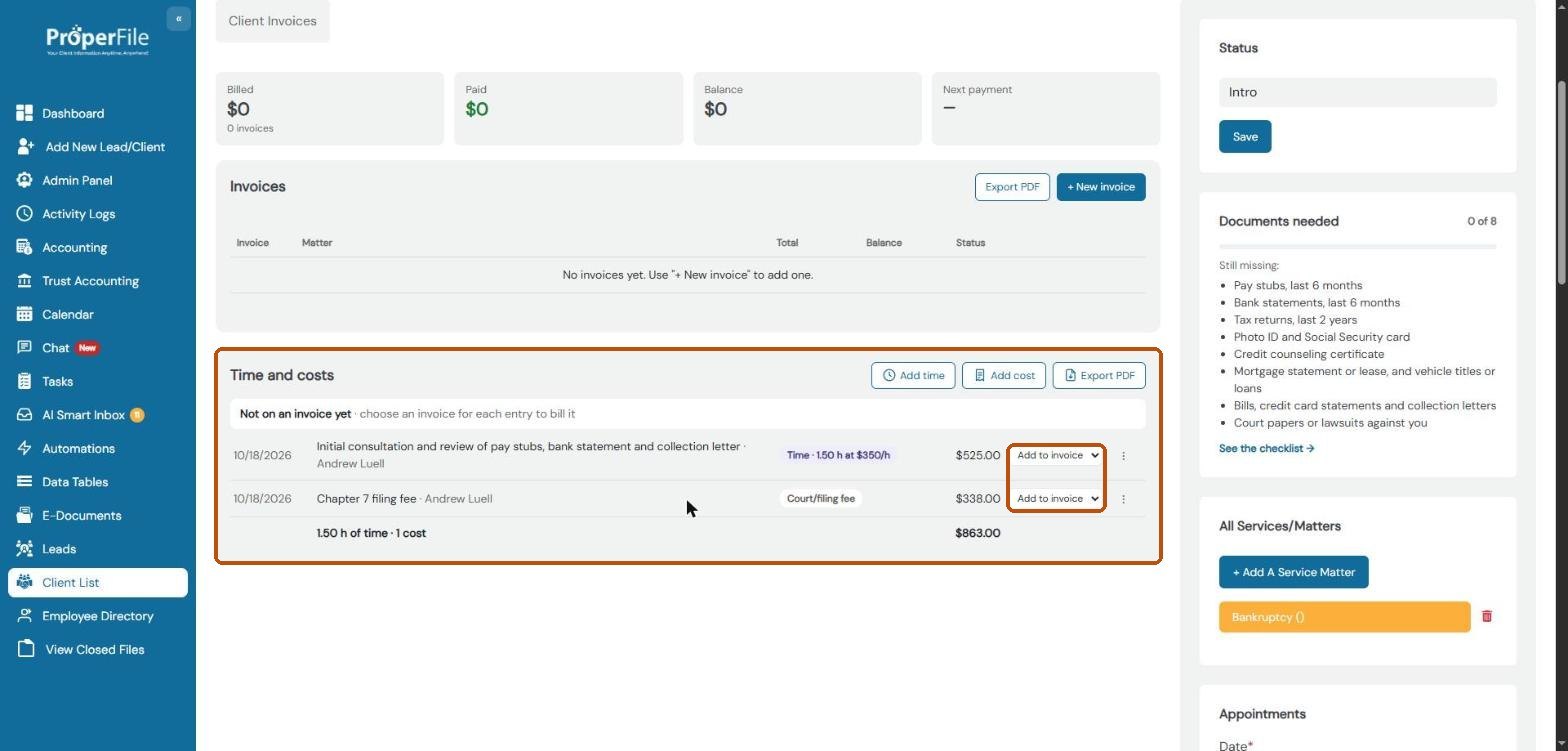
Entries that aren’t billed yet show under Not on an invoice yet, with the total. Use Add to invoice next to an entry to put it on an invoice. Export PDF downloads the list.
Step 5
Create an invoice
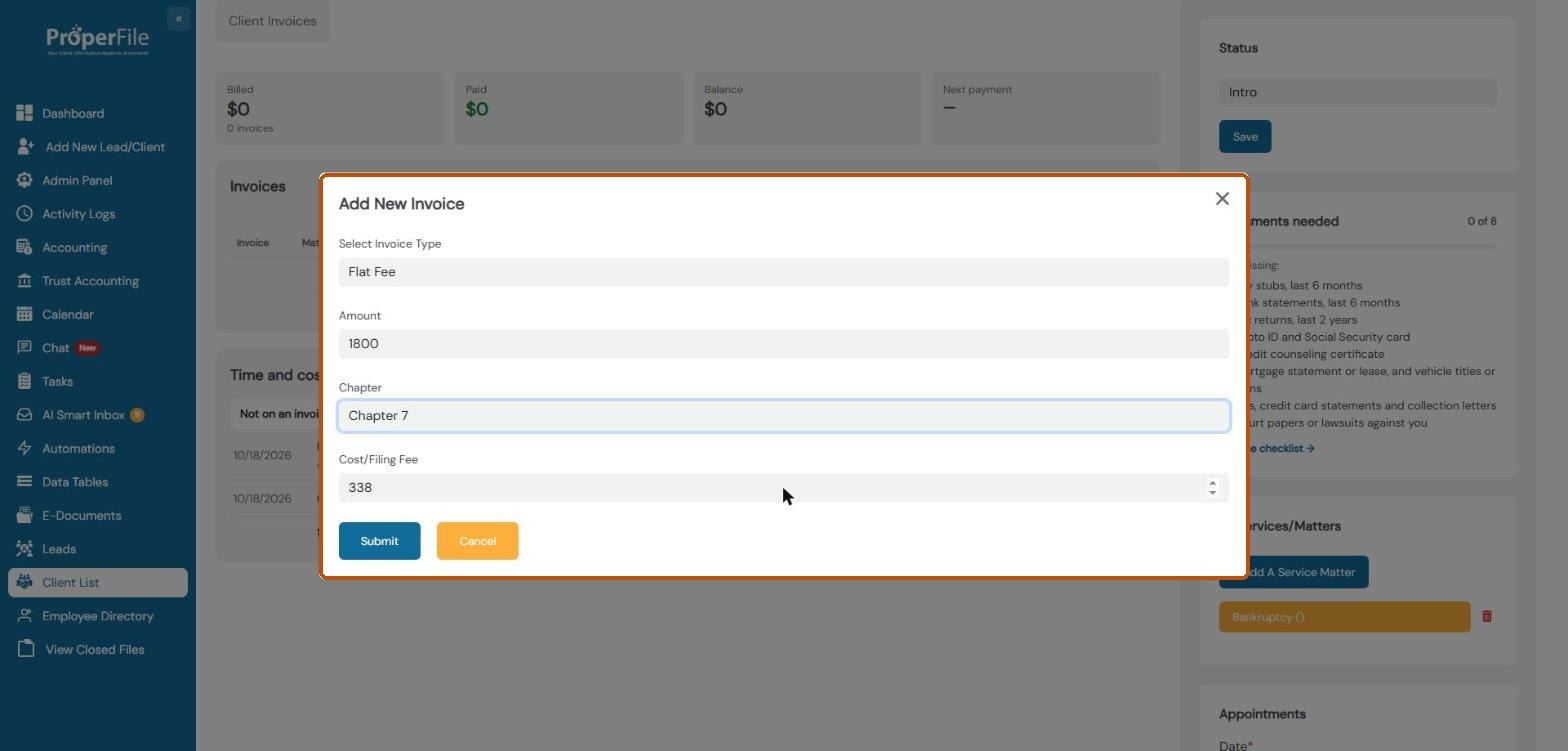
Click + New invoice. Choose the invoice type (Flat Fee, Hourly or Contingency), enter the amount and any cost or filing fee, and click Submit.
Step 6
Find the invoice
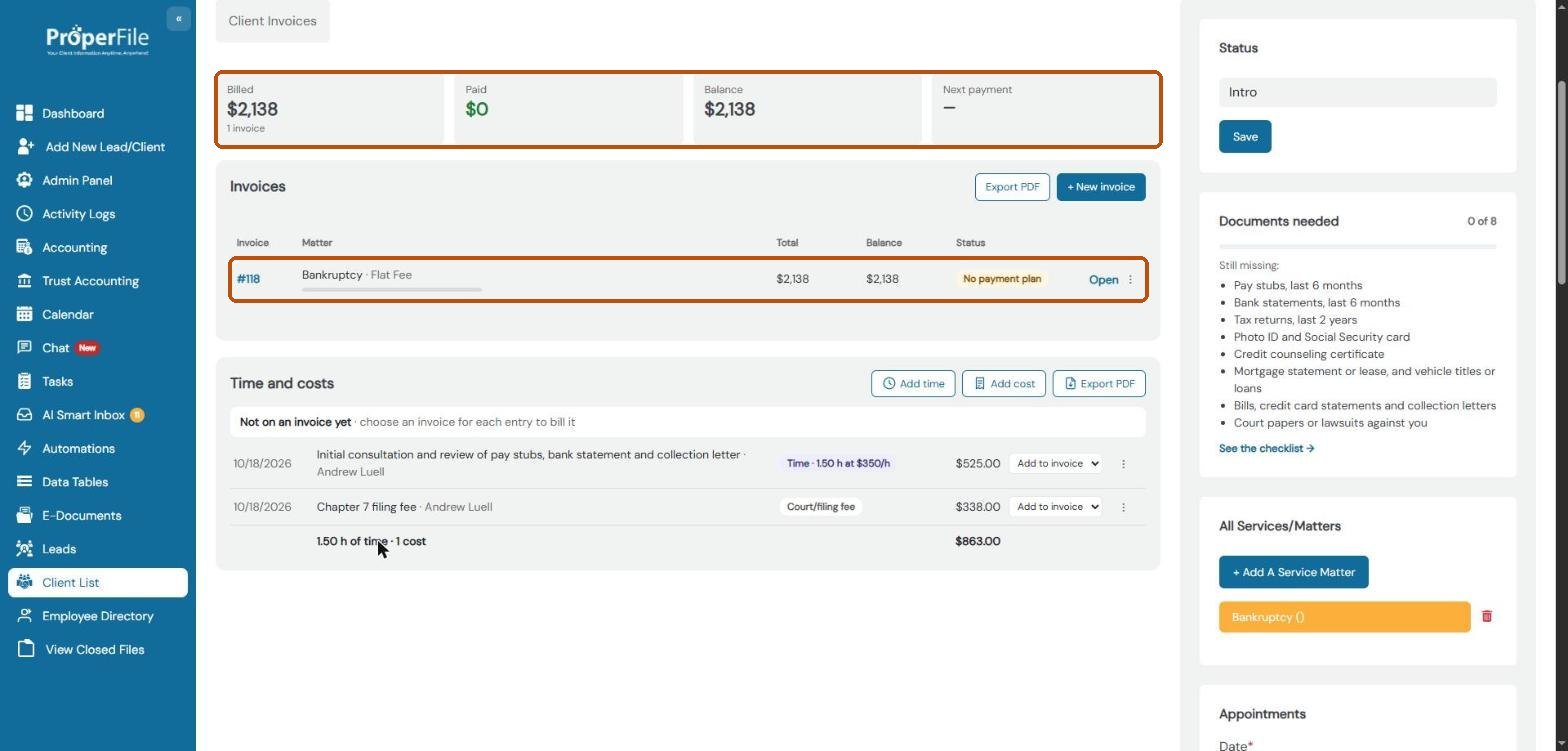
The invoice appears under Invoices with its number, total, balance and payment-plan status, and the totals at the top update. Click Open to see it.
Step 7
Open the invoice
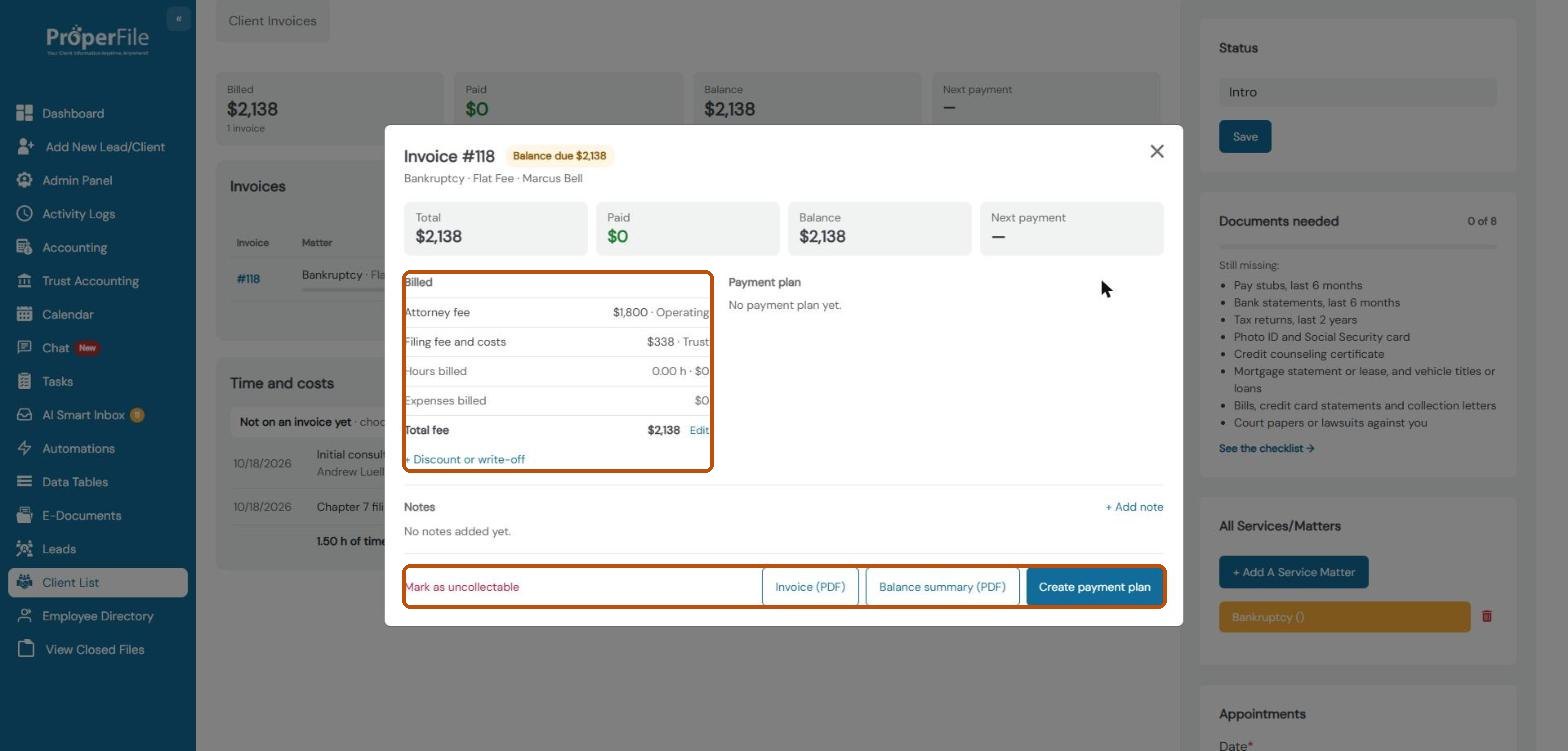
The invoice shows what’s billed: the attorney fee, filing fees and costs (and whether each goes to your operating or trust account), hours and expenses, and the total, which you can Edit. Add a Discount or write-off or a note, download the Invoice (PDF) or a Balance summary (PDF), Mark as uncollectable, or Create payment plan.