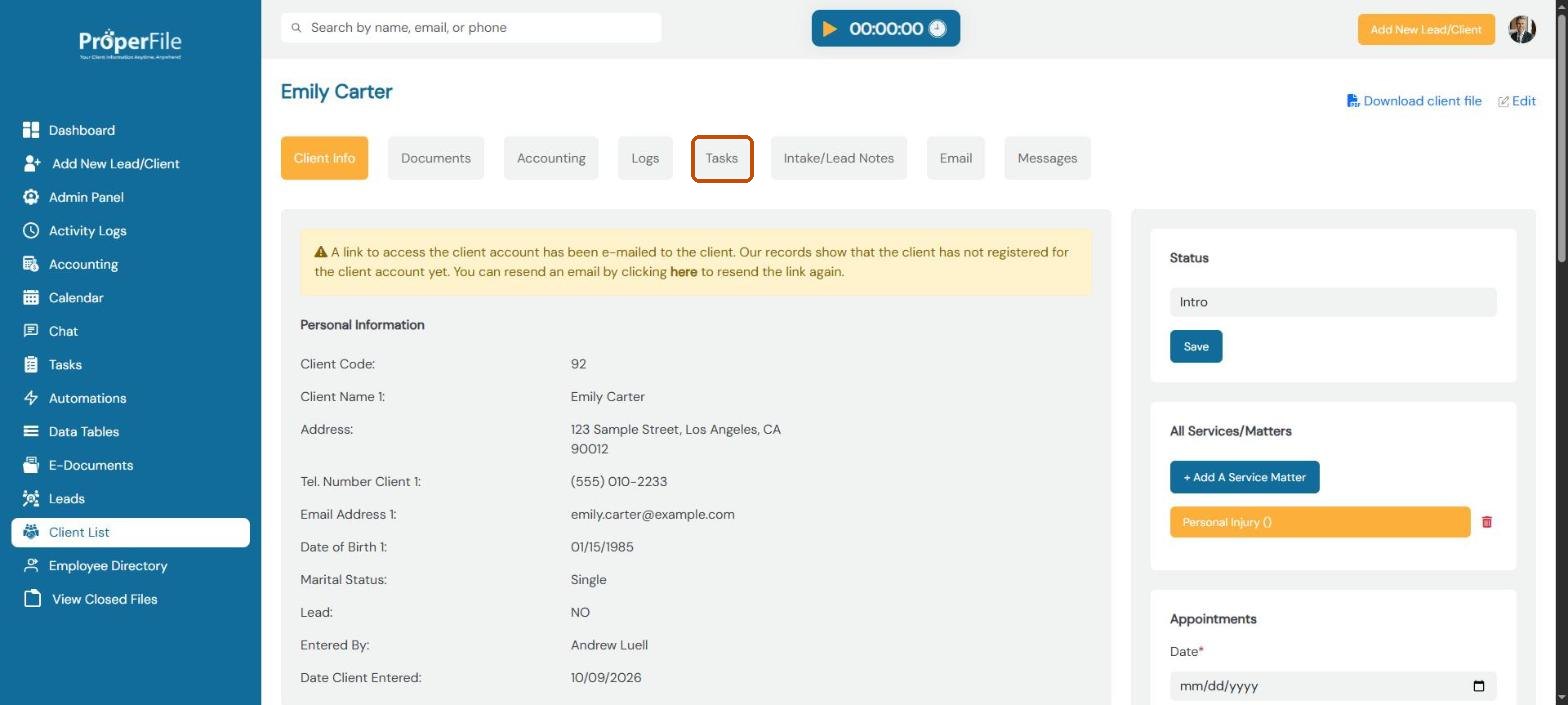
Tasks make sure nothing falls through the cracks. Give each task a client, a due date and one or more people to do it, and ProperFile keeps a list for everyone.
Time needed: about 2 minutes.
Step 1
Open Tasks
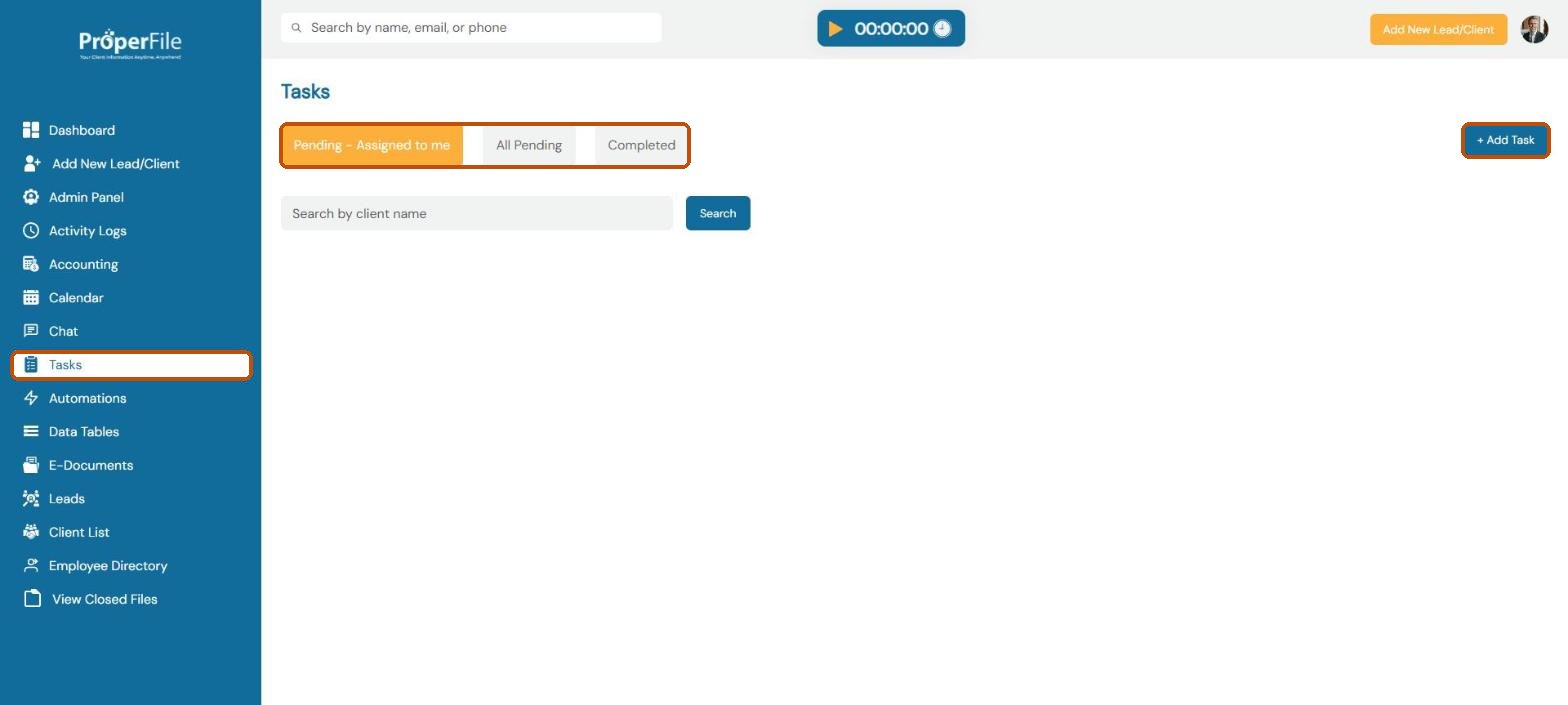
Click Tasks in the left menu. Pending – Assigned to me shows your own open tasks, All Pending shows everyone’s, and Completed shows finished ones. You can search by client name. Click + Add Task.
Step 2
Choose the client and matter
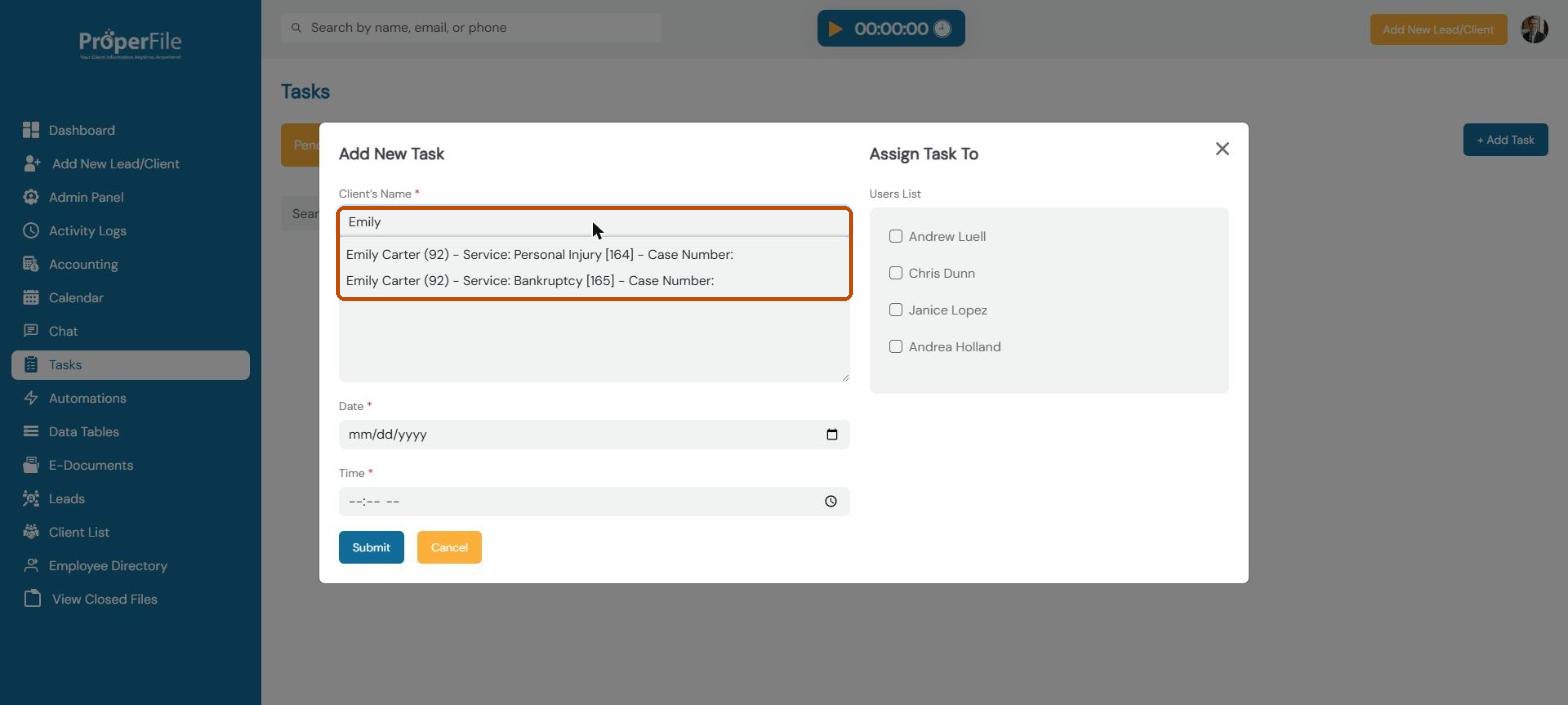
Start typing the client’s name in Client’s Name and pick the right matter from the list. Clients with more than one matter are listed once for each.
Step 3
Describe the task, set when it’s due and assign it
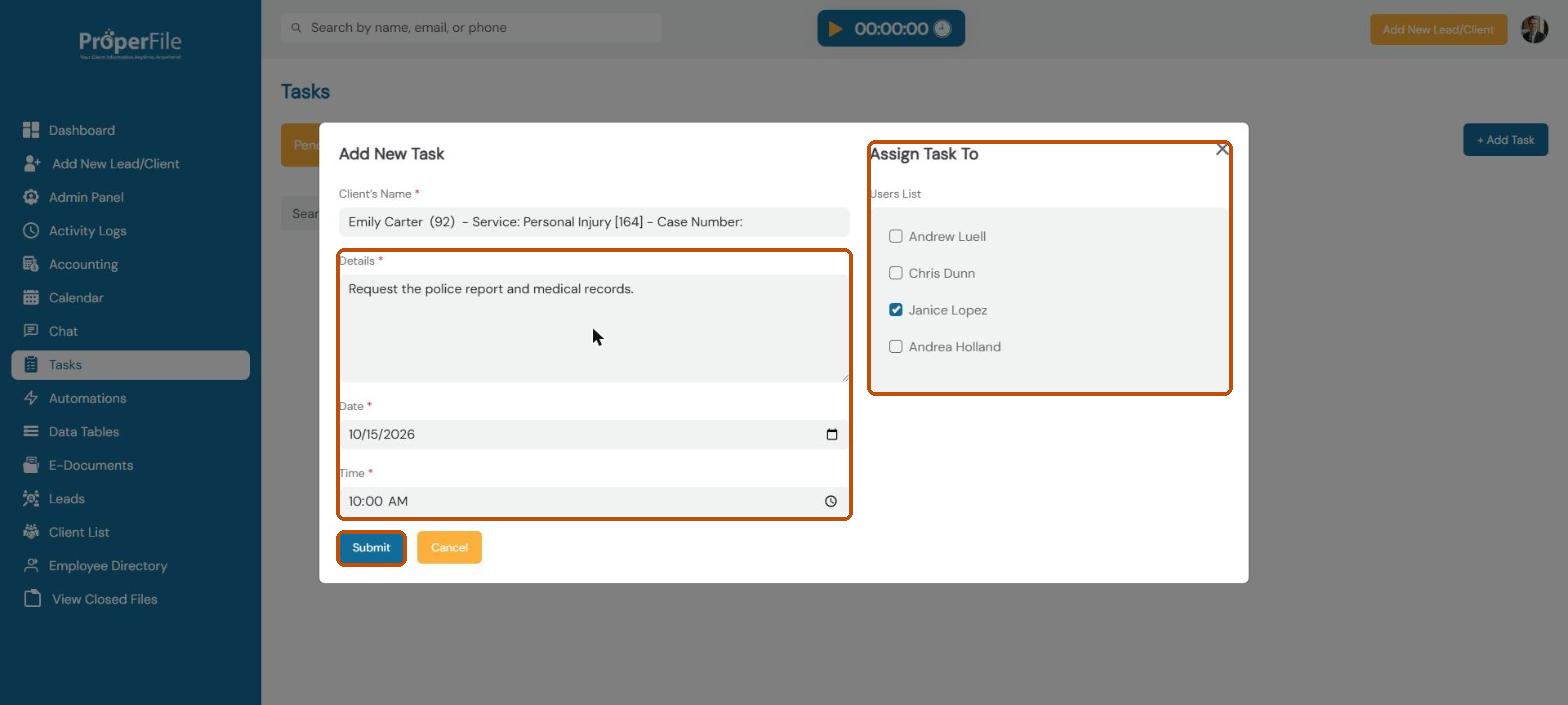
Type what needs doing in Details, then set the Date and Time it’s due. Under Assign Task To, tick everyone who should work on it. Click Submit.
Tip: the people you assign get an email about the task, and it shows on their dashboard.
Watch it: creating a task
Step 4
Edit, finish or delete a task
Each task card shows the date, who it’s assigned to, the client and who assigned it. Use View Details, Edit or Delete on the card. To mark a task done, open the client, click their Tasks tab and click the tick next to the task. It moves to Completed.
What’s next
Keep going
Next, schedule appointments and court dates in Calendar and hearings. All guides are in the Help Center.