The calendar shows every appointment, court date and blocked day in one place, color-coded by type. Add quick events from the calendar, and appointments and court dates from the client’s page. After a hearing, write a report and plan the next steps in one window.
Time needed: about 5 minutes.
Step 1
Open the calendar
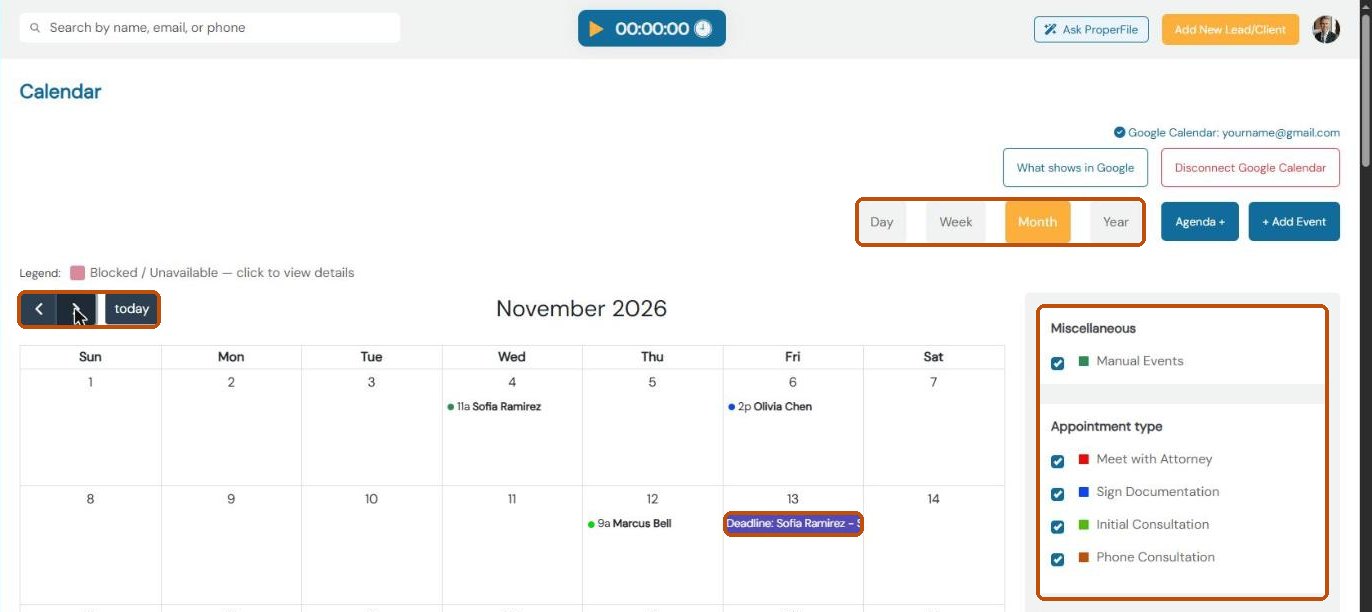
Click Calendar in the left menu. Switch between Day, Week, Month and Year, and use the arrows to move through dates (today jumps back). On the right, untick any appointment or hearing type to hide it. Case deadlines show in purple, starting with Deadline: (see Case deadlines).
Tip: click Connect to Google Calendar to see your ProperFile events in your own Google Calendar. See the Google Calendar guide. Blocked days show in pink; click one to see why it’s blocked.
Step 2
Add a quick event
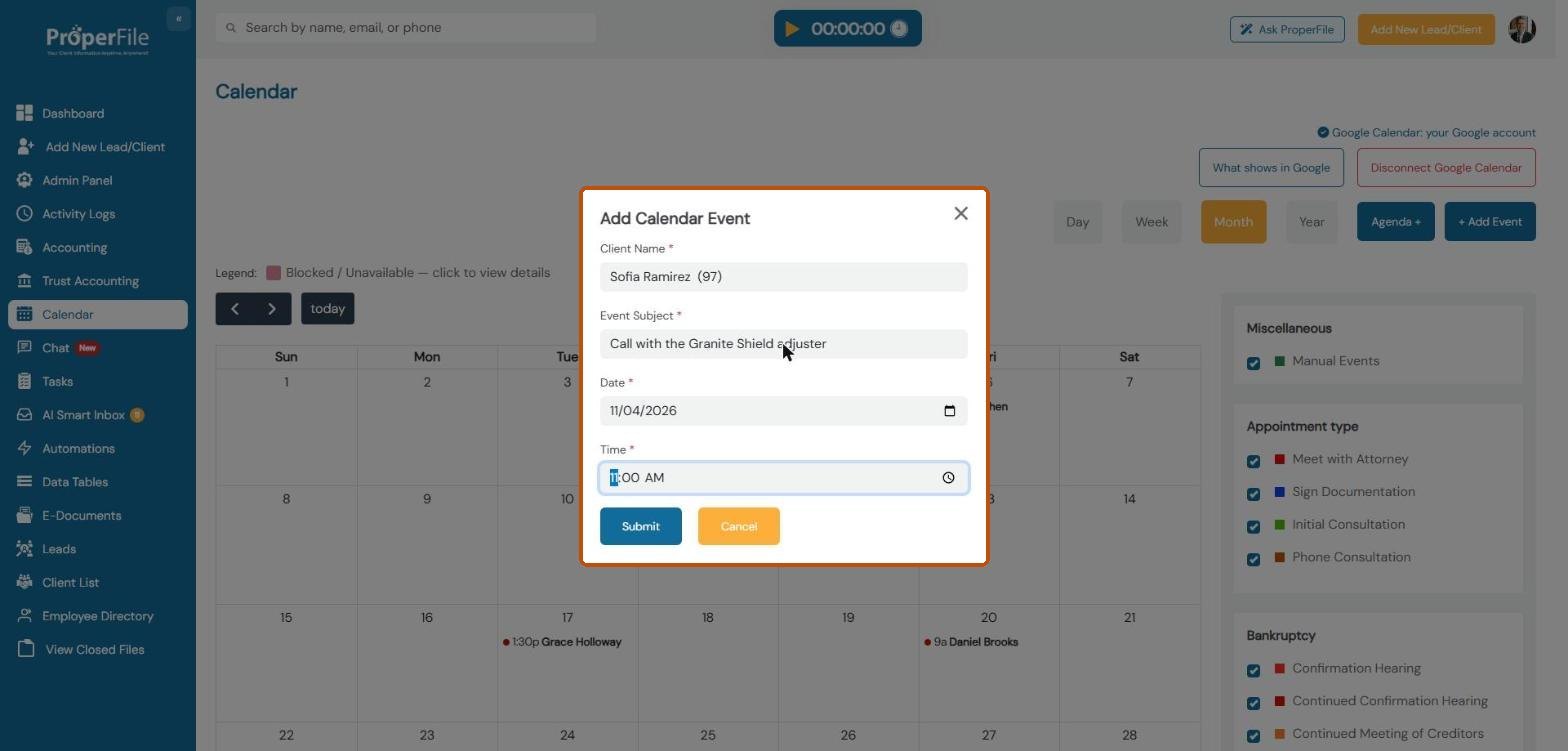
Click + Add Event. Pick the client, type a subject such as Call with the insurance adjuster, set the date and time, and click Submit.
Step 3
Schedule an appointment from the client's page
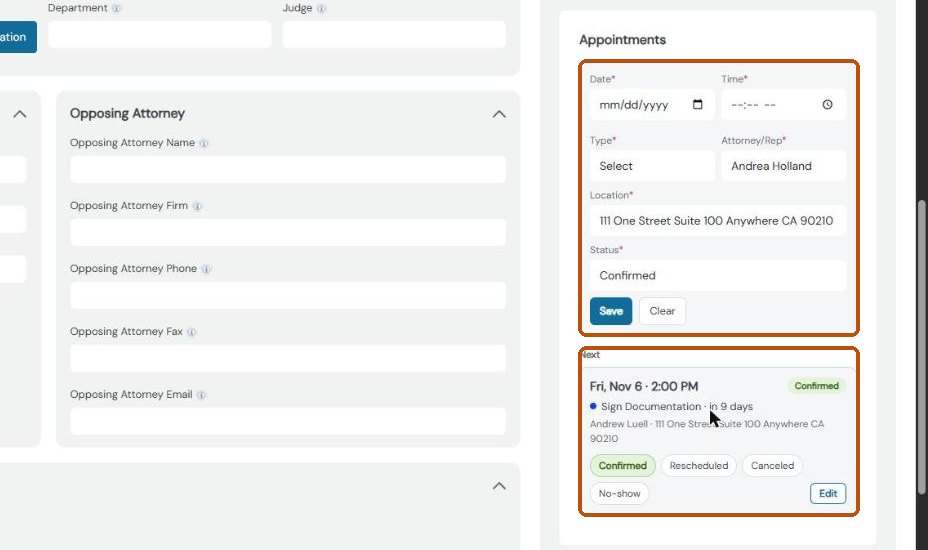
Open the client and find Appointments on the right. The form is always there: set the date and time, then choose the appointment Type, the attorney, the office Location and the Status (Confirmed, Rescheduled, Canceled or No-show), and click Save. Clear empties the form.
The next appointment shows underneath, under Next, with how far away it is. Click a status to change it straight away, or Edit to change the rest.
Step 4
Add a court date
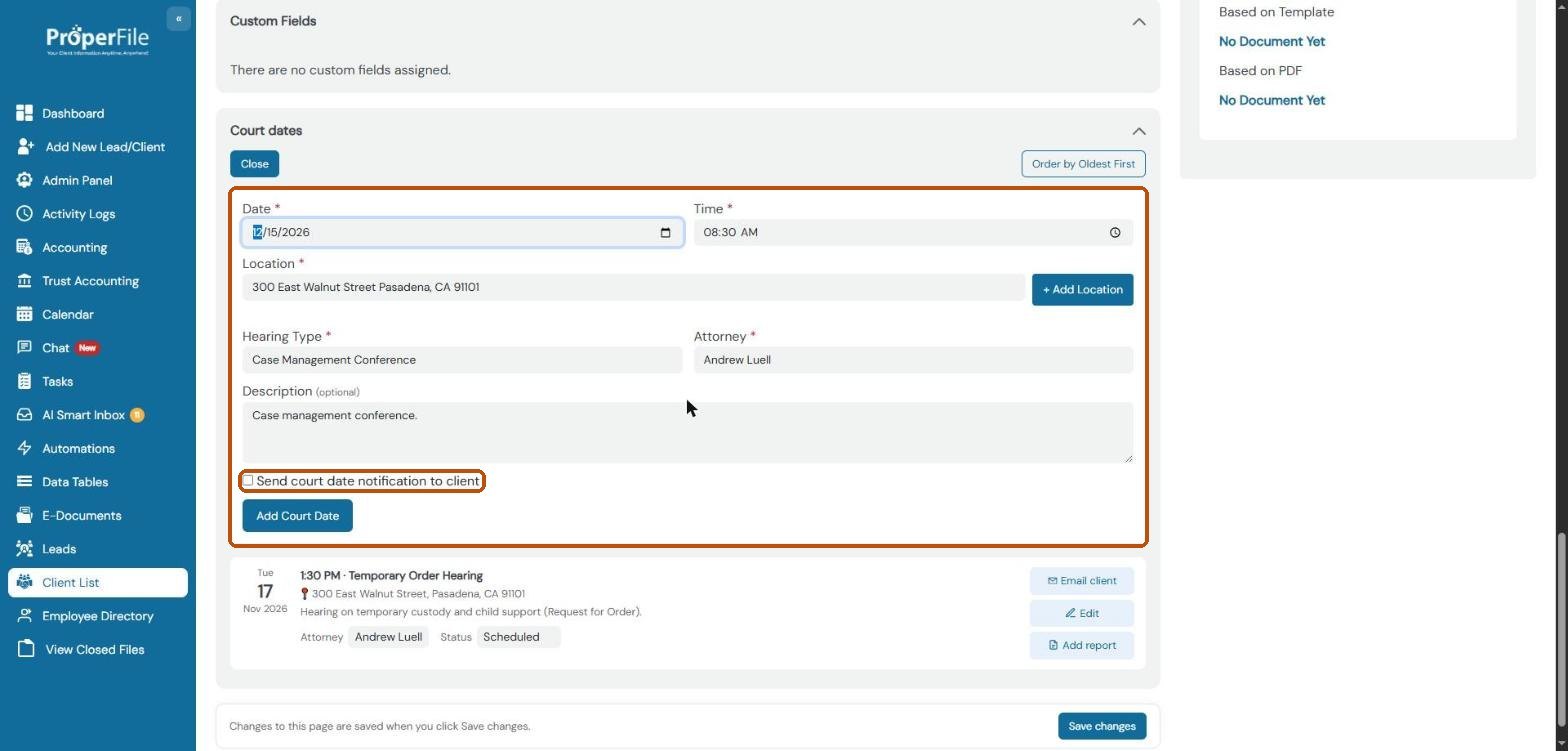
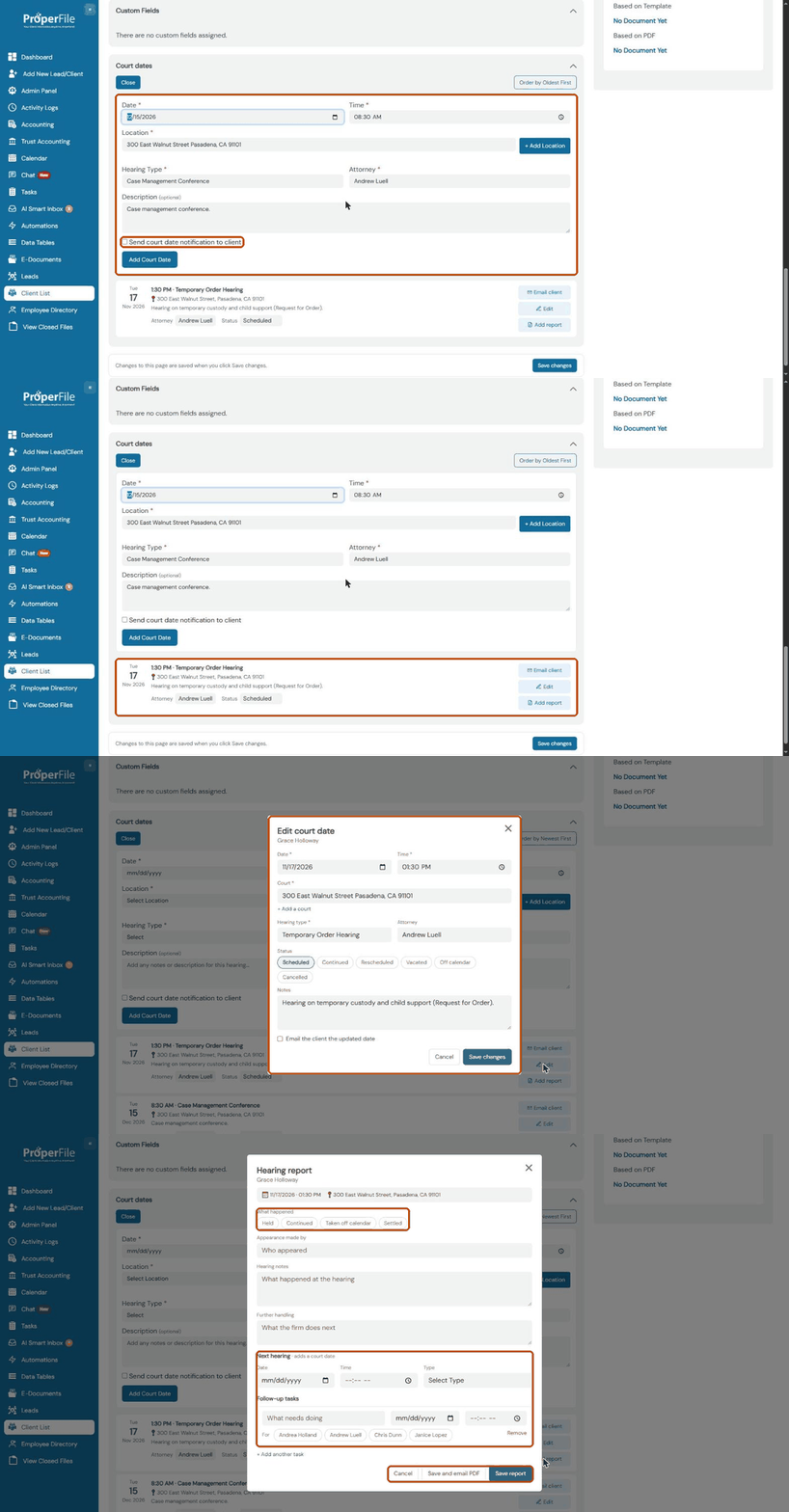
On the client’s Client Info tab, scroll down to Court dates and click + Add court date. Set the date and time, choose the court Location (or click + Add Location), the Hearing Type and the attorney, and add an optional description. Tick Send court date notification to client to email the client the details, then click Add Court Date.
Tip: hearing types and their colors are set up in the Admin Panel, under Hearing Types.
Watch it: adding, editing and reporting on a court date
Step 5
Work with a court date
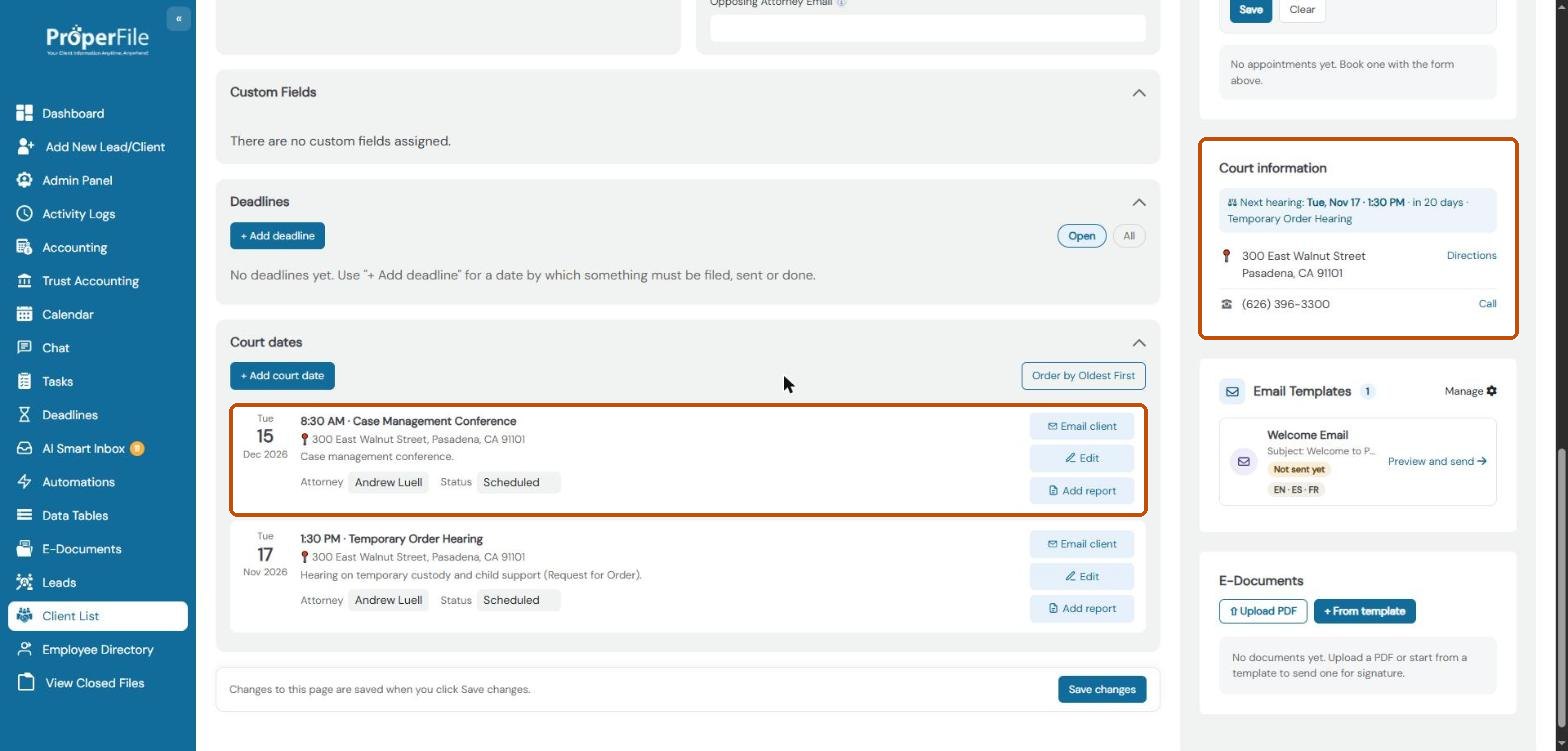
Each court date shows its time, hearing type, court, attorney and status. Use Email client to send the client the details, Edit to change it, or Add report after the hearing.
On the right, Court information shows the next hearing and how far away it is, and the matter’s court with Directions and Call. Choose the matter’s court under Court in the Case Information, and click Save changes.
Step 6
Change or continue a court date
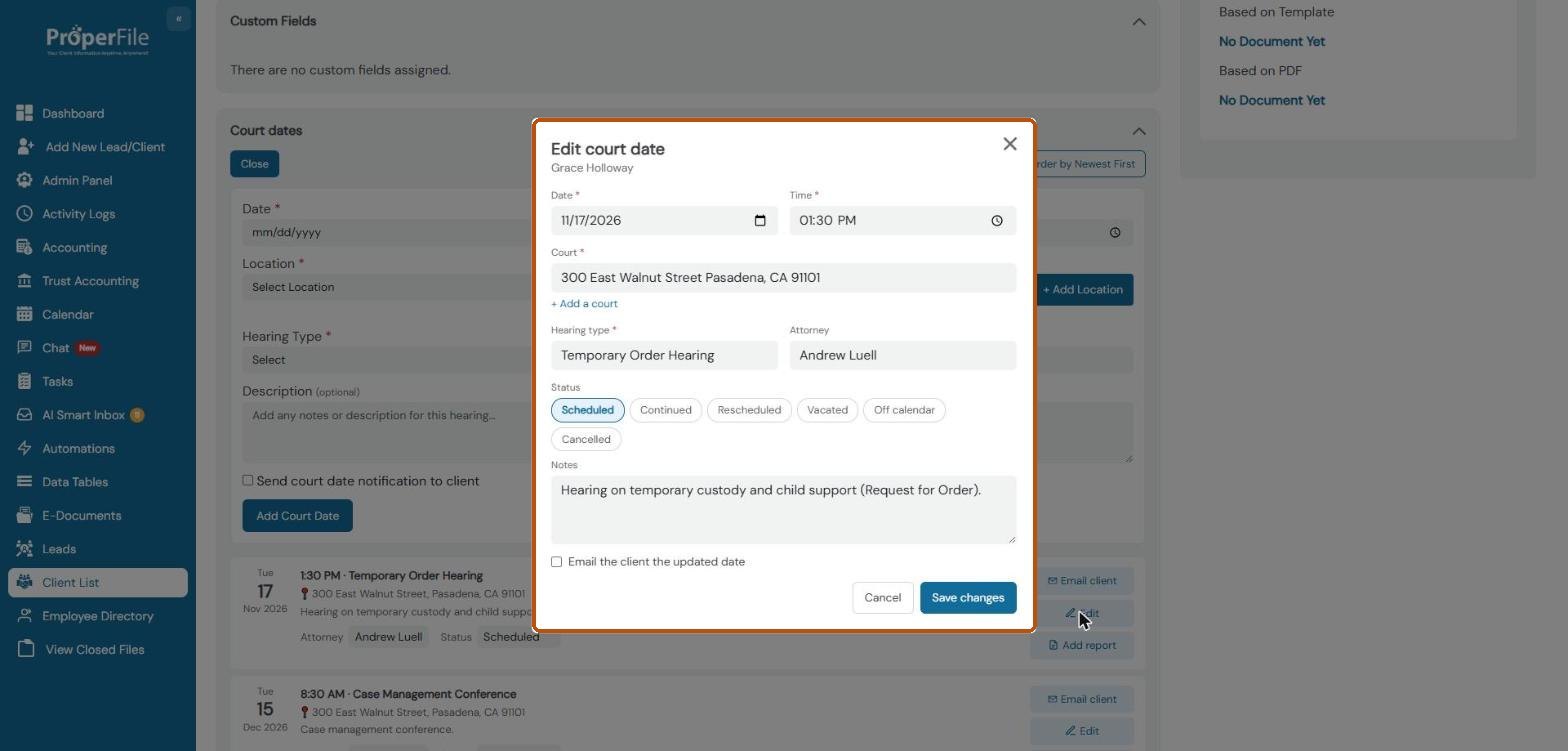
Click Edit to change the date, time, court, hearing type or attorney. Under Status, choose Scheduled, Continued, Rescheduled, Vacated, Off calendar or Cancelled. Tick Email the client the updated date to let them know, then click Save changes.
Step 7
Write a hearing report
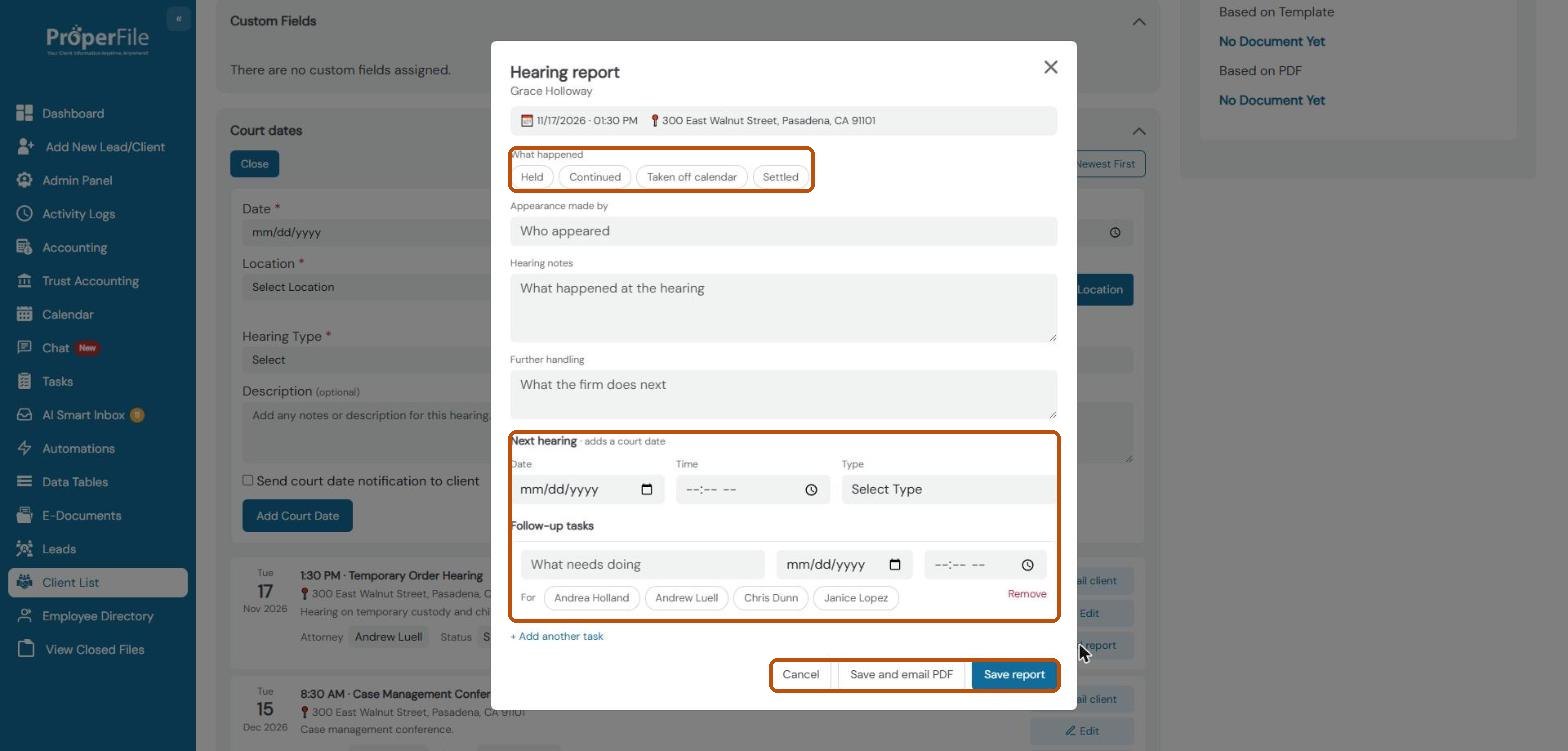
After the hearing, click Add report. Choose What happened (Held, Continued, Taken off calendar or Settled), who appeared, your notes and what the firm does next. Add the Next hearing to create its court date, and add Follow-up tasks, each for its own people. Click Save report, or Save and email PDF to also email the report as a PDF.
Tip: the Agenda + button on the calendar lists upcoming hearings, with the same report and edit windows.