A case deadline is a date by which something must be filed, sent or done, such as a response to the court or a letter to an insurance company. Add deadlines to a client’s matter, give each one a task, link the documents it needs, and see every client’s deadlines on one page. ProperFile can also remind your team before each one.
Time needed: about 4 minutes.
Step 1
Add a deadline on the client's page
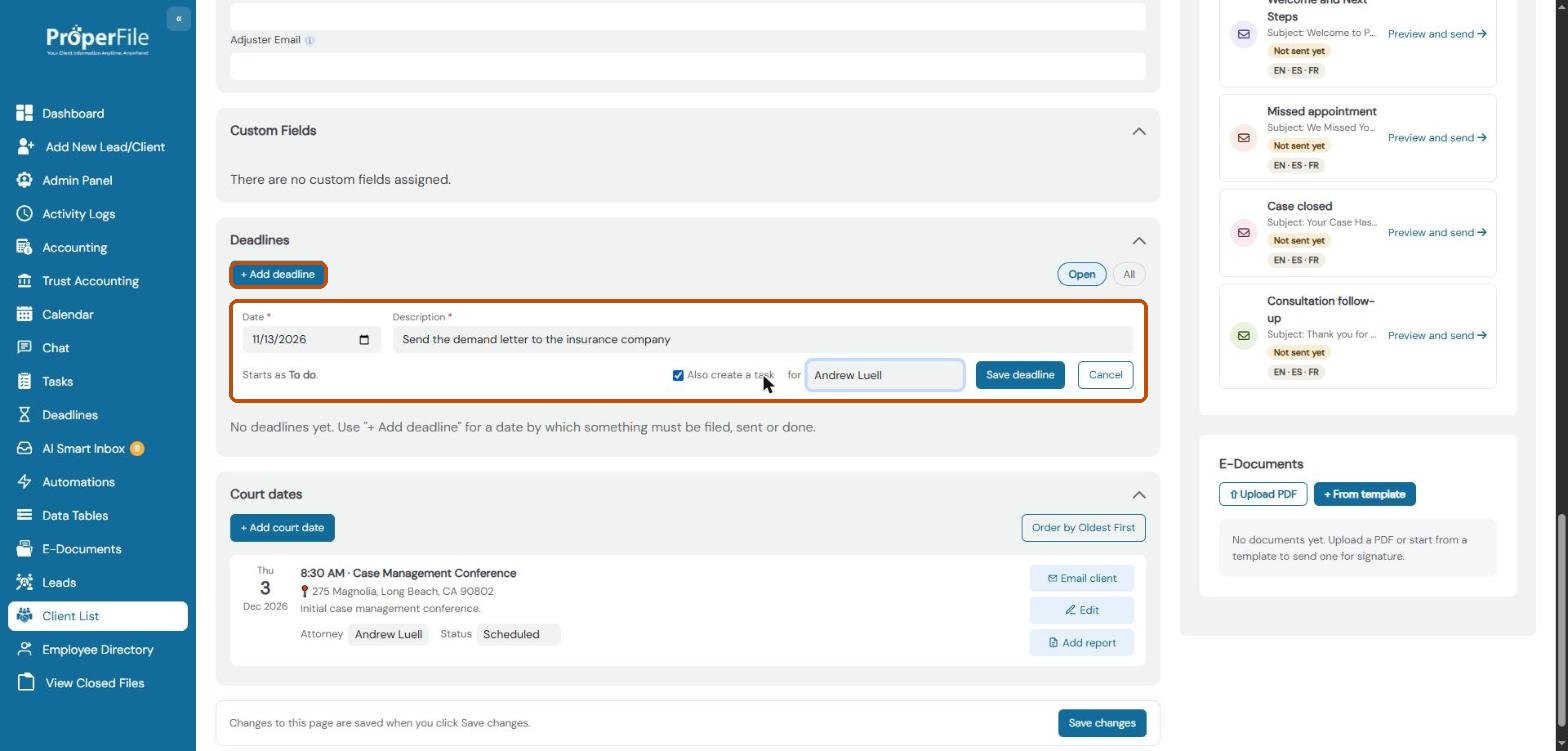
Open the client, choose the matter under All Services/Matters, and scroll down the Client Info tab to Deadlines. Click + Add deadline, choose the Date, and describe what must be done by then. A new deadline starts as To do.
Tick Also create a task and choose who it’s for, and ProperFile adds a task that’s due a little before the deadline. Click Save deadline.
Step 2
Keep it up to date
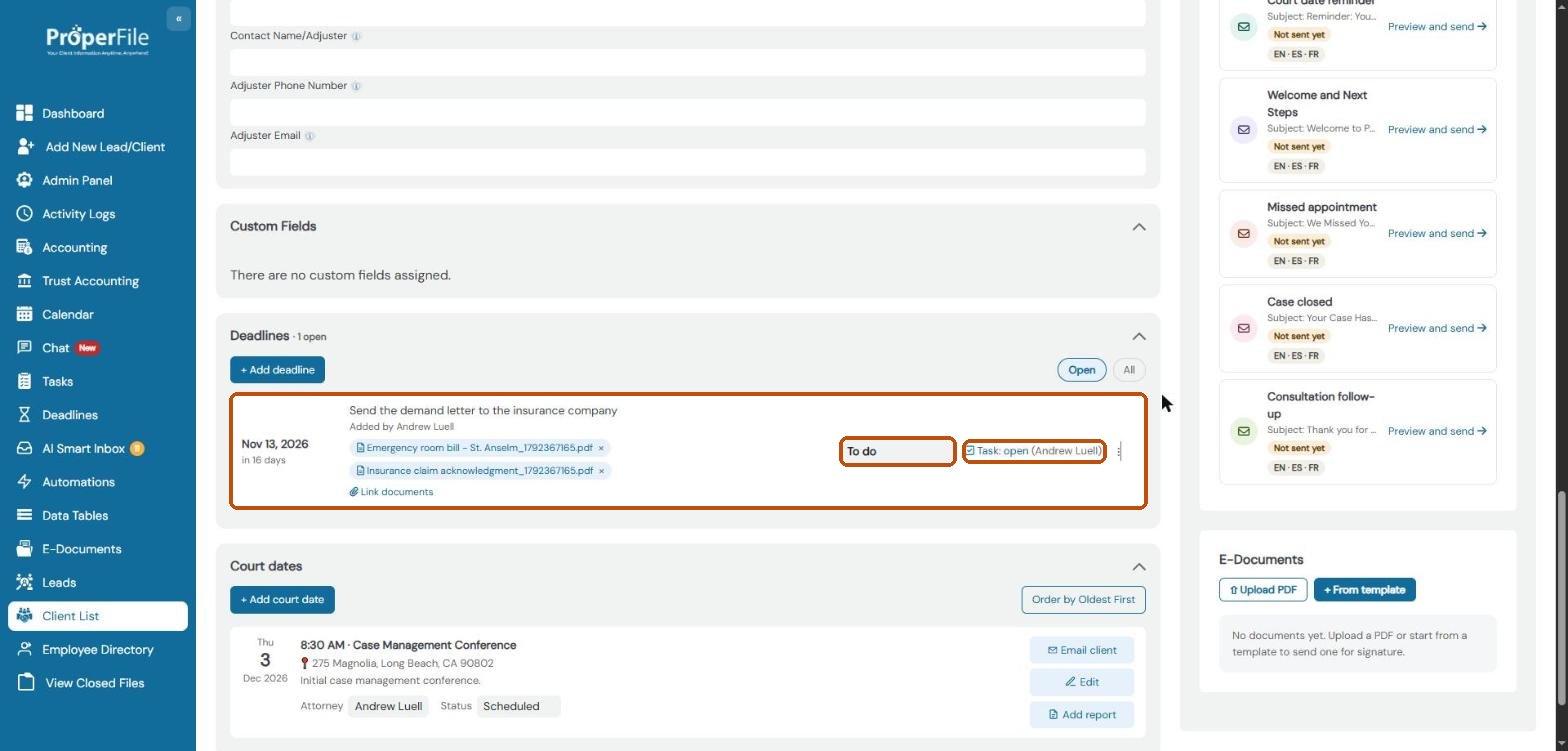
Each deadline shows its date and how far away it is, who added it, and a link to its task. Change its status to To do, In progress or Done as the work moves along. When its task is ticked done, ProperFile offers to mark the deadline done too.
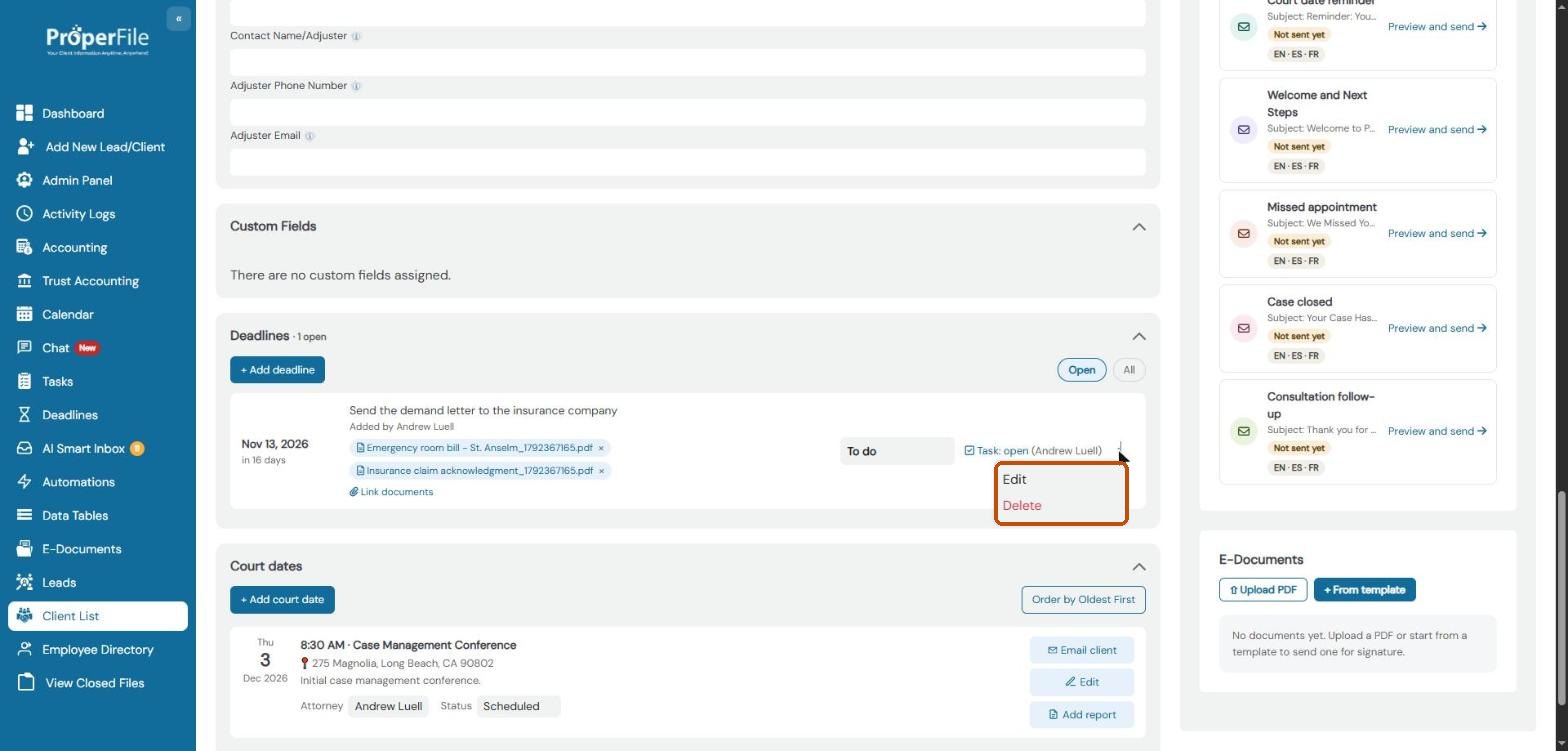
Use Open and All at the top of the section to hide or show finished deadlines, and the ⋮ menu to Edit or Delete one.
Step 3
Link the documents it needs
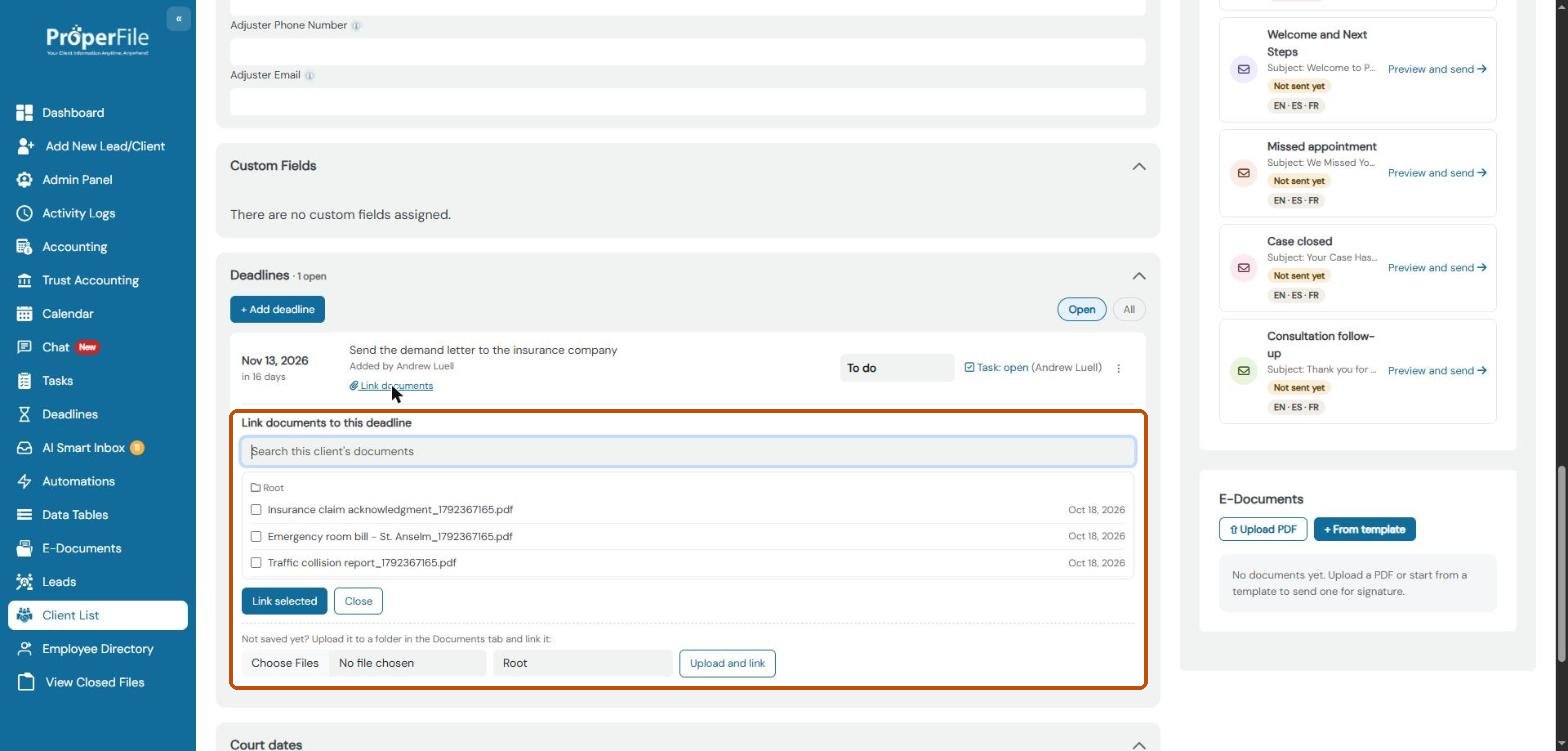
Click Link documents under a deadline. Search the client’s documents, tick the ones that belong with it and click Link selected. Not saved yet? Choose a file and a folder at the bottom and click Upload and link.
Linked documents show under the deadline; click one to open it, or its × to unlink it. The file itself stays where it is in the client’s Documents tab.
Step 4
See every client's deadlines
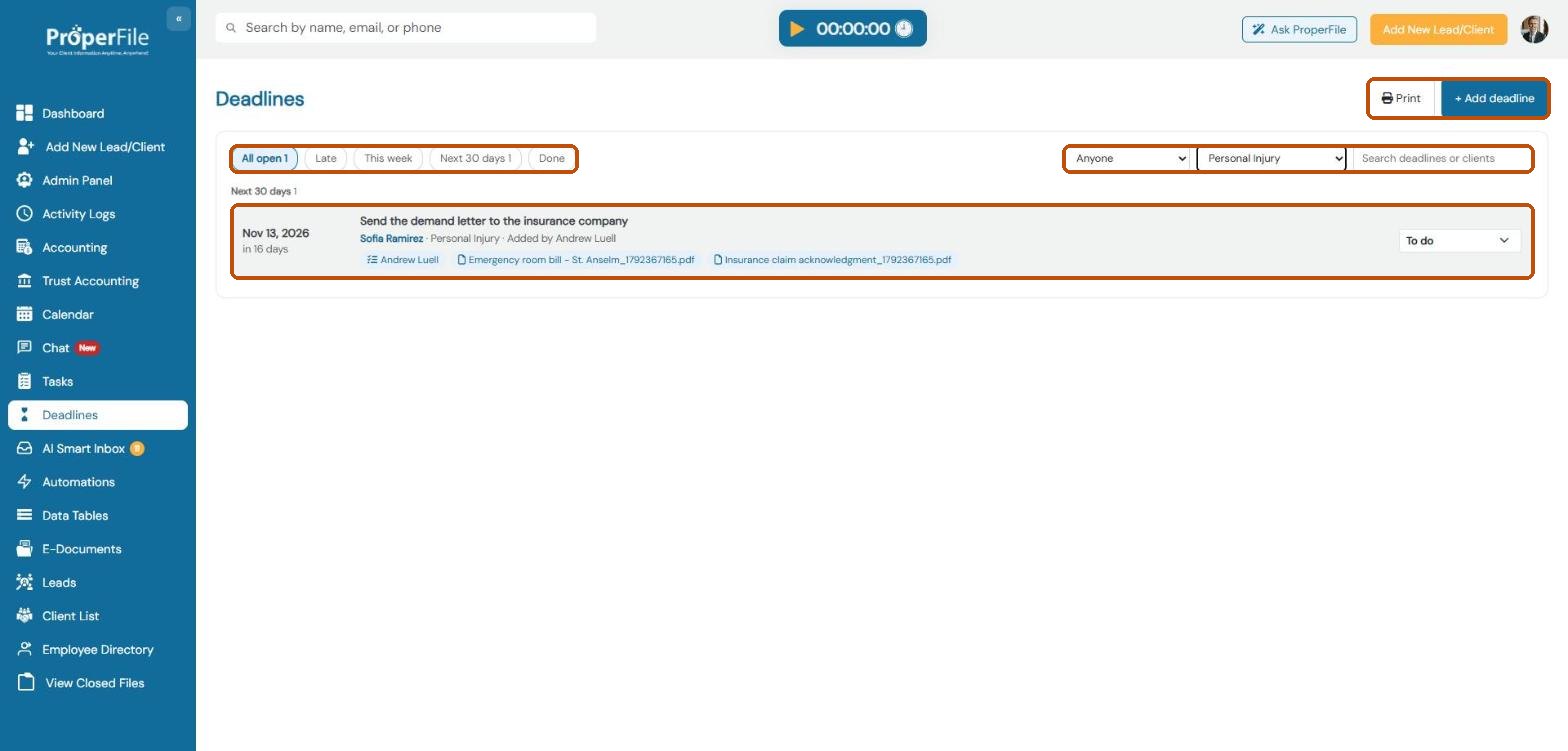
Click Deadlines in the left menu. Open deadlines are grouped by when they’re due. Click Late, This week, Next 30 days or Done, choose a person or a case type, or search by the deadline or the client. You can change a deadline’s status right in the list, and Print the list you’re looking at.
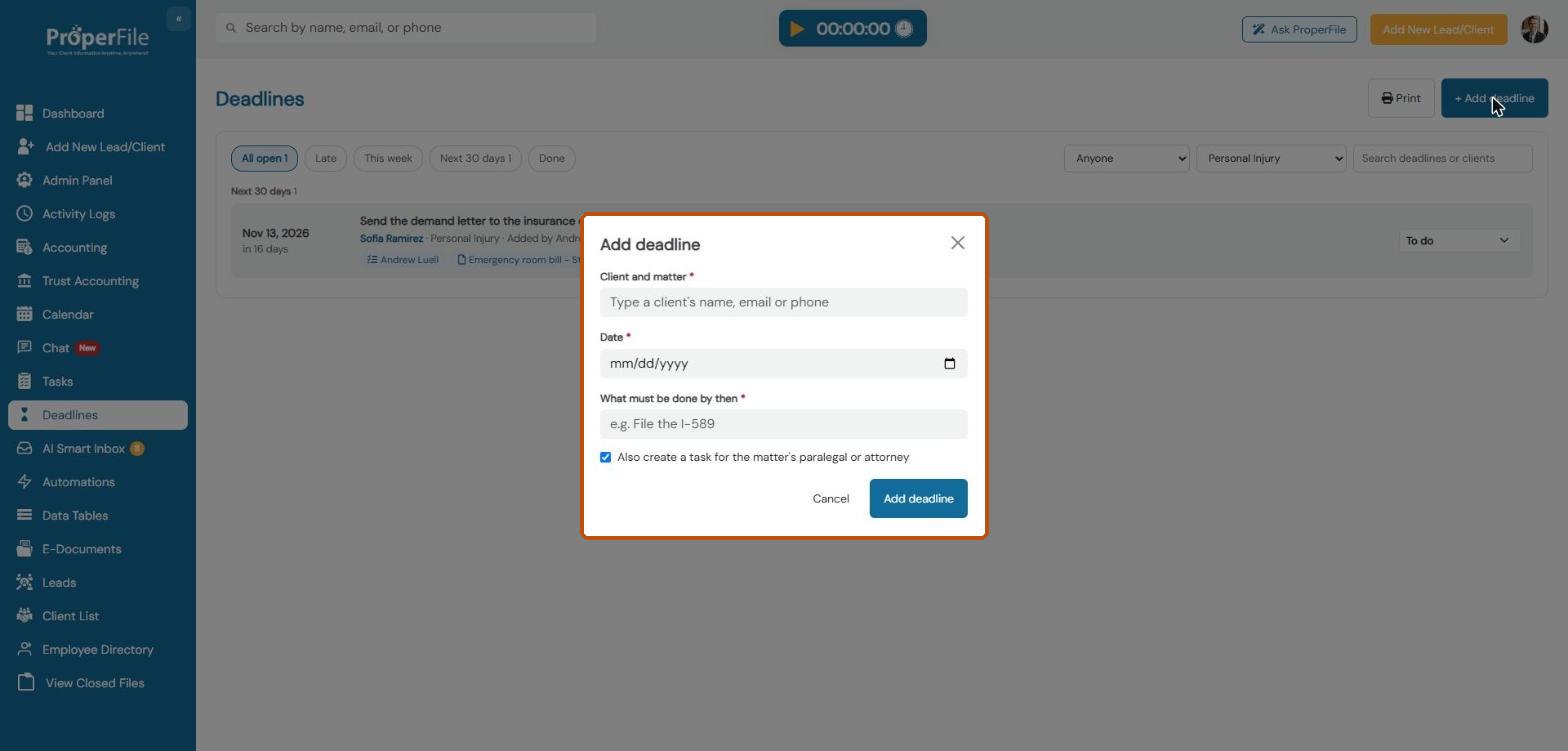
Click + Add deadline to add one from here: type the client’s name, email or phone to choose the matter, then the date and what must be done. Leave Also create a task ticked to give the task to the matter’s paralegal or attorney.
Step 5
Where else deadlines show
On the Dashboard, Upcoming deadlines lists every client’s open deadlines that are overdue or in the next 30 days.
They show on the Calendar, and in the client file PDF.
The AI Smart Inbox finds deadlines in court notices and suggests them for you to approve; an approved deadline is linked to the notice it came from.
Step 6
Get reminders before each deadline
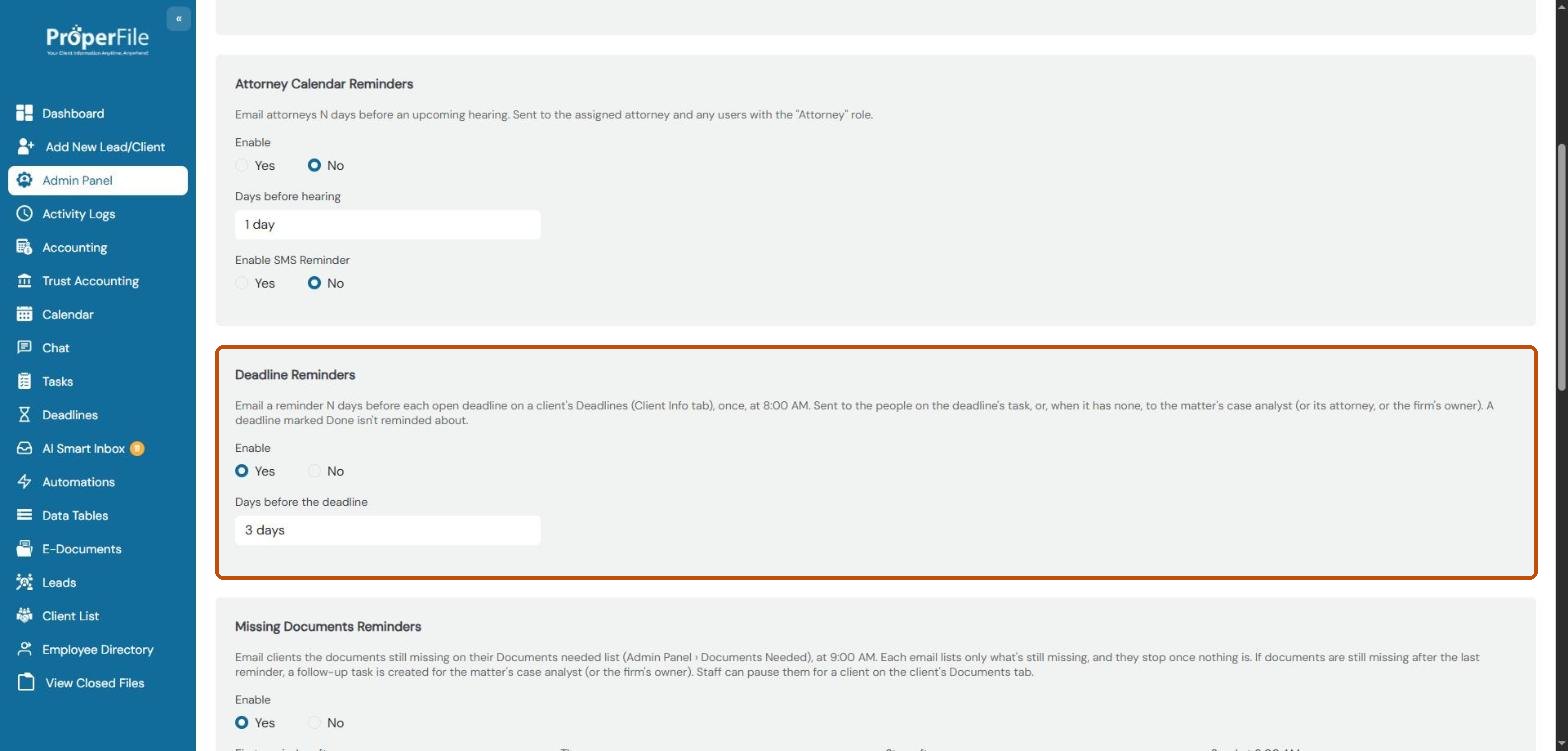
Go to Admin Panel, click Reminders and, under Deadline Reminders, choose Yes and how many days before (1 to 14). Click Save Reminder Settings at the bottom of the page.
Each open deadline gets one email reminder at 8:00 AM. It goes to the people on the deadline’s task, or, if it has none, to the matter’s case analyst (or its attorney, or the firm’s owner). Deadlines marked Done aren’t reminded about.
What’s next
Keep going
Next, see how the AI Smart Inbox finds deadlines in court notices, or manage your team’s work in Tasks. All guides are in the Help Center.