
Help Center · Everyday use
How to connect your Google Calendar
Each attorney and staff member can see their ProperFile court dates, appointments and tasks in their own Google Calendar, on their phone too. ProperFile adds them to a separate calendar called ProperFile in your Google account, so they never mix with your personal events and you can show or hide them in one click. Changes in ProperFile appear in Google automatically.
Time needed: about 3 minutes.
Before you start: you need a Google account (Gmail or Google Workspace). Each person connects their own; connecting doesn’t share your Google calendar with anyone at your firm.
Step 1
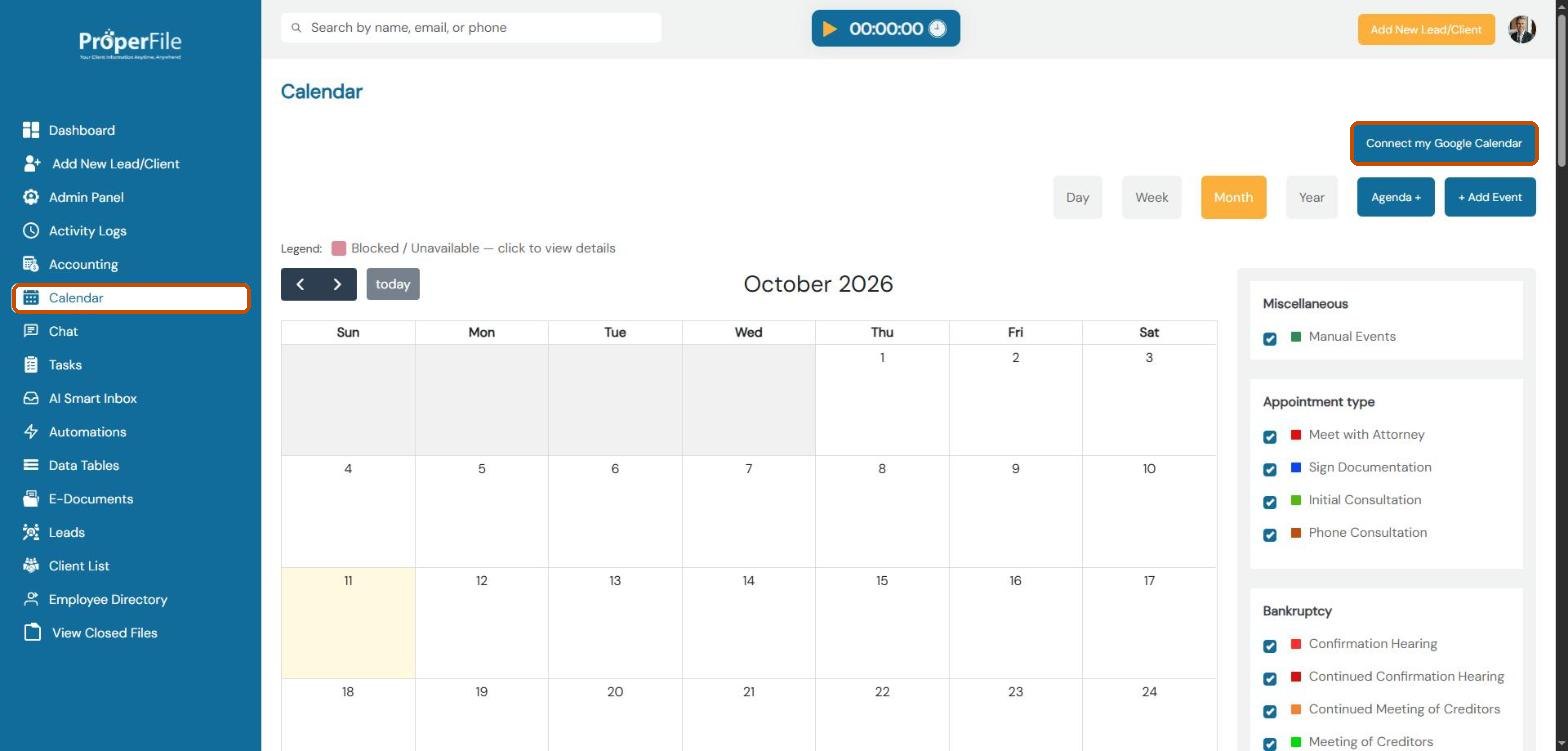
Click Connect my Google Calendar
Click Calendar in the left menu, then Connect my Google Calendar at the top right.
Step 2
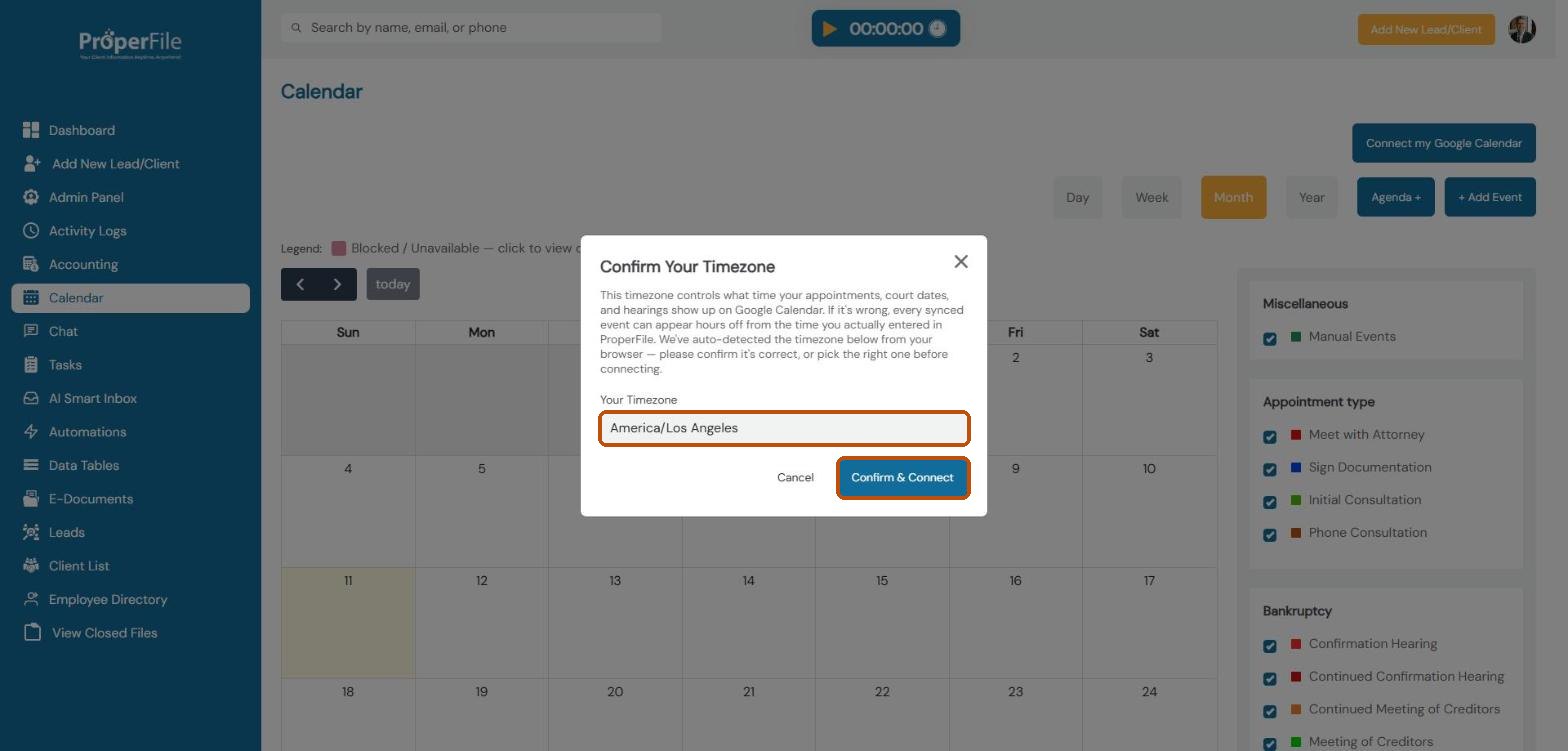
Confirm your time zone
Check the time zone ProperFile detected (it’s your firm’s time zone) and click Confirm & Connect. It makes sure a 9:00 AM hearing shows at 9:00 AM in Google.
Step 3
Allow ProperFile on Google's screen
Google opens. Choose your Google account. On the screen that lists what ProperFile can access, tick “Make secondary Google calendars, and see, create, change, and delete events on them” (or Select all), then click Continue.
This only lets ProperFile manage the ProperFile calendar it makes: it can’t see or change your other calendars or events.
Tip: if you click Continue without ticking the box, ProperFile can’t make its calendar and shows a message: just connect again and tick it.
Step 4
Find your ProperFile calendar in Google
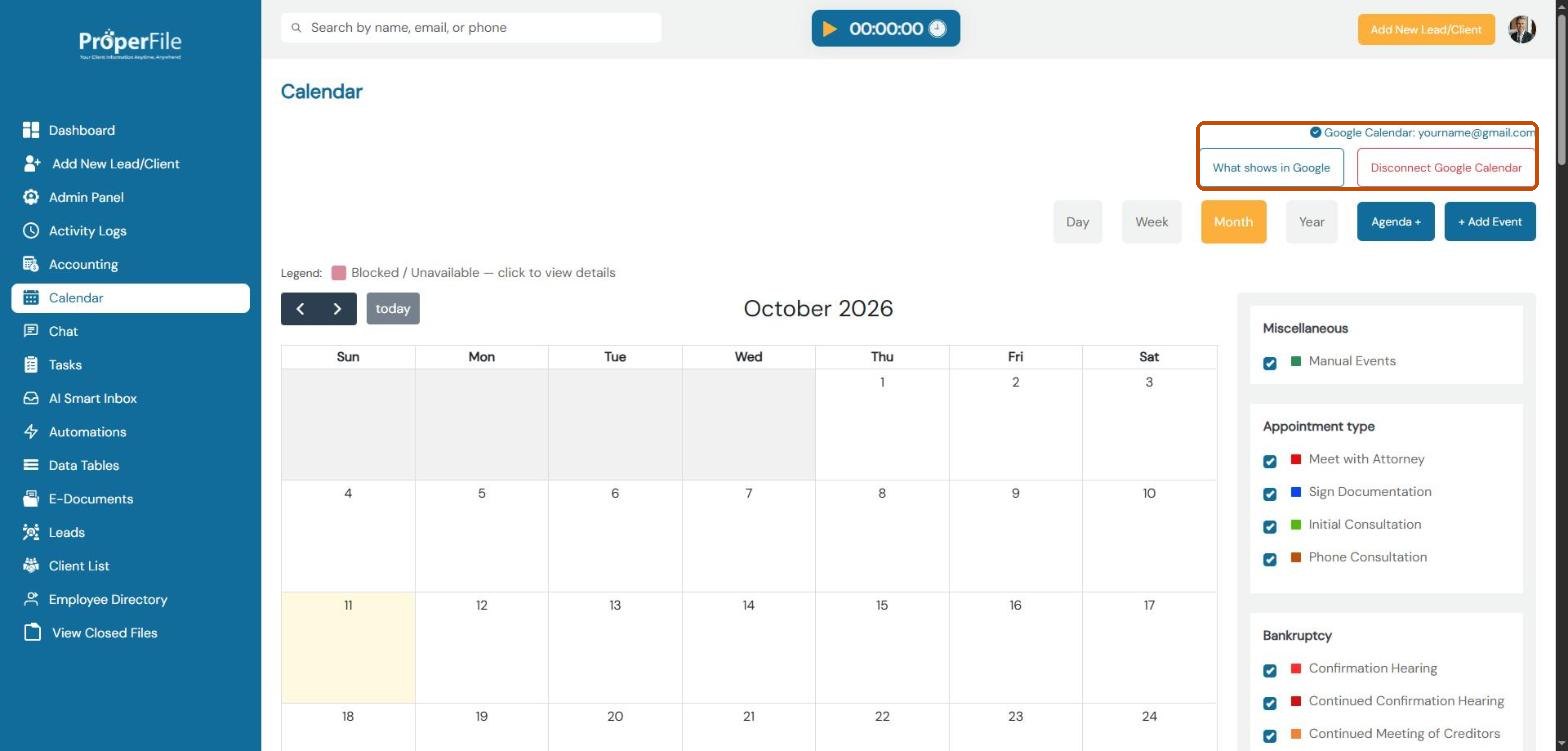
Back in ProperFile, the Calendar page shows Google Calendar with your Google address. In Google Calendar, a calendar called ProperFile appears under My calendars, and your events fill in over a few minutes. Untick it to hide them, or pick a colour for it from its menu.
Events are named so you can tell them apart, for example Court Date – Emily Carter (with the hearing type and court address in the details) and Appointment – ….
Step 5
Choose what shows in Google
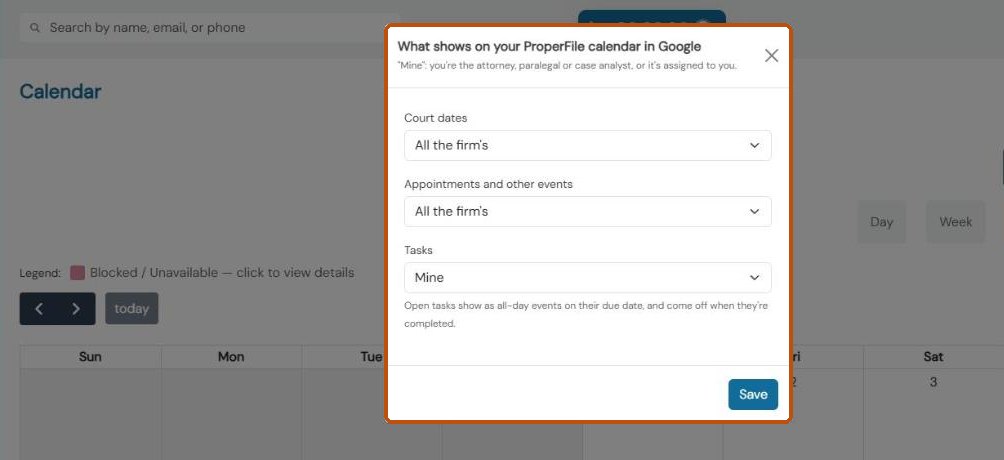
Click What shows in Google. For Court dates, Appointments and other events and Tasks, choose:
- Mine: the ones you’re the attorney, paralegal or case analyst for, or that are assigned to you;
- All the firm’s: everything on the firm’s calendar;
- None.
Click Save: your ProperFile calendar in Google is updated in the background. Tasks show as all-day events on their due date and come off when they’re completed.
Tip: the firm’s owner starts with everything except tasks; everyone else starts with their own court dates and appointments, and no tasks.
Step 6
Disconnect
To stop, click Disconnect Google Calendar on the Calendar page. The ProperFile calendar and its events are removed from your Google account; nothing in ProperFile changes. You can connect again at any time.
What’s next
Keep going
Your Google Calendar shows what’s in ProperFile; to add or change a court date, appointment or task, do it in ProperFile. See Calendar and hearings and Tasks. All guides are in the Help Center.