Track the time you spend on each matter, add expenses, and bill the client. Everything lives on the client’s Accounting tab.
Time needed: about 5 minutes.
Step 1
Open the client’s Accounting tab
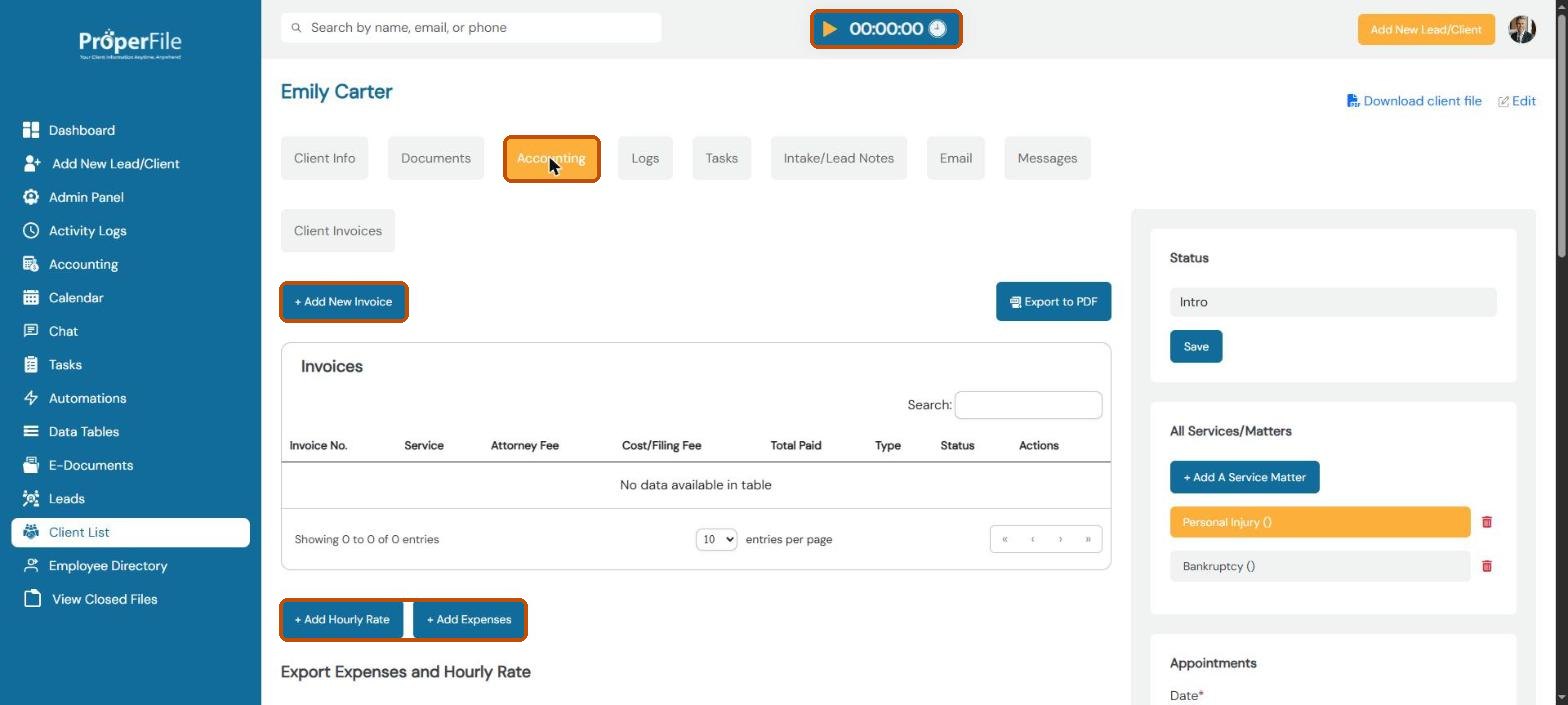
Open the client, choose the matter under All Services/Matters, and click the Accounting tab. You’ll see the matter’s invoices, plus buttons to add time and expenses.
Tip: the timer at the top of every page tracks your time as you work. Click the play button to start it, and stop it when you’re done to log the time.
Step 2
Add a time entry
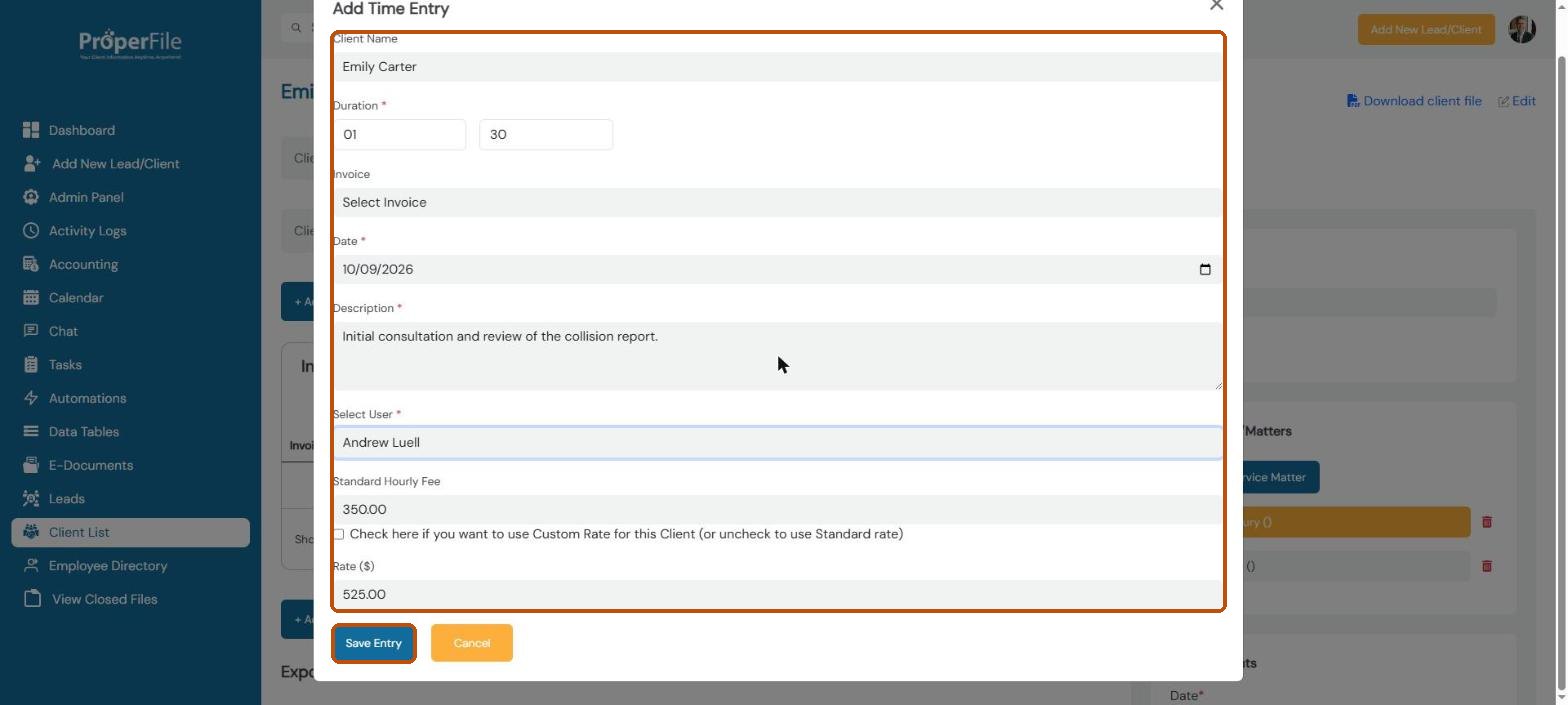
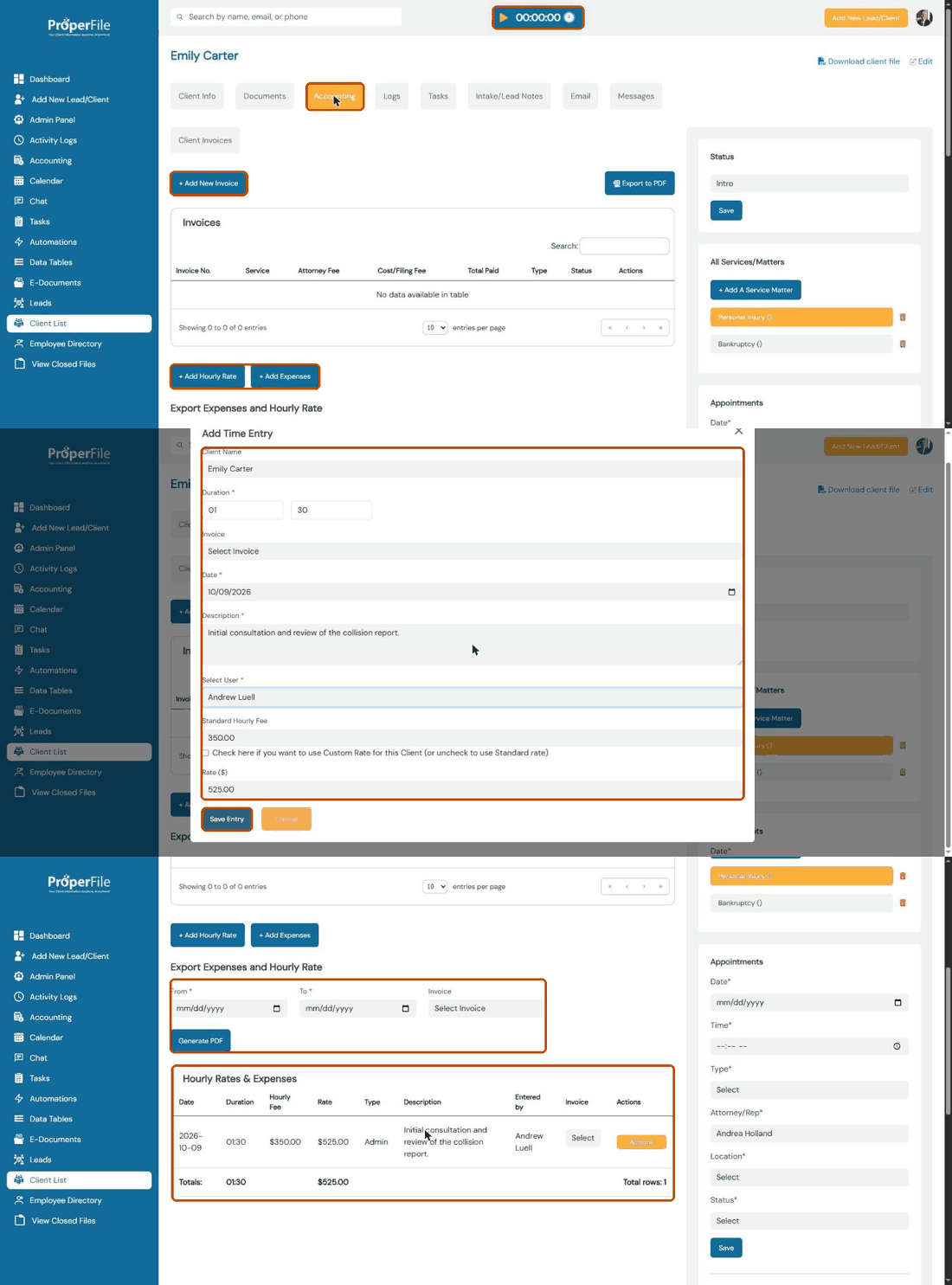
Click + Add Hourly Rate. Set how long you worked (hours and minutes), the date, a description of the work and who did it. ProperFile fills in that person’s standard hourly fee and works out the amount. Tick the custom rate box to charge a different rate for this client. Click Save Entry.
Watch it: adding a time entry
Step 3
Review time and expenses
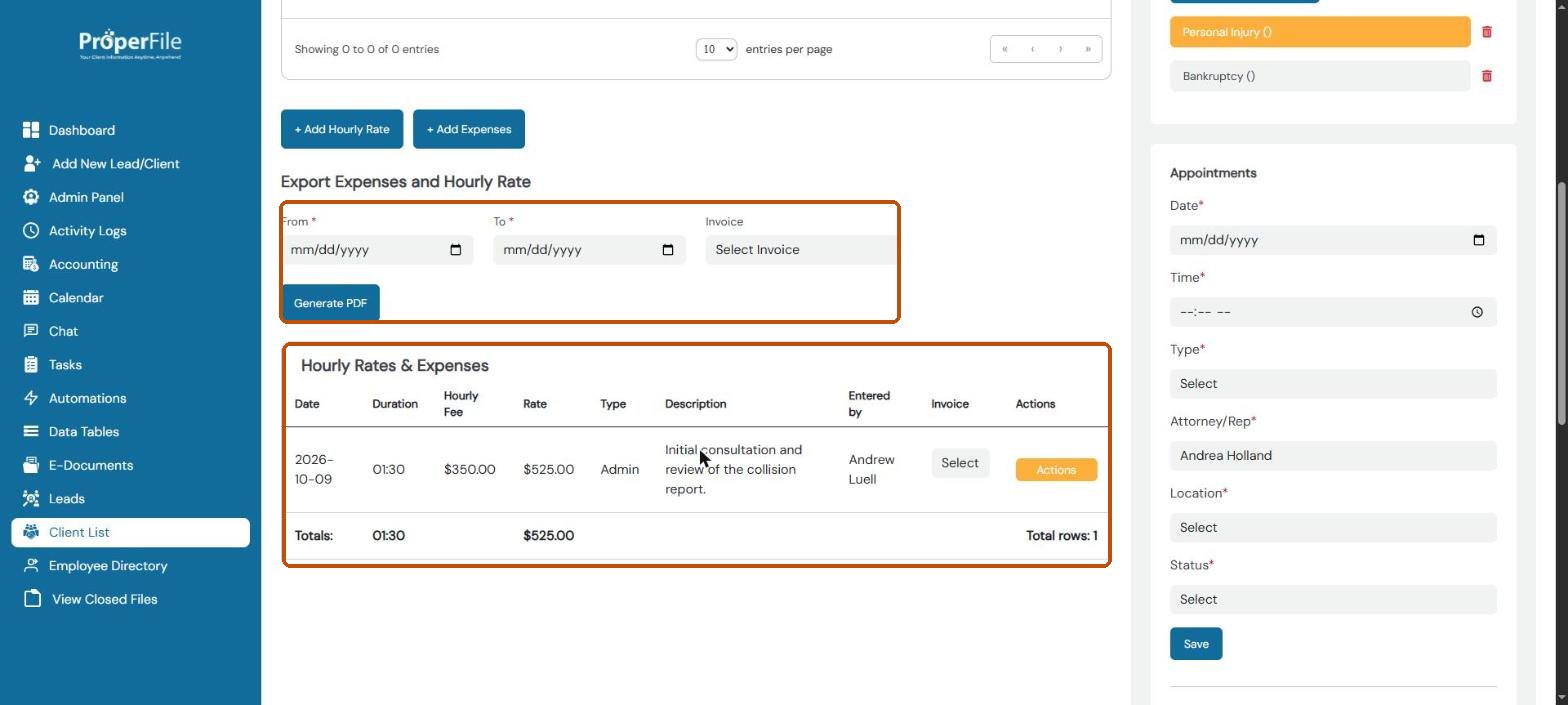
Time entries and expenses appear under Hourly Rates & Expenses, with totals. Use + Add Expenses for costs such as filing fees or records requests. To export a list, pick a date range (and an invoice, if you like) under Export Expenses and Hourly Rate and click Generate PDF.
Step 4
Create an invoice
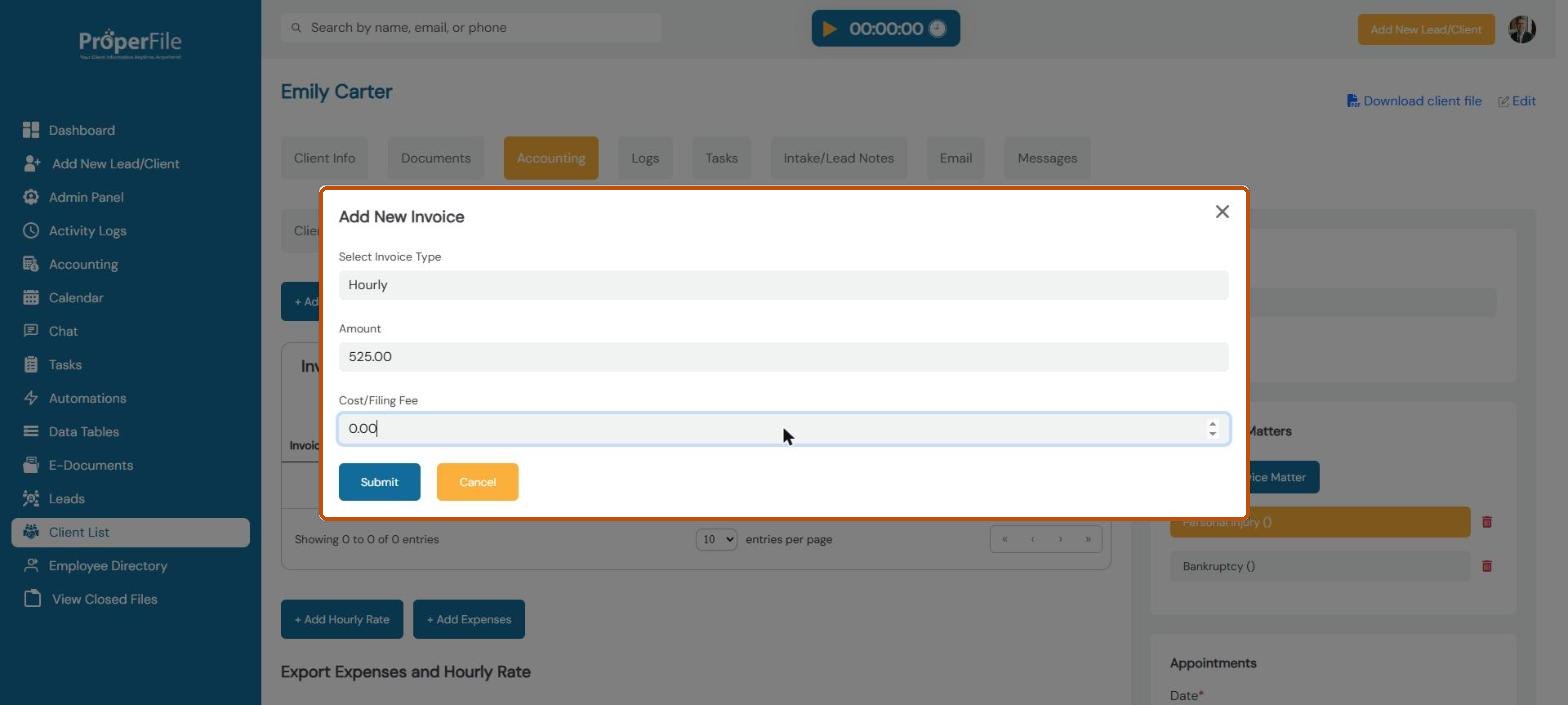
Click + Add New Invoice. Choose the invoice type (Flat Fee, Hourly or Contingency), enter the amount and any cost or filing fee, and click Submit.
Step 5
Find the invoice
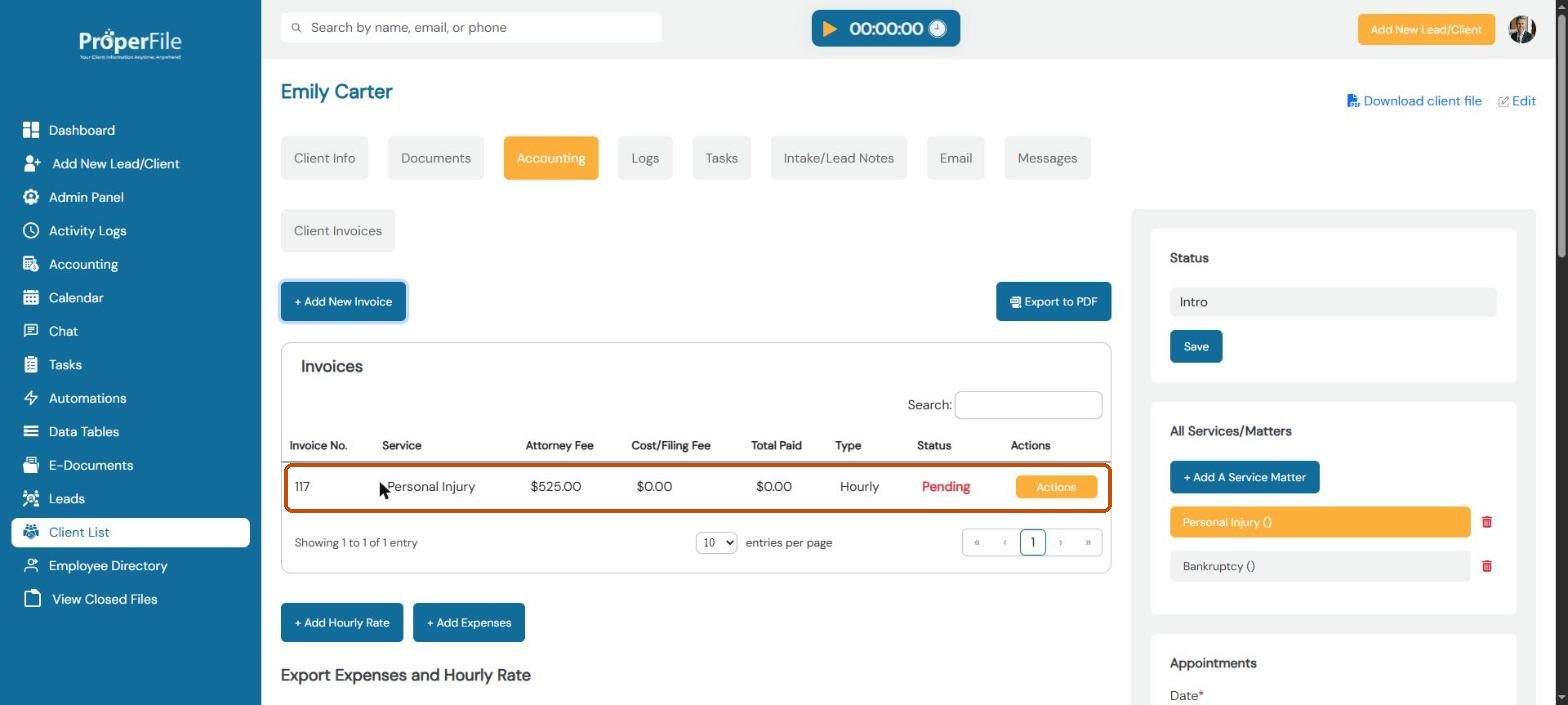
The invoice appears in the Invoices list with its number, fees, amount paid, type and status. New invoices start as Pending. Use Export to PDF to download the list.
Step 6
Open the invoice
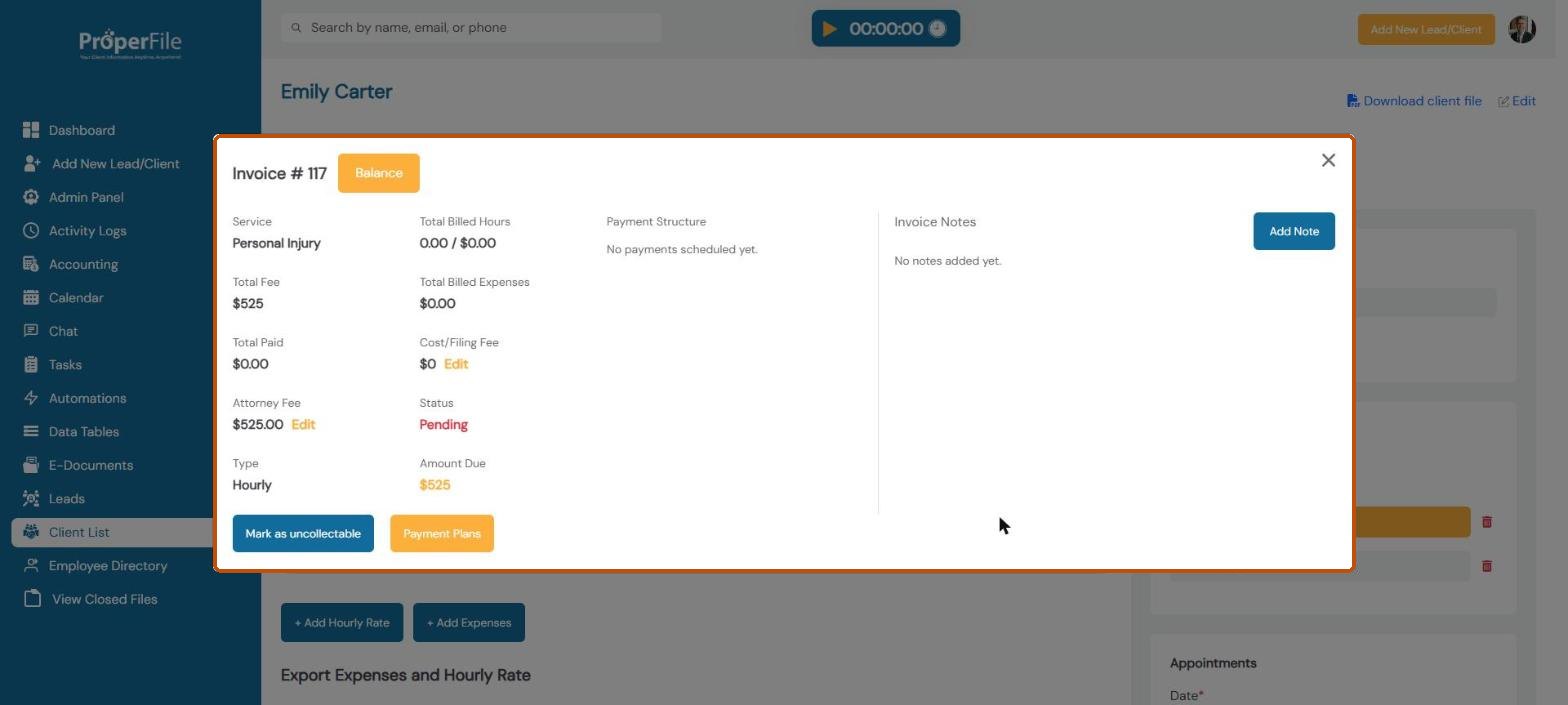
Click Actions, then View. You’ll see the total fee, amount paid and amount due. You can edit the attorney fee or filing fee, add notes, set up Payment Plans, or Mark as uncollectable.
What’s next
Keep going
Next, collect what you’re owed in Taking payments. All guides are in the Help Center.