The website form is a contact form for your own website. When someone fills it in, they appear as a new lead in ProperFile, with the automatic conflict check. You get an email and a phone notification, so nobody has to copy anything over by hand.
Time needed: about 15 minutes.
Before you start: you must be signed in to ProperFile as the firm owner, because only the owner can see this page. It’s included on every plan. Please have an attorney read the form’s legal wording before you turn it on.
Step 1
Open Website Form
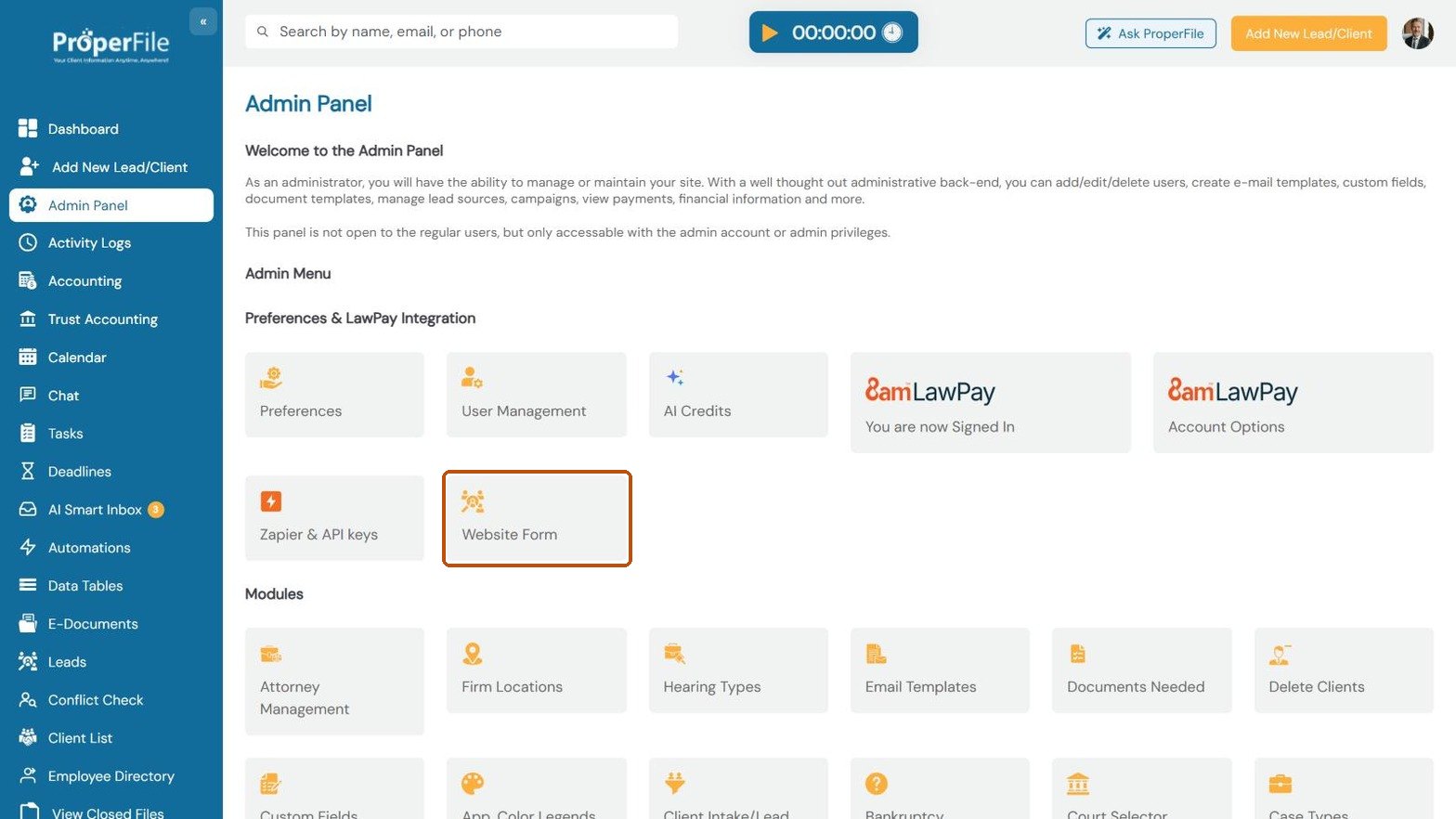
Click Admin Panel in the left menu, then click Website Form.
Step 2
Choose the boxes on the form
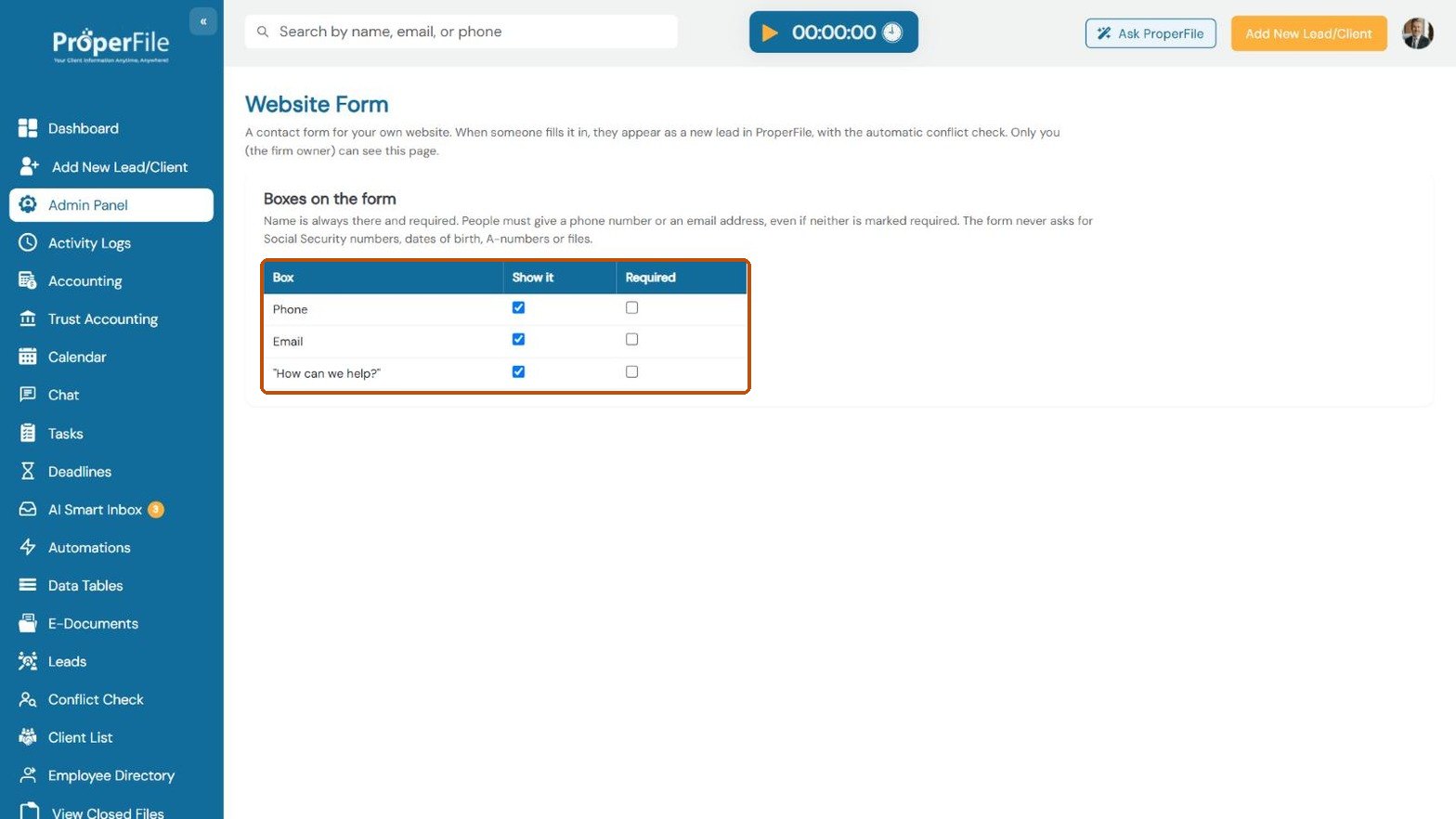
Under Boxes on the form, tick which of Phone, Email and “How can we help?” to show, and which are required. Name is always there. People must give a phone number or an email address, so you can reach them.
Tip: The form never asks for Social Security numbers, dates of birth, A-numbers or files. Its notice also asks people not to send confidential details.
Step 3
Choose your case types
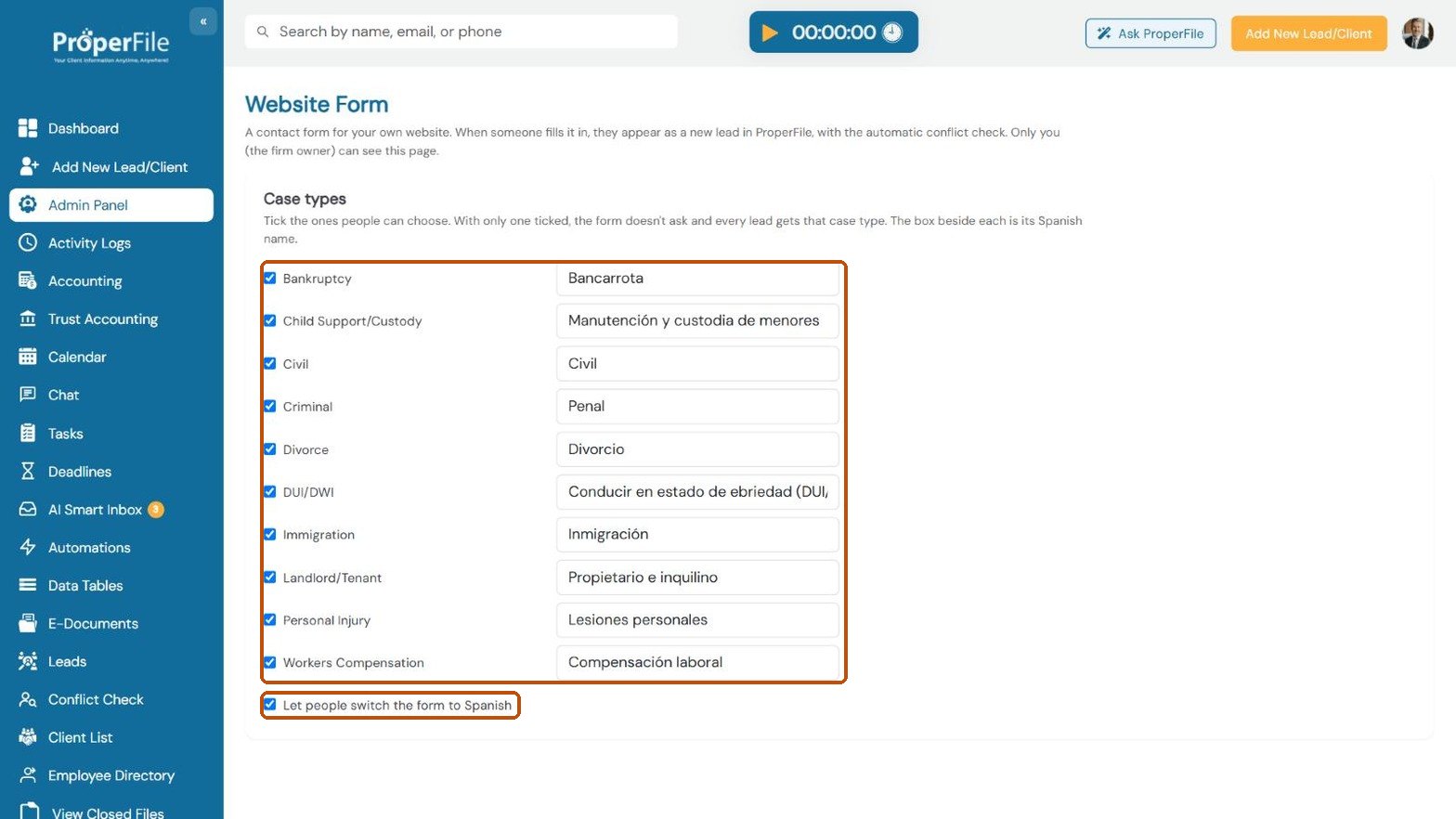
Under Case types, tick the ones people can choose. If you tick only one, the form doesn’t ask, and every lead gets that case type. The box beside each case type is its Spanish name. Your standard case types are filled in for you. Untick Let people switch the form to Spanish if you don’t want that option.
Step 4
Decide what happens after someone sends it
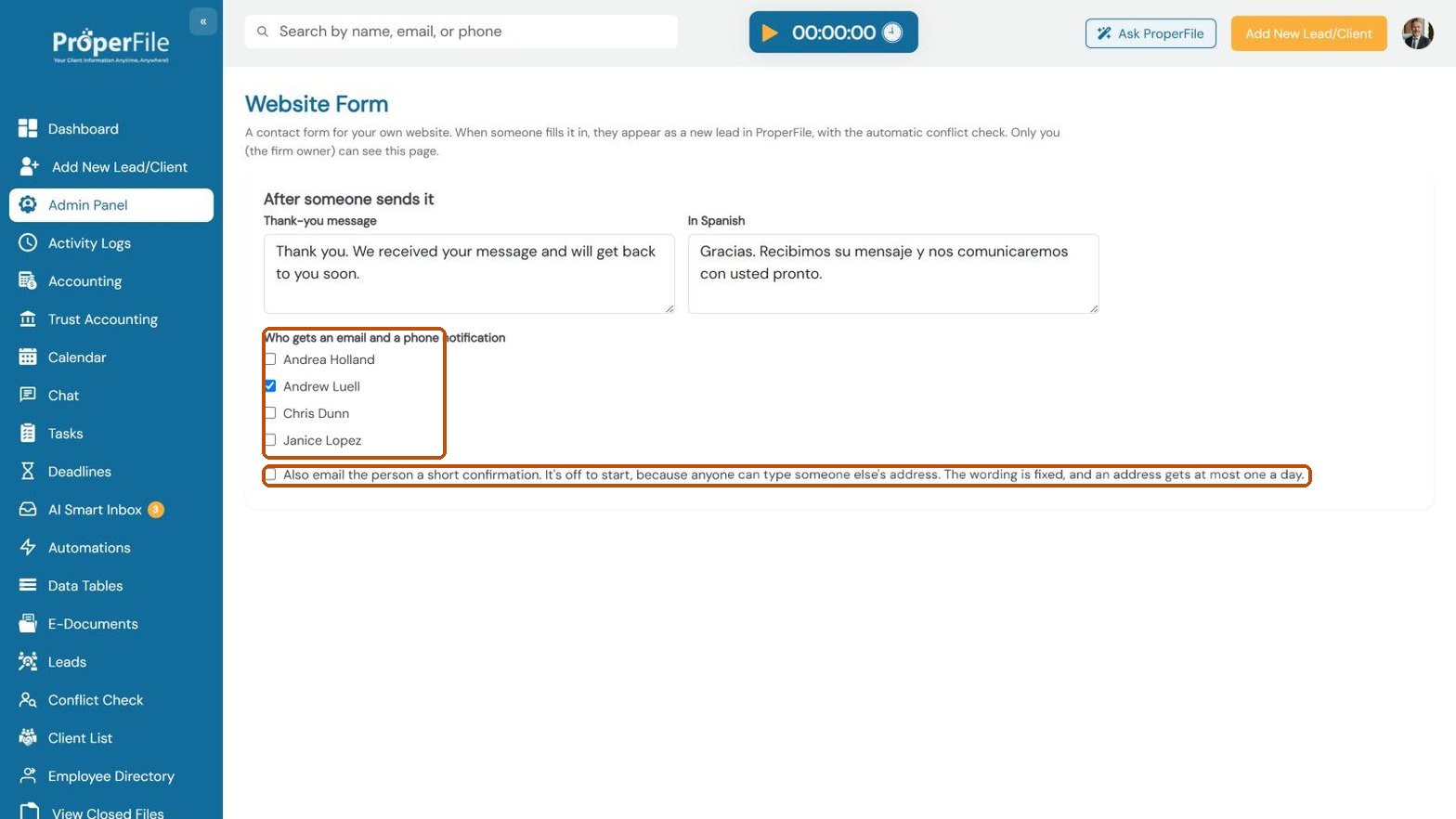
Under After someone sends it, change the thank-you message if you like. Then tick who gets the email and phone notification. If you tick nobody, the firm owner gets them.
You can also email the person a short confirmation. This is off to start, because anyone can type someone else’s address. The wording is fixed, and an address gets at most one a day.
Step 5
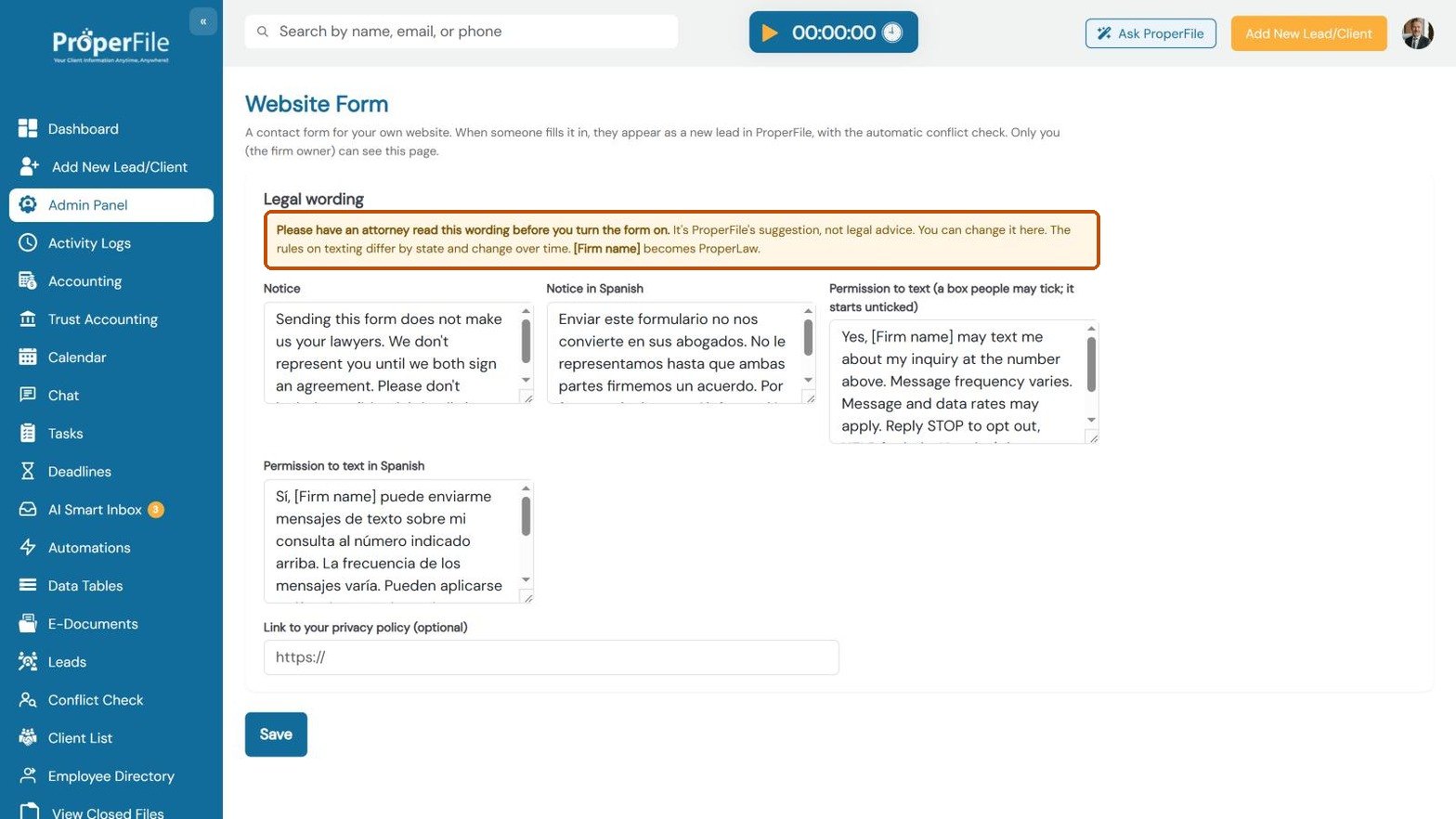
Read the legal wording
Under Legal wording you’ll see the notice that the form doesn’t make you their lawyers, and the box people may tick to let you text them. Both are in English and Spanish, and you can change them. [Firm name] becomes your firm’s name. You can also add a link to your privacy policy.
Tip: This wording is ProperFile’s suggestion, not legal advice. Please have an attorney read it before you turn the form on.
Step 6
Turn the form on
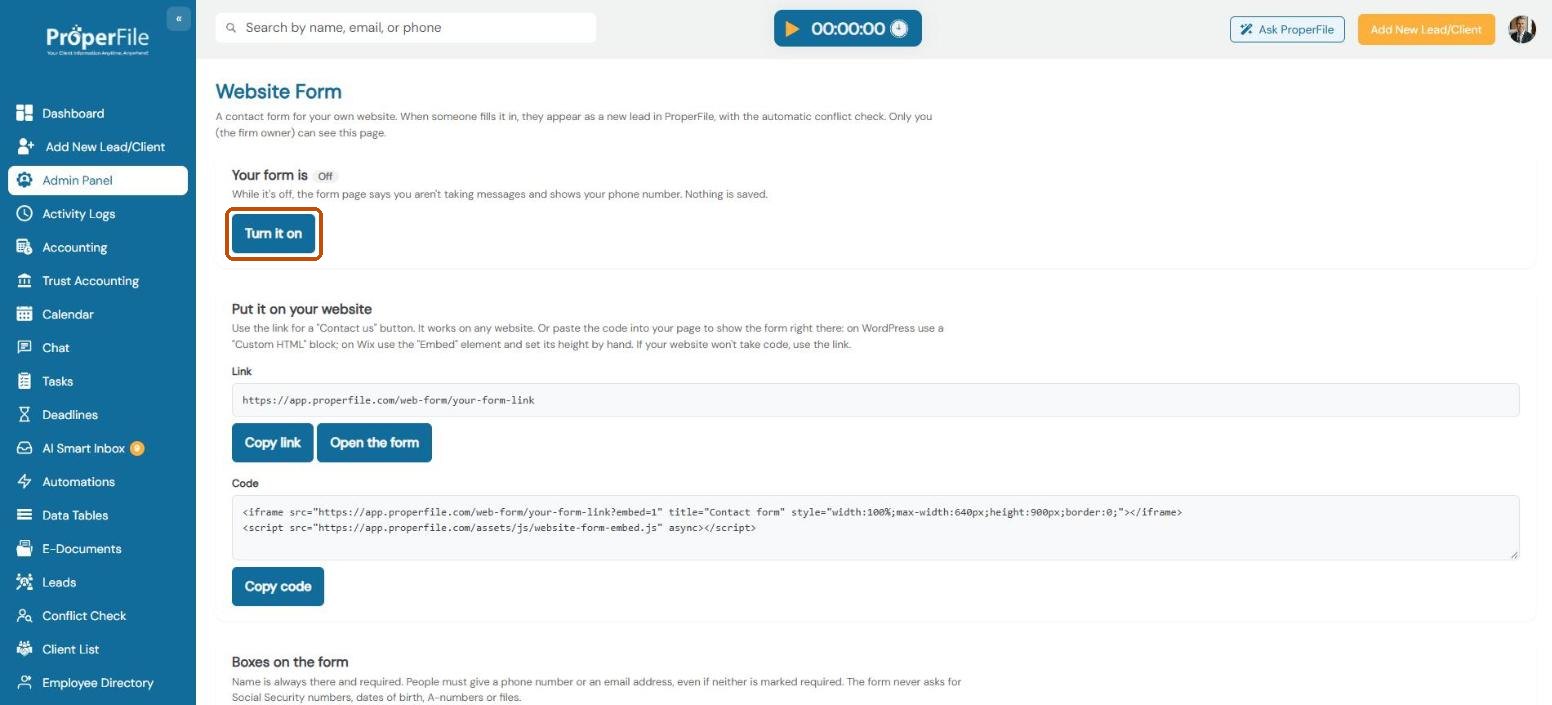
At the top, click Turn it on. It saves right away, so you don’t need to click Save. At least one case type has to be ticked first. While the form is off, its page says you aren’t taking messages and shows your phone number. Nothing is saved.
Step 7
Put it on your website
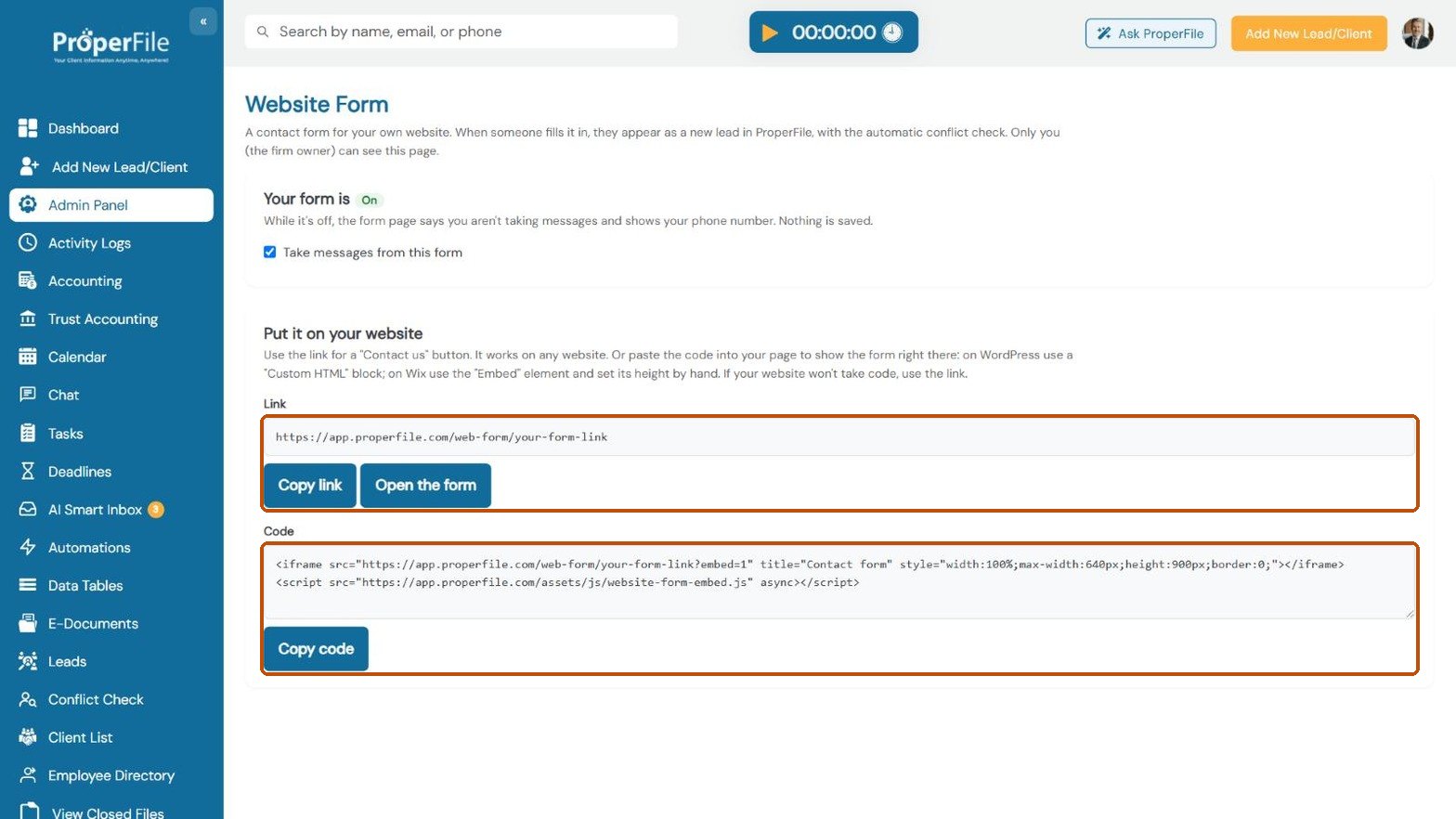
Under Put it on your website you have two choices.
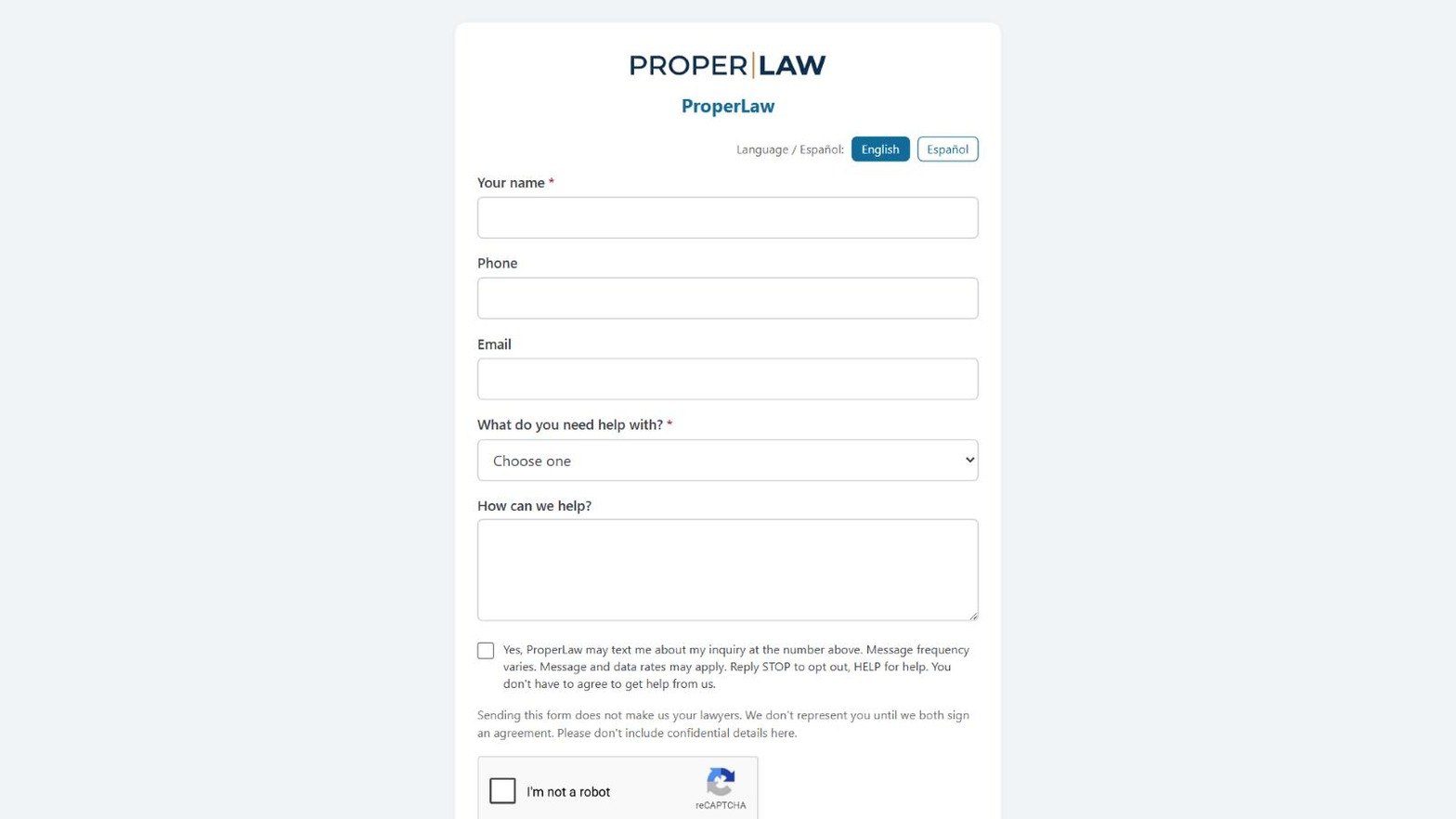
The link works on any website. Click Copy link, then use it for a “Contact us” button. It opens a page with your firm’s name and logo.
The code shows the form inside your own page. Click Copy code. On WordPress, paste it into a Custom HTML block. On Wix, paste it into the Embed element and set its height by hand. If your website won’t take code, use the link.
Tip: WordPress.com sites below the Business plan remove this kind of code, so use the link there.
Step 8
Try it yourself
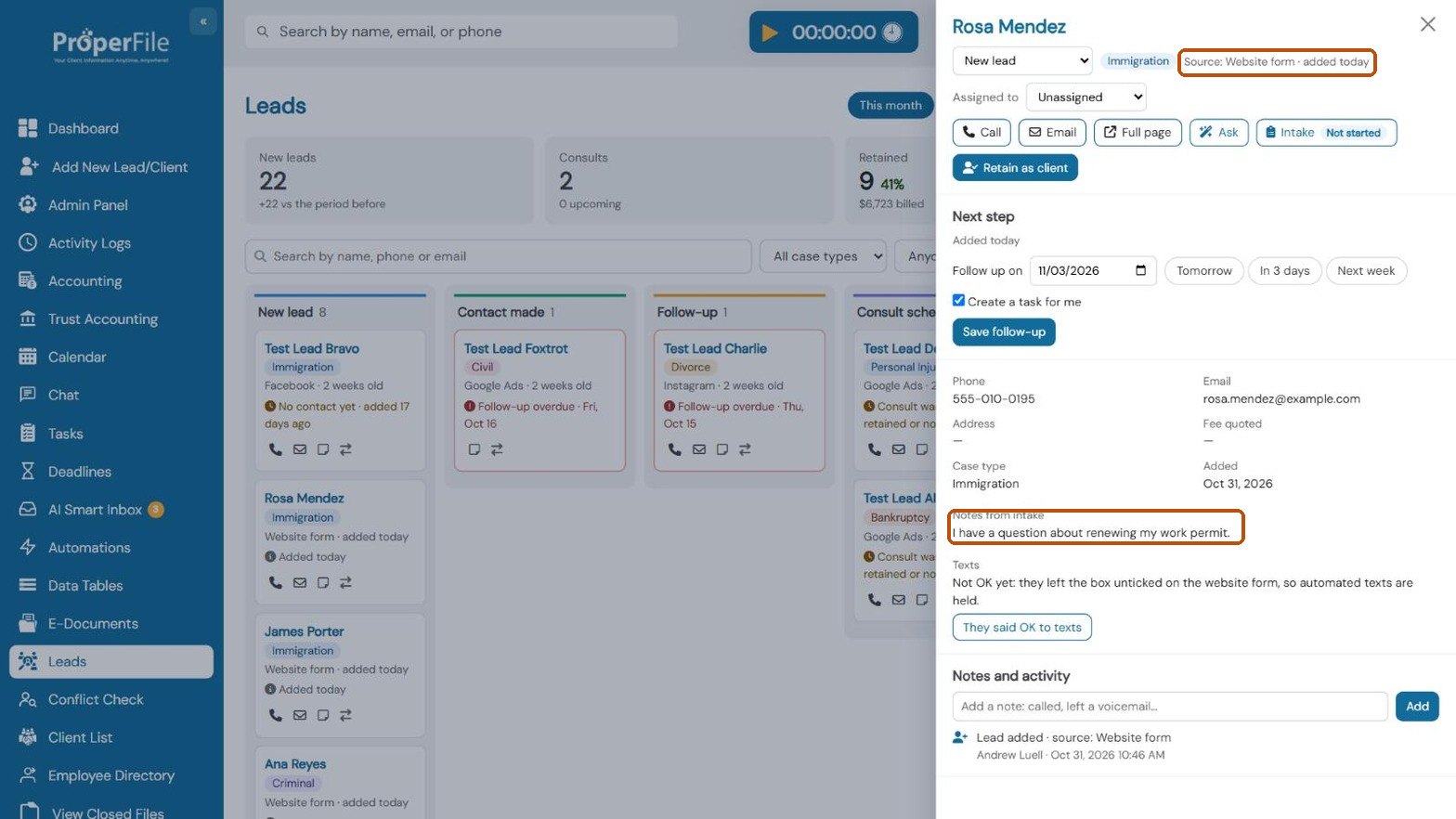
Open your form and send it with your own name. Then click Leads in the left menu. You’ll see yourself under New Lead, with the lead source Website form. Your message is under Notes from intake. Move the test lead to the recycle bin when you’re done.
Tip: Send it from a different phone number or email address each time. The same phone or email within 24 hours is treated as the same person writing again, so it’s added to the first lead as a note.
Step 9
Work the leads that come in
Each lead has its conflict check saved, and it starts with nobody assigned. Your Zaps and your “new lead” automations run as they do for any lead. The person always sees the same thank-you, so nobody can use the form to learn who your clients are.
Step 10
Check whether you can text them
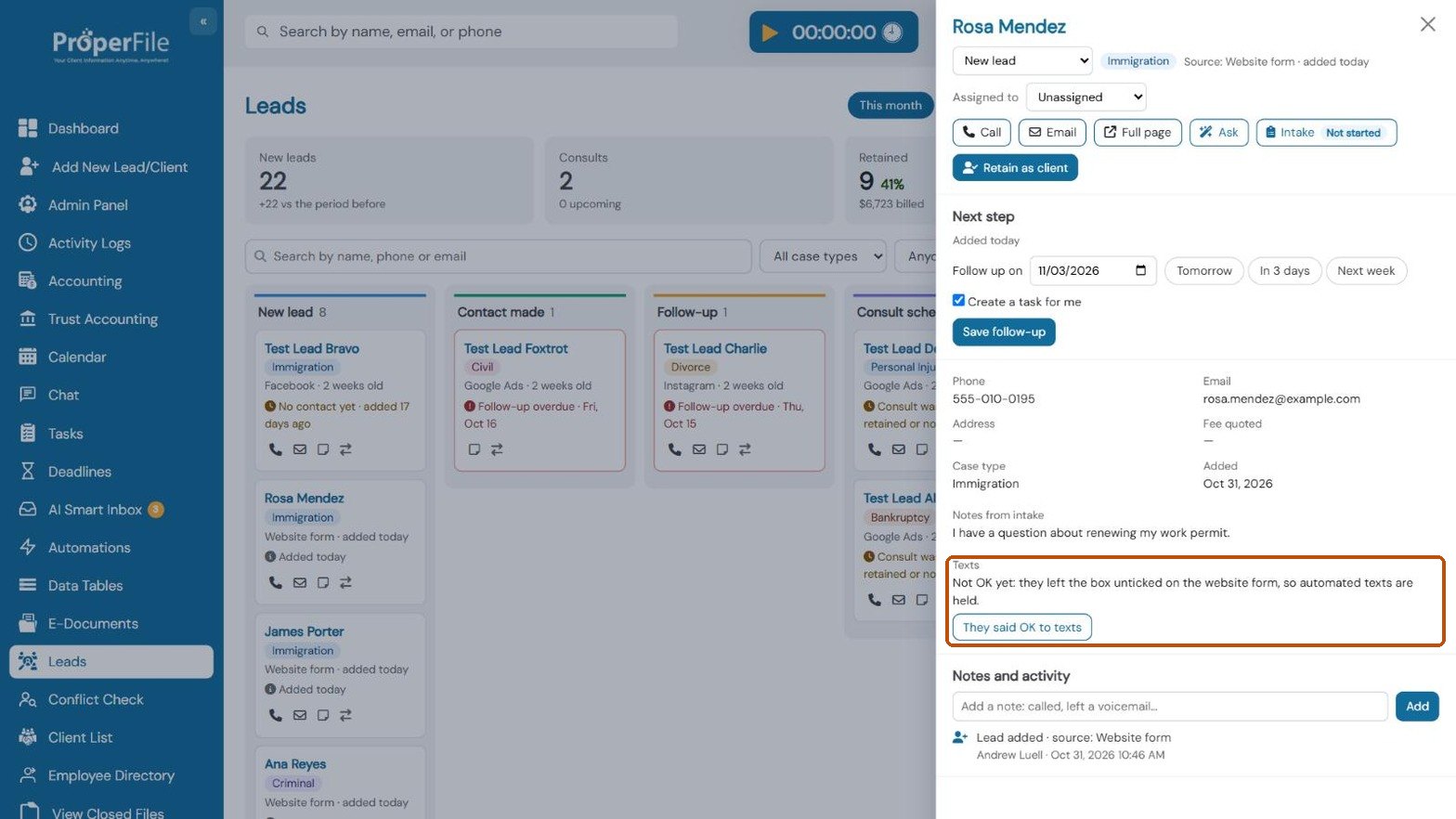
Open the lead and look for Texts. It shows whether the person ticked the box. If they left it unticked, automated texts to them are held. If they tell you texts are OK, click They said OK to texts, and automated texts go out from then on. The same line is on their client page if you retain them.
Tip: Only form leads who left the box unticked are held. Everyone else gets your automated texts as before.
Step 11
See what people agreed to
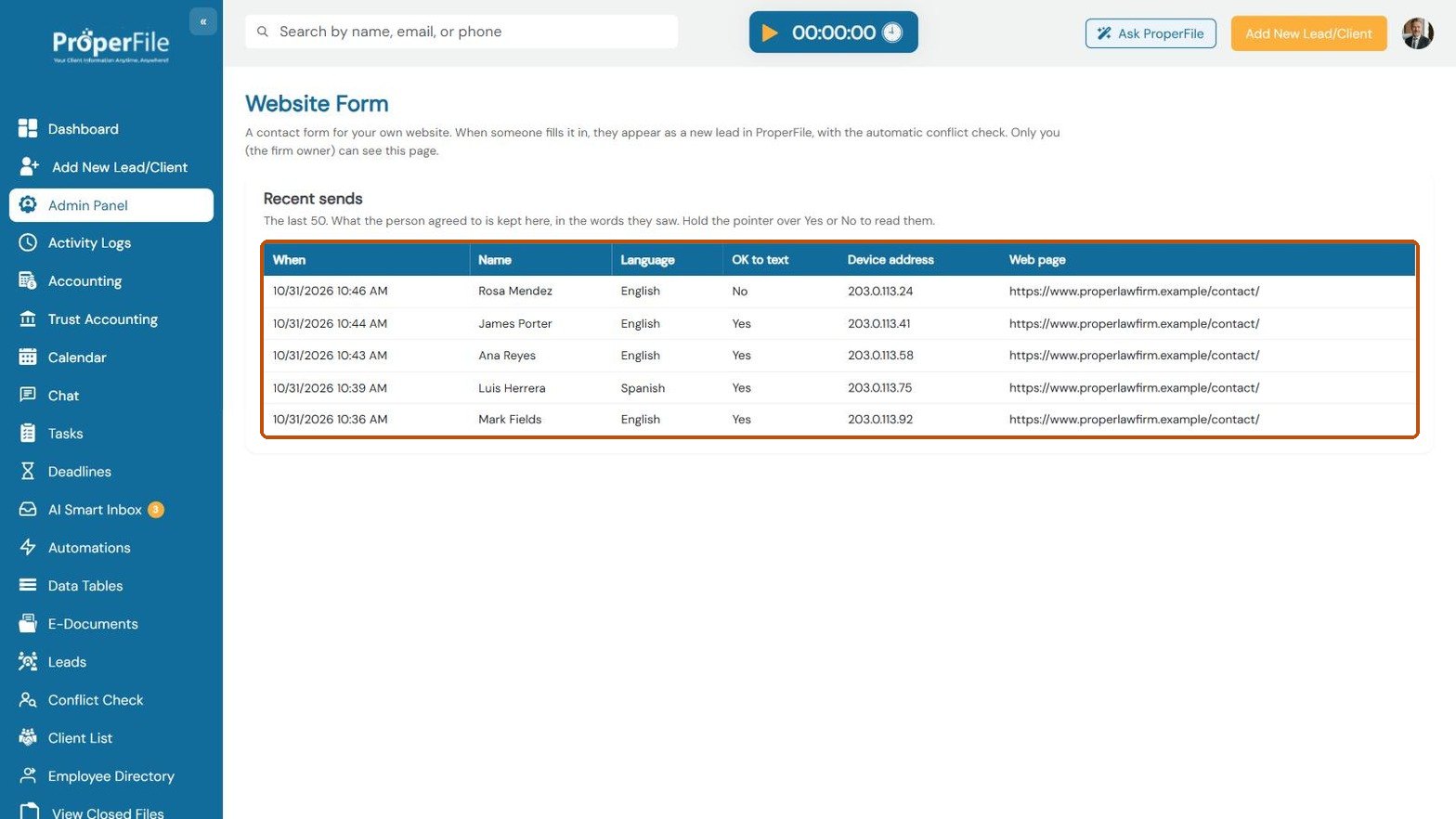
At the bottom of the Website Form page, Recent sends lists the last 50. For each one you’ll see when it was sent, the language, the device address, the web page, and whether they said OK to texts. Hold the pointer over Yes or No to read the exact words they saw.