Automations send emails, text messages and portal messages for you when something happens, such as a lead becoming a client or a case status changing. Set them up once and ProperFile does the rest.
Time needed: about 10 minutes.
Before you start: you need the Manage automations permission (see the Users and permissions guide). Automations run on real clients as soon as they’re switched on, so test the wording before you turn one on.
Step 1
Open Automations
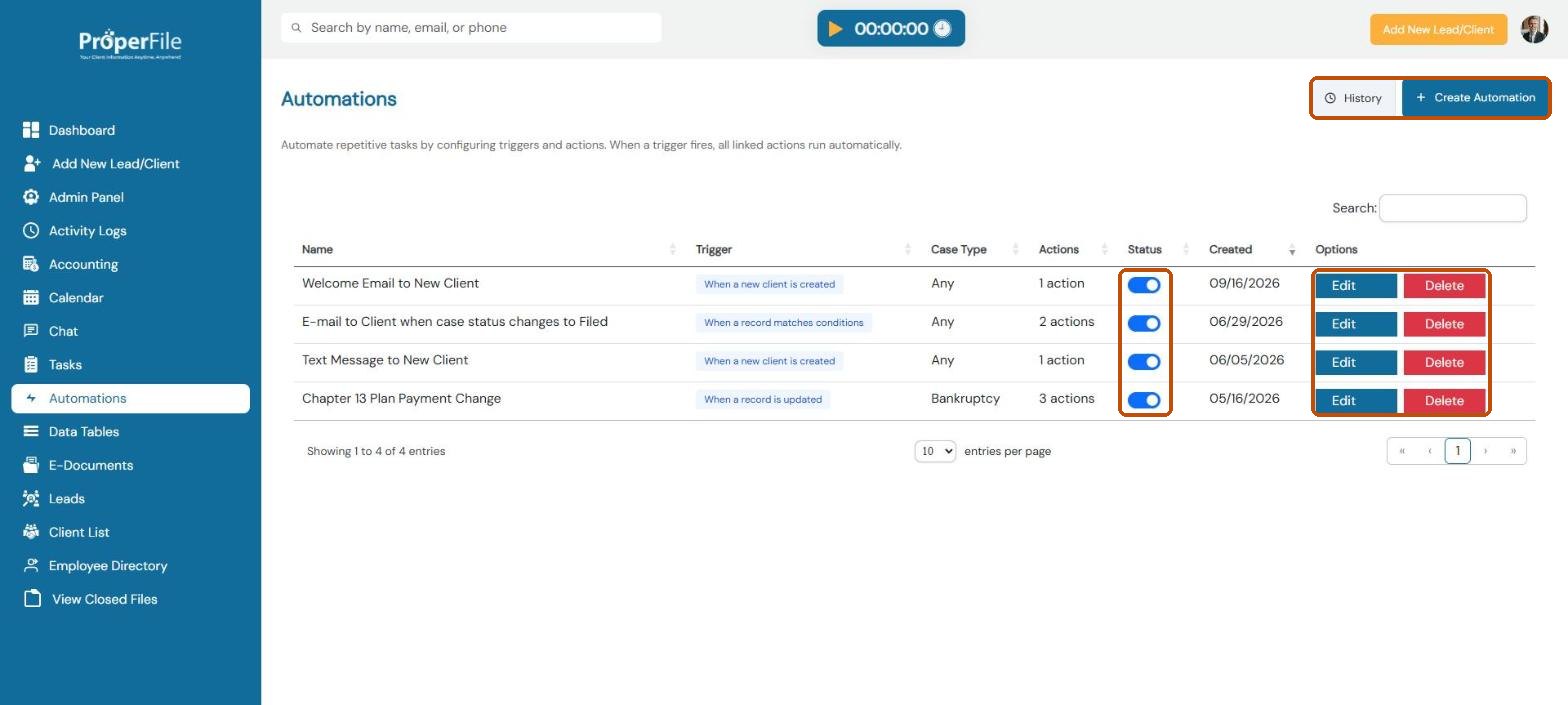
Click Automations in the left menu. Each automation shows its trigger, case type, how many actions it has and an on/off switch. Use Edit to change one, History to see what has run, or + Create Automation to start a new one.
Tip: flip the switch in the Status column to pause an automation without deleting it.
Step 2
Name it and choose the trigger
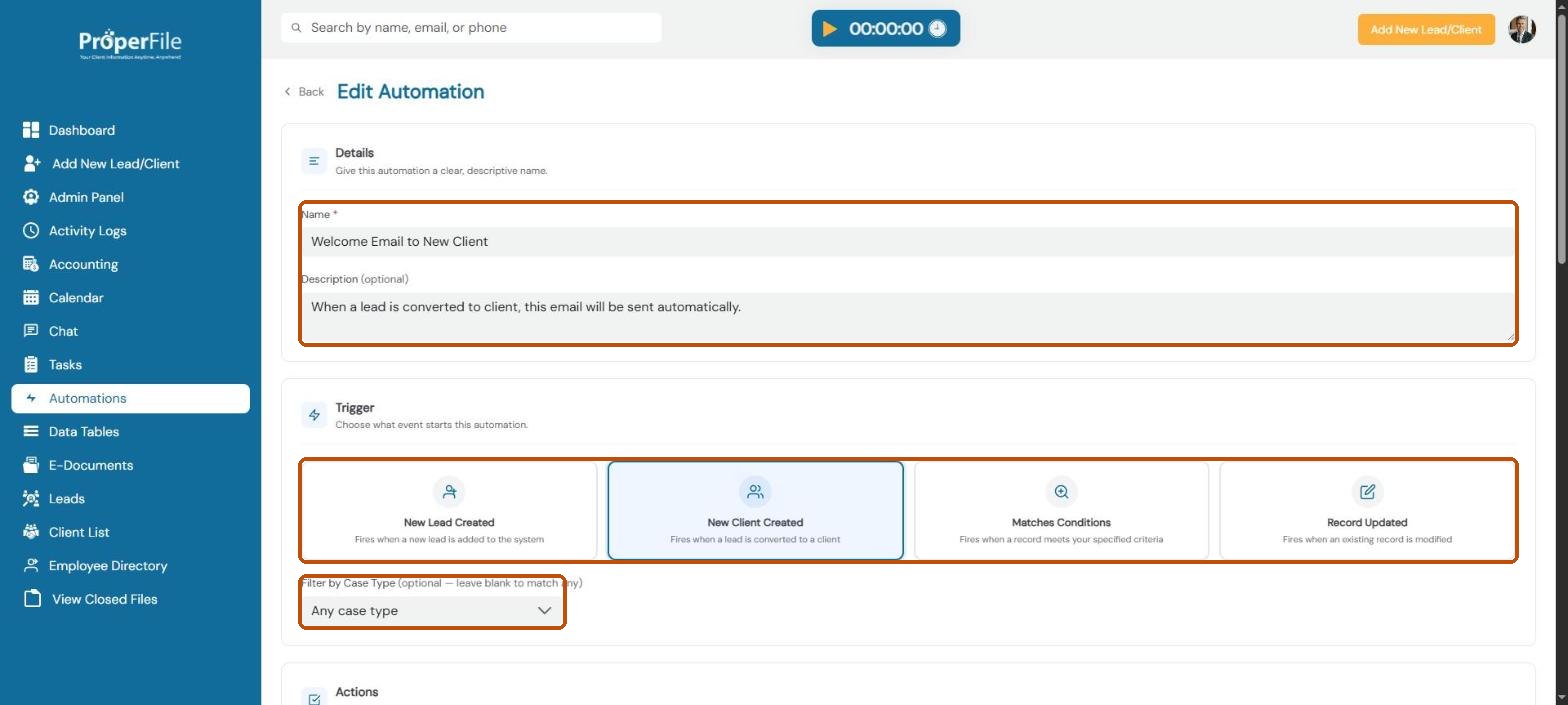
Give the automation a clear name and an optional description. Then choose what starts it:
New Lead Created: when a new lead is added
New Client Created: when a lead is converted to a client
Matches Conditions: when a record meets criteria you set, such as a status of Filed
Record Updated: when an existing record changes
To limit it to one kind of case, pick a case type under Filter by Case Type.
Step 3
Choose what happens
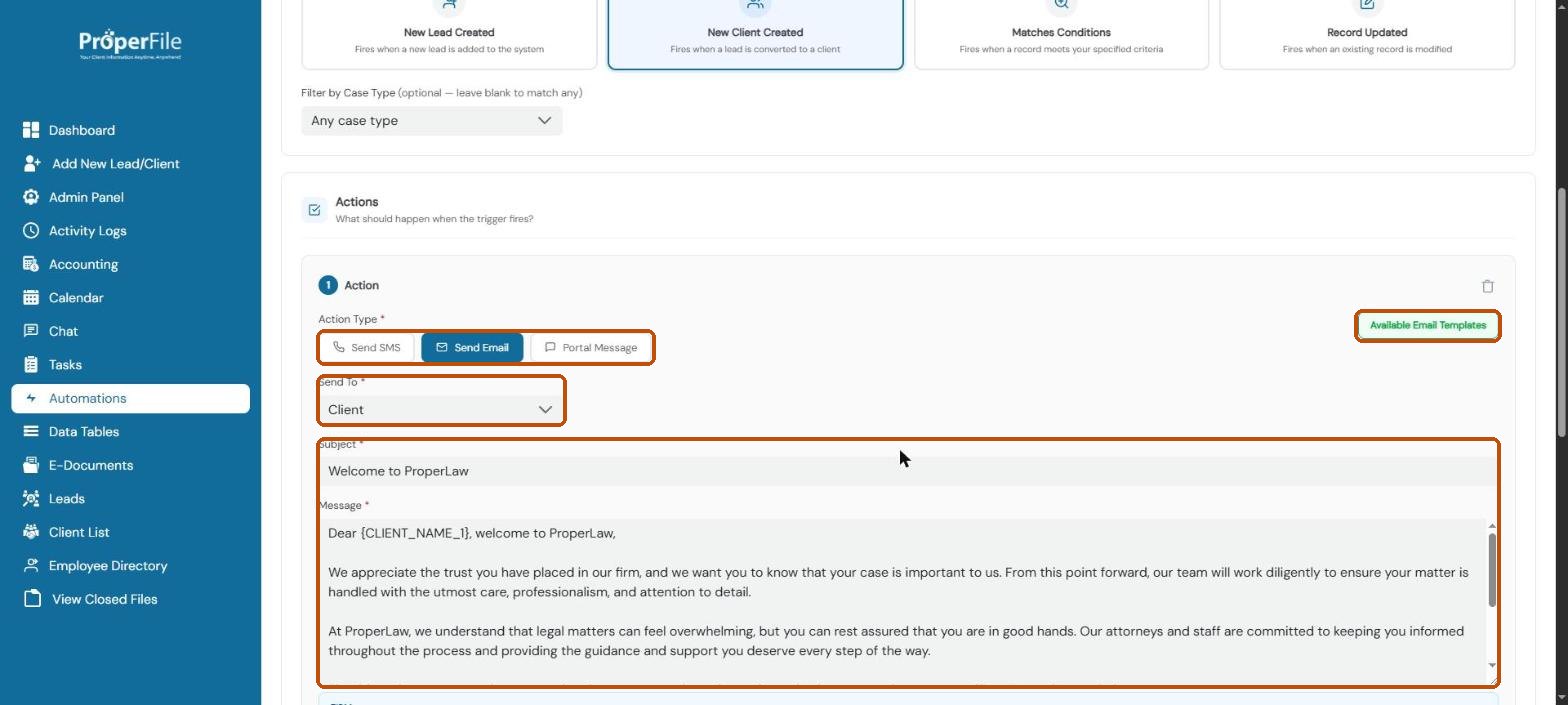
Under Actions, pick Send SMS, Send Email or Portal Message. Choose who receives it (the client, the case analyst, the assigned attorney, all staff or specific users), then write the subject and message. Click Available Email Templates to start from one of your email templates.
Step 4
Add placeholders, more actions, and save
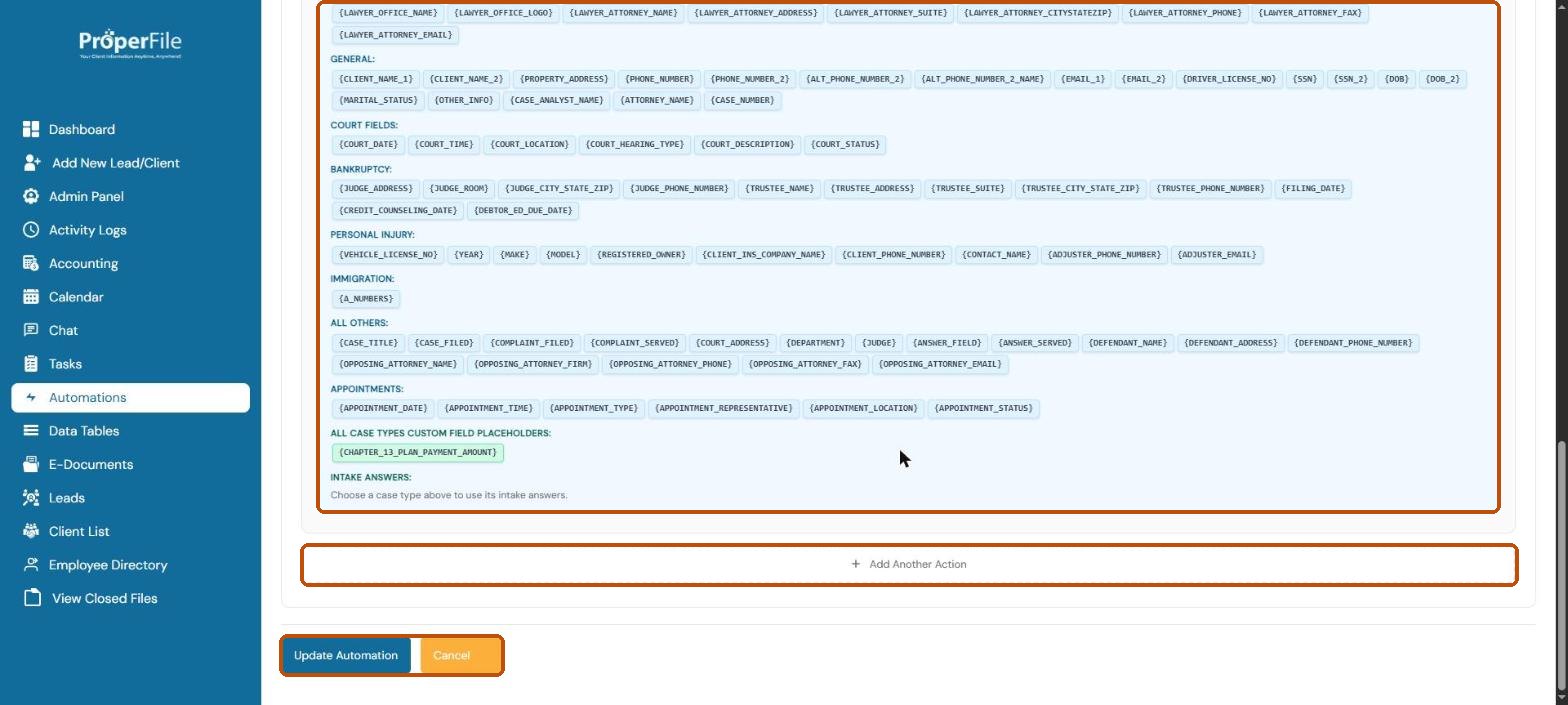
Click any placeholder, such as {CLIENT_NAME_1} or {COURT_DATE}, to insert it into the message; ProperFile fills it in for each client. Click + Add Another Action to do more than one thing. Click Create Automation (or Update Automation when editing) to save.
Tip: custom fields only appear in this list if you turned on Include as a Placeholder in Automations when you created the field.
What’s next
Keep going
Next, see your firm’s numbers in Reports. All guides are in the Help Center.