On an Immigration matter, the Forms tab fills in USCIS and immigration court forms from what ProperFile already knows about the client and their family. It asks only for what’s missing, asks each question once for every form that needs it, lets your clients answer online, and saves every form in the client’s documents.
Time needed: about 8 minutes.
Before you start: the Forms tab is on Immigration matters. Reading documents with AI uses AI credits: turn on Fill immigration forms from documents in Admin Panel > AI Credits (see AI credits).
Step 1
Open the Forms tab
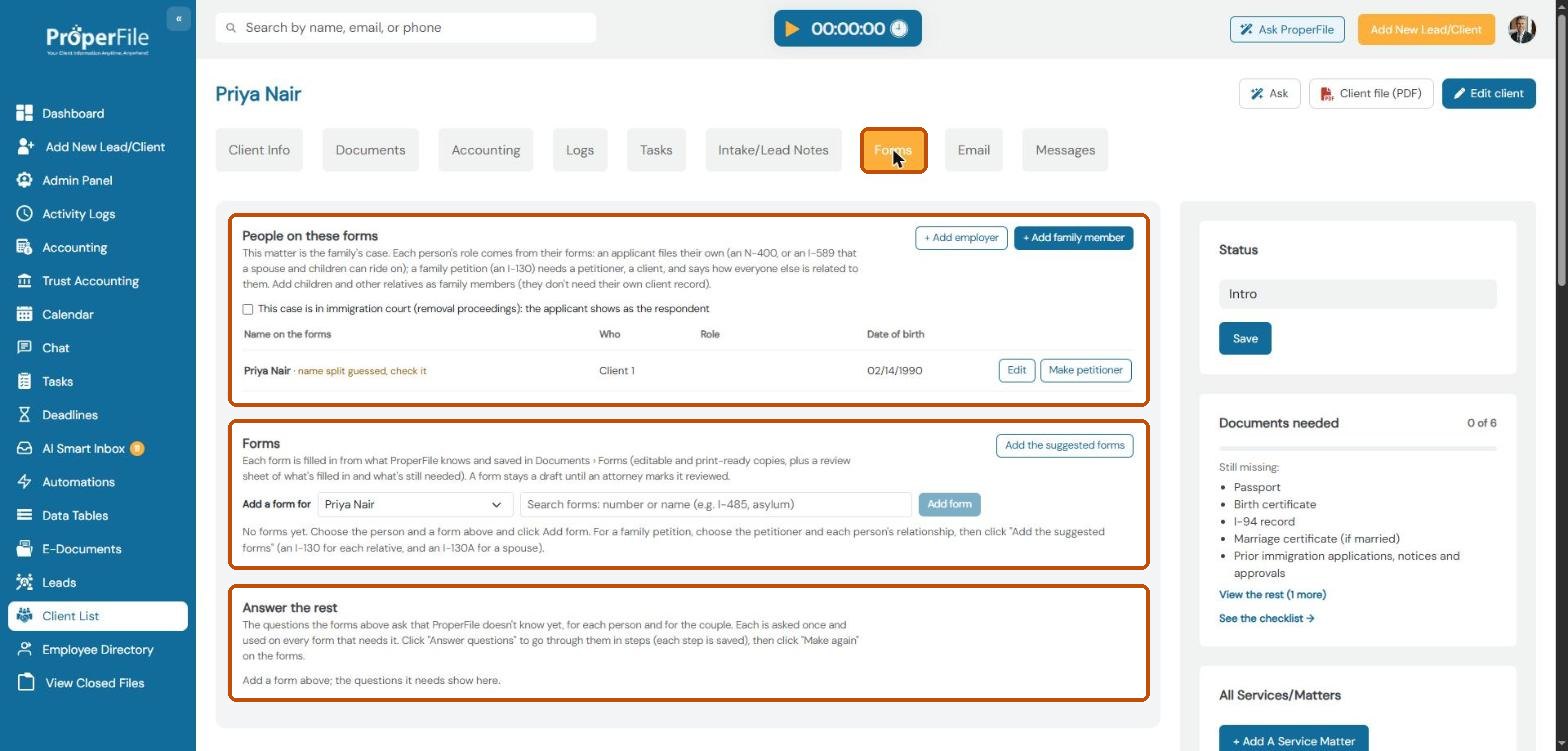
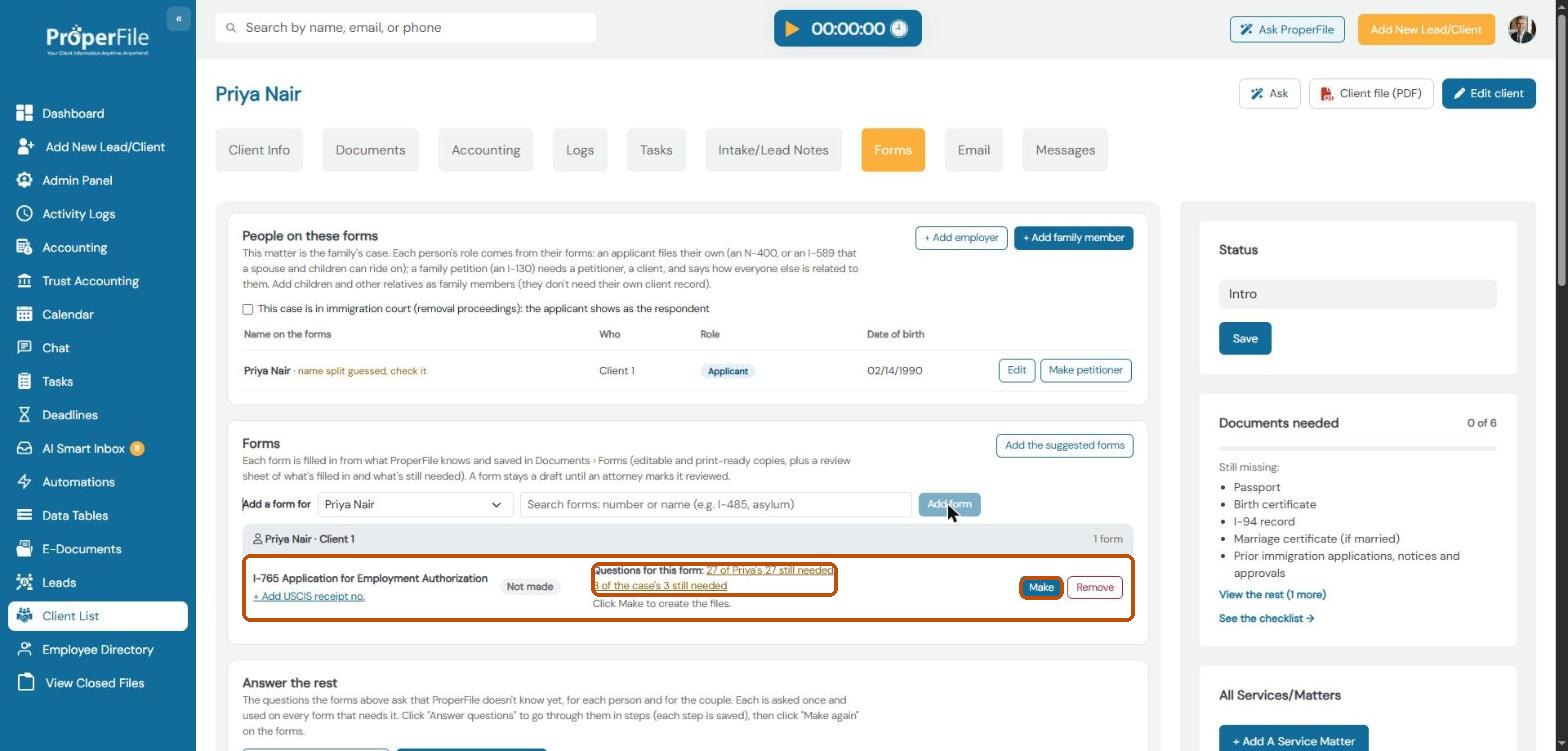
Open the client, choose the Immigration matter under All Services/Matters, and click the Forms tab. It has three parts: People on these forms, Forms, and Answer the rest.
Watch it: adding a form, answering its questions and making it
Step 2
Check who's on the case
People on these forms lists everyone on the family’s case, with their date of birth and role. Each person’s role comes from their forms: an applicant files their own (an N-400, or an I-589 that a spouse and children can ride on), and a family petition (an I-130) needs a petitioner. Click Make petitioner to choose the petitioner, and Edit to fix a person’s details; a name marked name split guessed, check it needs a quick look.
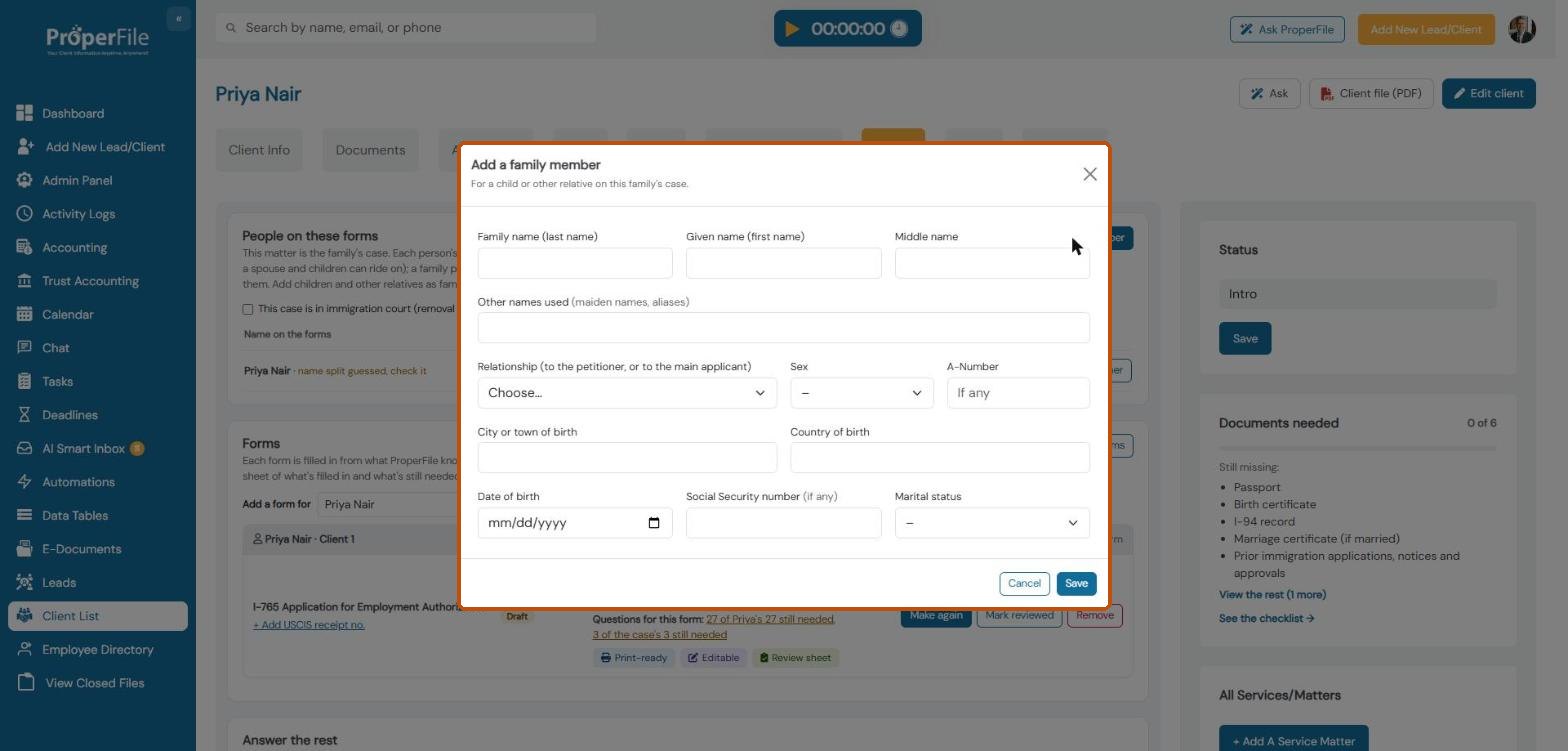
Click + Add family member for a child or other relative (they don’t need their own client record) and choose how they’re related to the petitioner or the main applicant. Click + Add employer for the forms that ask about work. If the case is in immigration court, tick This case is in immigration court, and the applicant shows as the respondent.
Step 3
Add the forms
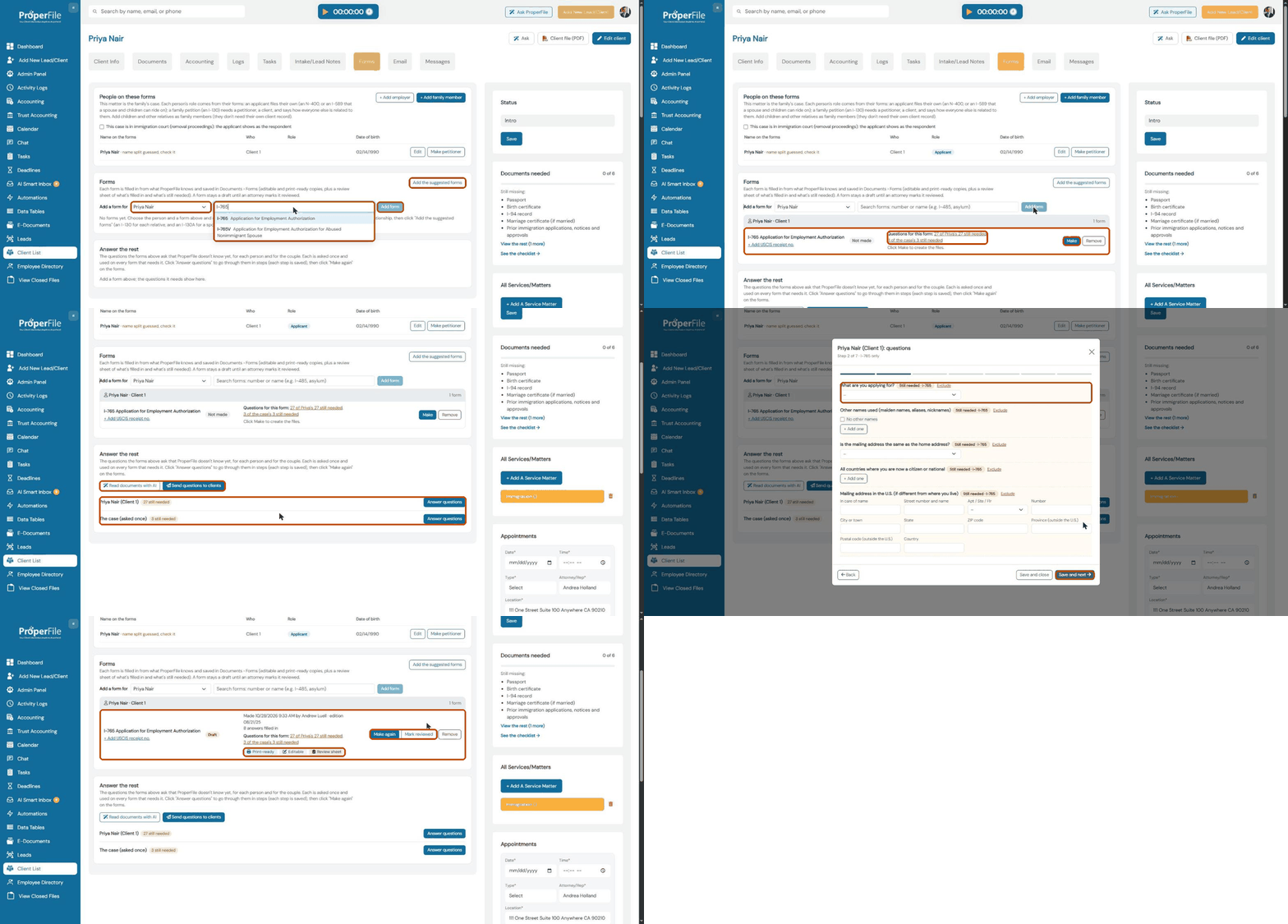
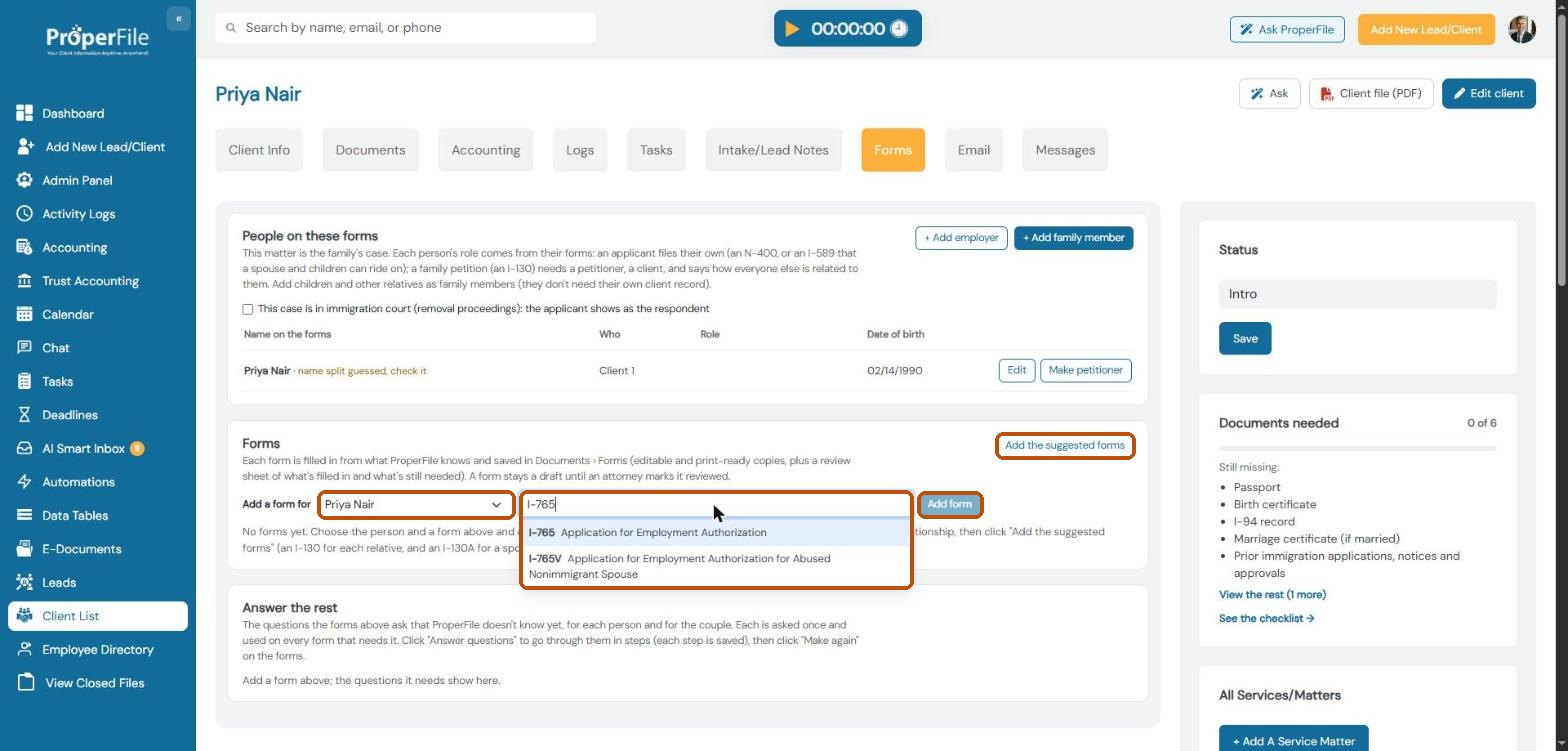
Under Forms, choose who the form is for under Add a form for, type the form’s number or name (for example I-765 or asylum), pick it from the list and click Add form. For a family petition, choose the petitioner and each person’s relationship, then click Add the suggested forms (an I-130 for each relative, and an I-130A for a spouse).
Each form shows how many of its questions are still needed. You can add the same form again for a person, for example for a renewal or a new draft.
Step 4
Answer what's missing
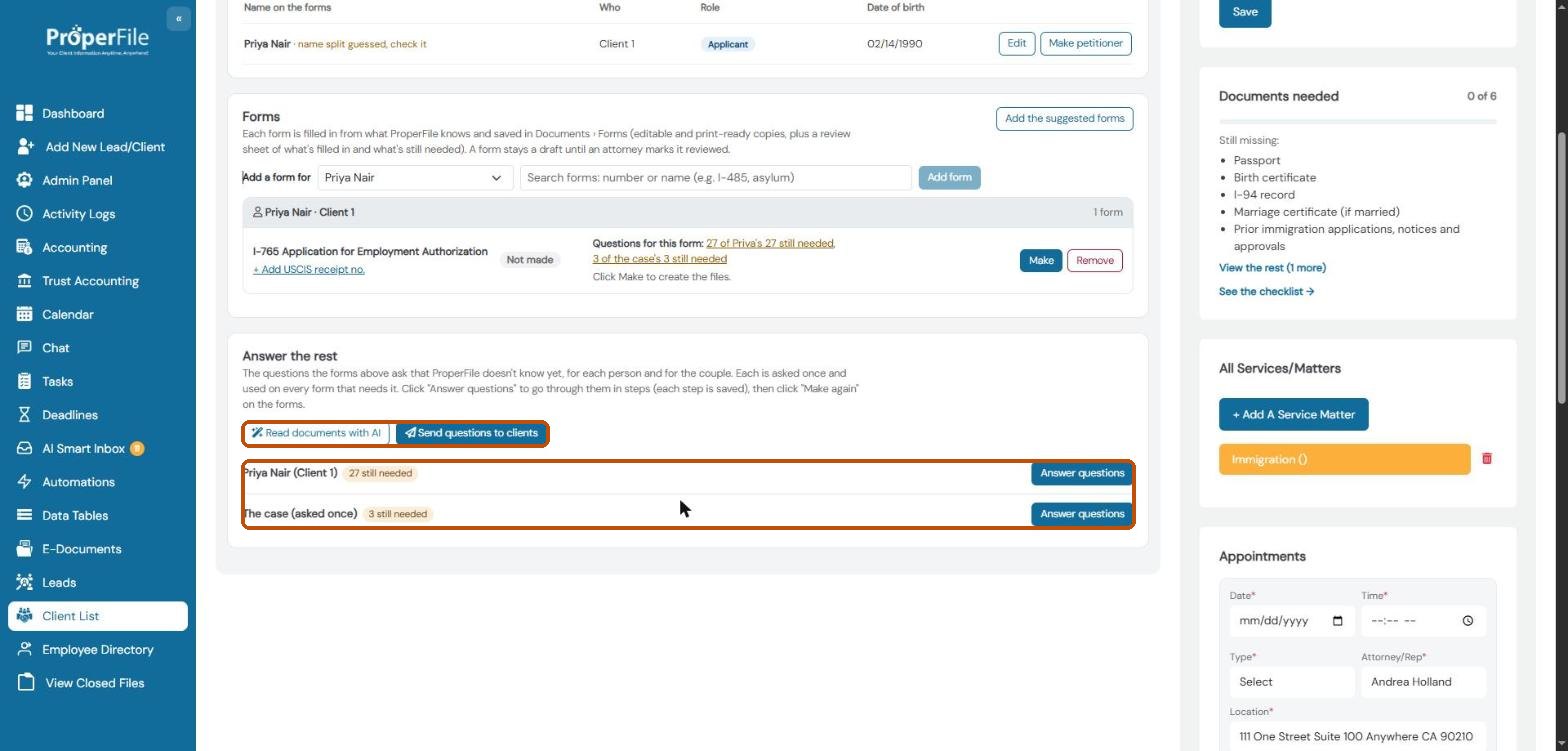
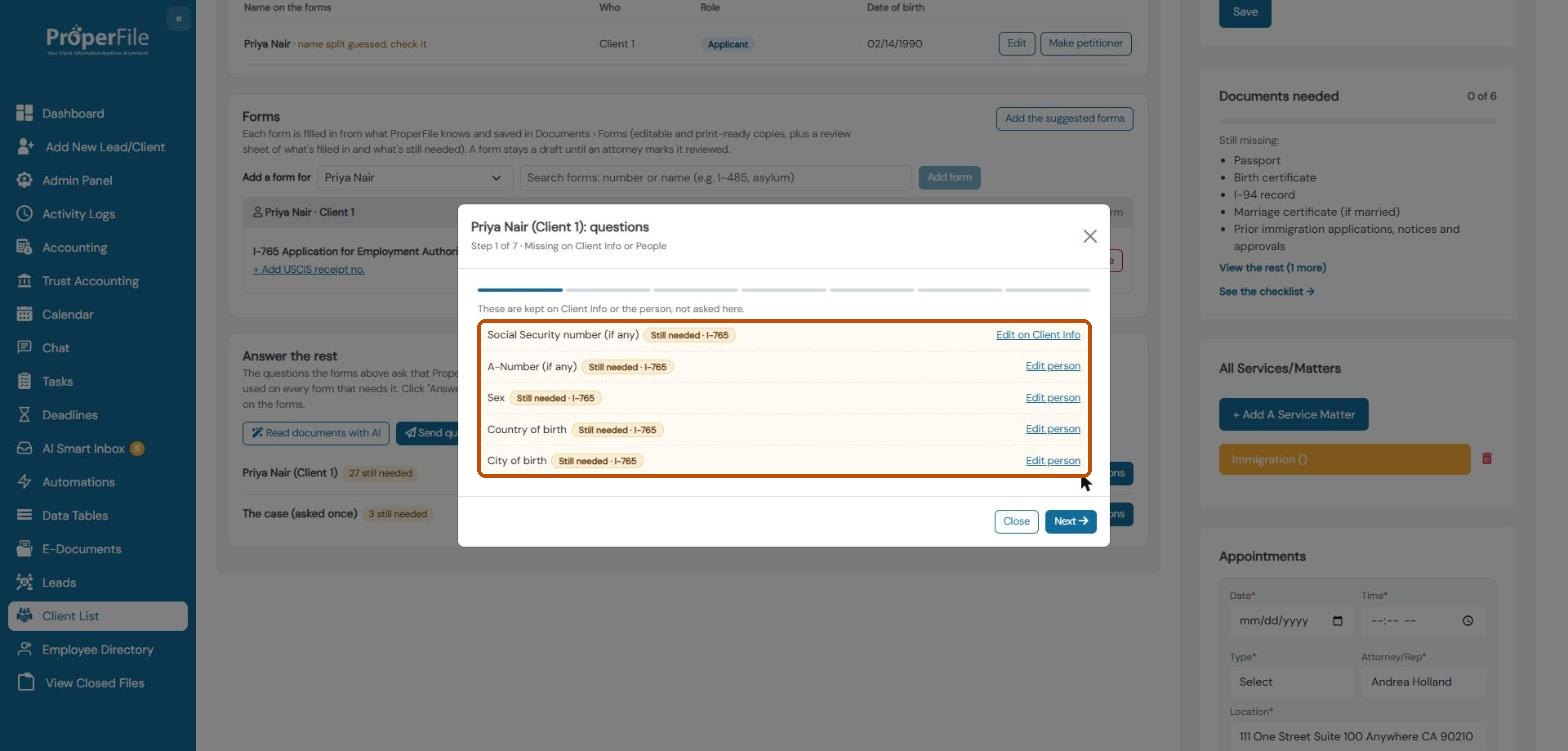
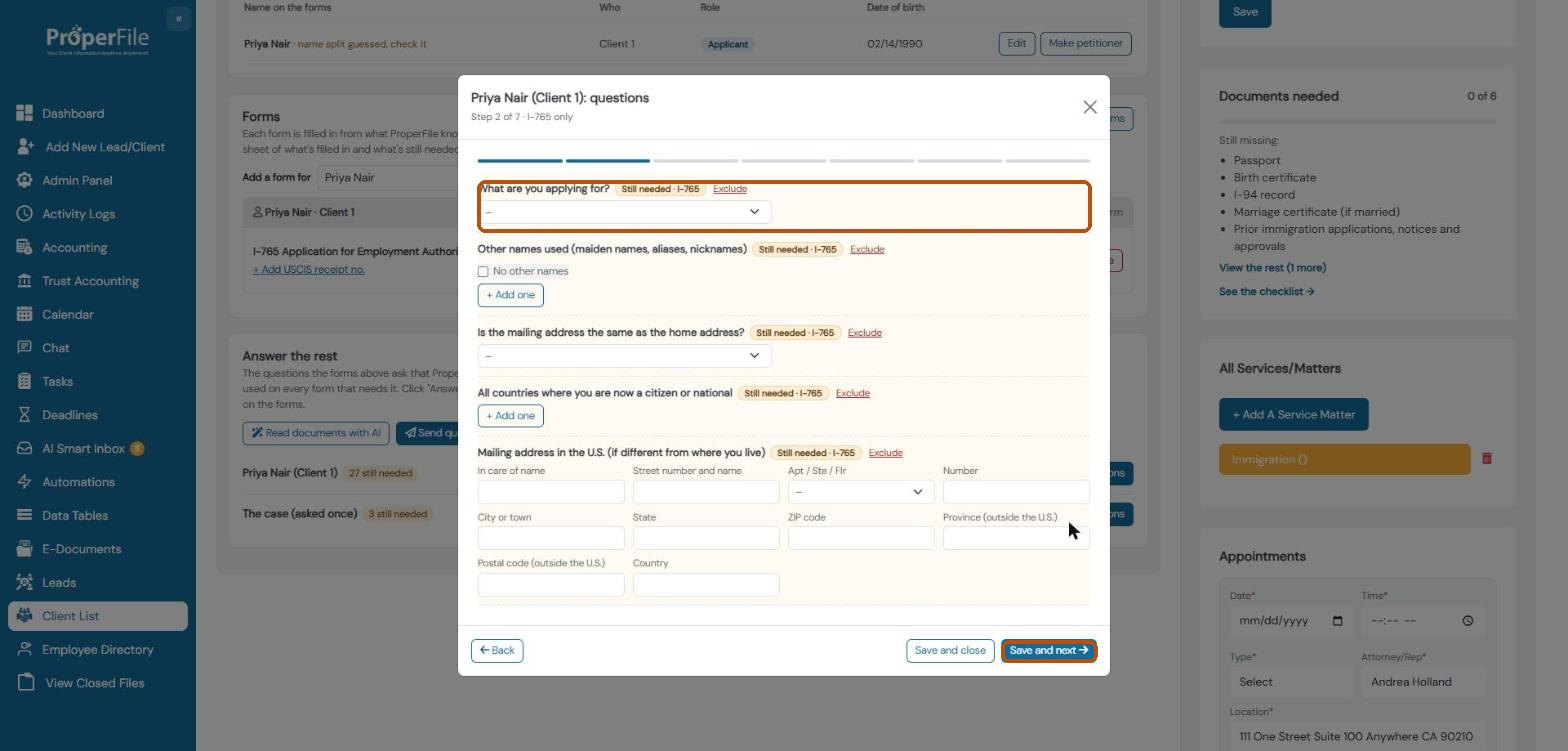
Answer the rest lists the questions your forms ask that ProperFile doesn’t know yet, for each person and for the case as a whole. Each question is asked once and used on every form that needs it. Click Answer questions to go through them in short steps; each step is saved when you click Save and next, and you can stop with Save and close.
The first step lists details that are kept on Client Info or on the person (such as country of birth), with a link to edit them there.
Each question says which forms need it. Click Exclude on a question that doesn’t apply to this client.
Step 5
Let your client answer online
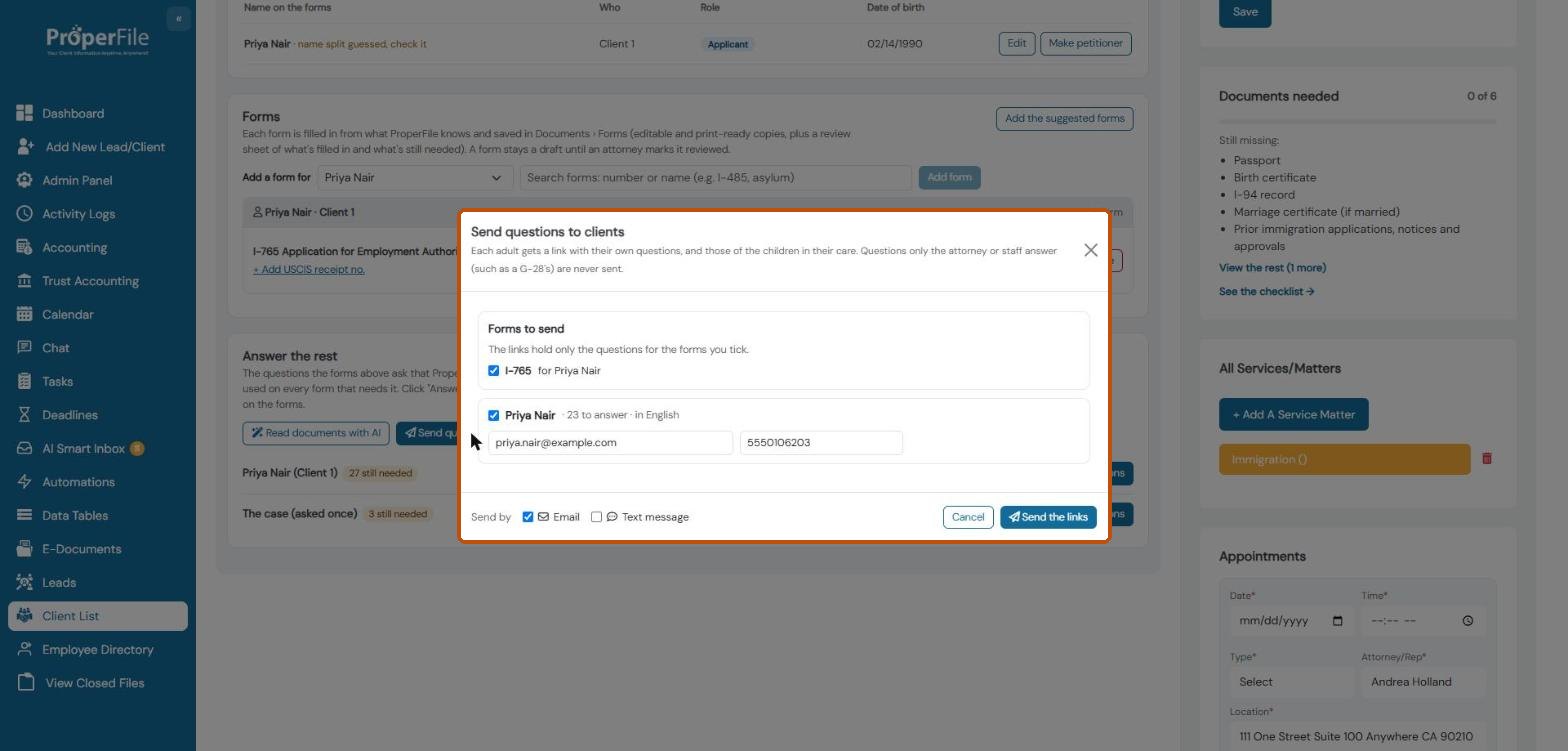
Click Send questions to clients, tick the forms the questions are for, and check each person’s email and phone. Each adult gets a link with their own questions and those of the children in their care, in their language. Choose to send by Email, Text message or both, and click Send the links. Questions only your firm answers (such as the attorney’s on a G-28) are never sent.
Your client opens the link and enters a code sent to them, so a forwarded link shows nothing. They answer in short steps, can stop and come back, and at the end upload the documents you still need and take passport-style photos with a built-in photo guide. Their answers come straight back to the Forms tab.
Step 6
Read documents with AI
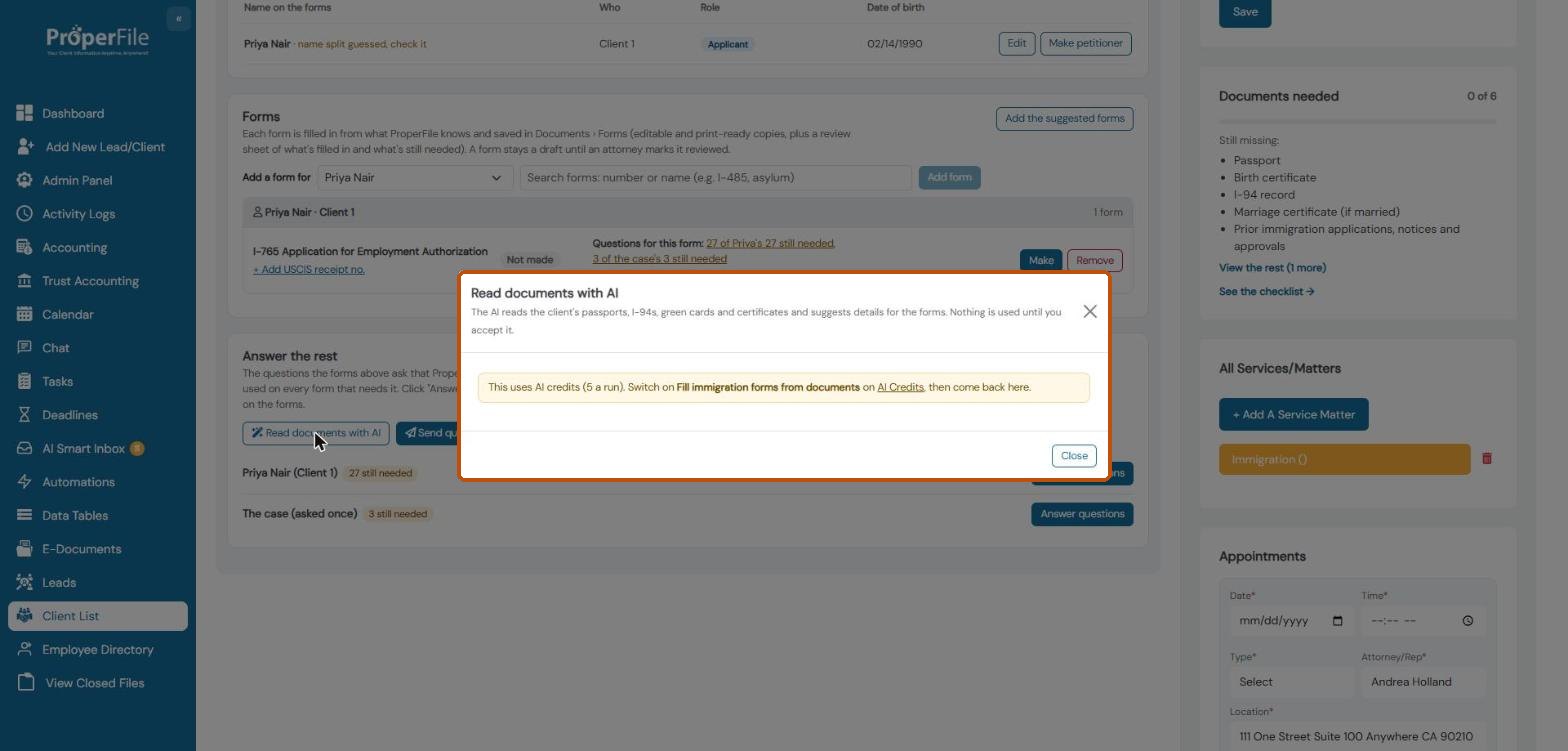
Click Read documents with AI to have the AI read the client’s passports, I-94s, green cards and certificates and suggest details for the forms. Nothing is used until you accept it. Each run uses 5 AI credits.
Step 7
Make the forms
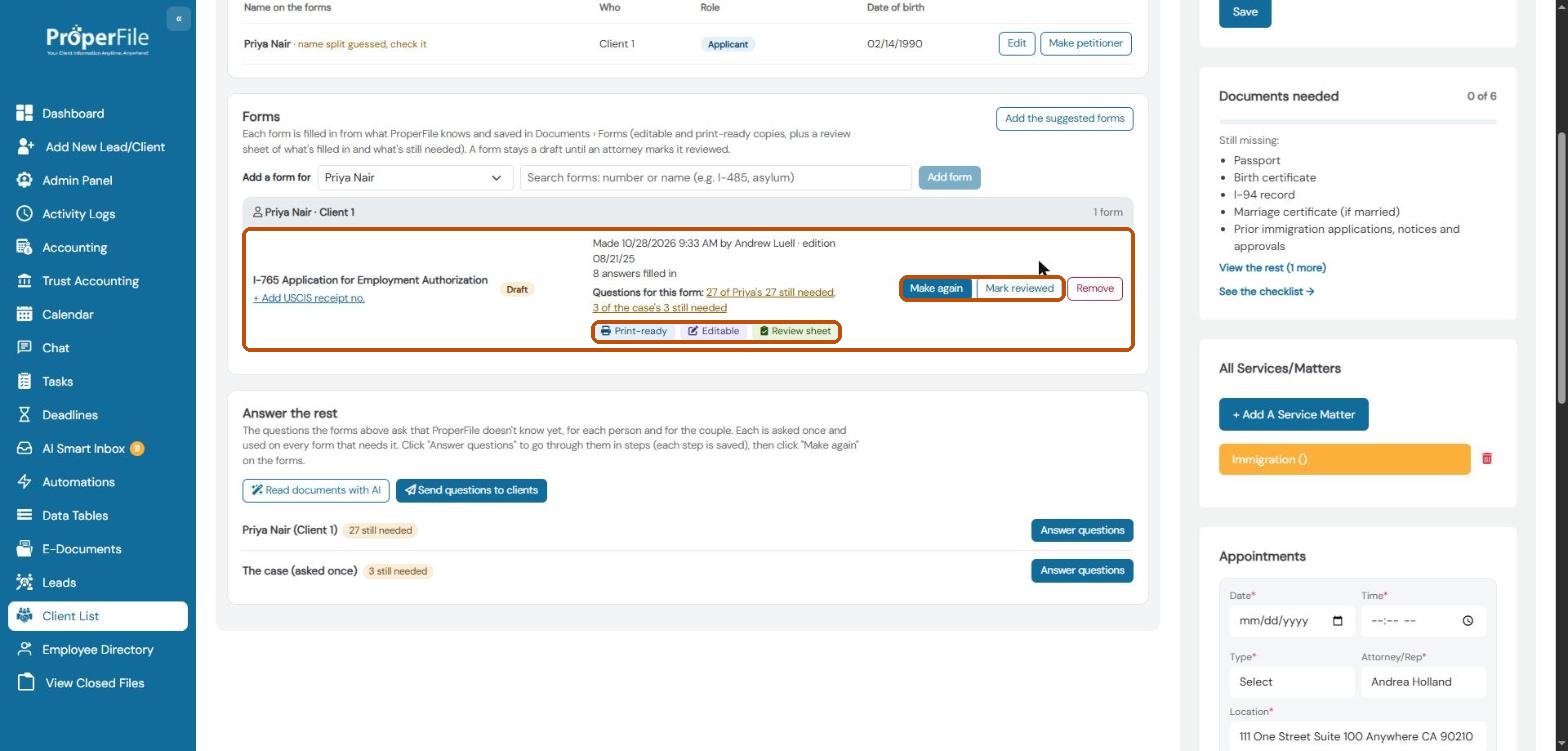
Click Make on a form. ProperFile fills it in and saves it in the client’s Documents, in the Forms folder: a Print-ready copy, an Editable copy, and a Review sheet of what’s filled in and what’s still needed. The form shows when it was made and by whom, the form’s edition, and how many answers were filled in.
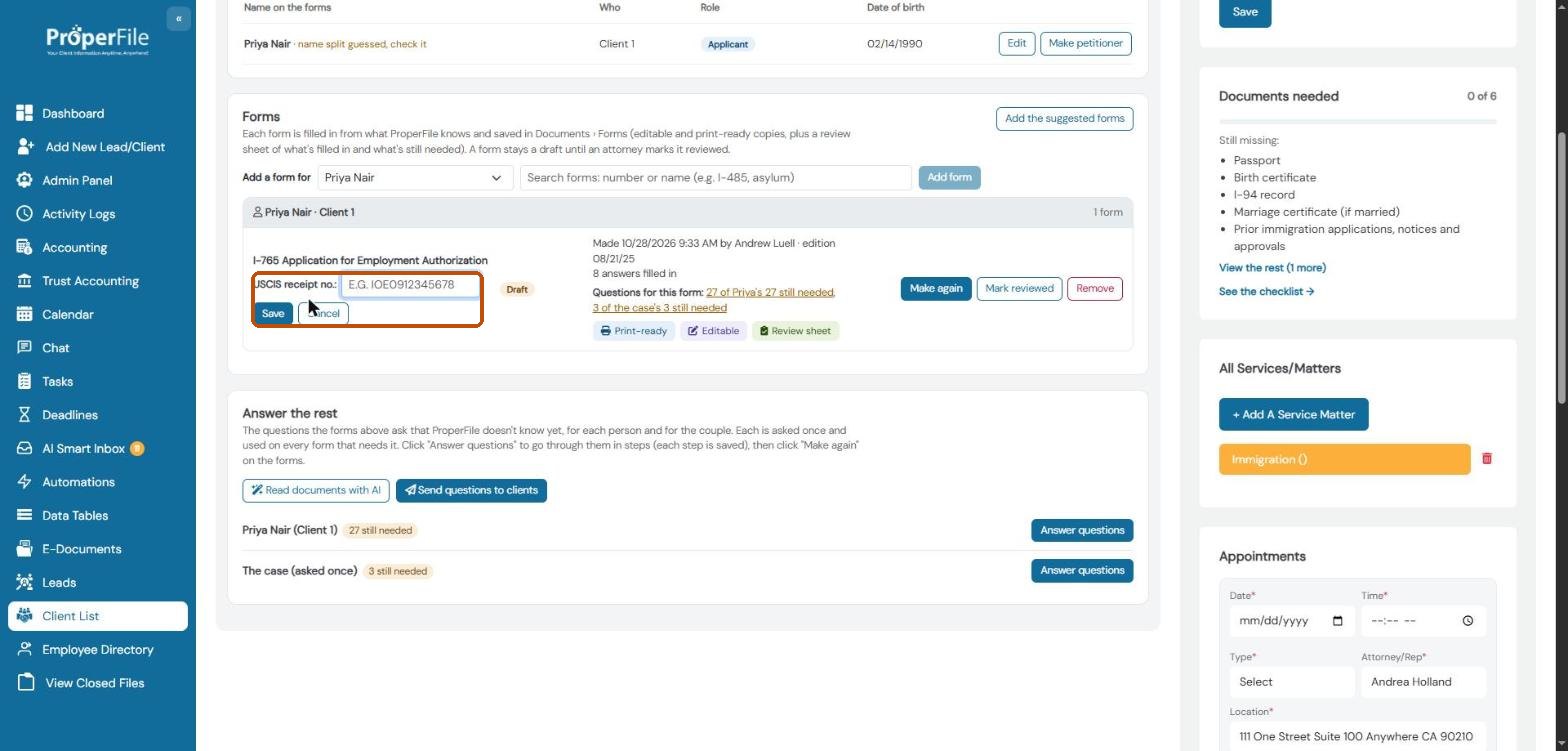
A form stays a Draft until an attorney clicks Mark reviewed. After you answer more questions, click Make again; when every question is answered, the form gets a green All questions answered mark. Once it’s filed, click + Add USCIS receipt no. to keep the receipt number with the form.
Step 8
Set up the documents each form needs
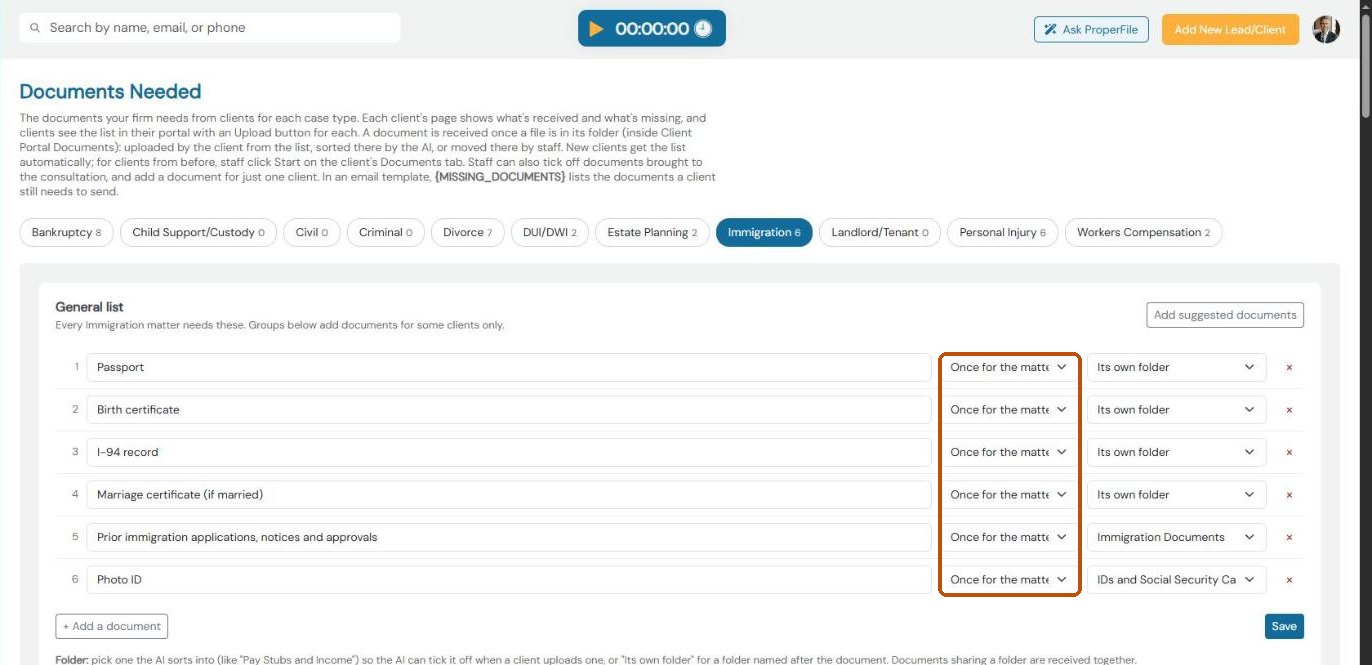
In Admin Panel > Documents Needed, click Immigration. For each document, choose Whose it is: Once for the matter, Each person or Each adult. A document for each person is listed once for every person on the Forms tab, with their files in their own folder.
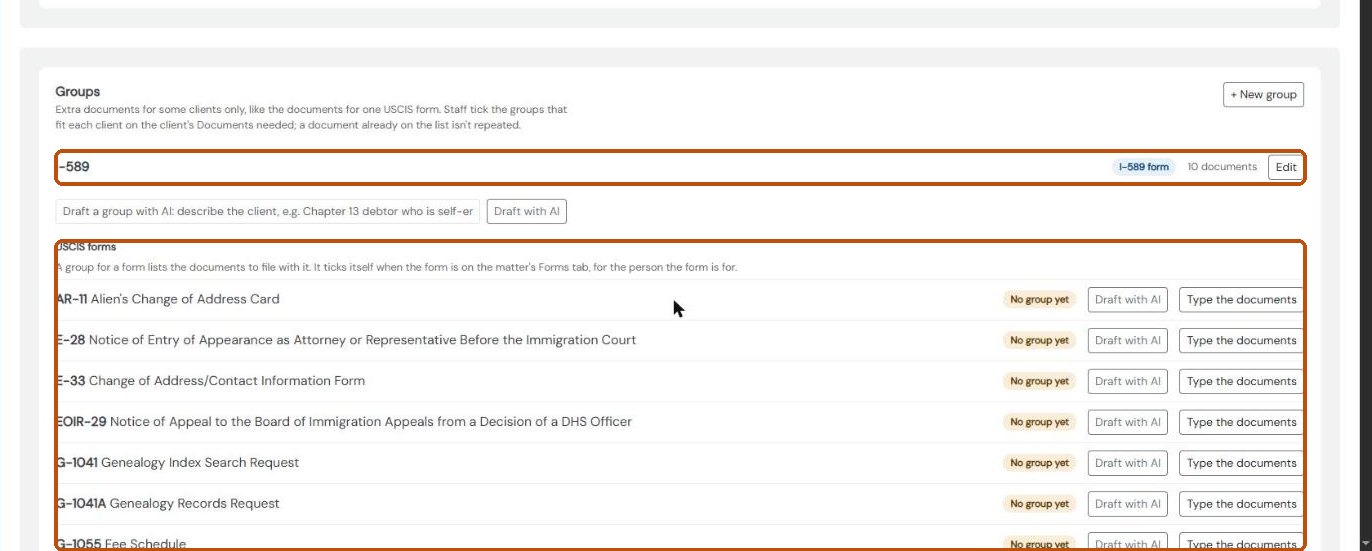
Under USCIS forms, give a form its own group of documents: click Draft with AI for a suggested list, or Type the documents. A form’s group is added on its own when that form is on a matter’s Forms tab, for the person the form is for.
Tip: on the client’s checklist, each document is one row with each person’s status under it. Use Who needs it when one copy covers several people, such as a marriage certificate. See Documents needed.