Firm Chat keeps conversations with your team inside ProperFile. Post to a channel everyone can see, send someone a direct message, and see the tasks you’ve been given. Your clients can’t see firm chat.
Time needed: about 2 minutes.
Step 1
Open Chat
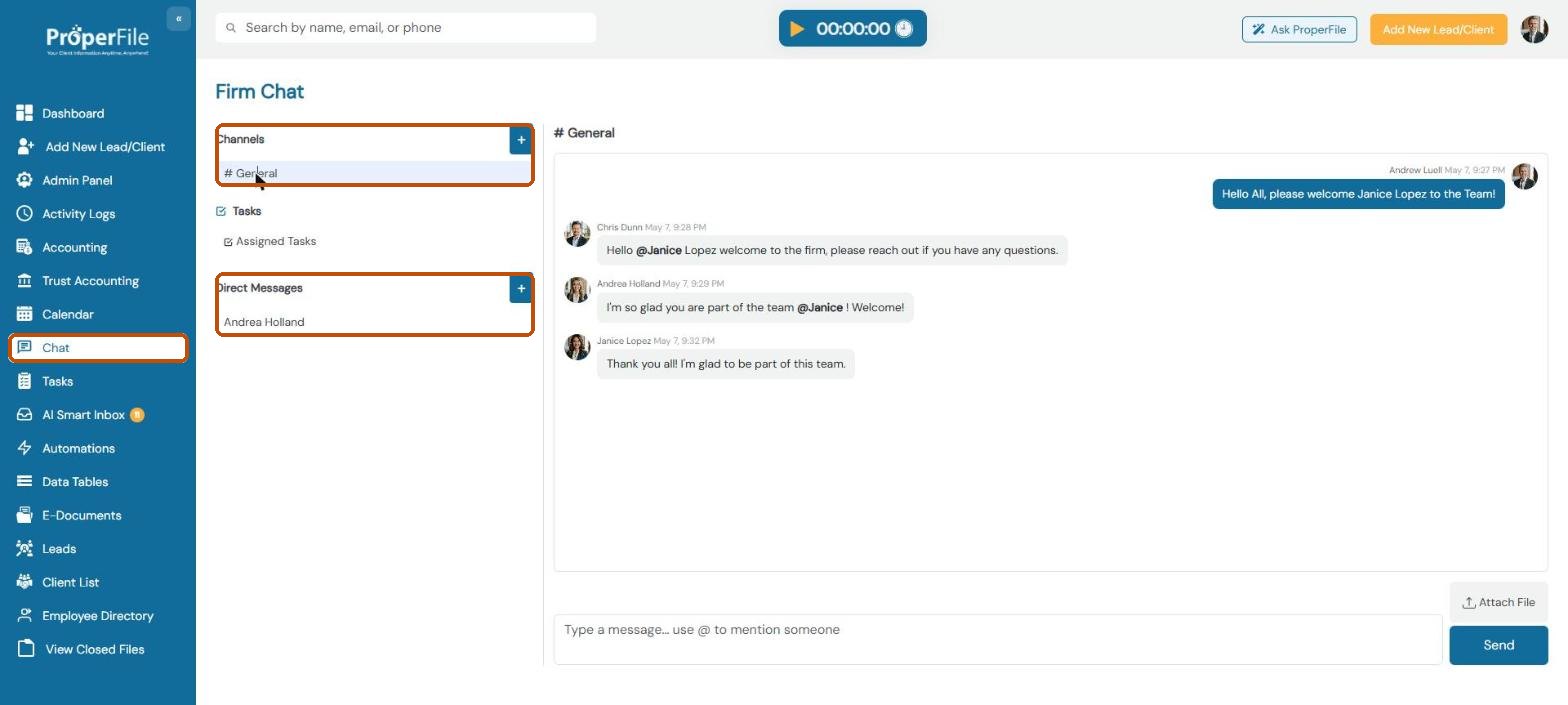
Click Chat in the left menu. Channels such as # General are shared with the team; Direct Messages are one-to-one. Click the + next to Channels to create a channel, or next to Direct Messages to start a conversation with someone.
Step 2
See the tasks you've been given
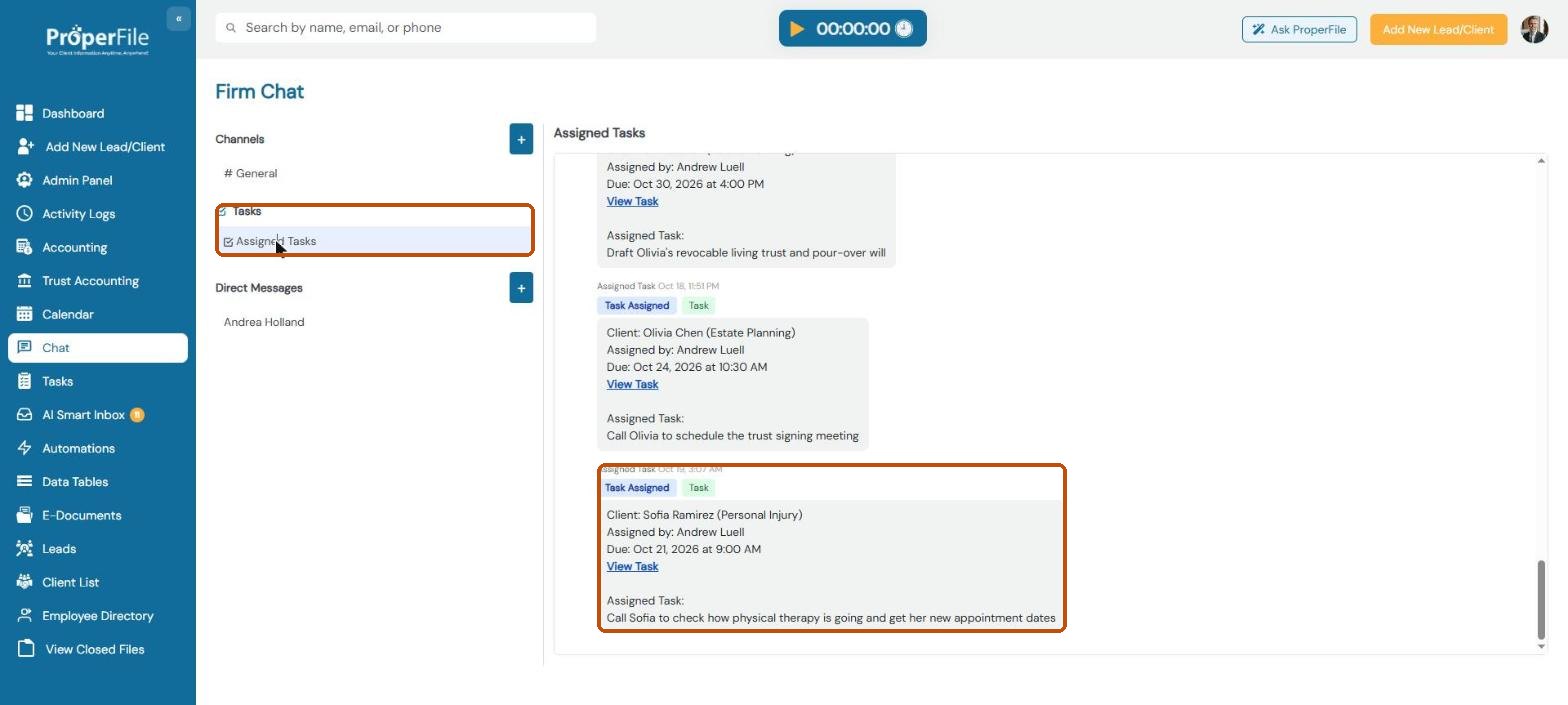
Under Tasks, Assigned Tasks is your own private feed. Each time someone gives you a task, its details appear here: the client and matter, who assigned it, when it’s due and what needs doing. Click View Task to open the client. A red dot means there’s a new one. You can’t reply in this feed; it’s just for keeping track.
Tip: you can see and tick off all your tasks on the Tasks page.
Step 3
Mention someone
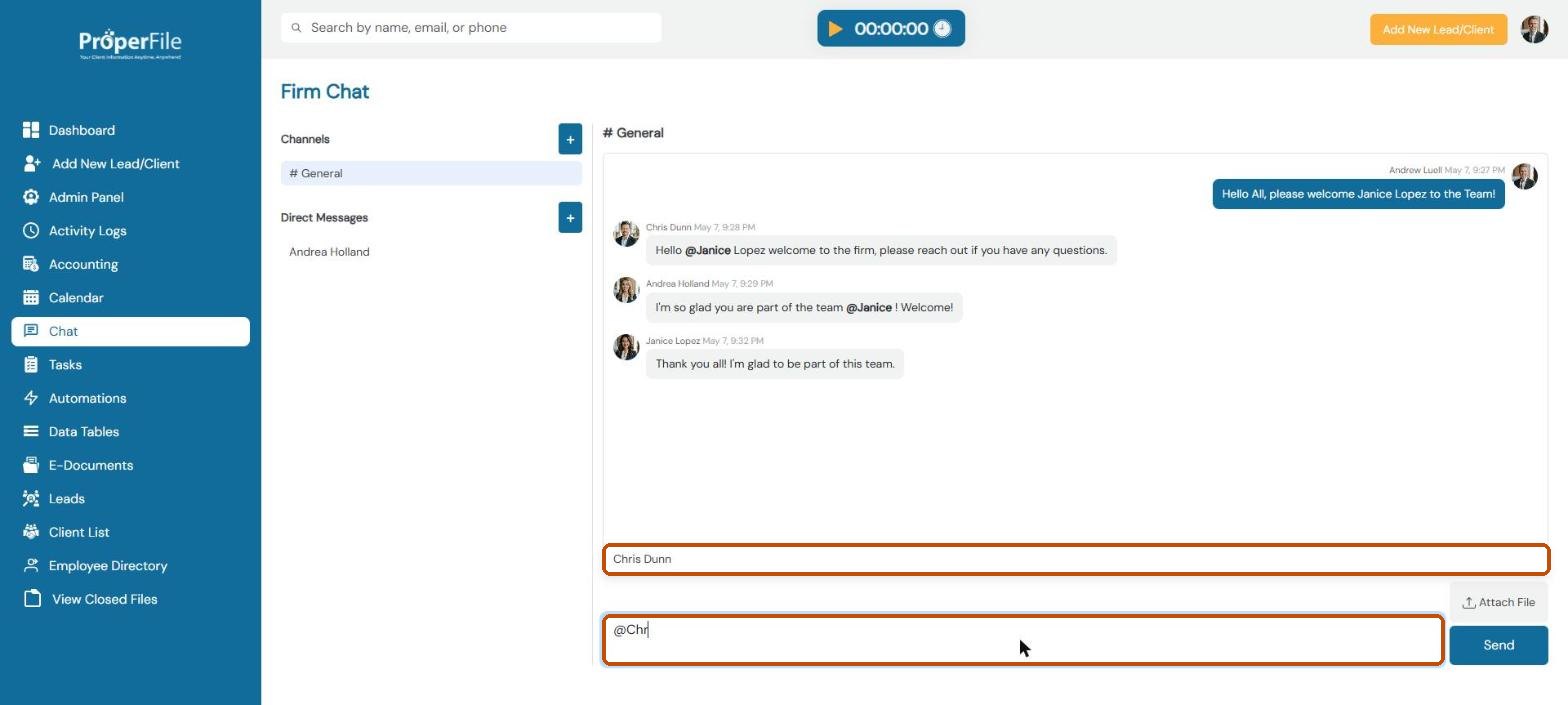
Click in the message box and type @ followed by part of a name, then pick the person from the list. They’ll see they were mentioned.
Step 4
Send your message
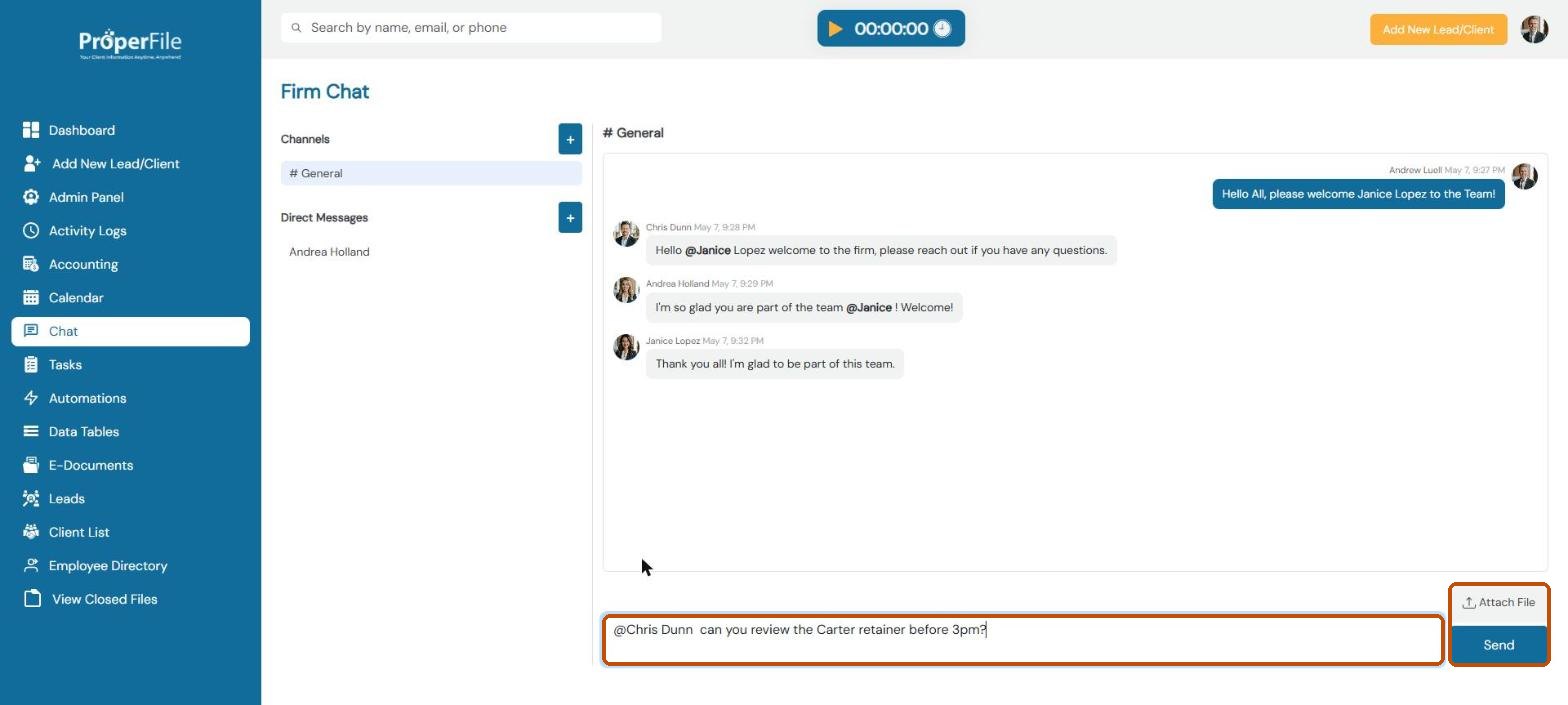
Finish typing and click Send. Click Attach File to share a document with the team.
Tip: when you have unread messages, ProperFile shows a pop-up so you don’t miss them.
What’s next
Keep going
Next, see your firm’s numbers in Reports. All guides are in the Help Center.