
Help Center · Everyday use
How to pre-fill the bankruptcy questionnaire with AI
The AI reads a client’s pay stubs, bank statements, tax returns and W-2s and proposes answers for their bankruptcy questionnaire: income, bank accounts and monthly expenses. Each answer shows the document and page it came from. Nothing goes into the questionnaire until you accept it.
Time needed: about 5 minutes.
Before you start: your firm’s owner or an administrator turns on Pre-fill the bankruptcy questionnaire in Admin Panel > AI Credits, and Pre-fill with AI then shows on a client’s Bankruptcy Questionnaire tab. Each run uses 5 AI credits, and your firm gets 50 included every month: see AI credits. Your firm’s owner and administrators can use it. Other staff need Use AI ticked in User Management (see Users and permissions). Upload the client’s documents to their Documents tab first.
Step 1
Choose the documents to read
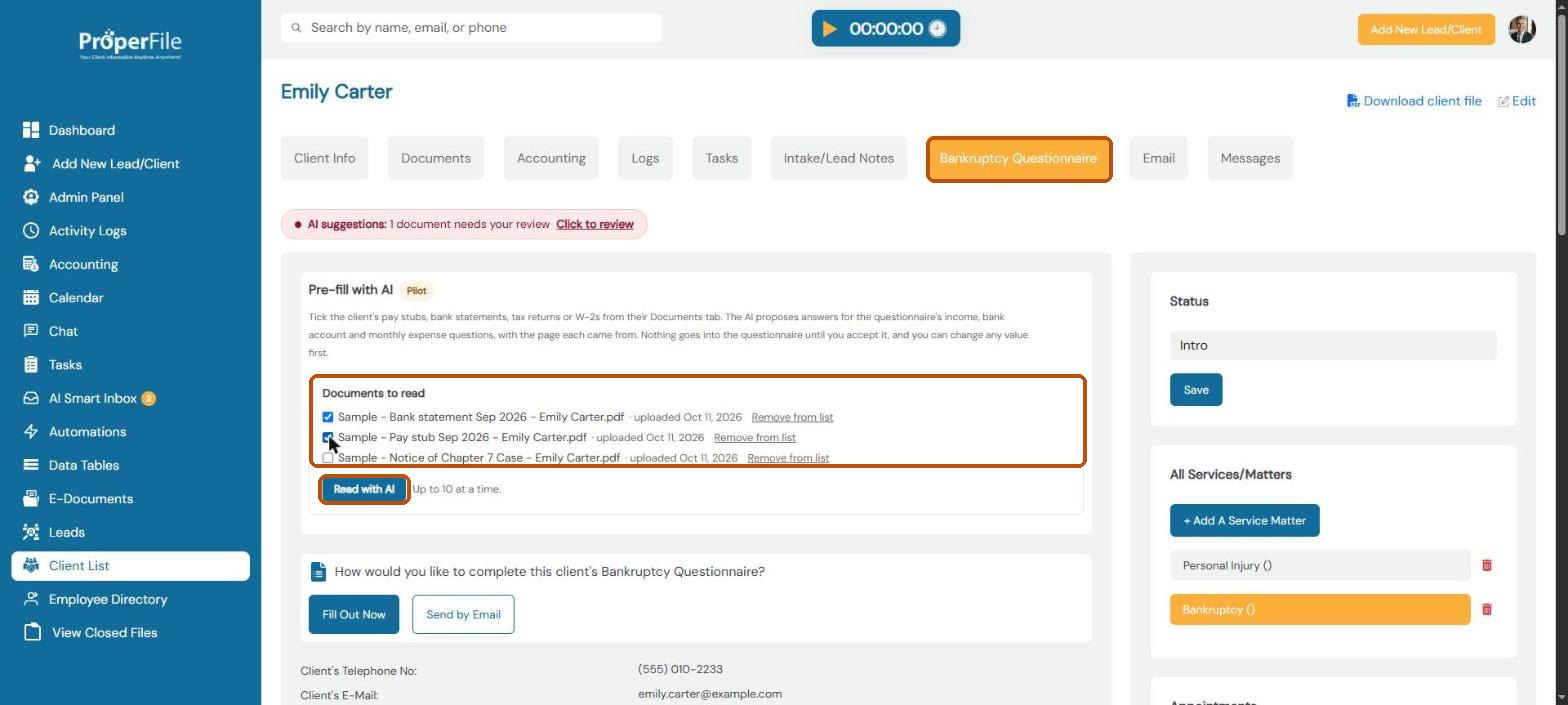
Open the client and click the Bankruptcy Questionnaire tab. In the Pre-fill with AI box, tick the client’s pay stubs, bank statements, tax returns or W-2s, up to 10 at a time, and click Read with AI. The AI reads them in a minute or two.
Documents the AI has read move under Already read by the AI, so you can see what’s left. To keep a document off the list (for example a retainer agreement), click Remove from list; it stays in the client’s documents.
Step 2
See what the AI says to check
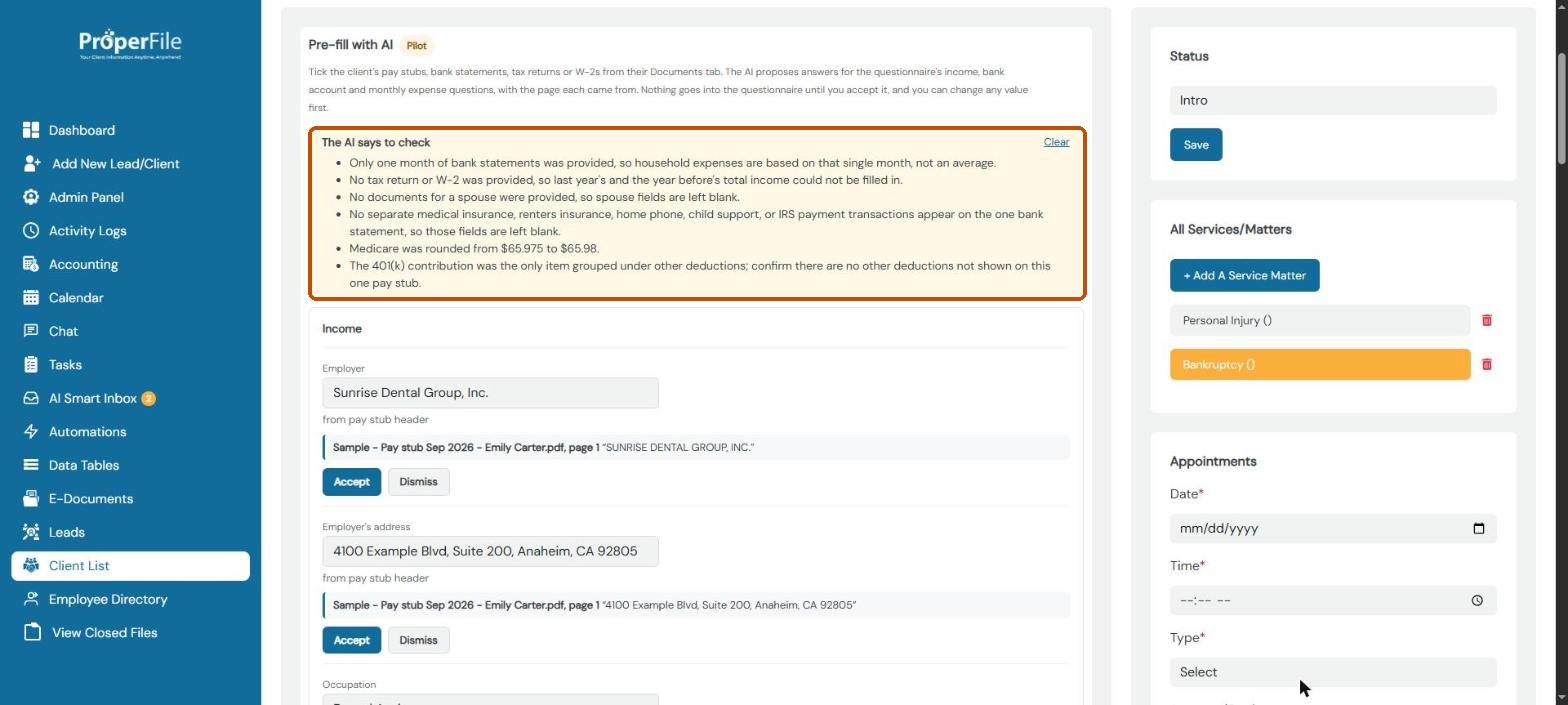
The orange The AI says to check box lists what was missing or unclear, for example only one month of bank statements, or no tax return for last year’s income. Ask the client for anything missing, then click Clear.
Step 3
Check each income answer
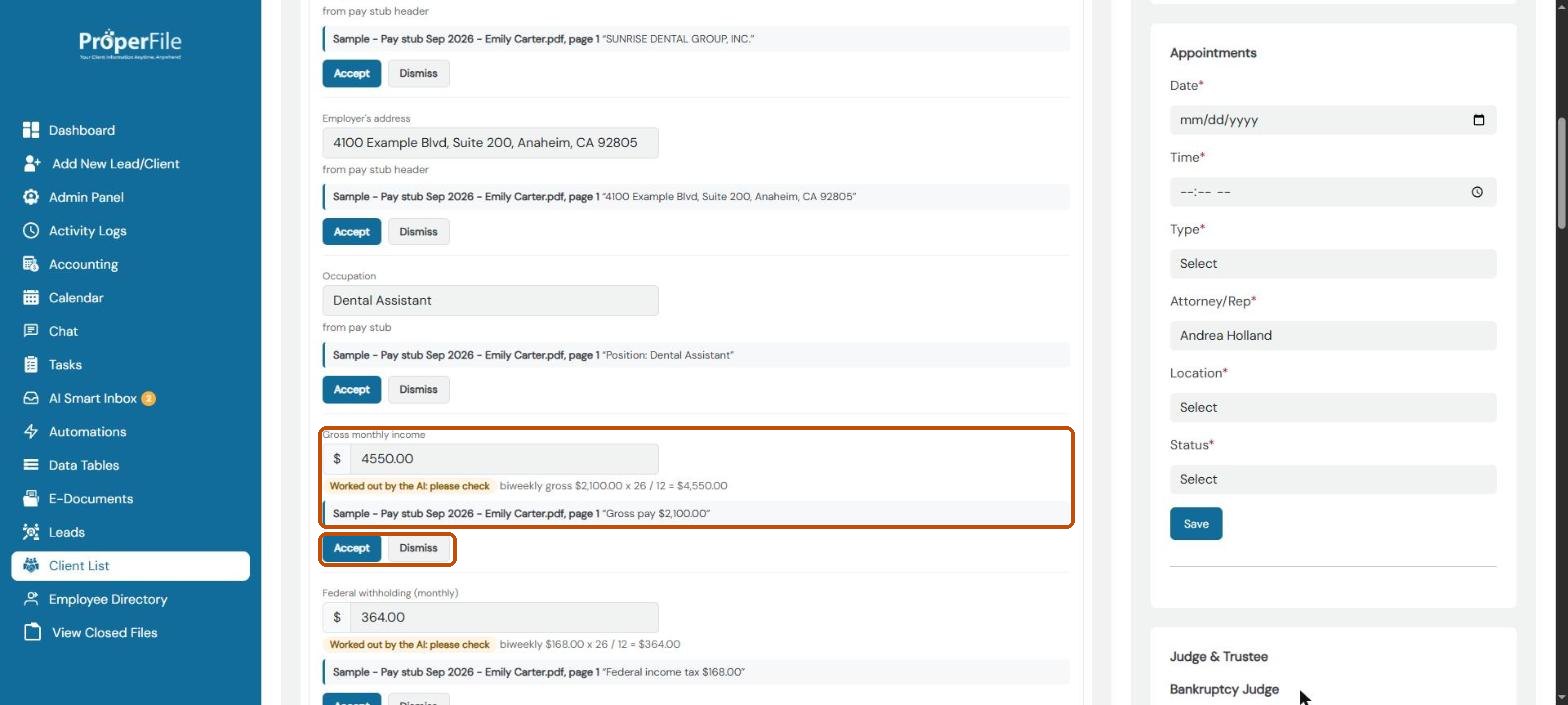
The answers are grouped into Income, Bank accounts and Monthly expenses. Under each one you see the document, the page and the exact wording it came from.
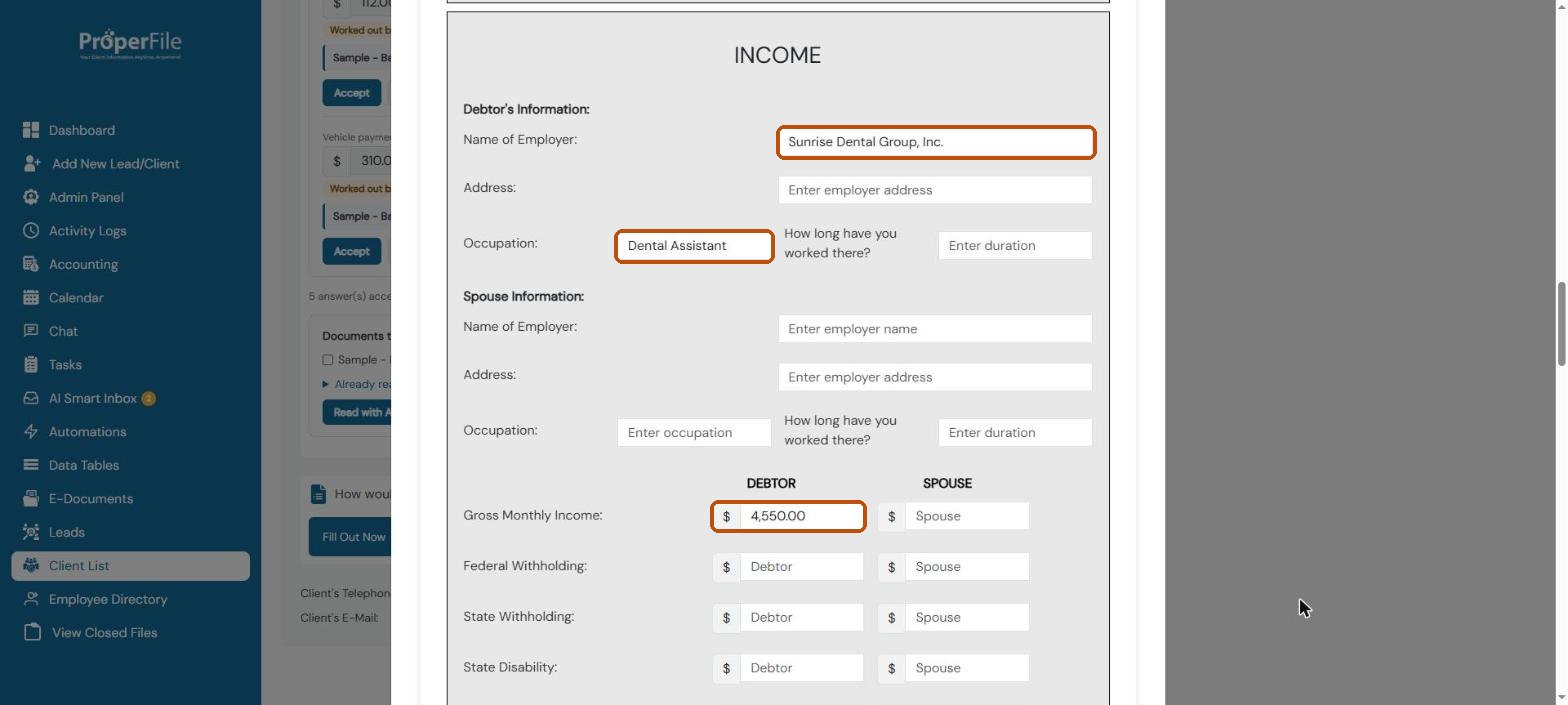
Pay is turned into monthly amounts, the way the questionnaire asks for them. An answer marked Worked out by the AI: please check was calculated, and says how (for example $2,100 every two weeks × 26 ÷ 12 = $4,550). If the questionnaire already has a different answer, it’s shown too.
Tip: always compare a worked-out amount with the document before you accept it. You can type over any value first.
Step 4
Bank accounts and monthly expenses
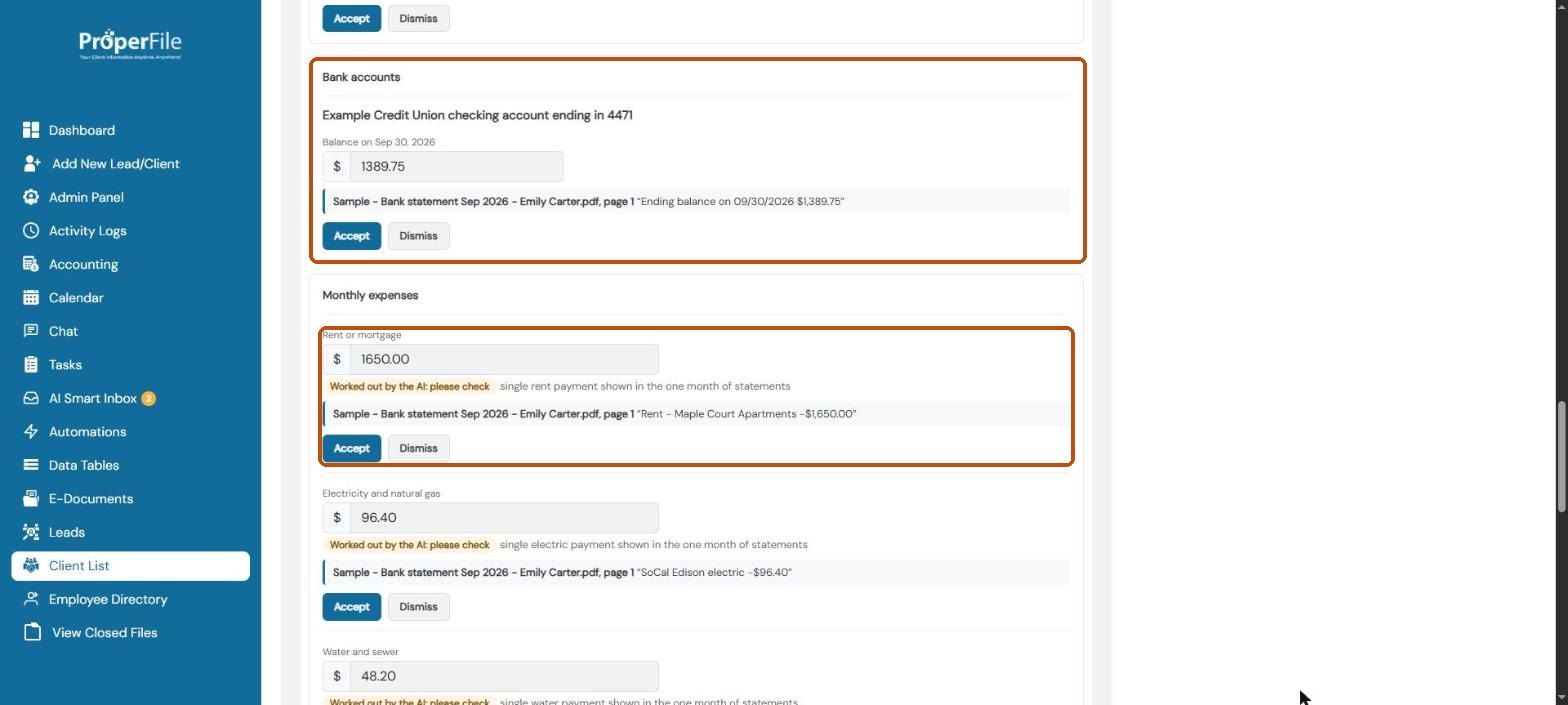
Each bank account shows the bank, checking or savings, only the last 4 digits of the account number, and the balance on the latest statement. Monthly expenses (rent, utilities, phone, internet, insurance, car payment) come from regular payments in the bank statements.
Tip: expenses from one month of statements are just that month. Two or three months give a better average.
Step 5
Accept, edit or dismiss
Change a value if you need to, then click Accept: it goes into the client’s questionnaire. Click Dismiss for anything you don’t want. Accepted answers show when you click Fill Out Now, and when the client opens their questionnaire, ready for them to check and finish.
A completed (locked) questionnaire can’t be changed this way; unlock it on the same tab first. If the client has the questionnaire open while you accept answers, their page won’t erase them.
What’s next
Keep going
The AI’s answers are a starting point, not a replacement for reviewing the client’s documents: always check them before the questionnaire is signed. To change the questionnaire’s questions, see the Bankruptcy questionnaire guide. The AI also reads court notices: see How to use the AI Smart Inbox. All guides are in the Help Center.