
Help Center · Admin Panel setup
How AI credits work, and how to turn on AI features
ProperFile’s paid AI features (the AI Smart Inbox, reading documents uploaded to clients, pre-filling bankruptcy questionnaires, filling immigration forms from documents and translating e-document templates) use AI credits. Your firm gets 50 credits included every month, paid for by ProperFile, and you can buy more whenever you need them. Writing emails, translating email templates, building intake forms and drafting e-document templates with AI are always free.
Time needed: about 5 minutes.
Before you start: anyone with Admin Panel access can see your firm’s credits and buy more. Only the firm’s owner or an administrator can turn AI features on or off.
Step 1
Open AI Credits
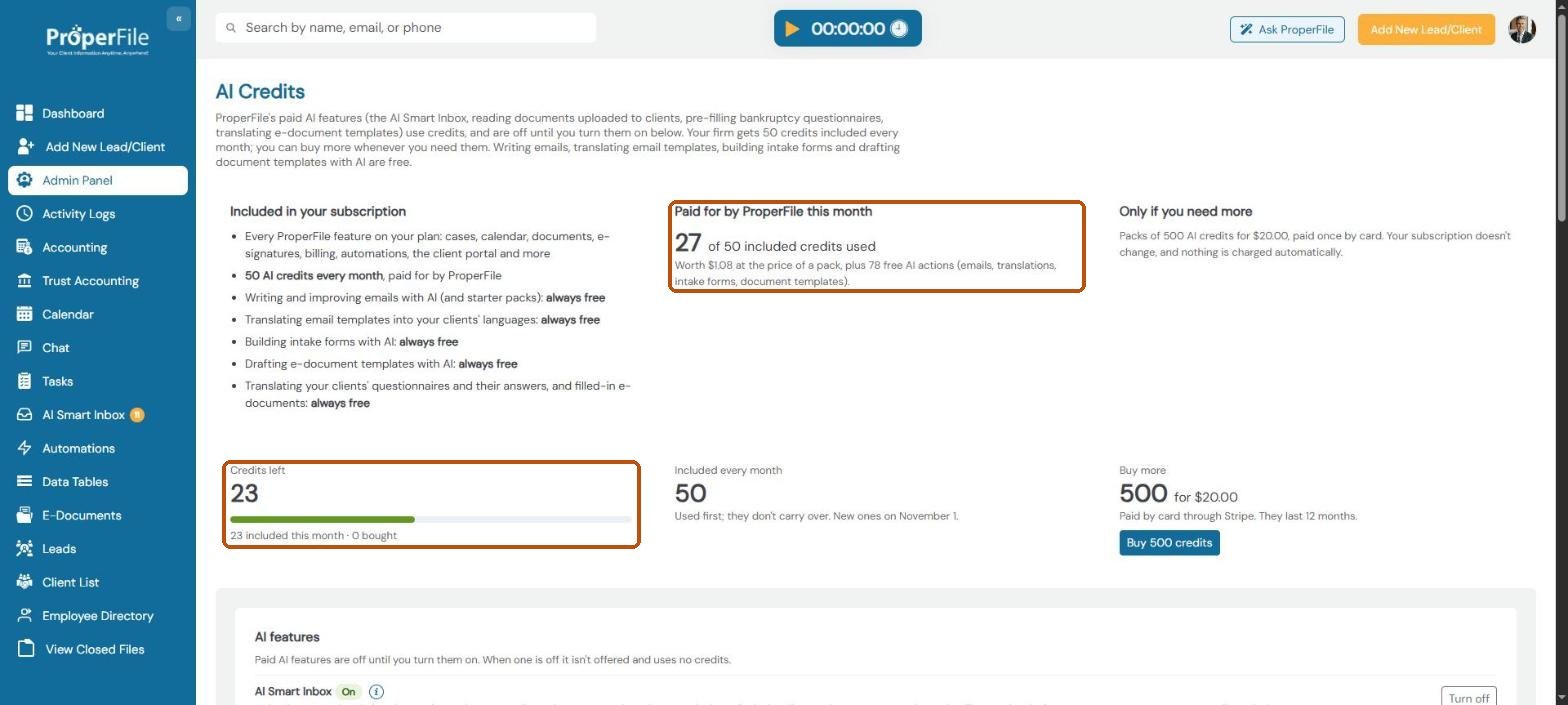
Go to Admin Panel and click AI Credits (between User Management and LawPay). At the top you’ll see what’s included in your subscription, and Paid for by ProperFile this month: how many of your 50 included credits your firm has used.
Underneath, Credits left is everything your firm can still use: this month’s included credits plus any you bought. The included credits are used first. They don’t carry over, and new ones arrive on the 1st of every month.
Step 2
Turn on the AI features you want
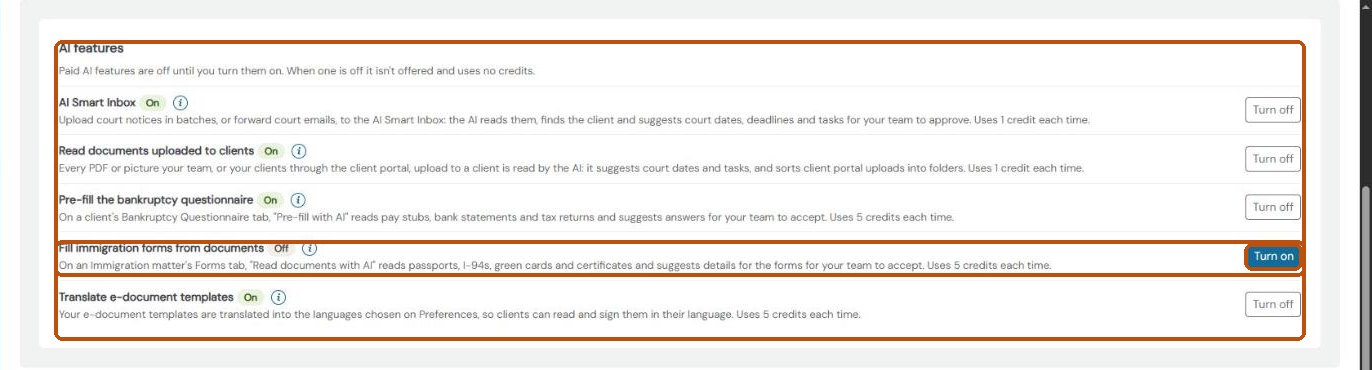
Under AI features, every paid feature is Off until you turn it on. Click Turn on next to the ones your firm wants, or Turn off to stop one. A feature that’s off isn’t offered to your team and uses no credits.
- AI Smart Inbox: upload court notices, or forward court emails, and the AI suggests court dates, deadlines and tasks. 1 credit per document.
- Read documents uploaded to clients: PDFs and pictures uploaded to a client are read, and client portal uploads are sorted into folders. 1 credit per document.
- Pre-fill the bankruptcy questionnaire: the AI suggests answers from pay stubs, bank statements and tax returns. 5 credits each time.
- Fill immigration forms from documents: on an Immigration matter’s Forms tab, Read documents with AI reads passports, I-94s, green cards and certificates and suggests details for the forms. 5 credits each time.
- Translate e-document templates: your templates are translated into your clients’ languages. 5 credits per language.
Click the ⓘ next to a feature to see how it works.
Step 3
See what each AI action uses
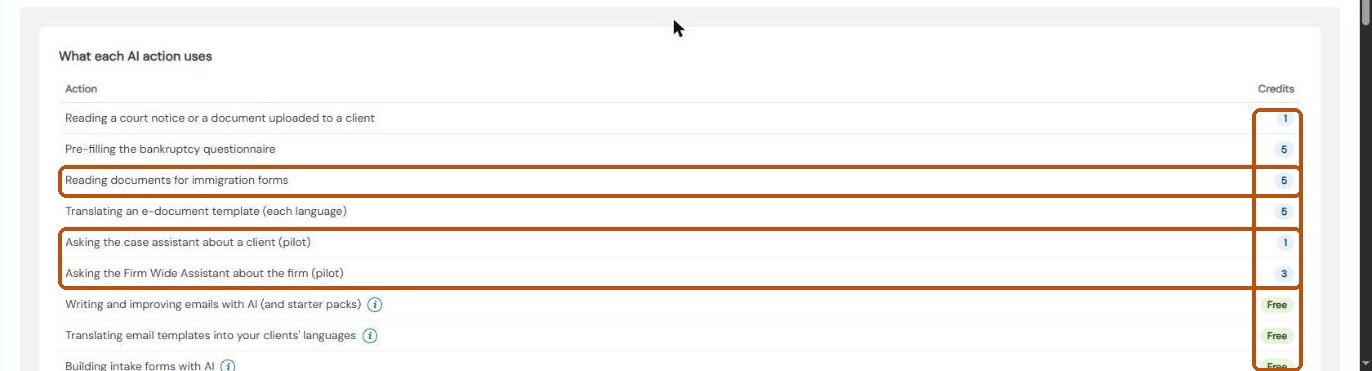
What each AI action uses lists the credits for every paid action, and the AI tools that are Free. Click the ⓘ next to a free tool to see where to find it.
- Rows marked (pilot) are for firms trying ProperFile’s assistants early: asking the case assistant about a client, and the Firm Wide Assistant about the firm.
- An action that doesn’t work (for example, a document the AI can’t read) uses nothing.
- When your firm runs out, the AI pauses until you buy more. Everything else in ProperFile keeps working, and the free AI tools too.
Step 4
Buy more credits
Click Buy 500 credits to buy a pack of 500 AI credits for $20.00. You’ll go to a secure Stripe payment page to pay by card, and then come back to AI Credits with the credits added.
- You pay once: your subscription doesn’t change, and nothing is charged automatically.
- Bought credits last 12 months.

Step 5
See what used your credits
Recent AI actions at the bottom of the page lists each action that used credits: when, what it was, the document, who did it and how many credits it used.

Step 6
Credits in the AI Smart Inbox
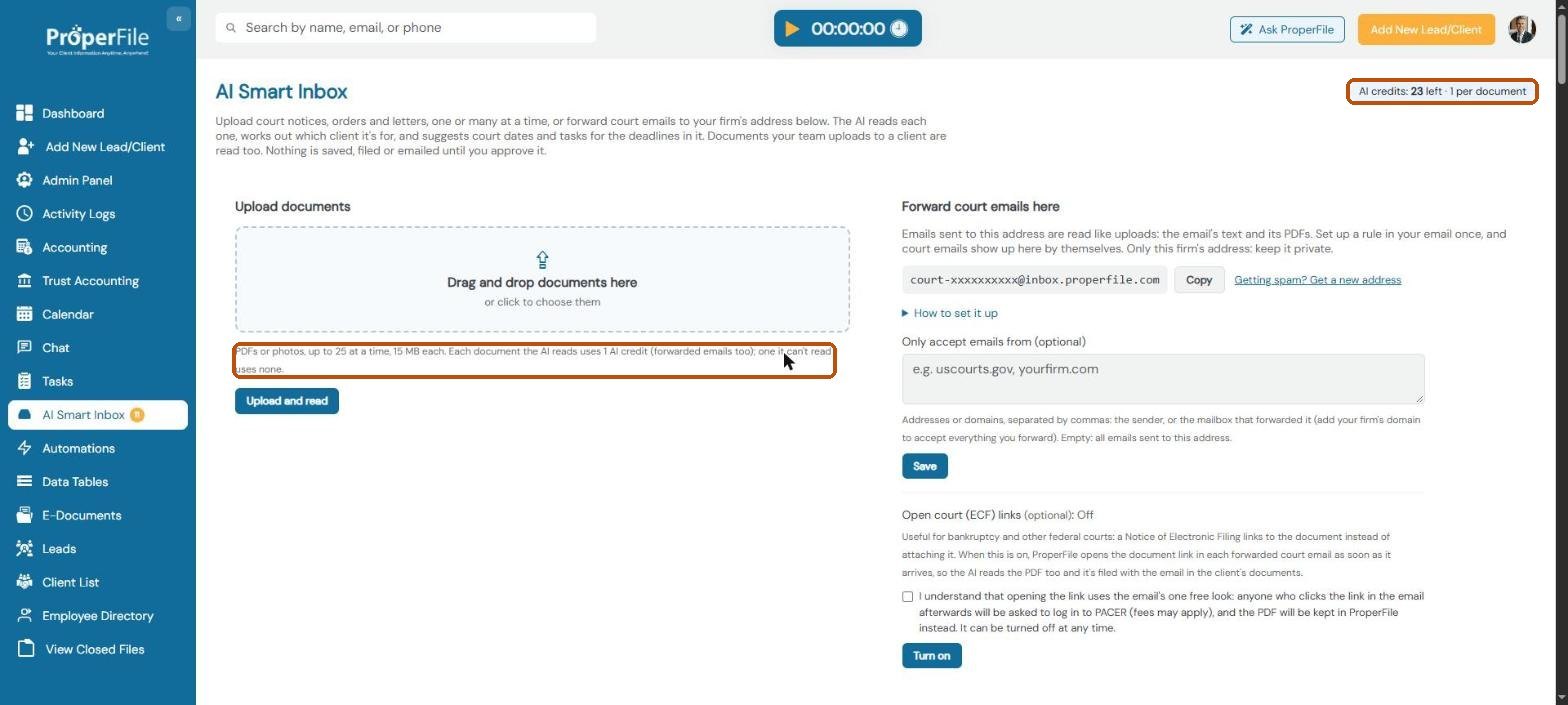
On the AI Smart Inbox, the top right shows how many credits your firm has left and what each document uses, for example AI credits: 50 left · 1 per document. Click it to open AI Credits. It turns red when fewer than 10 are left.
When you choose documents to upload, you’ll see how many credits they’ll use (for example 1 document ready (1 AI credit)). If your firm doesn’t have enough, ProperFile tells you before anything is read, so you can buy more or upload fewer. Forwarded court emails use credits the same way.
Step 7
What each document used
Every document the AI has read shows what it used next to its name, for example 1 AI credit used. If the AI couldn’t read a document because your firm was out of credits, you’ll see a Buy more credits link instead, and it used none.

What’s next
Keep going
To learn how each AI feature works, see AI Smart Inbox and Pre-fill the bankruptcy questionnaire. All guides are in the Help Center.