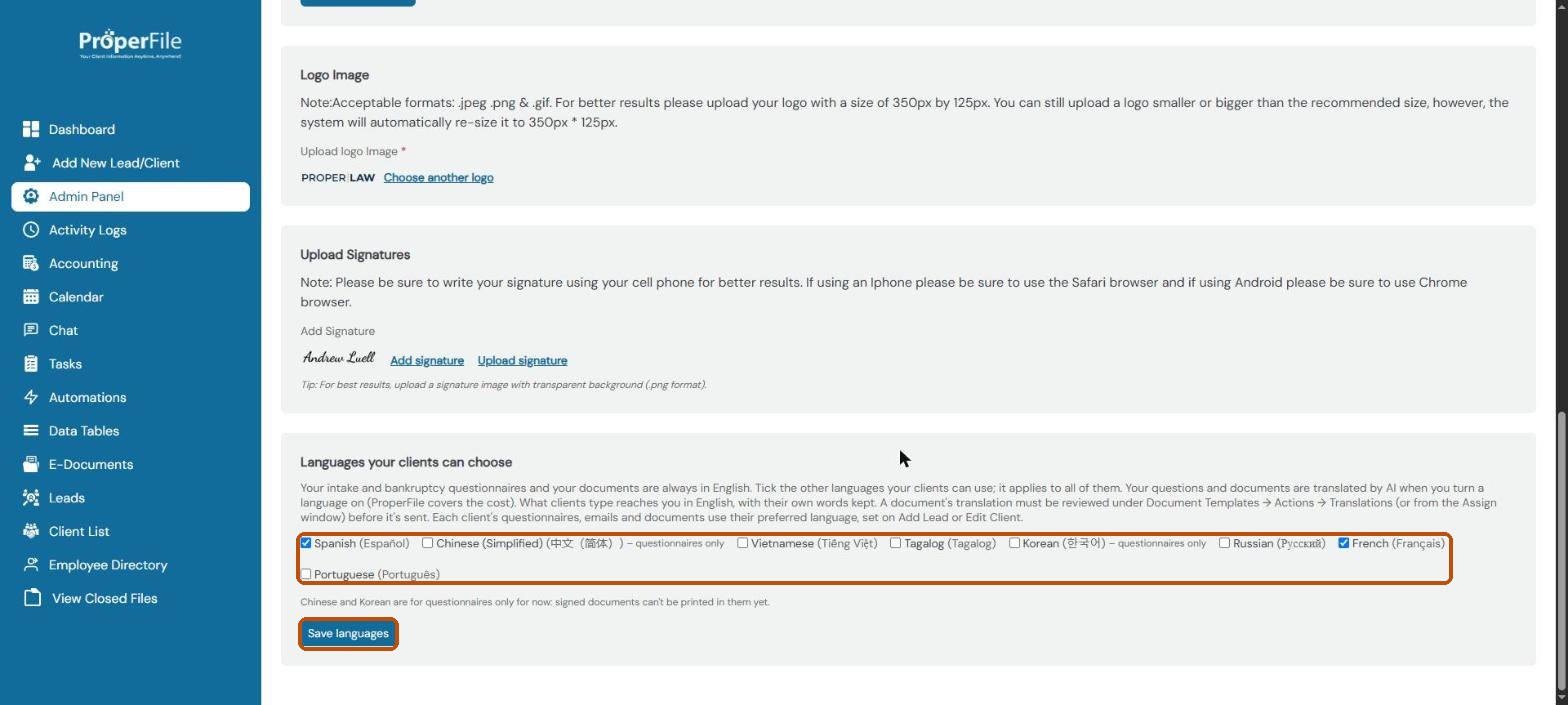
Your firm’s name, contact details, logo and signature live on the Preferences page. Your firm name appears in the emails ProperFile sends to clients, so it’s worth setting this up first. This is also where you choose which languages your clients can use.
Time needed: about 5 minutes.
Before you start: only admins, or users with Admin Panel permission, can open the Admin Panel.
Step 1
Open Preferences
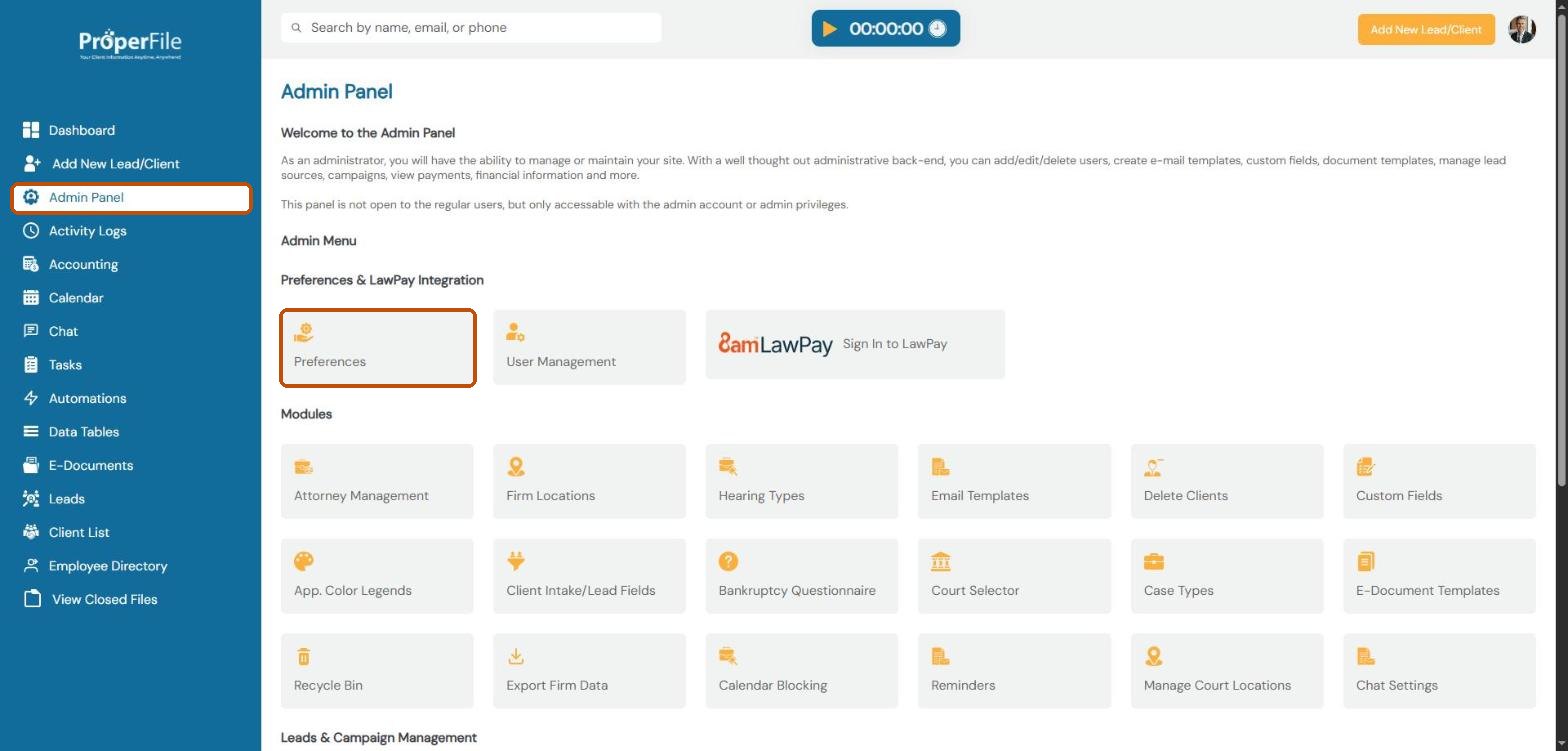
Click Admin Panel in the left menu, then click Preferences.
Step 2
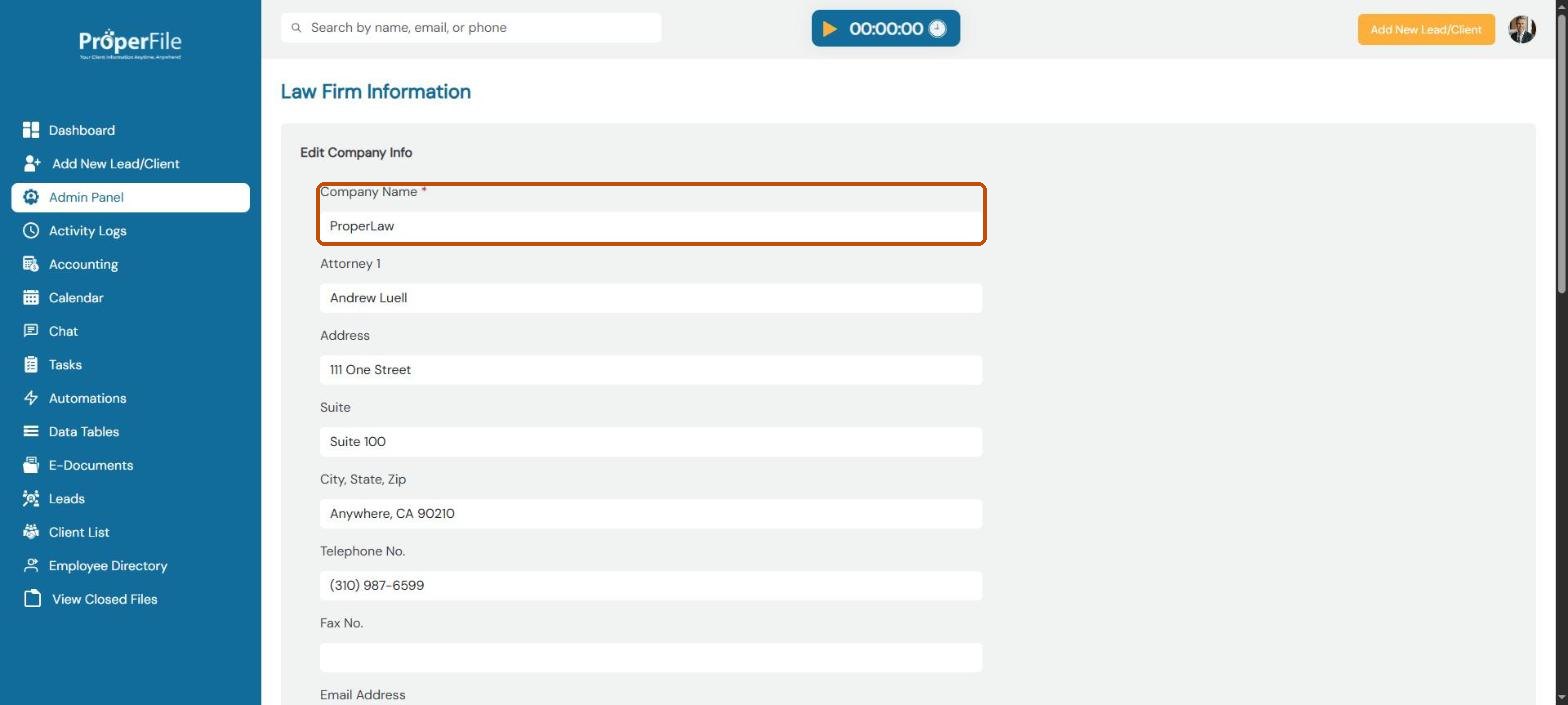
Enter your firm’s details
Under Edit Company Info, type your Company Name (required), the main attorney, your address and suite, city, state and ZIP, phone, fax and email address.
Step 3
Add your email signature and save
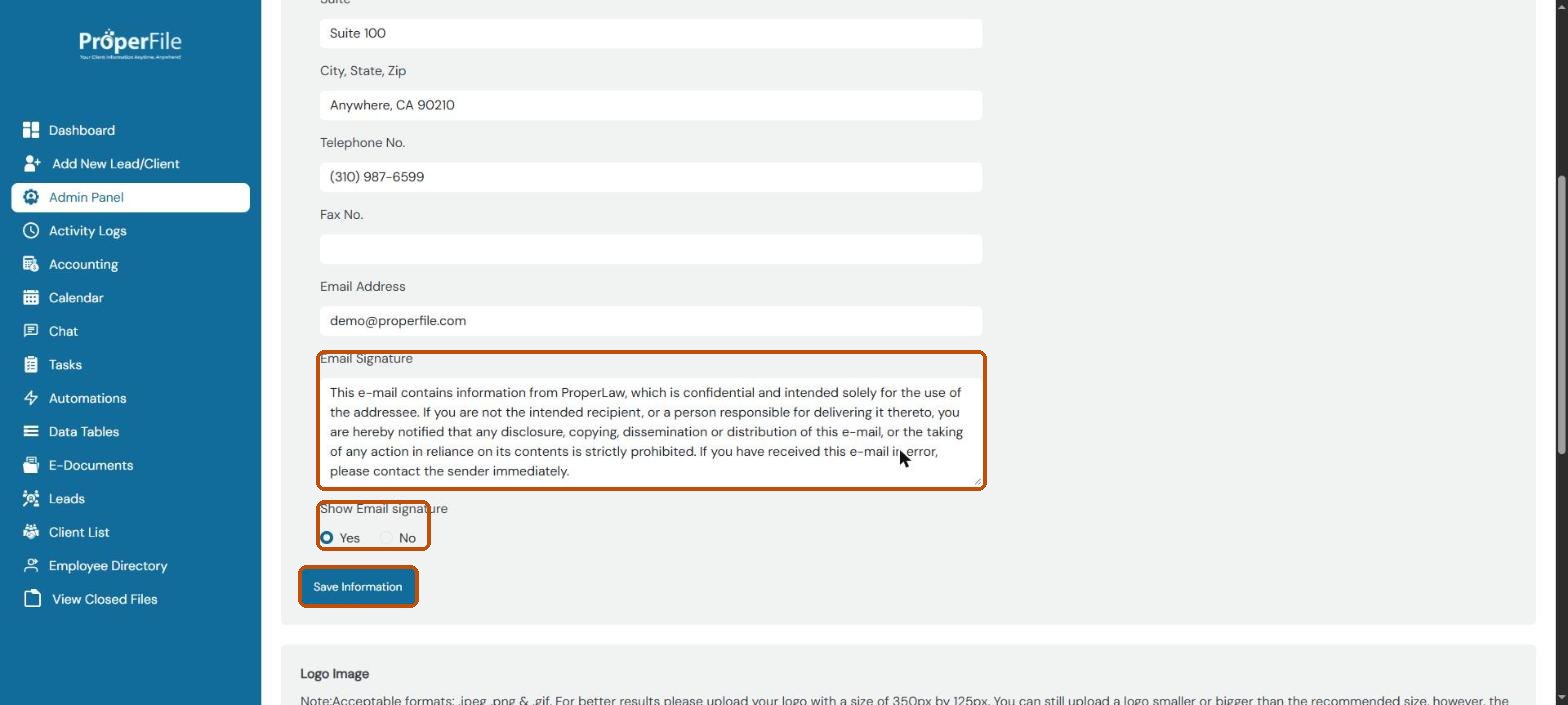
Type the text you want at the bottom of your emails in Email Signature, such as a confidentiality notice. Choose Yes under Show Email signature to add it to your emails. Then click Save Information.
Tip: click Save Information before moving on. The logo, signature and language sections below have their own buttons.
Step 4
Upload your logo and signature
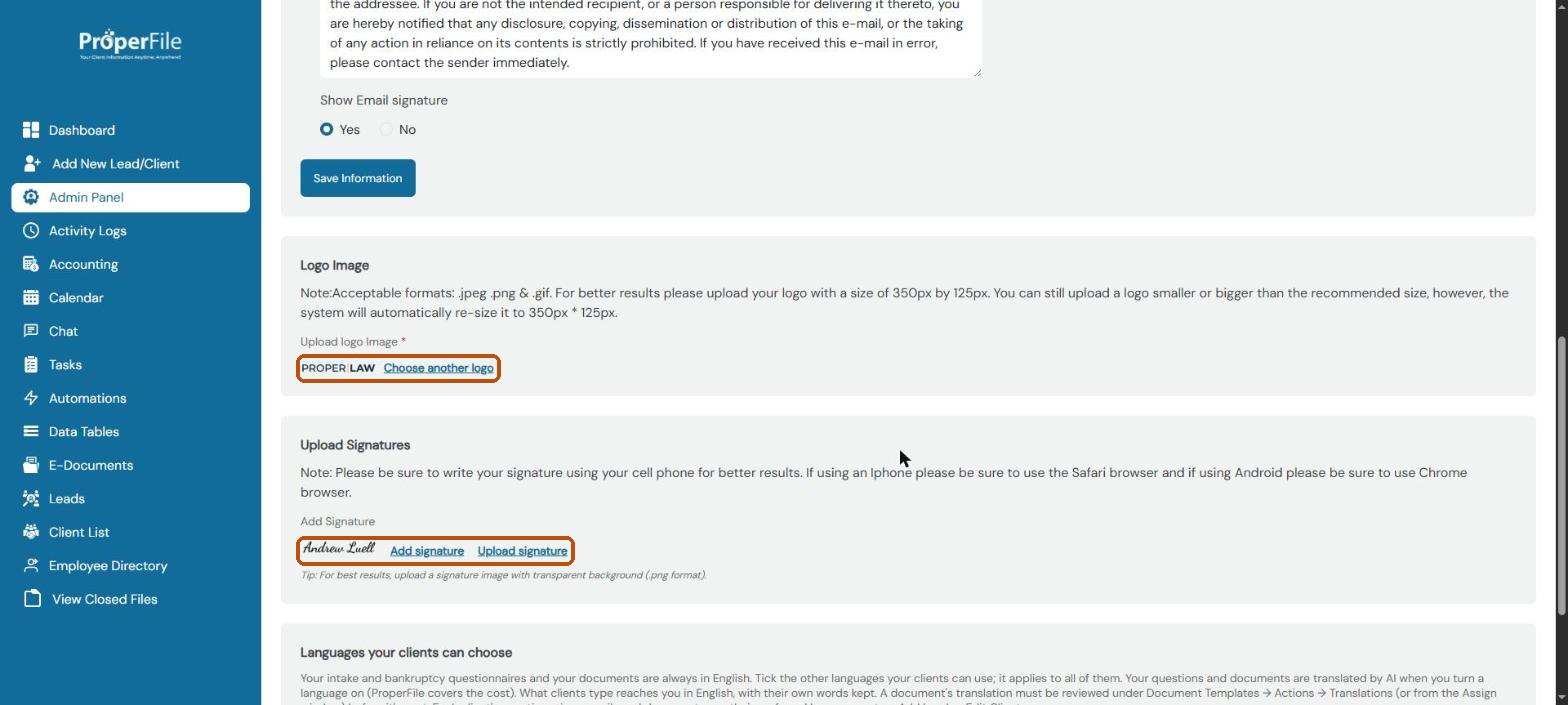
Under Logo Image, click Choose another logo and pick your logo file (.jpeg, .png or .gif). It works best at 350 × 125 pixels; other sizes are resized for you.
Under Upload Signatures, click Add signature to draw your signature, or Upload signature to use an image of it.
Tip: draw your signature on your phone for the smoothest result (Safari on iPhone, Chrome on Android). If you upload an image, a .png with a transparent background looks best.
Step 5
Choose the languages your clients can use
Under Languages your clients can choose, tick each language you want to offer, then click Save languages. English is always on.
When you turn a language on, ProperFile translates your questionnaires and documents with AI, at no extra cost. What clients type comes back to you in English, with their own words kept.
Tip: review each document’s translation before it’s sent: go to E-Document Templates, then Actions, then Translations. Chinese and Korean are for questionnaires only for now. You pick each client’s language when you add or edit the client.
What’s next
Keep going
Next, add the people who work at your firm in Users and permissions. All guides are in the Help Center.