See how your firm is growing at a glance: how many leads and clients you sign each month, and which marketing brings them in.
Time needed: about 2 minutes.
Step 1
Open a report
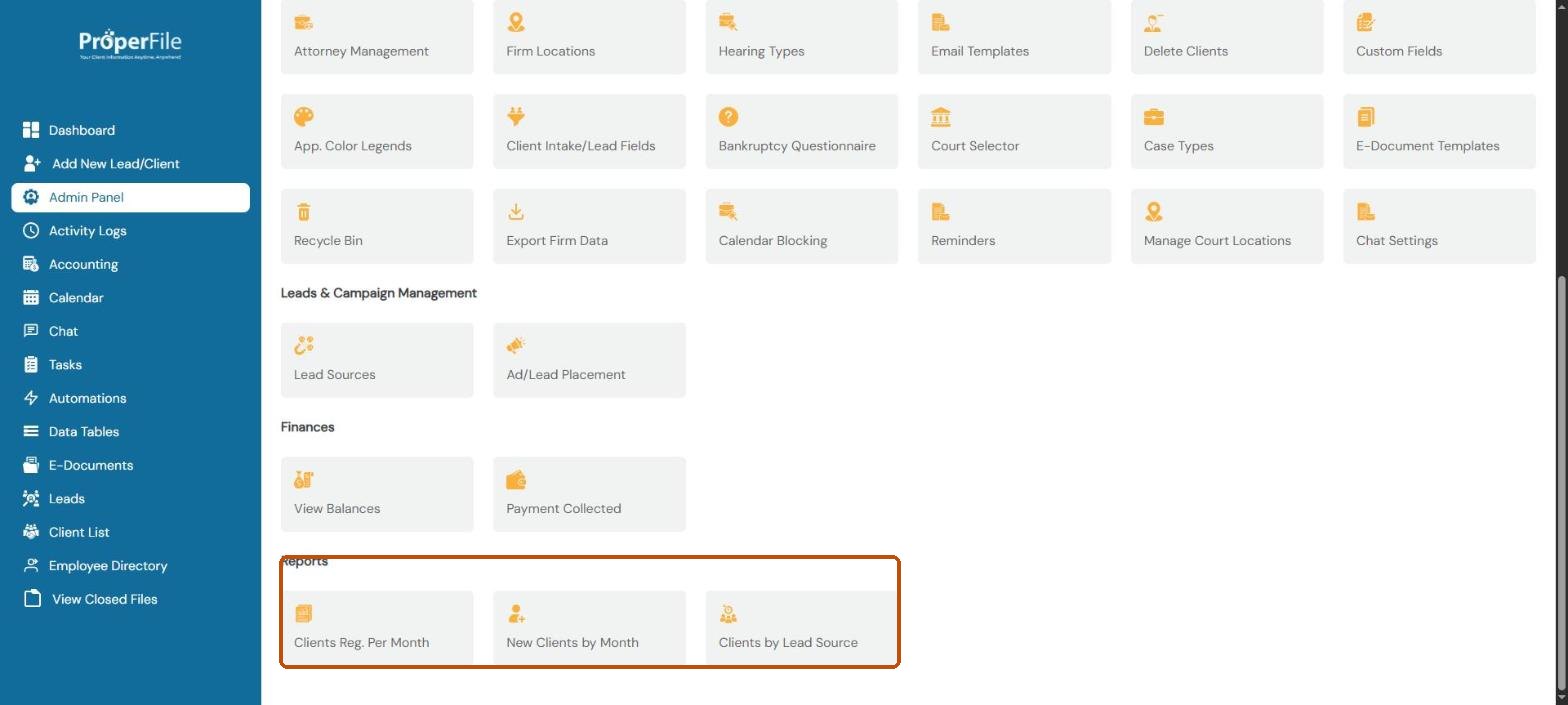
Click Admin Panel in the left menu and scroll down to Reports. Choose Clients Reg. Per Month, New Clients by Month or Clients by Lead Source.
Step 2
Choose the months
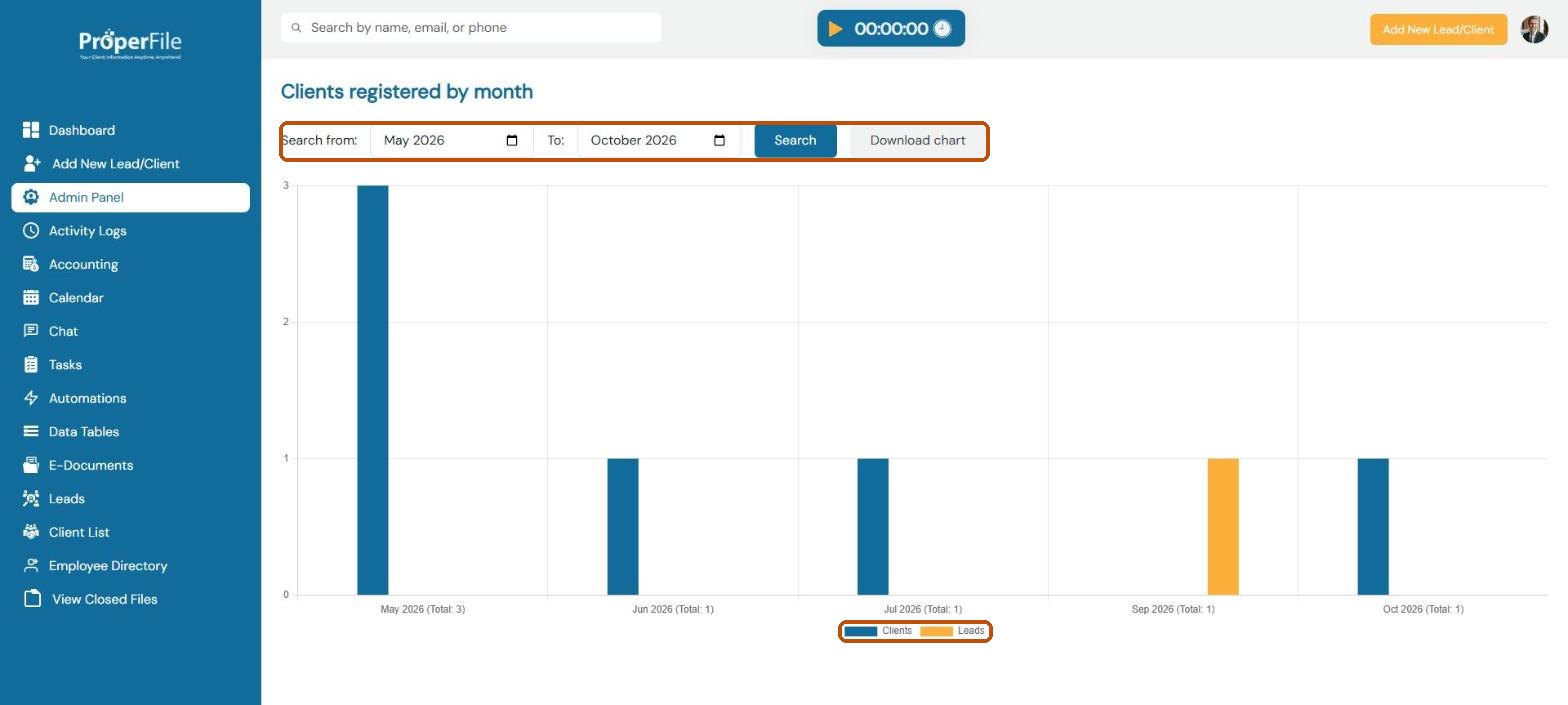
Set Search from and To to the months you want, then click Search. Clients registered by month shows new clients and new leads side by side, with a total under each month. Click Clients or Leads under the chart to hide or show that series.
Tip: click Download chart to save the chart as a picture you can print or share.
Step 3
Track new clients
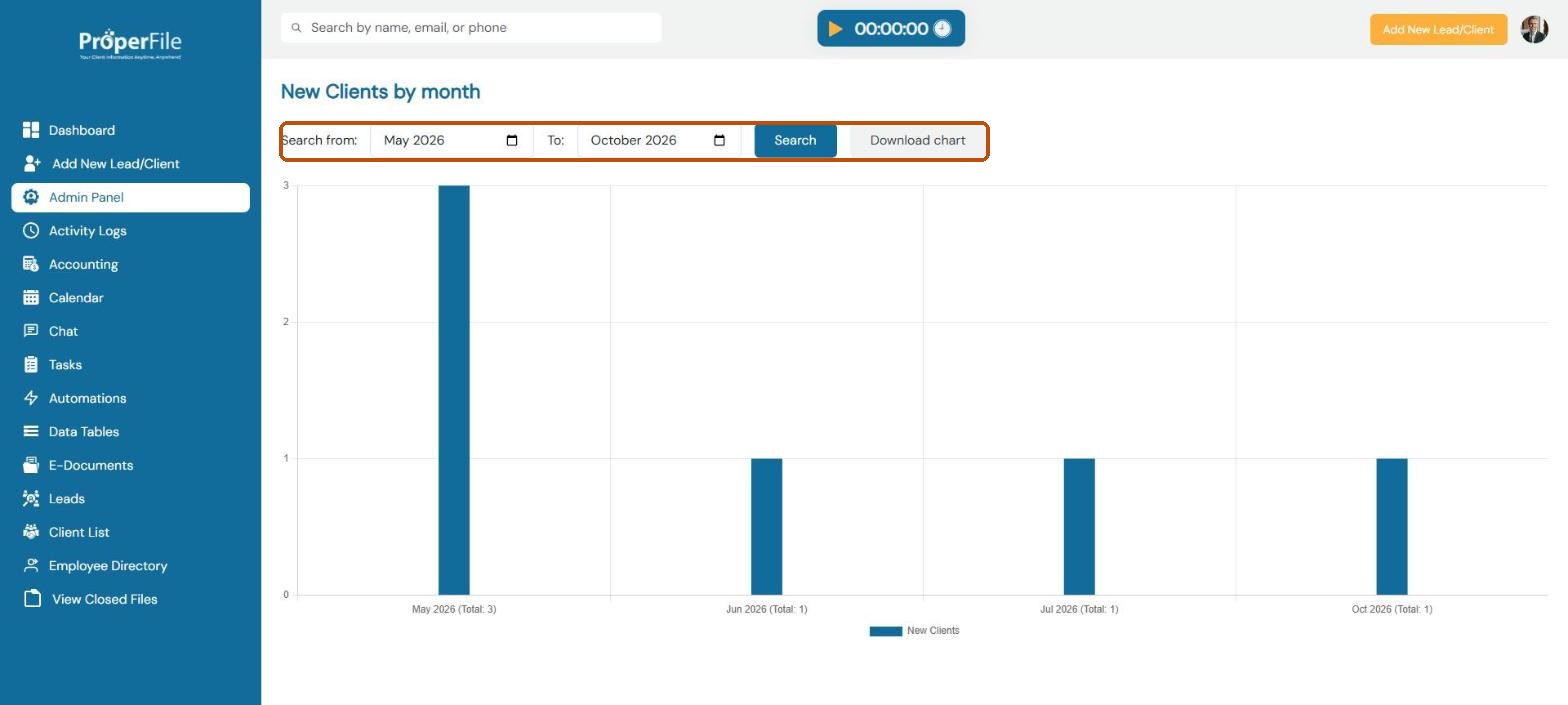
New Clients by month counts the people who became clients each month.
Step 4
See which marketing works
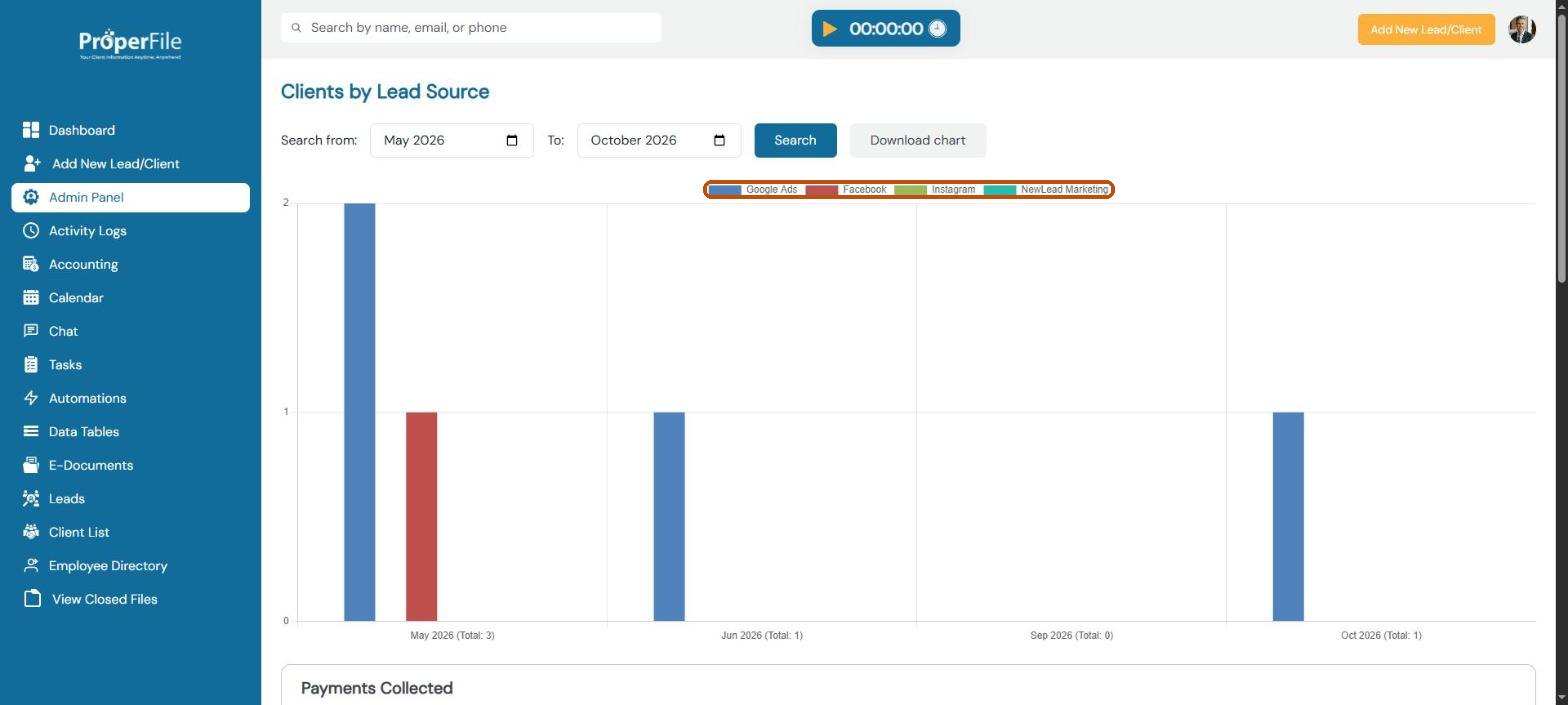
Clients by Lead Source breaks each month down by where clients heard about you, using the lead sources you set up in the Admin Panel. Click a source in the legend above the chart to hide or show it.
What’s next
Keep going
That’s the end of the everyday guides. All guides are in the Help Center.