Deleted something by mistake? Deleted clients, matters and documents wait in the Recycle Bin for 60 days. And whenever you need it, you can download a complete copy of your firm’s data as one ZIP file.
Time needed: about 2 minutes.
Step 1
Open the Recycle Bin
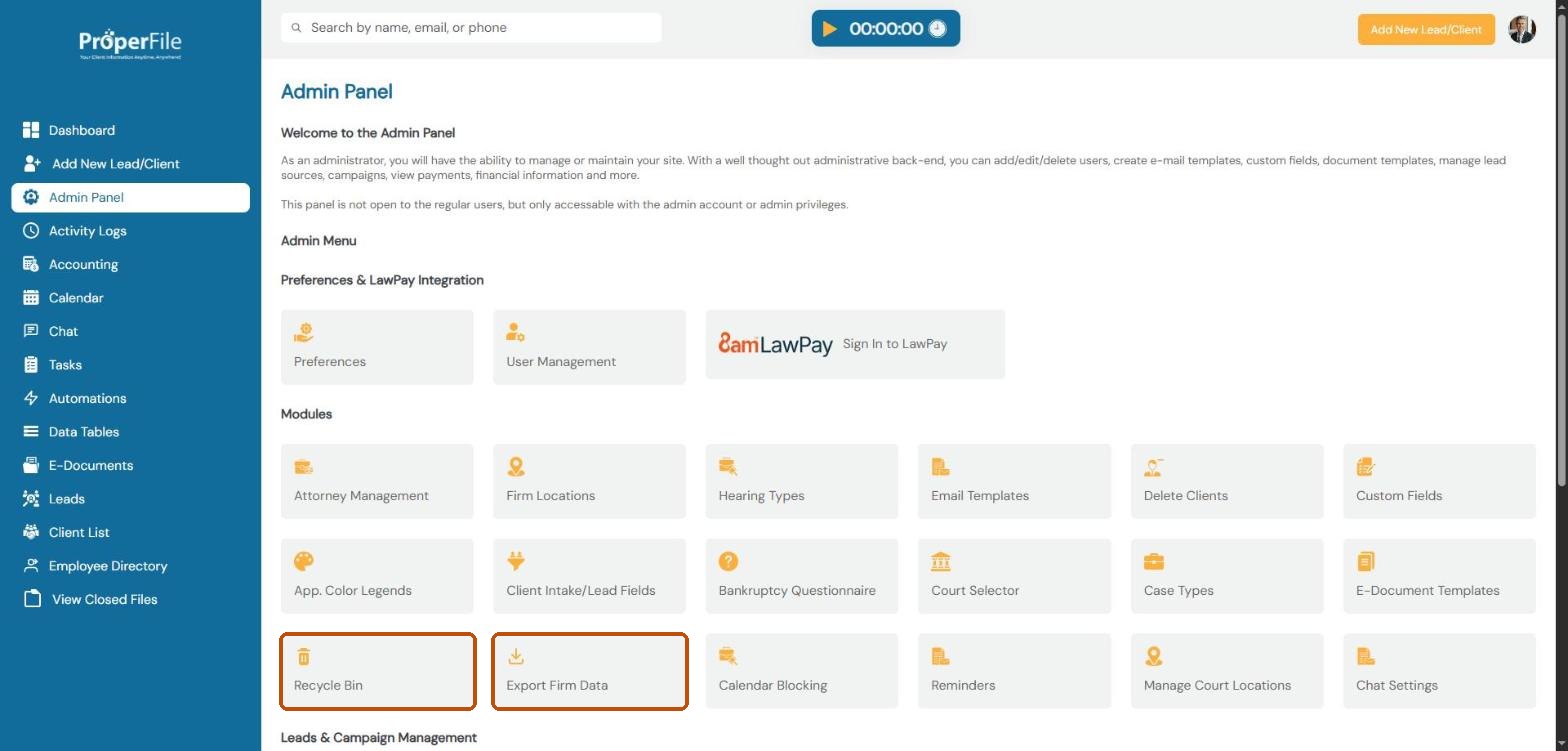
Click Admin Panel in the left menu, then click Recycle Bin. (You’ll use Export Firm Data in step 3.)
Step 2
Find and restore a deleted item
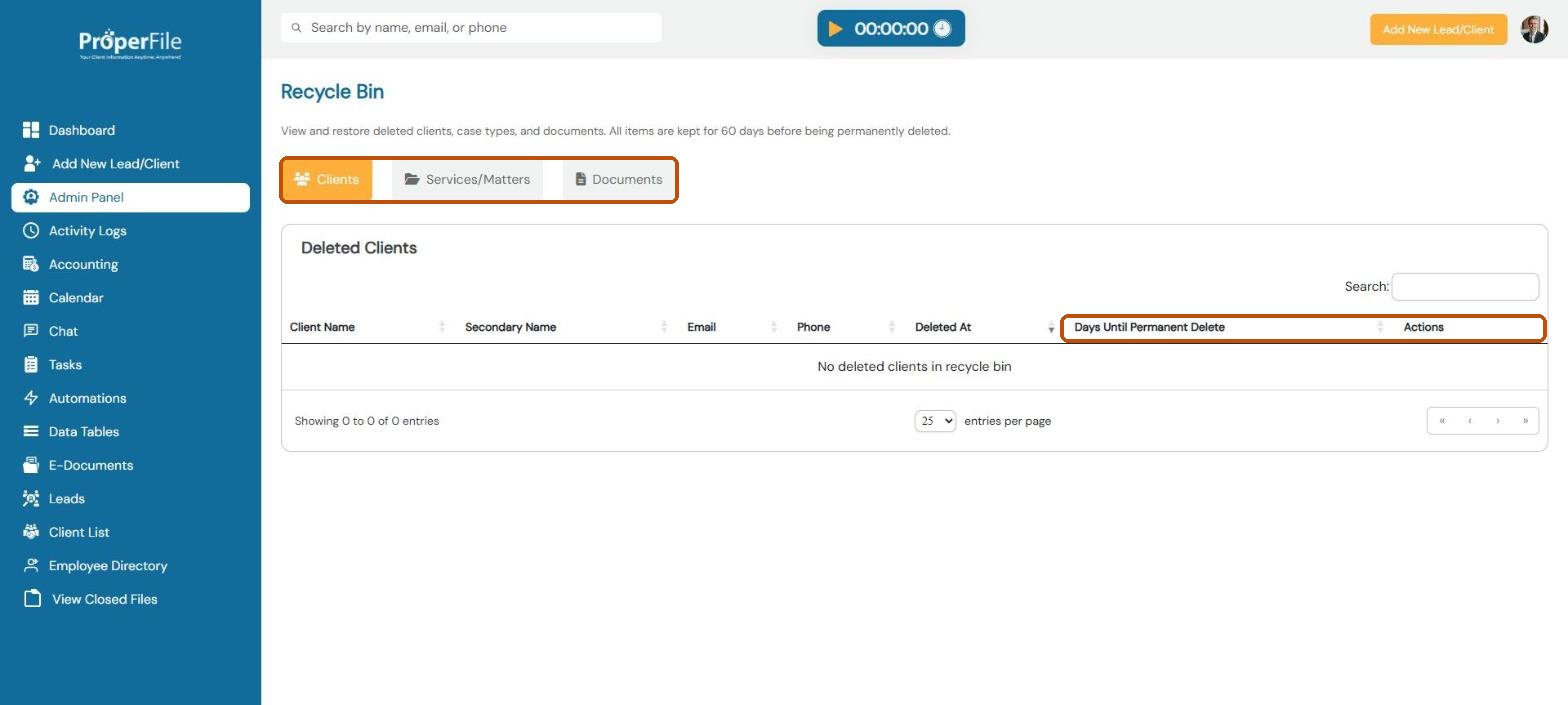
Choose the Clients, Services/Matters or Documents tab. Each deleted item shows when it was deleted and how many days are left before it’s gone for good. Search for the item and use the button in the Actions column to restore it.
Tip: items are kept for 60 days. After that they’re permanently deleted and can’t be restored.
Step 3
Export a copy of your firm’s data
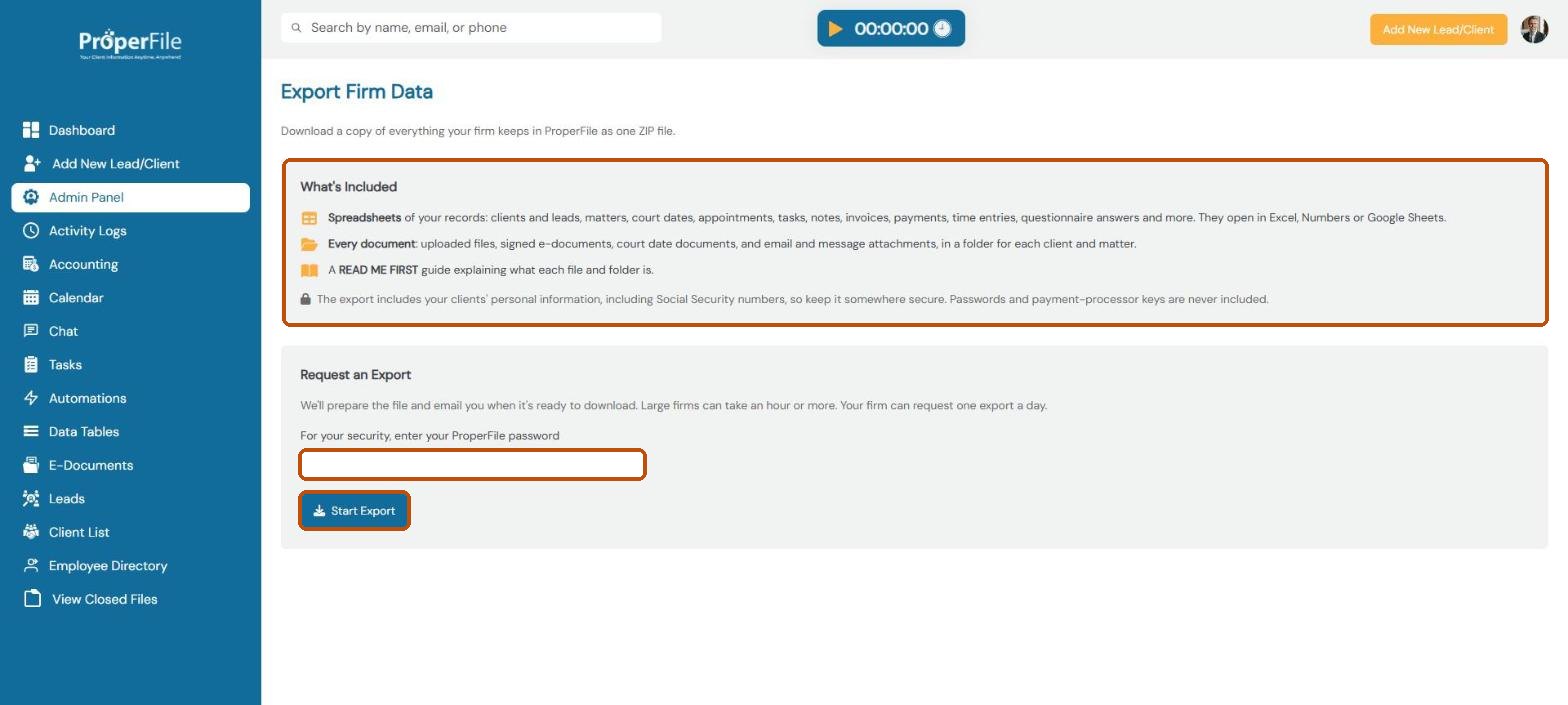
Go back to the Admin Panel and click Export Firm Data. The export includes spreadsheets of all your records (clients and leads, matters, court dates, appointments, tasks, notes, invoices, payments, time entries, questionnaire answers and more) and every document, in a folder for each client and matter, plus a READ ME FIRST guide. Enter your ProperFile password and click Start Export. ProperFile emails you when the file is ready to download.
Tip: the export contains your clients’ personal information, including Social Security numbers, so keep it somewhere secure. Large firms can take an hour or more, and you can request one export a day.
What’s next
Keep going
That’s the Admin Panel set up. Next, learn everyday tasks such as Upload and organize documents. All guides are in the Help Center.