If a file is already in Google Drive or Dropbox, you can copy it straight to a client’s Documents tab. You don’t have to save it to your computer first. It’s a one-time copy: ProperFile keeps its own file, and the original stays where it is.
Time needed: about 2 minutes.
Before you start: you need your own Google or Dropbox account. There’s nothing to turn on, and the buttons are included on every plan.
Step 1
Open the client's Documents tab
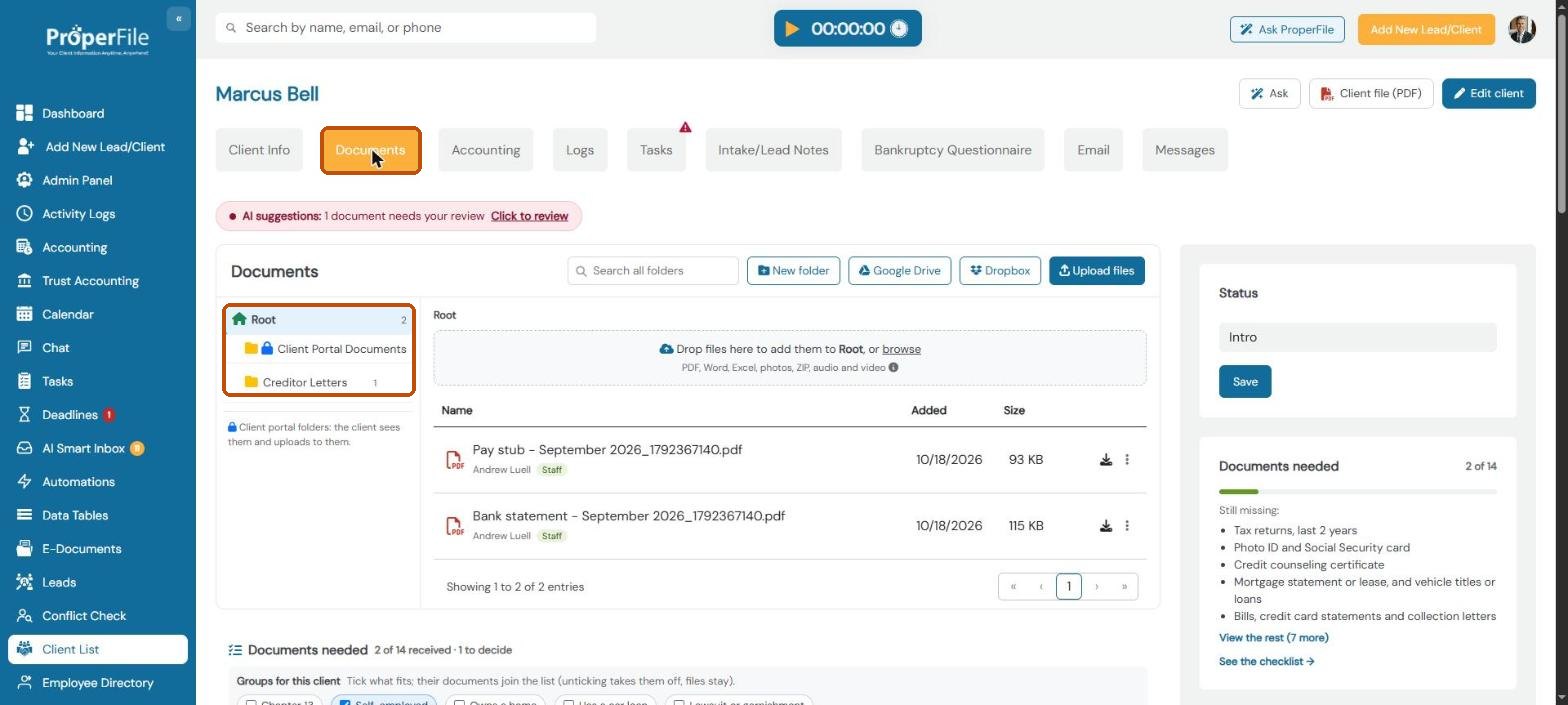
Open the client, then click Documents. Click the folder you want the file in, because files go into the folder you have open.
Step 2
Add from Google Drive
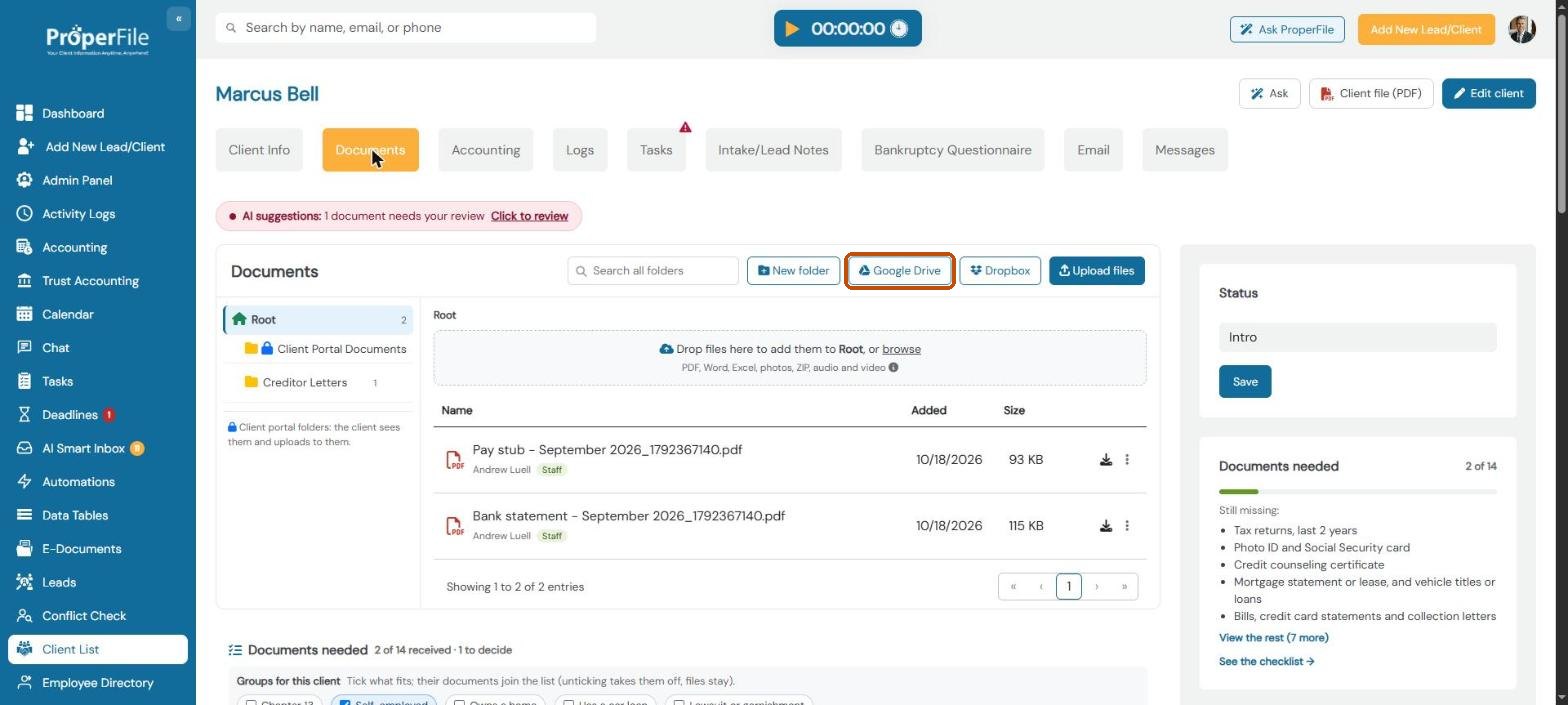
Click Google Drive. The first time, Google asks you to choose your account and allow ProperFile to see the files you pick. ProperFile can only open those files, not the rest of your Drive.
In Google’s window, pick one file or several, then click Select. Your firm’s shared drives have their own tab at the top of the window.
Tip: Google Docs and Sheets arrive as Word and Excel files. Slides and Drawings arrive as PDFs. Google limits these copies to 10 MB, so save a larger one to your computer and use Upload files.
Step 3
Add from Dropbox
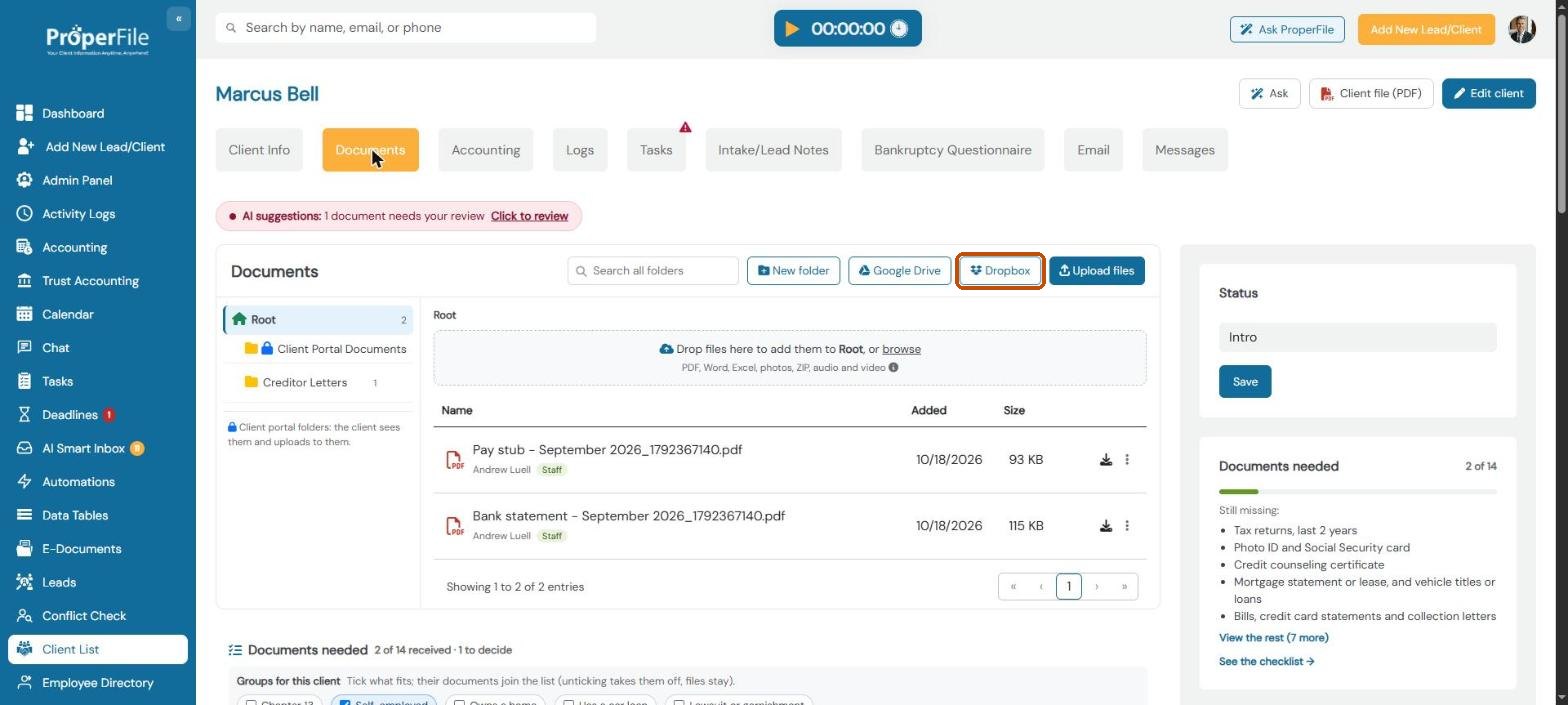
Click Dropbox and sign in if Dropbox asks. Pick one file or several, then click Choose. Dropbox only offers file types that ProperFile accepts.
Tip: If nothing seems to happen, look for a sign-in window hiding behind this one, or a note in your browser that a pop-up was blocked. Allow pop-ups for ProperFile and click the button again.
Step 4
Find your file
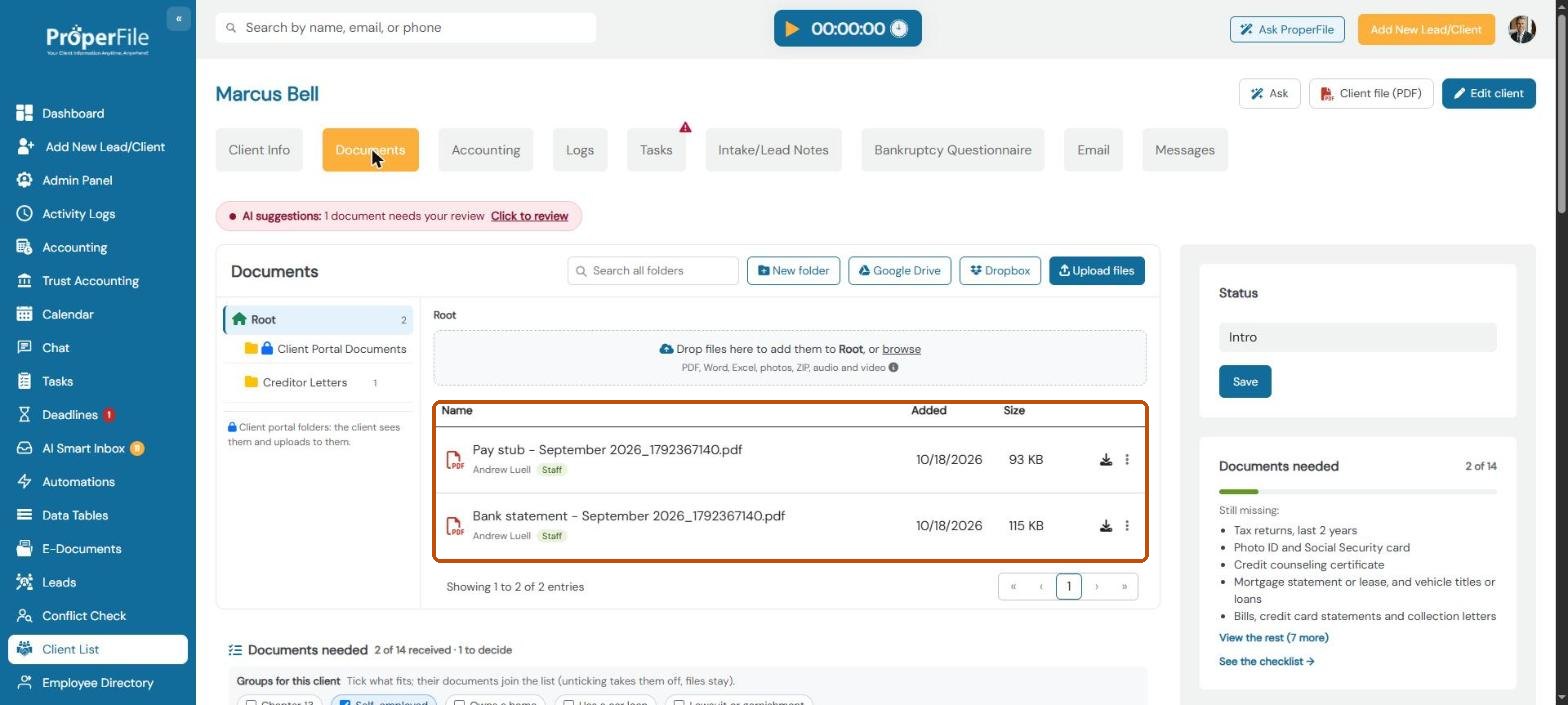
ProperFile copies the files and shows Documents uploaded successfully. They appear in the list with your name, the date and the size, just like any other upload. If your firm uses the AI to read uploads, it reads these too.
If ProperFile can’t copy a file, it names that file and the others still arrive. Save that one to your computer and use Upload files.
Step 5
Know what stays the same
The file in ProperFile doesn’t change when someone edits the original, so add it again if you need the newer version. Nothing is moved or removed from Google Drive or Dropbox, and files you add in ProperFile don’t go back to them.
These buttons are on the staff Documents tab only. Clients send you files through the client portal.