Email templates save you from typing the same emails over and over. Write an email once, add variables such as the client’s name, and ProperFile fills them in for each client. Templates are set up per case type, and the AI can write a starter set for you.
Time needed: about 5 minutes.
Step 1
Open Email Templates
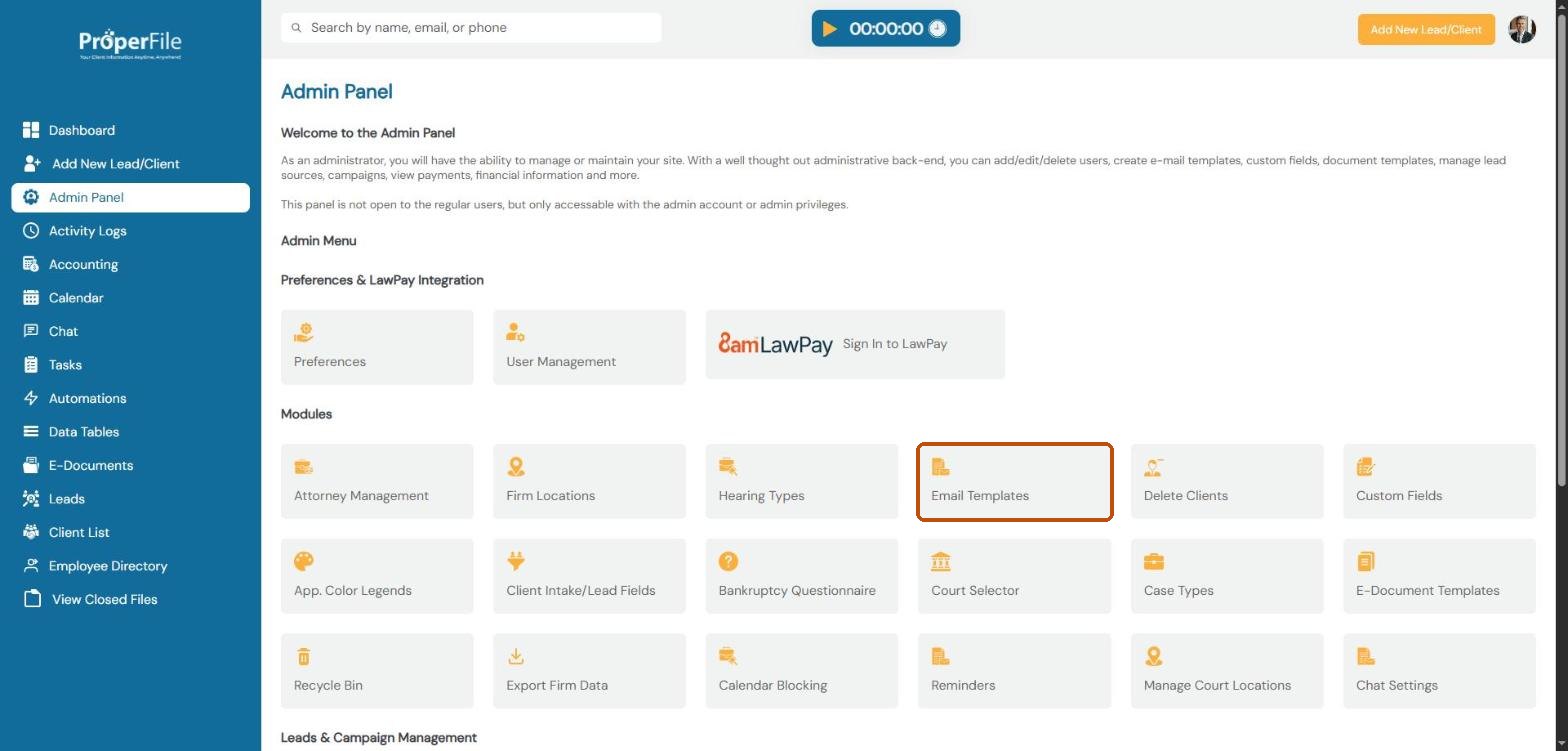
Click Admin Panel in the left menu, then click Email Templates.
Step 2
Pick a case type
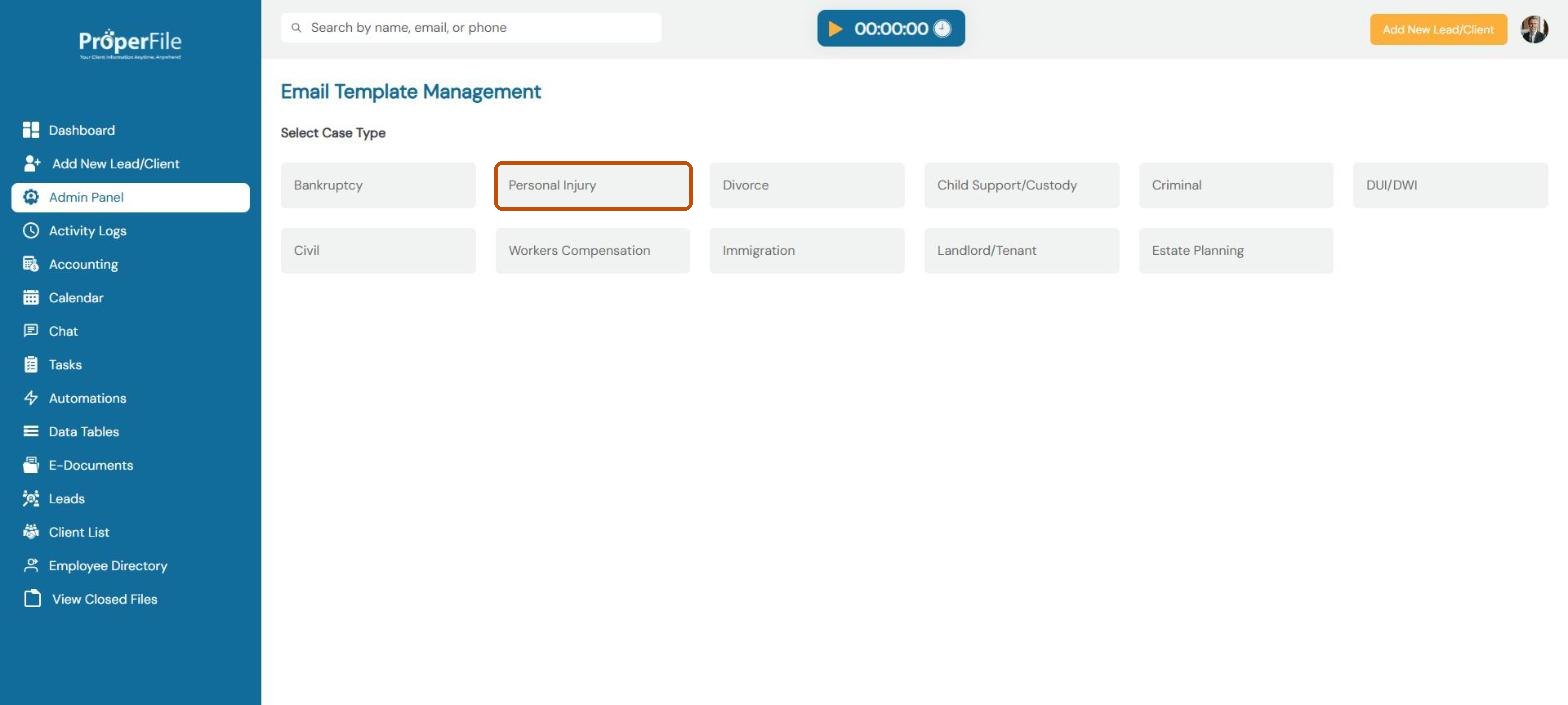
Click the case type the template is for, for example Personal Injury.
Step 3
Click Add Email Templates
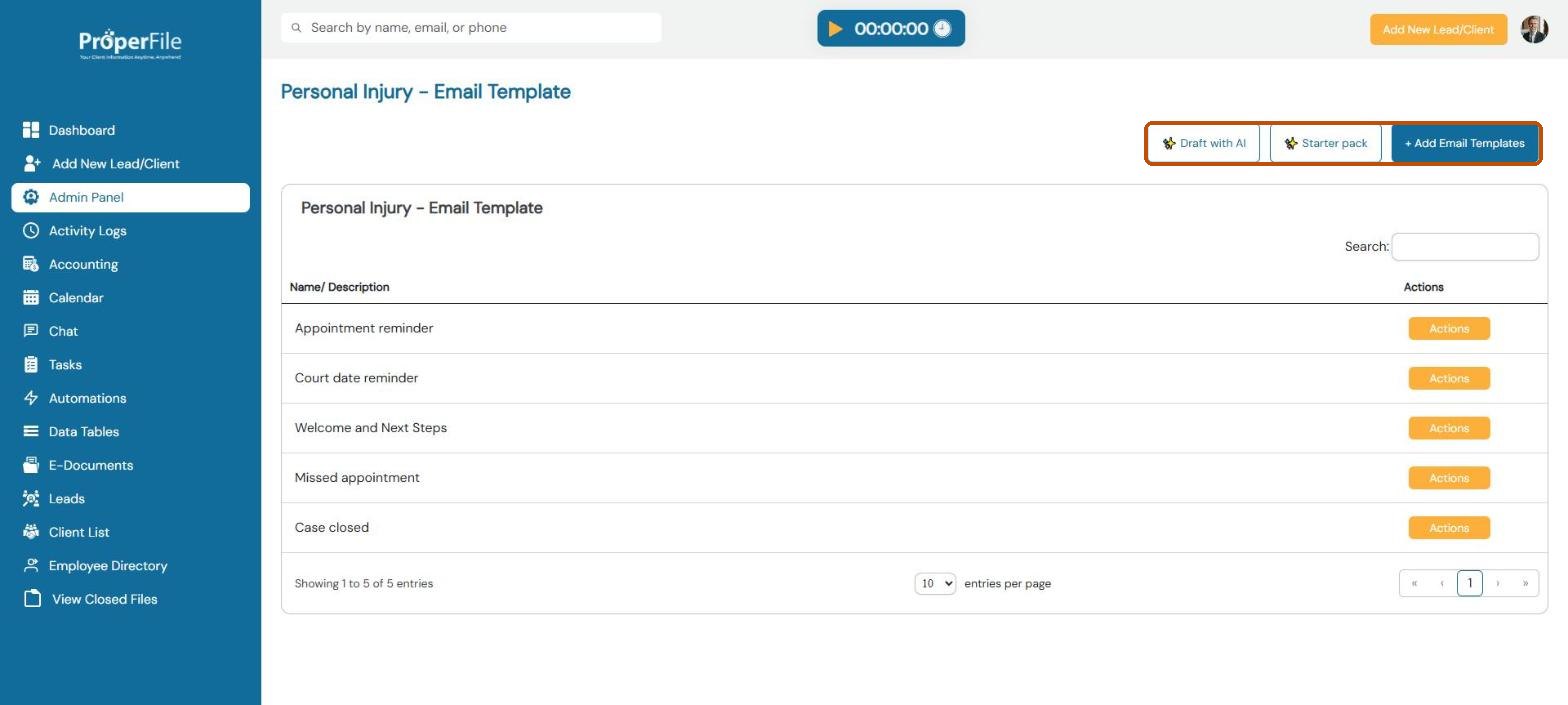
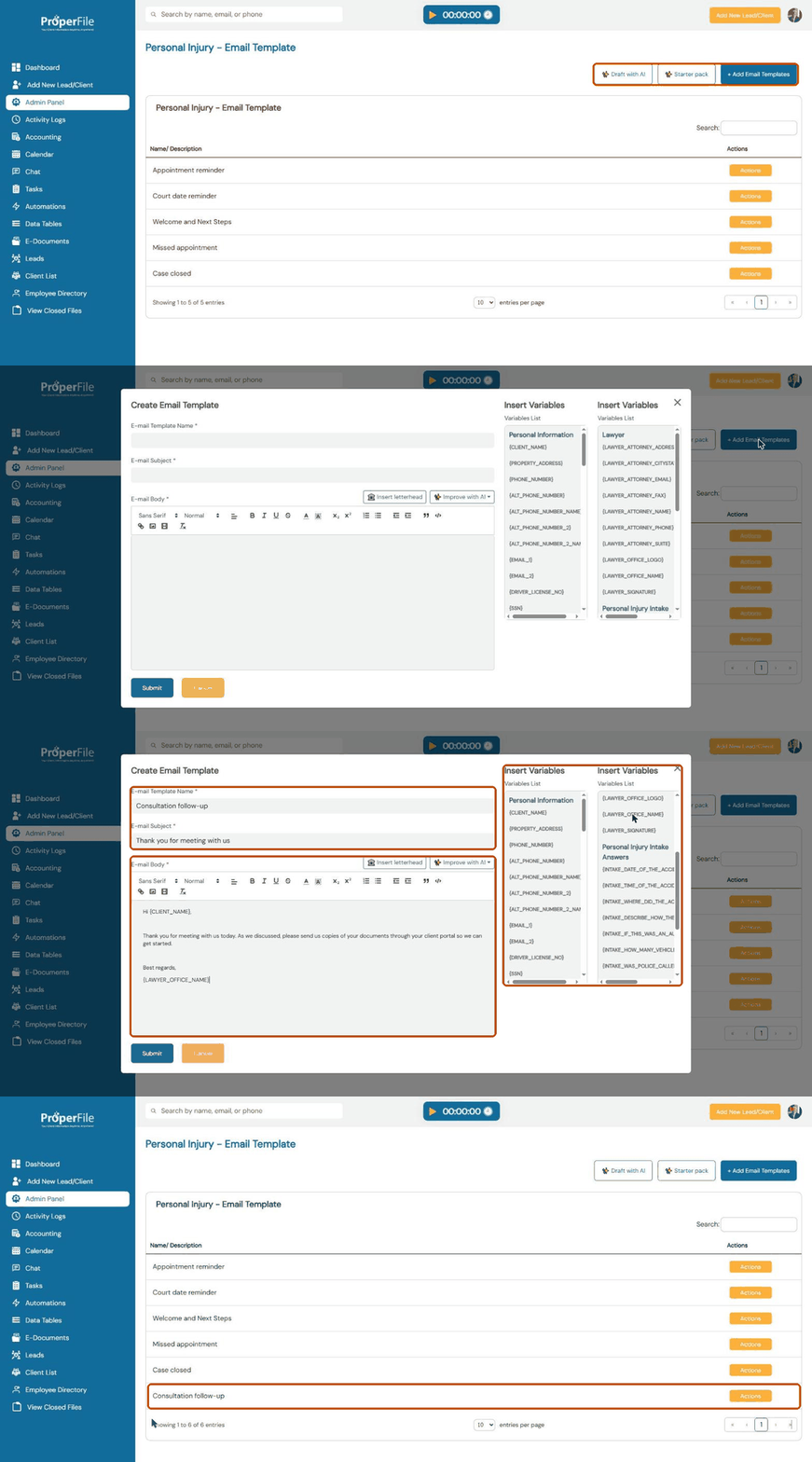
You’ll see the templates you already have for this case type. Click + Add Email Templates.
Step 4
Write the email and add variables
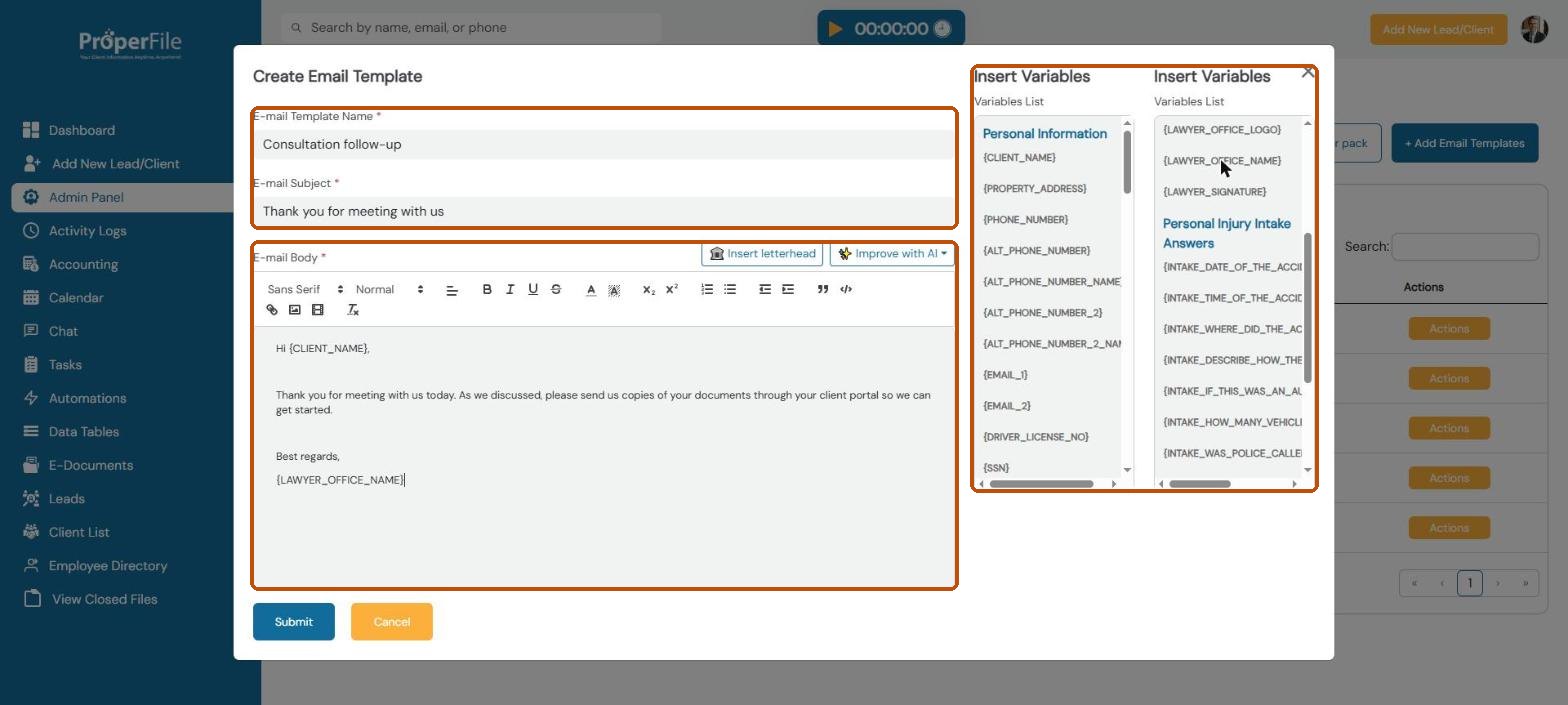
Give the template a name and type the email’s subject and body. To add the client’s details, click in the body where you want them, then click a variable on the right, such as {CLIENT_NAME} or {LAWYER_OFFICE_NAME}. The lists include personal details, your firm’s details, and the answers from this case type’s intake questionnaire. Click Submit.
Tip: use Insert letterhead to add your firm’s letterhead, and Improve with AI to polish the wording.
Watch it: creating an email template
Step 5
Find your template
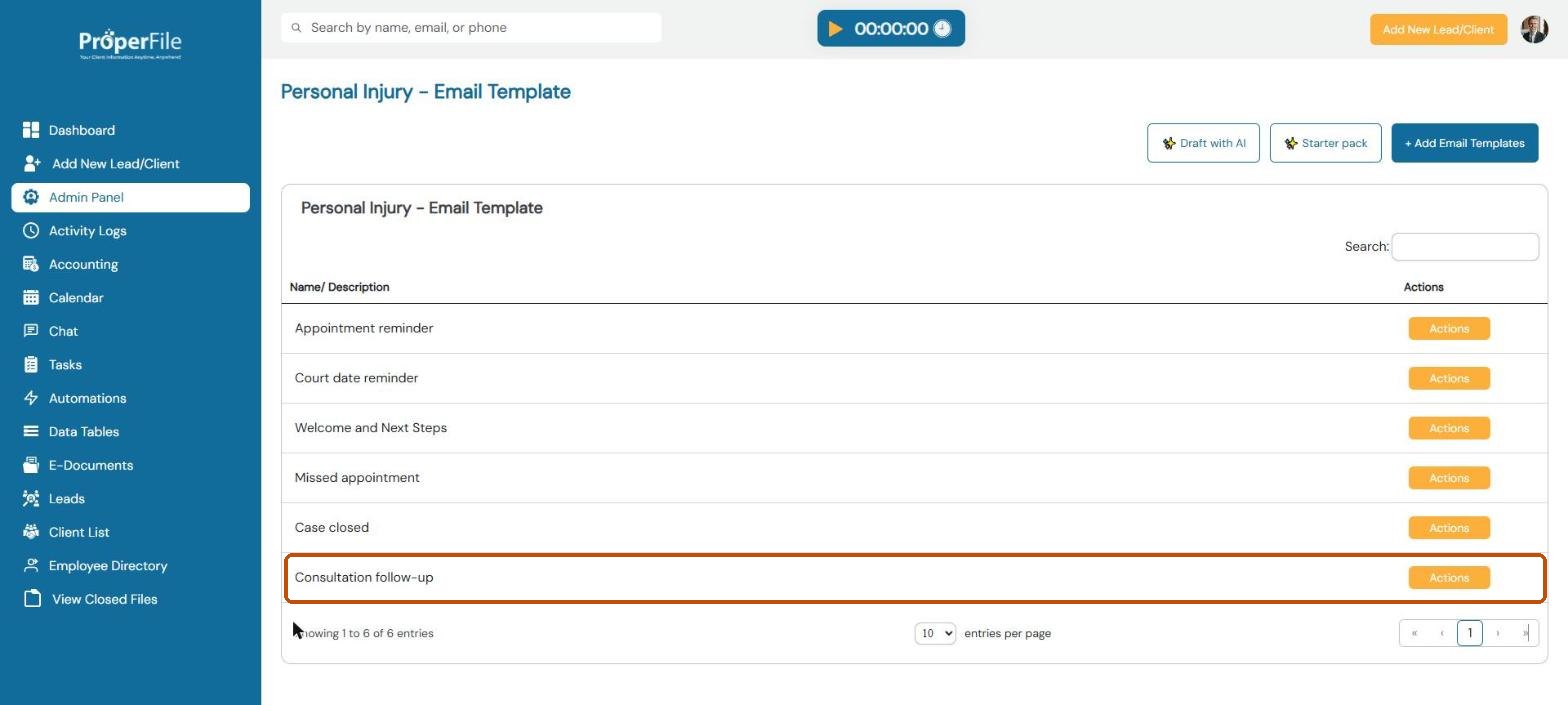
The new template appears in the list. You can pick it whenever you email a client with this case type, and in automations.
Step 6
Edit, translate or delete a template
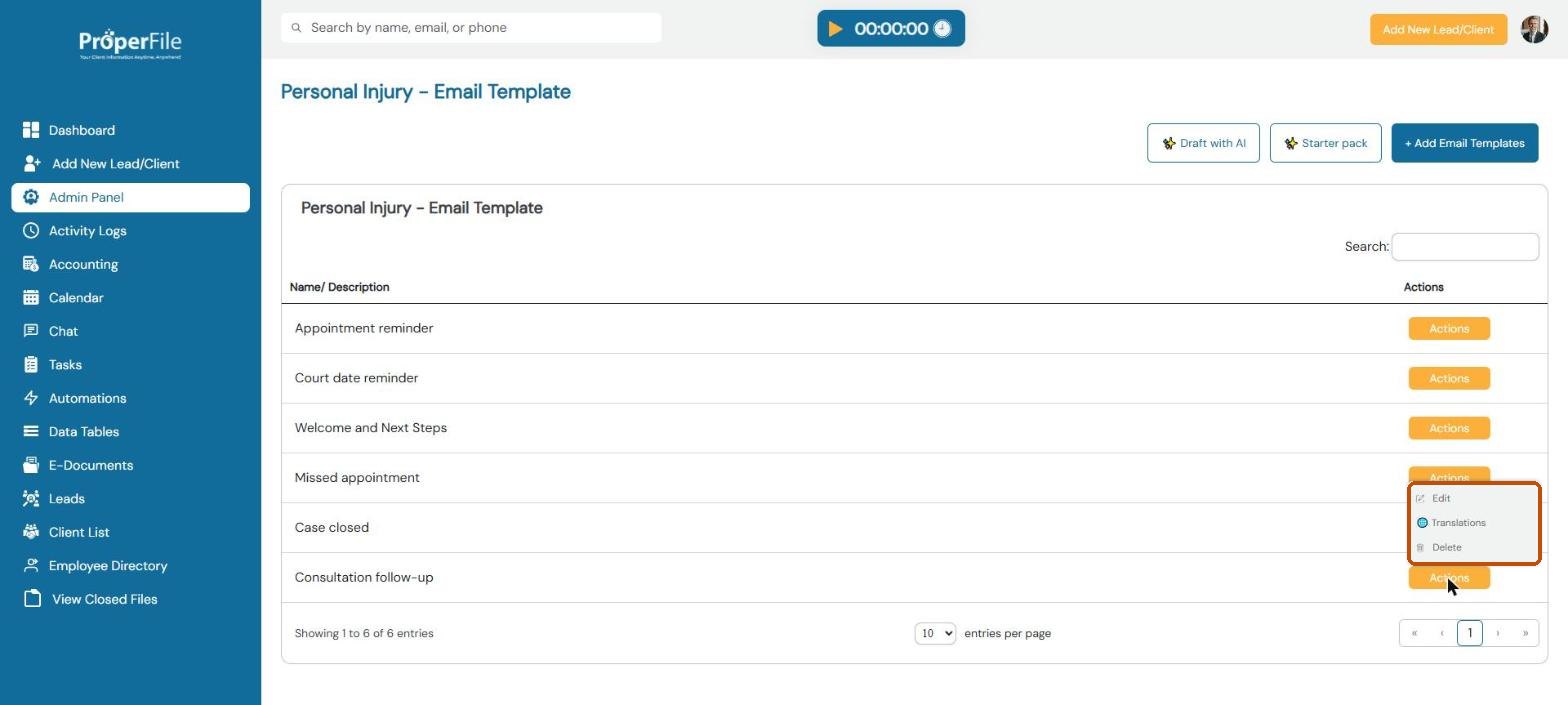
Click Actions next to a template to Edit it, check its Translations for clients who use another language, or Delete it.
Step 7
Let AI write a starter set (optional)
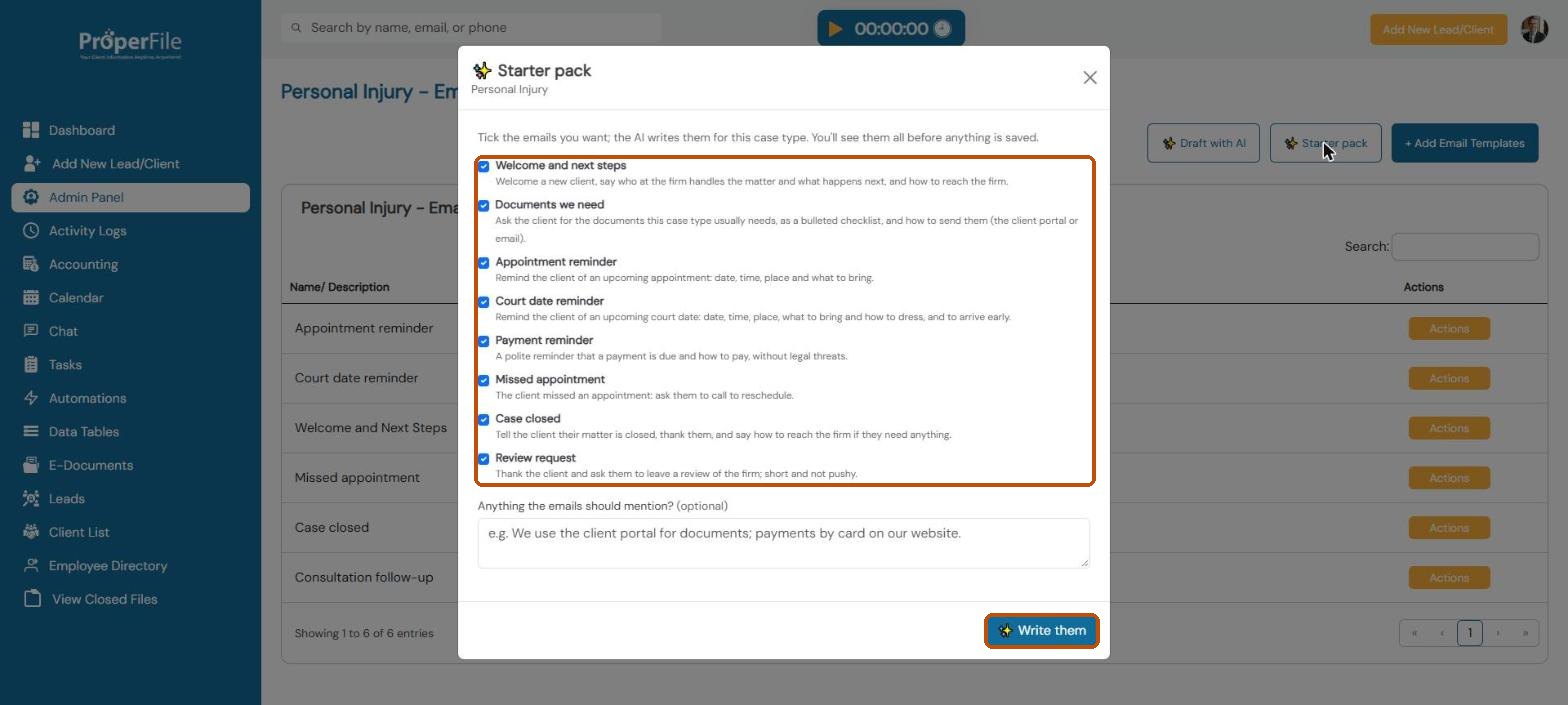
Click Starter pack, tick the emails you want (welcome, documents we need, appointment and court date reminders, payment reminder, missed appointment, case closed, review request), add anything they should mention, and click Write them. You’ll see every email before anything is saved. Draft with AI writes a single email from your description.
What’s next
Keep going
Next, set up the hearings you track in Hearing types and calendar colors. All guides are in the Help Center.