Send a client a document to sign online, such as a retainer agreement. ProperFile fills in the client’s details from your template, emails the client a link to review and sign it, and emails you a copy once it’s signed.
Time needed: about 3 minutes.
Before you start: you need a document template for the client’s case type. Templates are set up in the Admin Panel under E-Document Templates.
Step 1
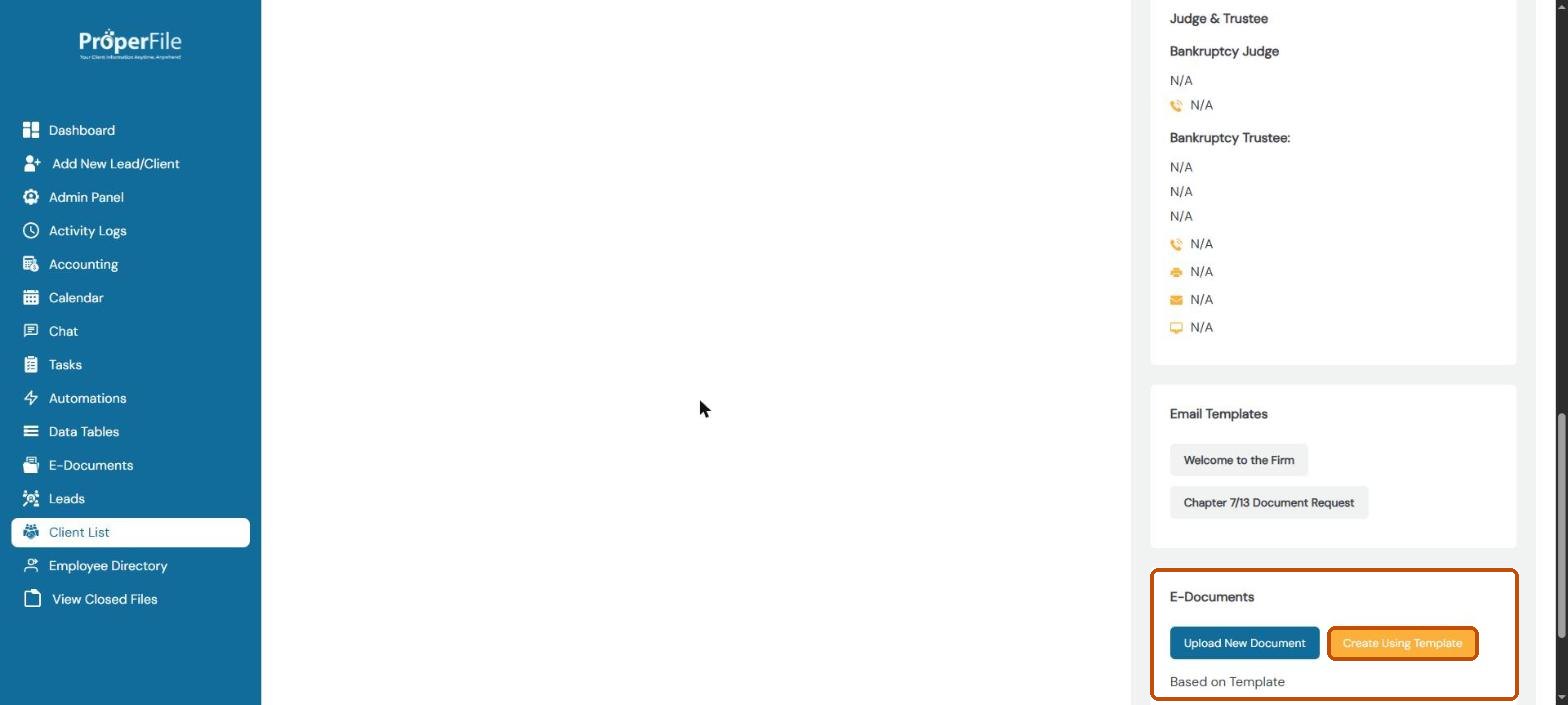
Open the client and click Create Using Template
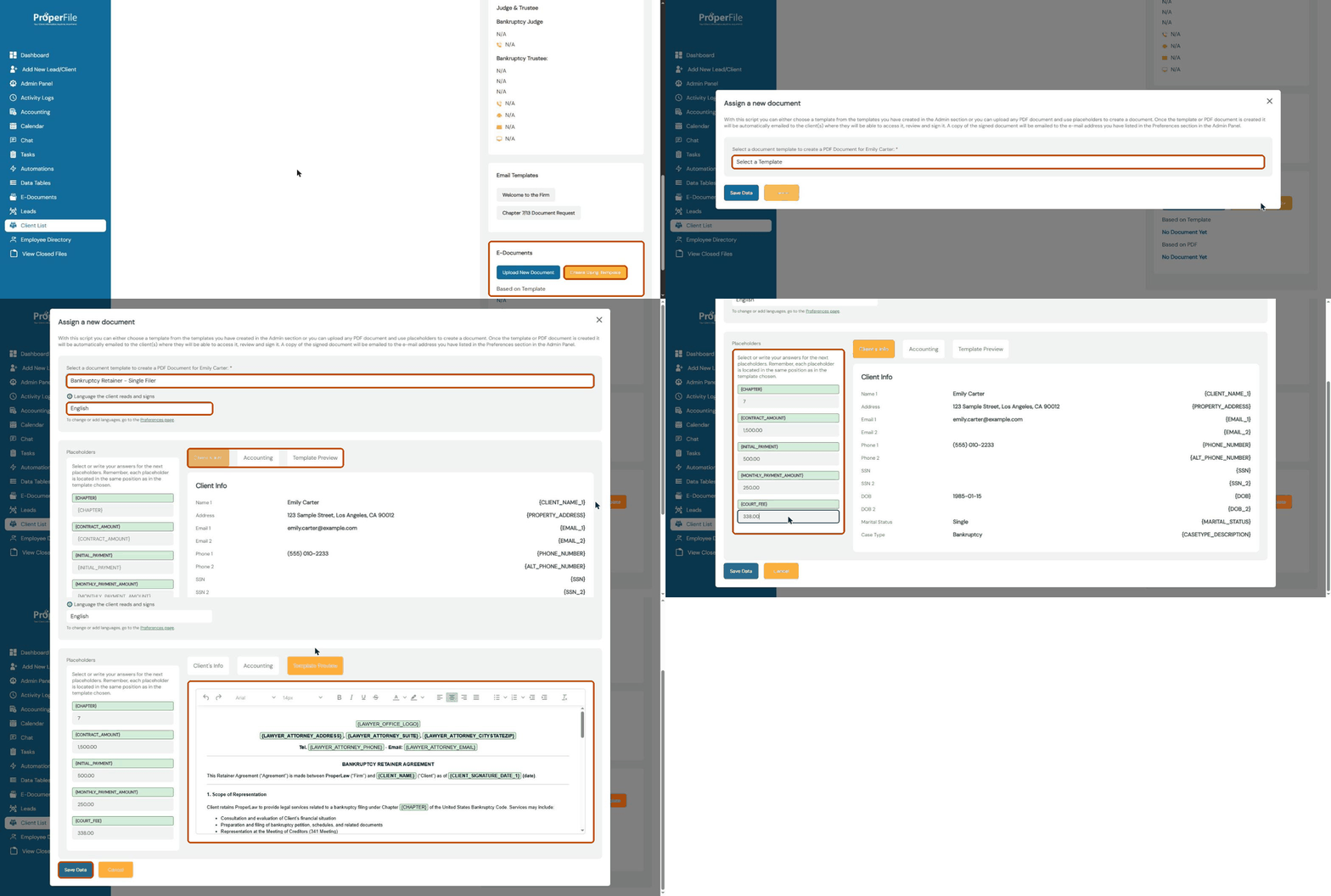
Open the client and, under All Services/Matters, click the matter the document is for. Scroll down the right-hand side to E-Documents and click Create Using Template.
Tip: to send a PDF you already have instead, click Upload New Document.
Step 2
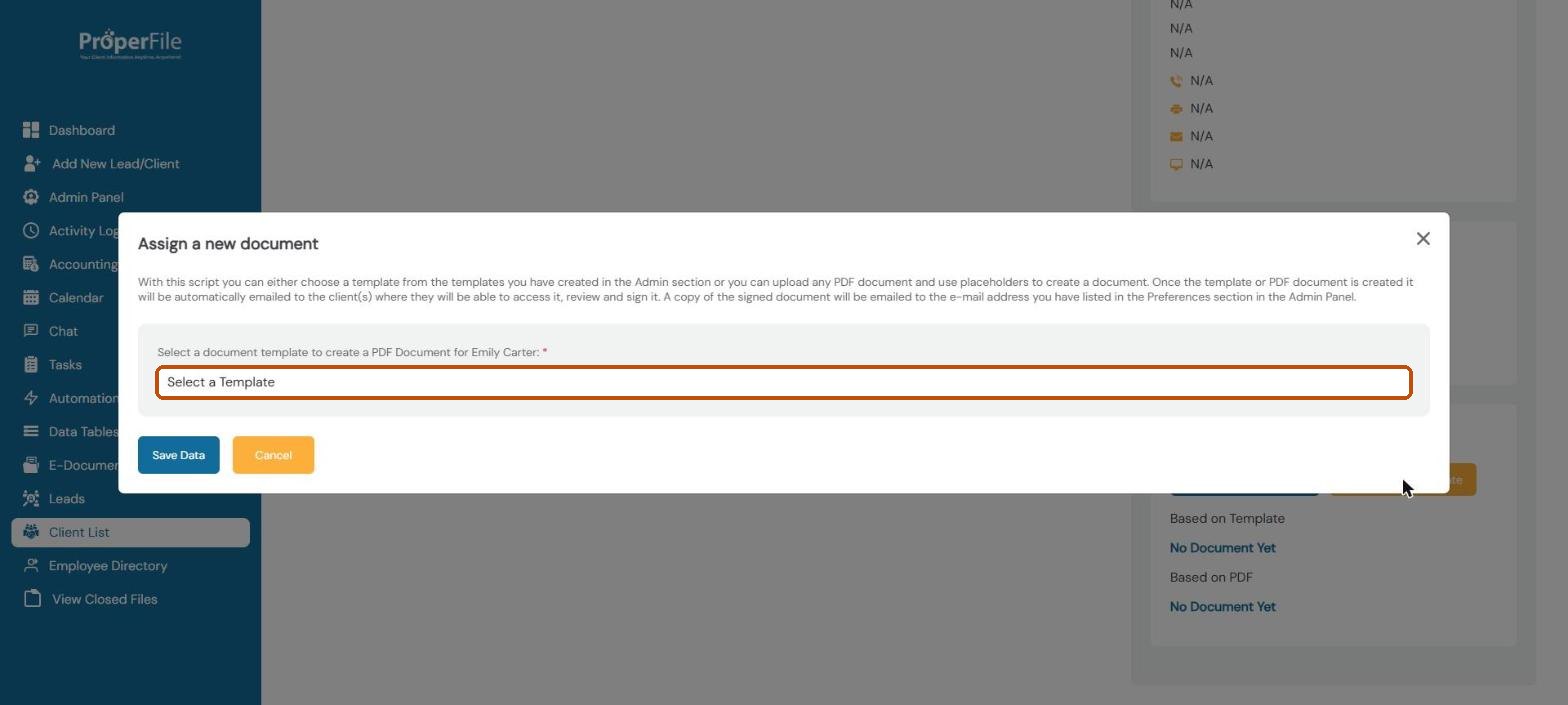
Choose a template
In Assign a new document, pick the template from the list. Only templates for this matter’s case type are listed.
Step 3
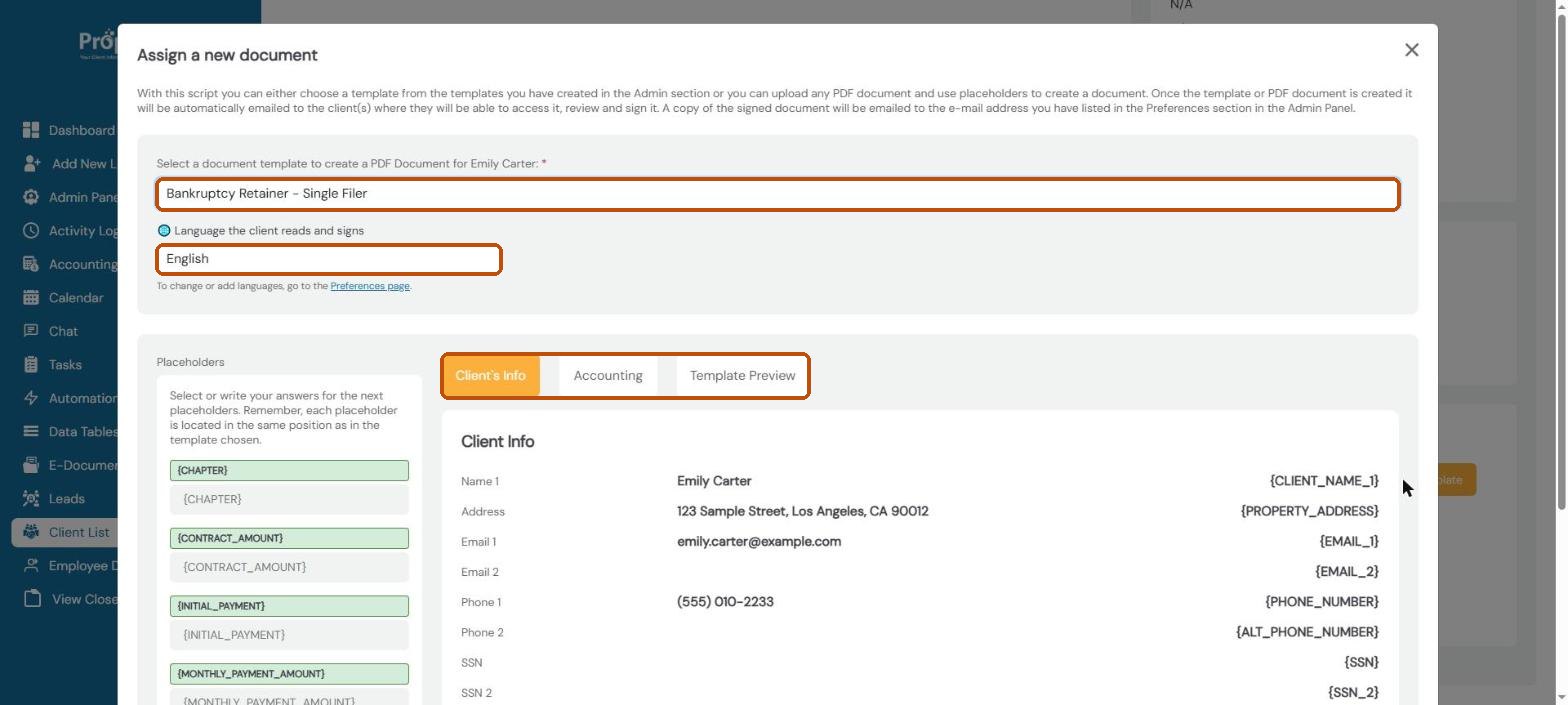
Check the language and the client’s details
If you offer other languages, choose the language the client reads and signs in. The Client’s Info and Accounting tabs show the details ProperFile will fill in, such as the client’s name, address and email.
Step 4
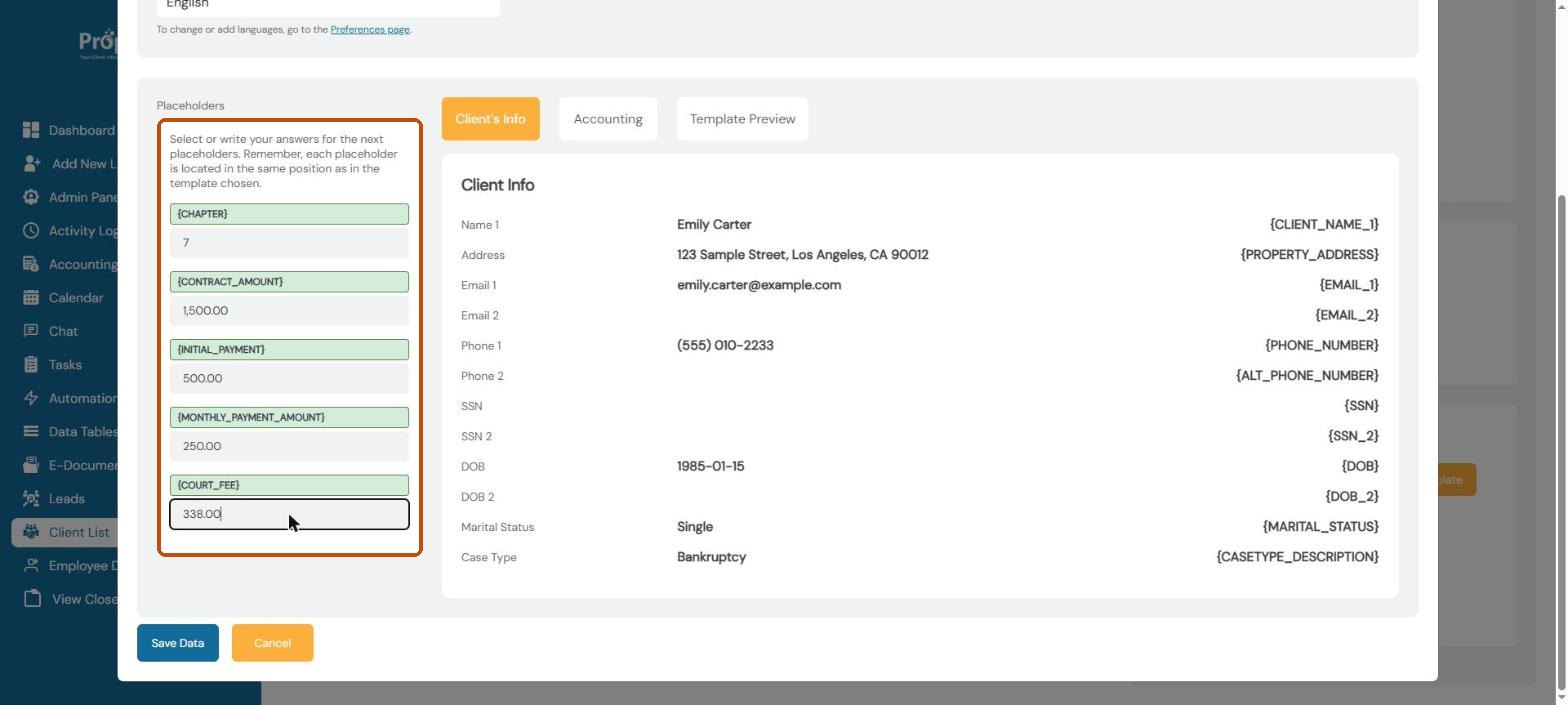
Fill in the blanks
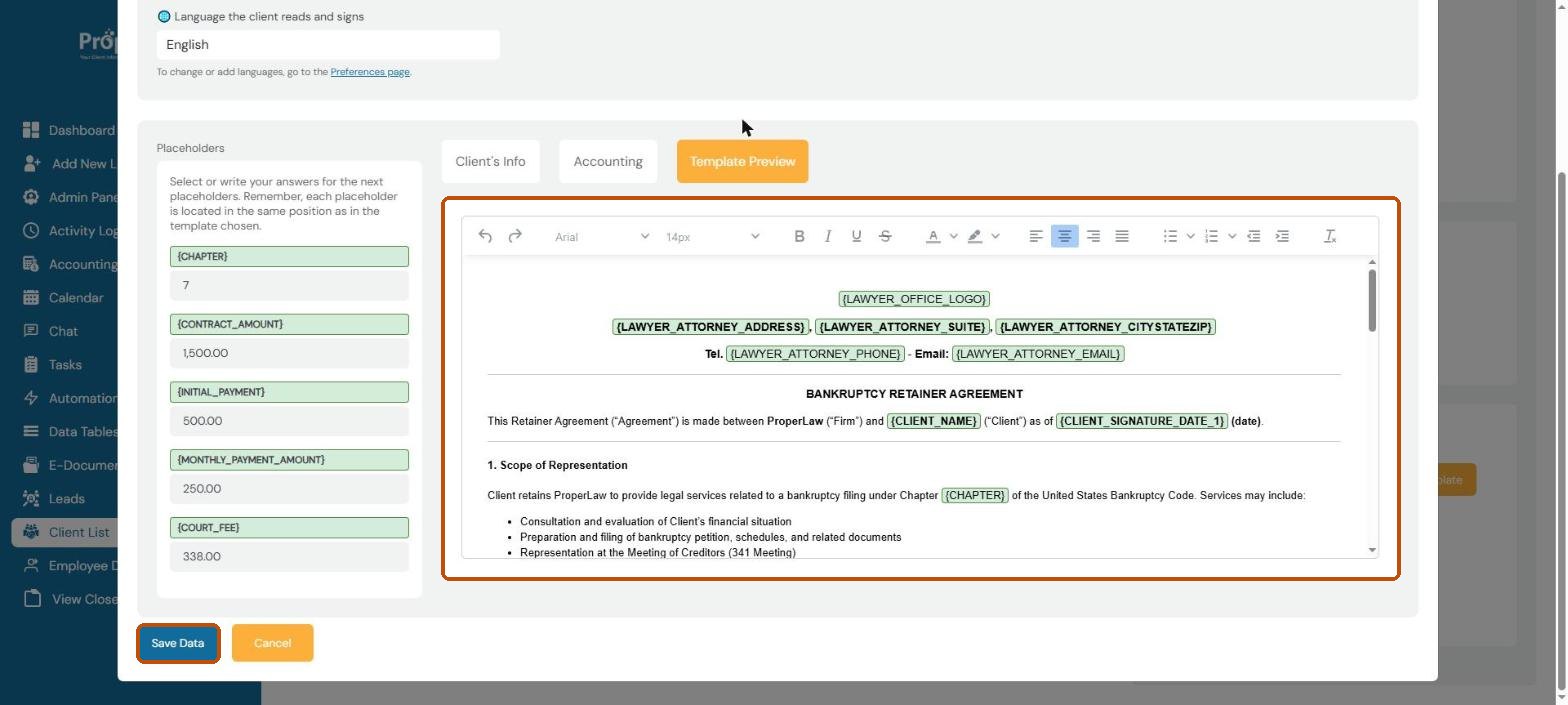
Under Placeholders, type an answer for each blank in the template, such as the fee amounts.
Step 5
Preview the document and send it
Click Template Preview to read the document with everything filled in. When it looks right, click Save Data. ProperFile creates the document and emails the client a link to review and sign it.
Watch it: preparing an e-document
Step 6
Track signatures
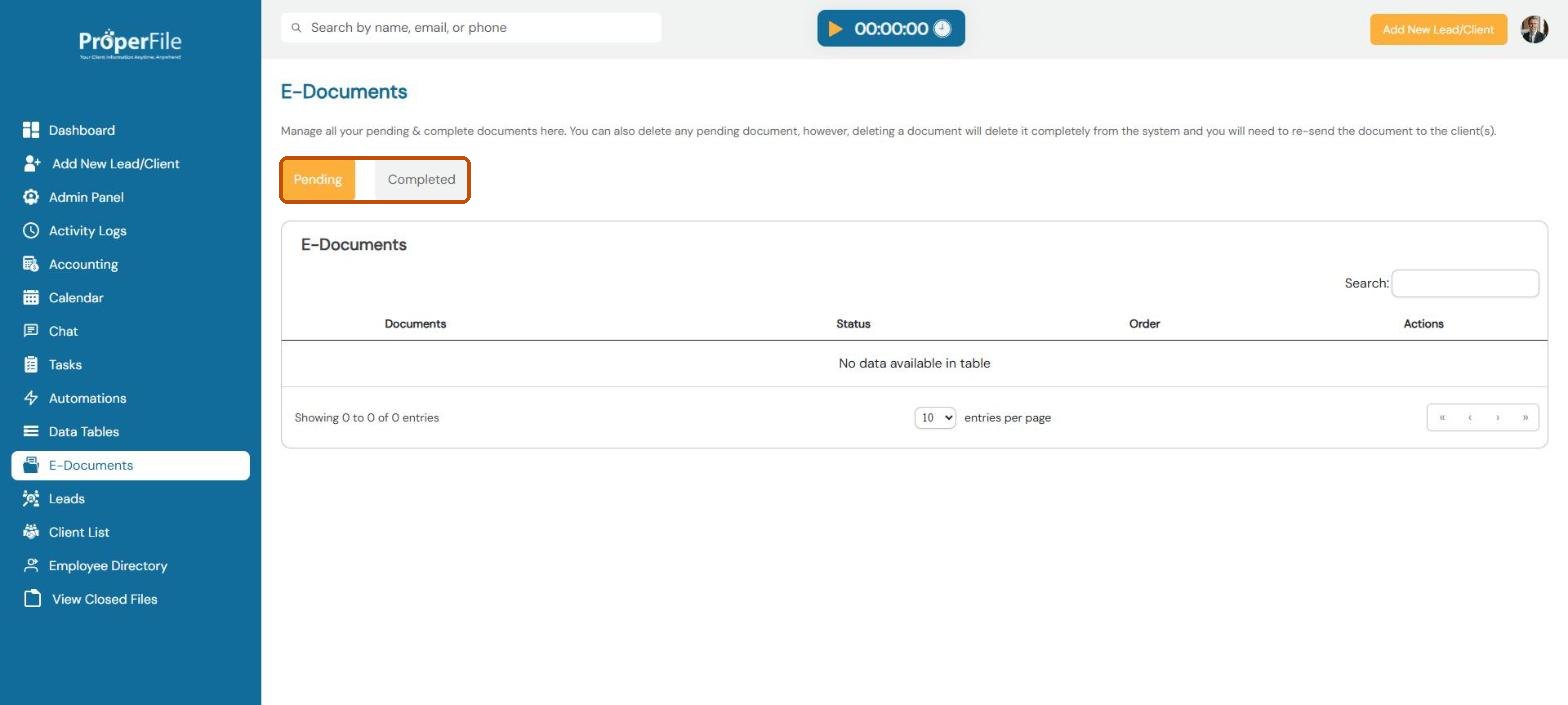
Click E-Documents in the left menu to see every document waiting for a signature (Pending) and every signed one (Completed). When the client signs, a copy is emailed to the address on your Preferences page.
Tip: turn on Document Signature Reminders in the Admin Panel and ProperFile reminds clients every few days until they sign.
What’s next
Keep going
Next, keep track of work with Tasks. All guides are in the Help Center.