ProperFile includes a full bankruptcy questionnaire that clients fill in online: lawsuits and garnishments, property, vehicles, income, dependents and monthly expenses. You can reword or hide any question, add help text, and add your own questions and sections.
Time needed: about 10 minutes.
Before you start: changes apply to every bankruptcy questionnaire, including ones clients have already started. Hidden questions keep any answers clients already gave. Your first change makes your own copy of the standard questionnaire.
Step 1
Open the Bankruptcy Questionnaire
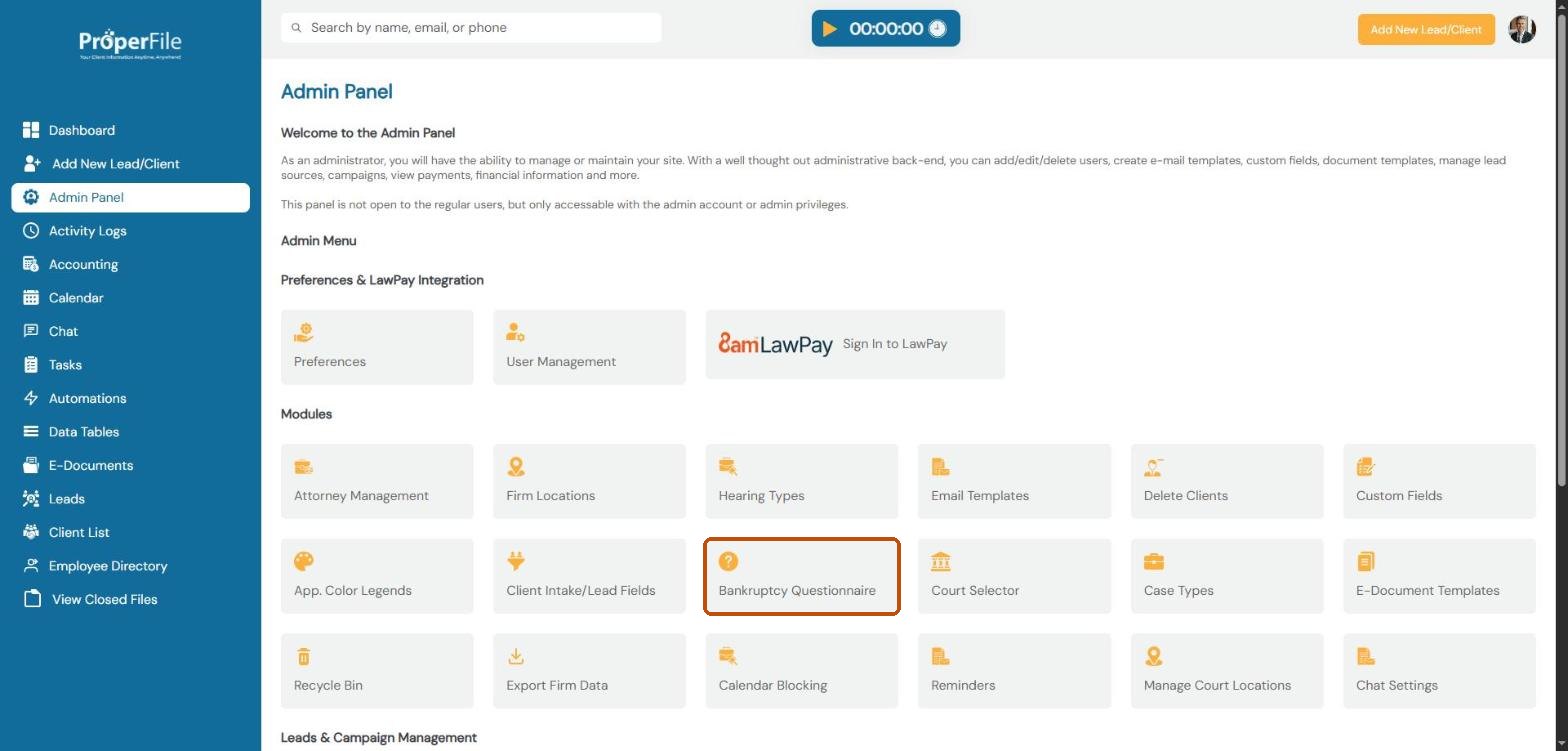
Click Admin Panel in the left menu, then click Bankruptcy Questionnaire.
Step 2
Look through the questions
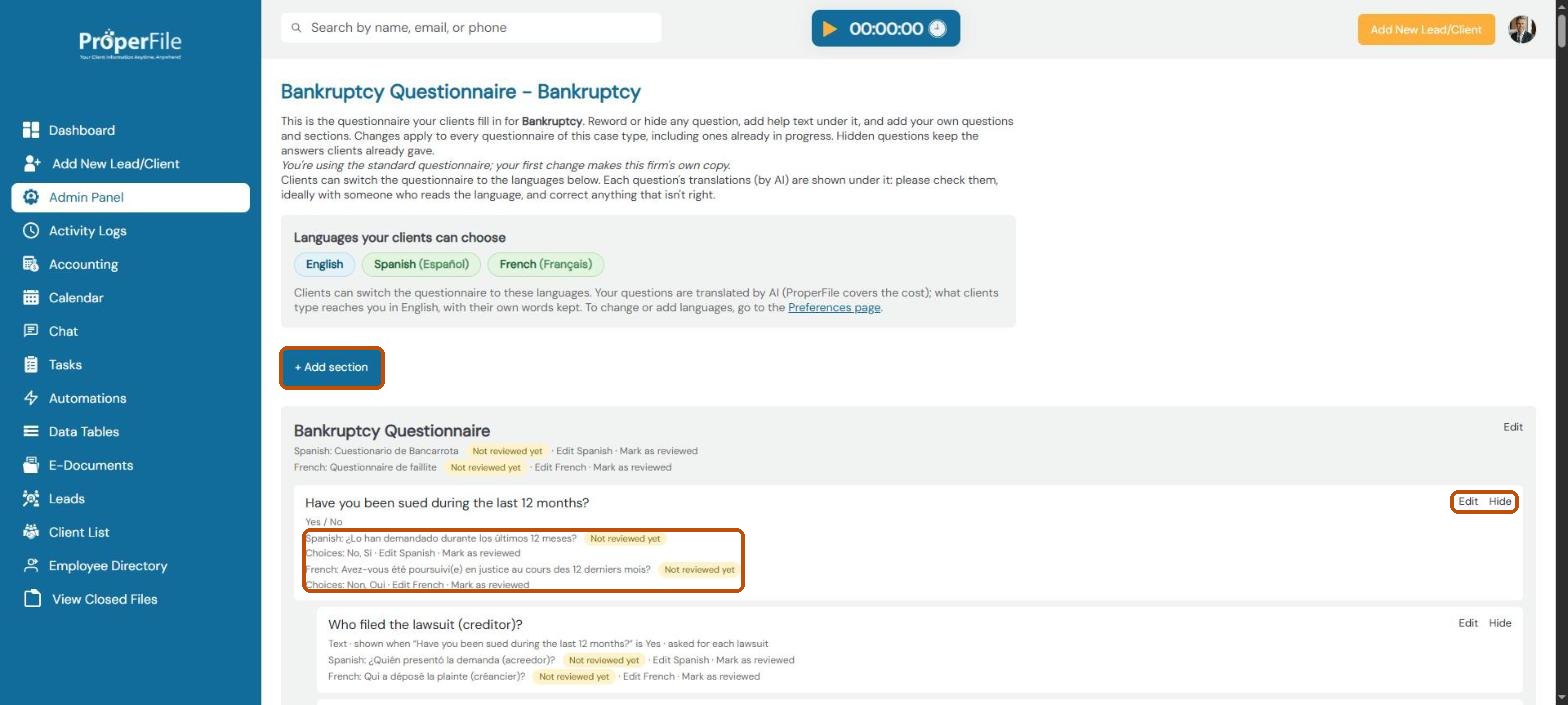
The questionnaire is grouped into sections. Under each question you’ll see its type of answer, when it’s shown (for example only when an earlier answer is Yes), and its translation into each language your clients can choose. Each question has Edit and Hide links.
Tip: translations are made by AI. Have someone who reads the language check them, fix anything with Edit Spanish (or another language), then click Mark as reviewed.
Step 3
Reword a question or add help text
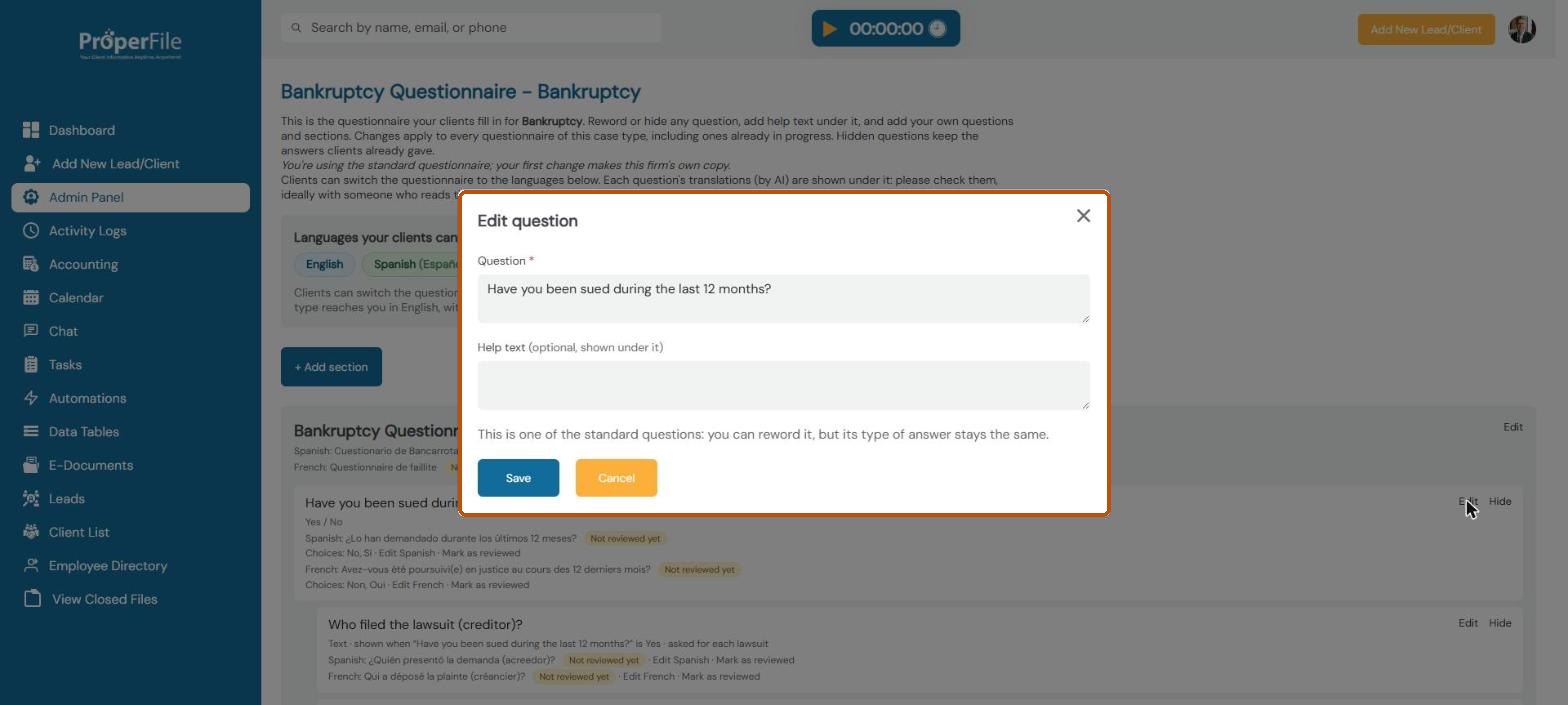
Click Edit next to a question. Change the wording, add optional help text that shows under it, and click Save. For standard questions you can change the wording but not the type of answer.
Step 4
Hide a question you don’t need
Click Hide next to the question. Clients won’t see it anymore, and any answers already given are kept.
Step 5
Add your own question
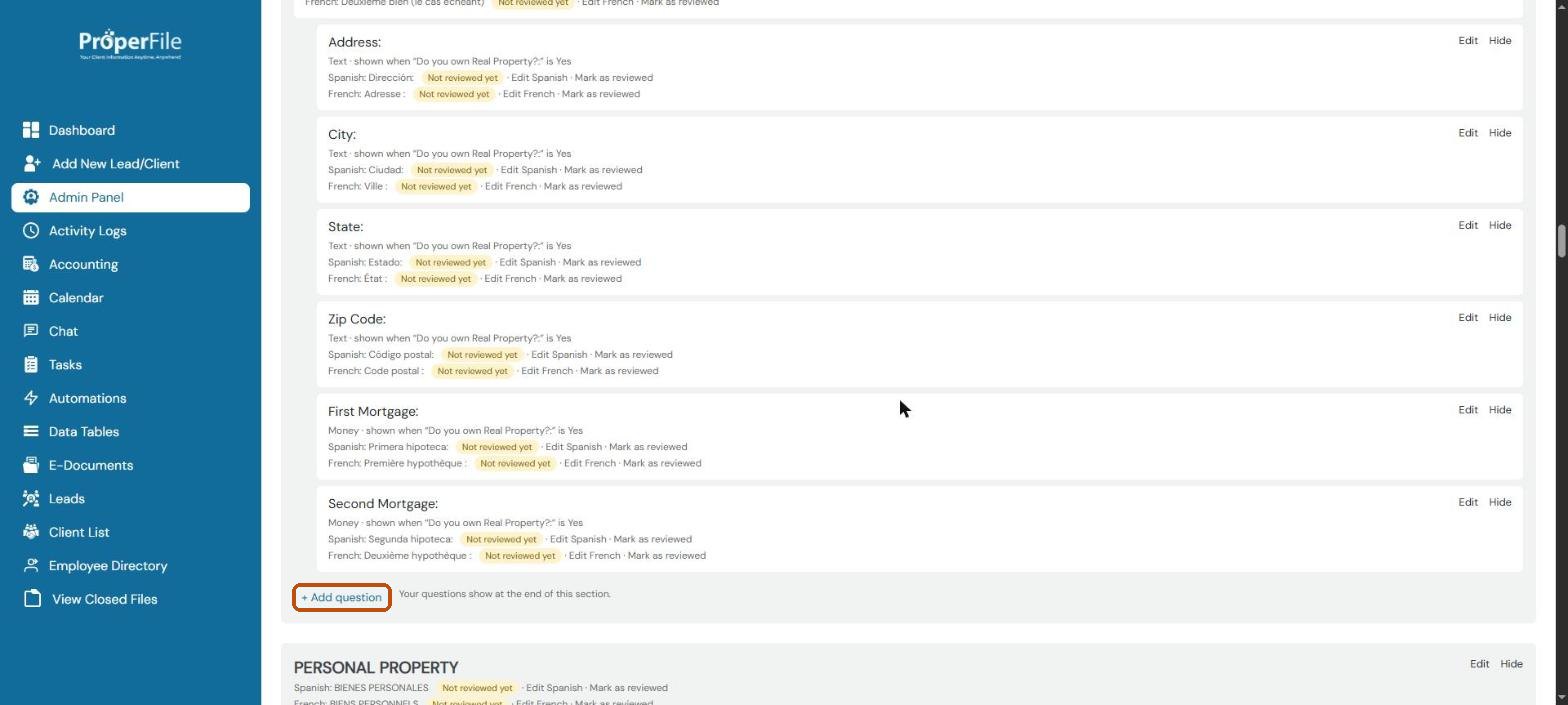
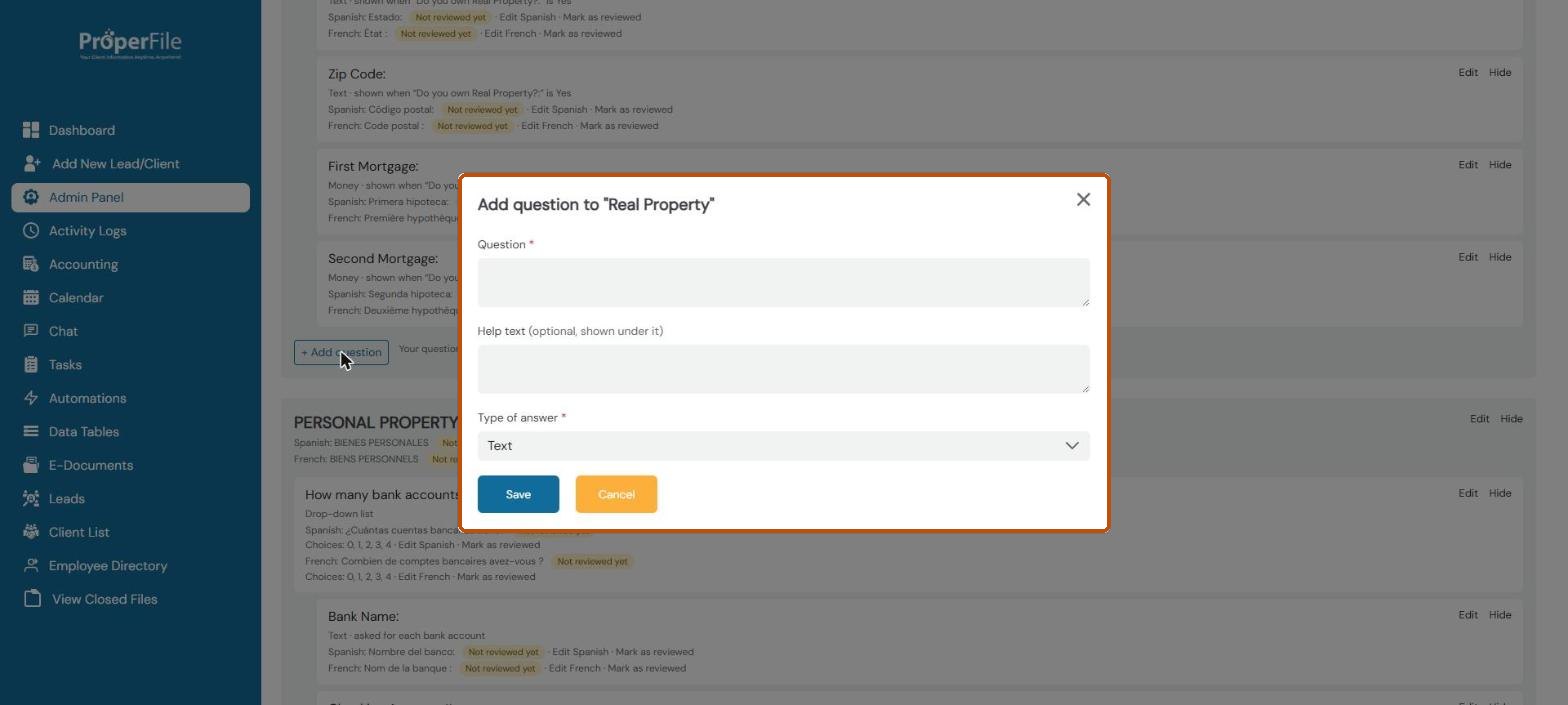
Scroll to the end of the section the question belongs in and click + Add question. Your questions show at the end of that section.
Step 6
Write the question and save
Type the question, add optional help text, and choose the Type of answer: text, date, number, money, phone, email, yes/no, drop-down list, radio buttons, checkboxes, a section heading or instructions. Click Save. To add a whole new section, use + Add section at the top of the page.
What’s next
Keep going
Next, learn how to restore deleted documents and download your data in Recycle bin and exporting your data. All guides are in the Help Center.