ProperFile works with LawPay (by 8am) so clients can pay you by card or bank transfer. Each firm connects its own LawPay account, and payments go straight to your bank accounts.
Time needed: about 5 minutes.
Before you start: you need your own LawPay account, and you must be signed in to ProperFile as the firm’s administrator.
Step 1
Click Sign In to LawPay
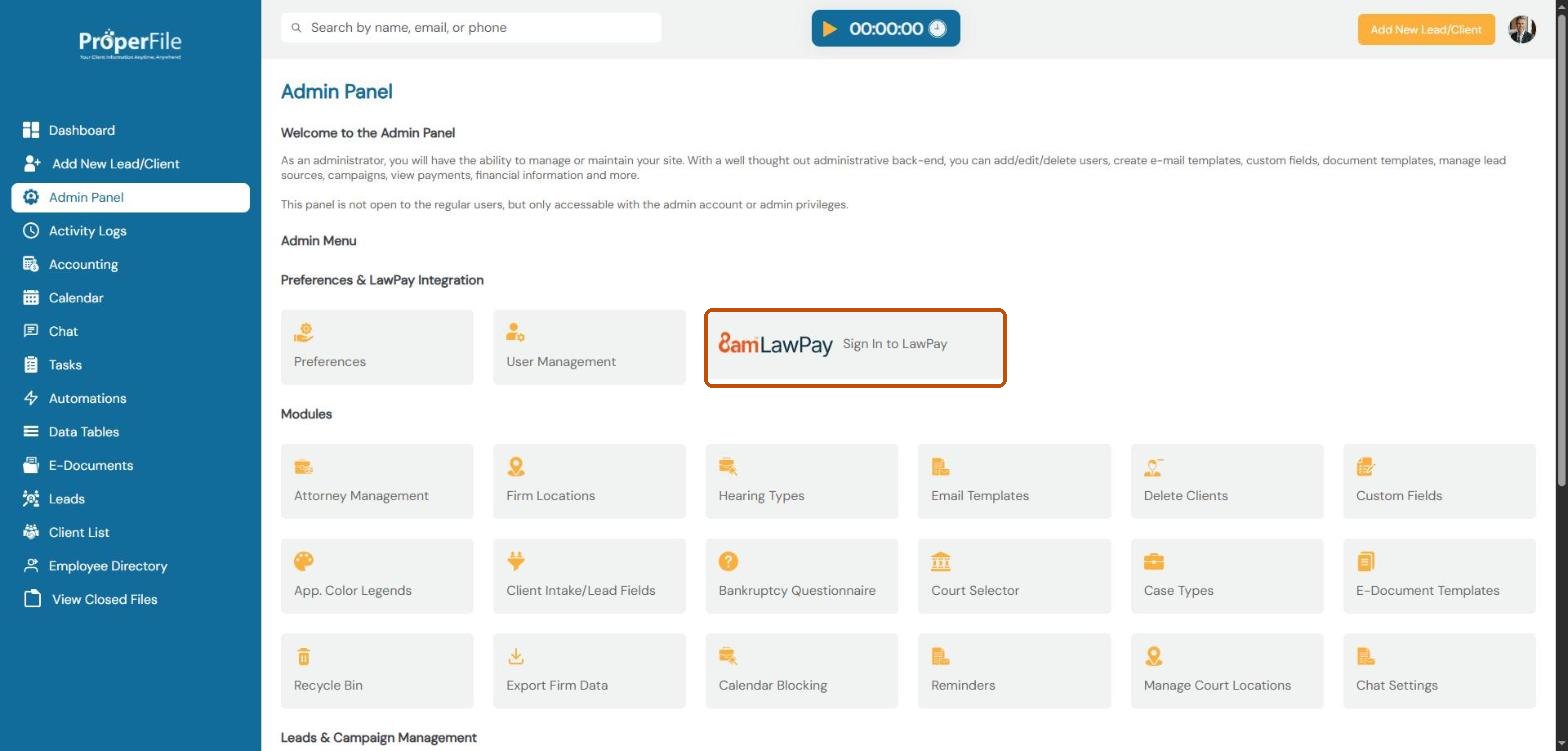
Click Admin Panel in the left menu. Under Preferences & LawPay Integration, click Sign In to LawPay.
Step 2
Sign in to LawPay and approve the connection
LawPay’s own sign-in page opens. Sign in with your LawPay username and password and approve the connection to ProperFile. LawPay then sends you back to ProperFile, and the tile changes to You are now Signed In.
Tip: you enter your LawPay password on LawPay’s website, never in ProperFile. ProperFile doesn’t see or store it.
Step 3
Choose where payments are deposited
Click Account Options in the same section of the Admin Panel. Under Choose your account, pick the bank account for Debit/Credit Card Processing and the one for ACH/Checks Processing. You need to choose an account for each.
Step 4
Disconnect if you ever need to
The Account Options page also has Disconnect from LawPay Account. After disconnecting you can’t take payments through ProperFile, but payments already scheduled keep running in LawPay’s own portal. To reconnect, click Sign In to LawPay again.
What’s next
Keep going
Next, learn how to take a payment in Taking payments. All guides are in the Help Center.