Find out which marketing brings you clients. Lead sources are where people heard about you, such as Google Ads or a referral. Ad placement areas are the regions you advertise in. Both are choices on the new client form, and ProperFile counts how many clients came from each.
Time needed: about 3 minutes.
Step 1
Open Lead Sources
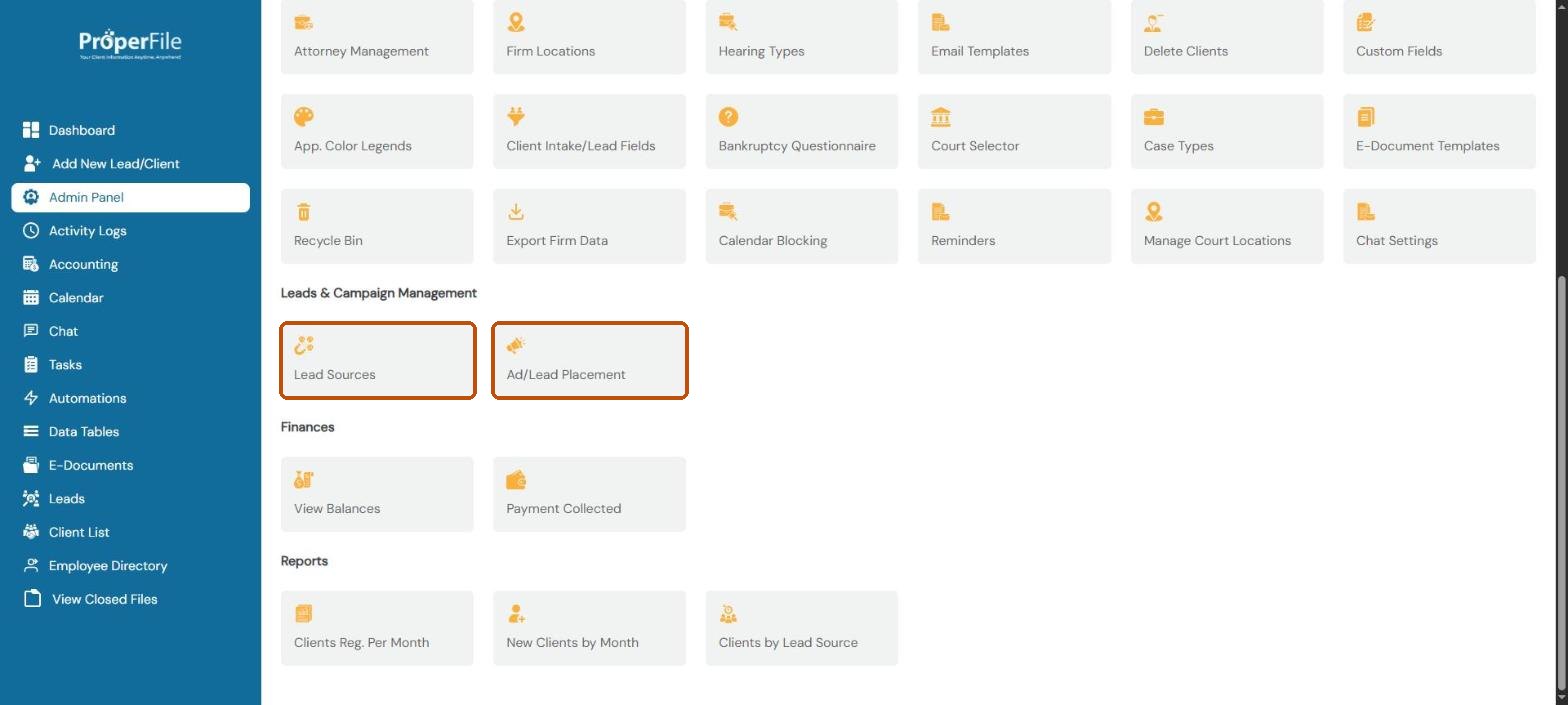
Click Admin Panel in the left menu and scroll down to Leads & Campaign Management. Click Lead Sources.
Step 2
Review your sources and add one
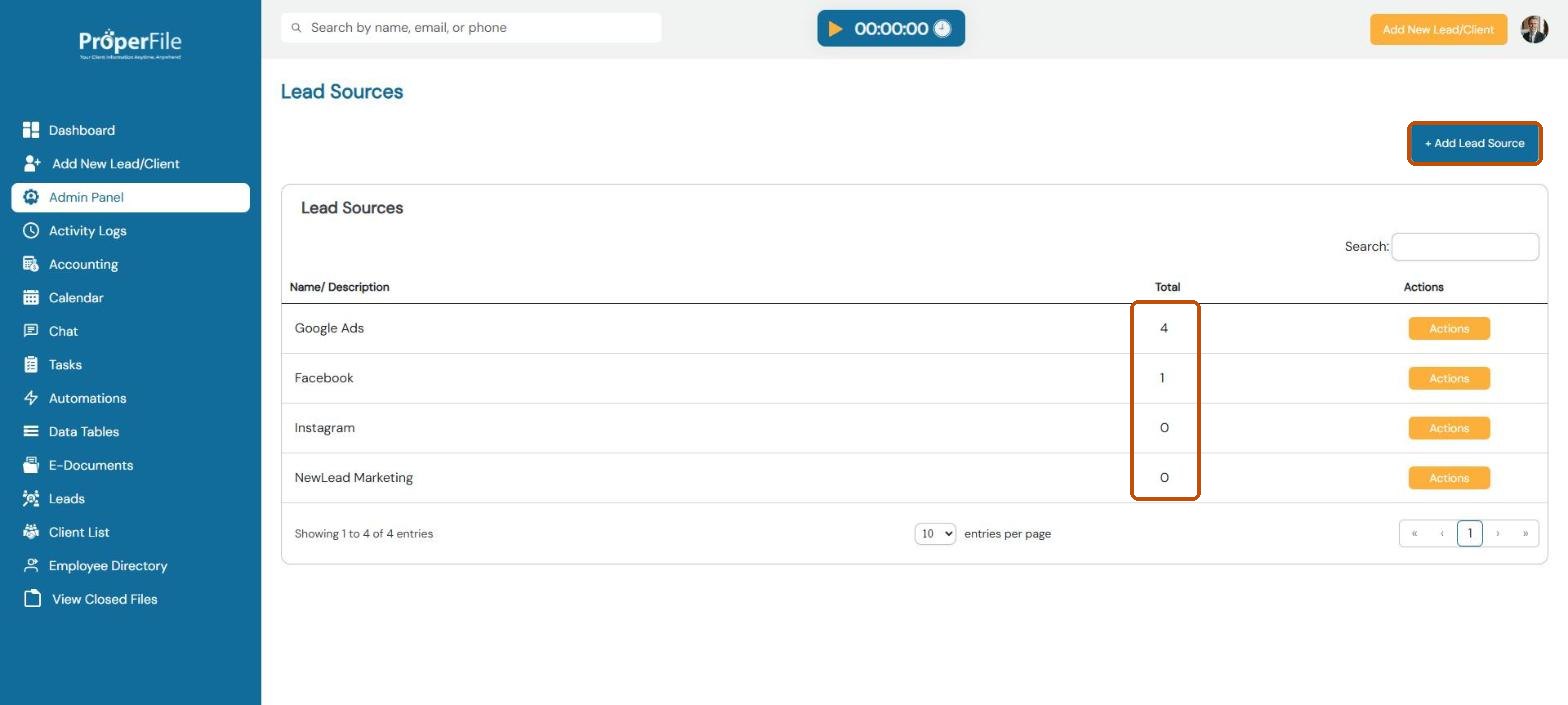
The Total column shows how many clients came from each source. Click + Add Lead Source to add another. Use Actions to rename or remove one.
Step 3
Name it and submit
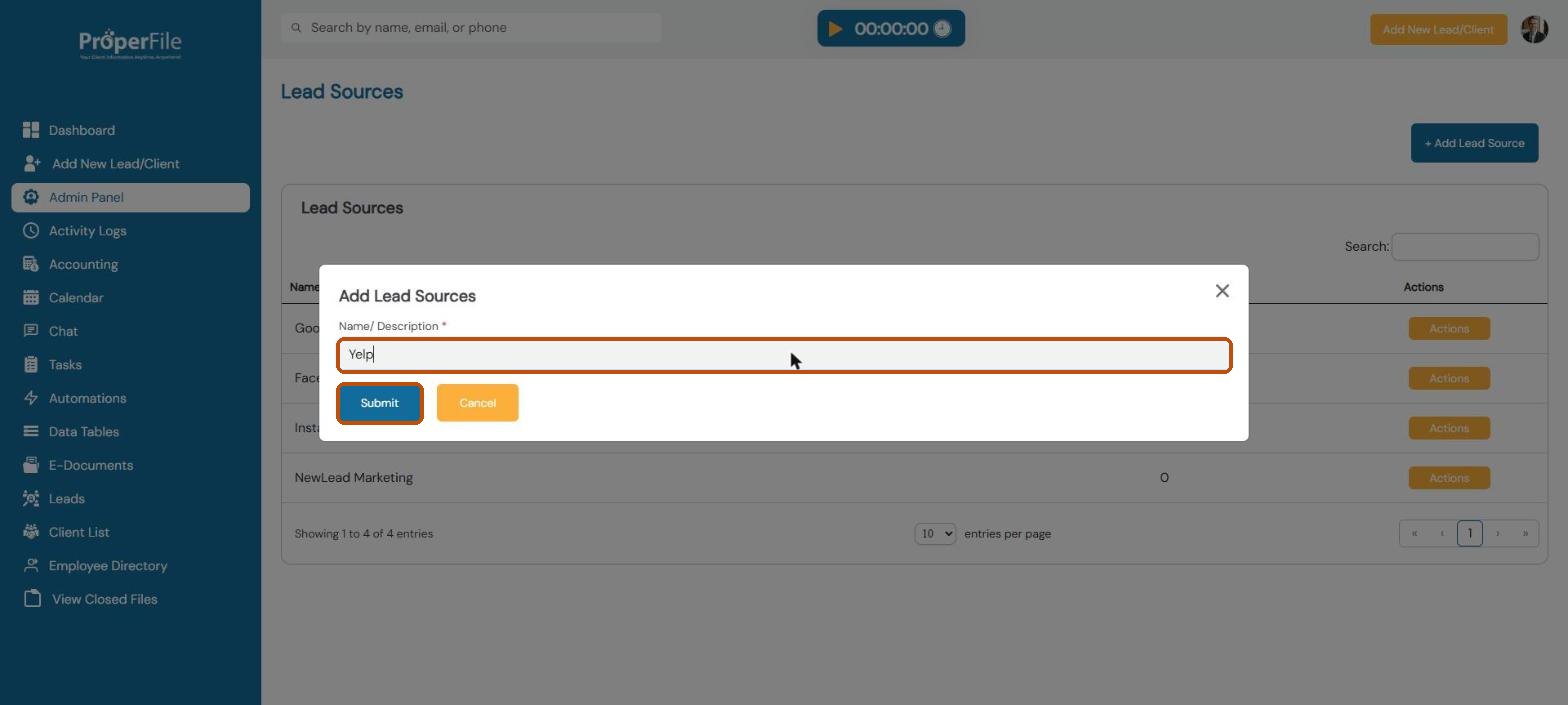
Type the source, for example Yelp, and click Submit. It now appears under How did you hear about us when you add a new client.
Step 4
Add the areas you advertise in
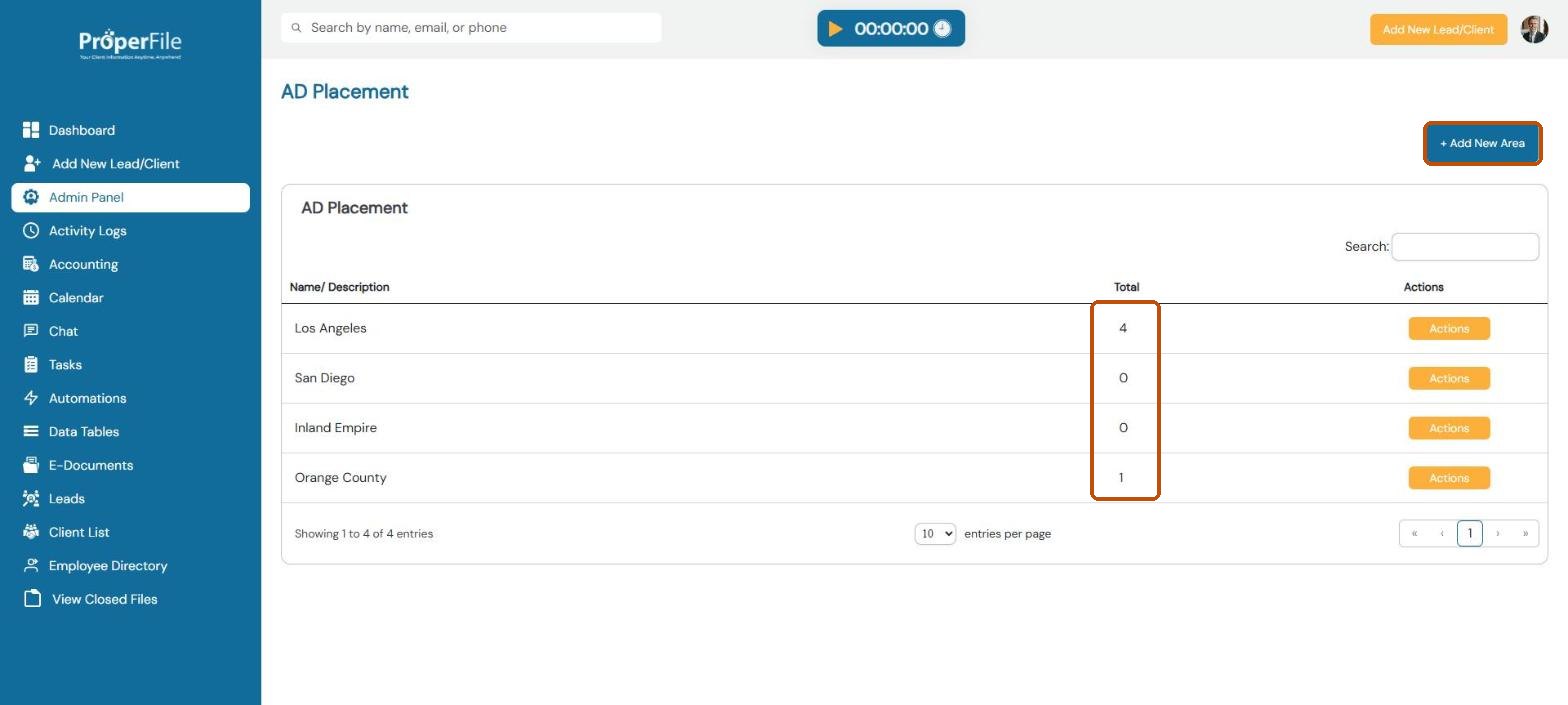
Go back to the Admin Panel and click Ad/Lead Placement. Click + Add New Area, type the area (for example Orange County) and submit. Areas appear in the Area list on the new client form, and the Total column counts clients from each.
Tip: see the numbers over time in Reports, under Clients by Lead Source.
What’s next
Keep going
Next, let clients pay you online by Connecting LawPay. All guides are in the Help Center.