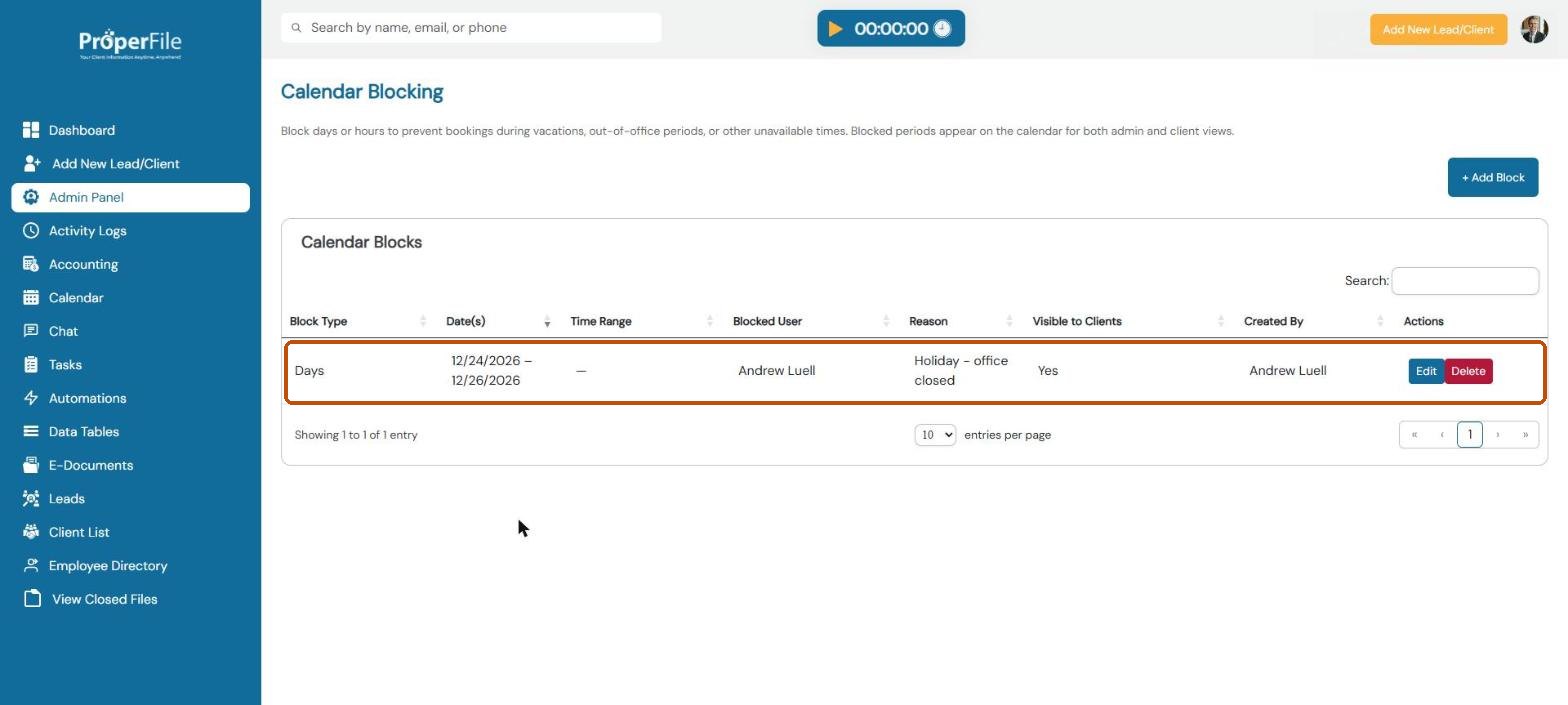
Block out vacations, holidays and other time you’re not available, so nobody books an appointment then. Blocks show on the calendar for your team and, if you choose, for your clients.
Time needed: about 2 minutes.
Step 1
Open Calendar Blocking
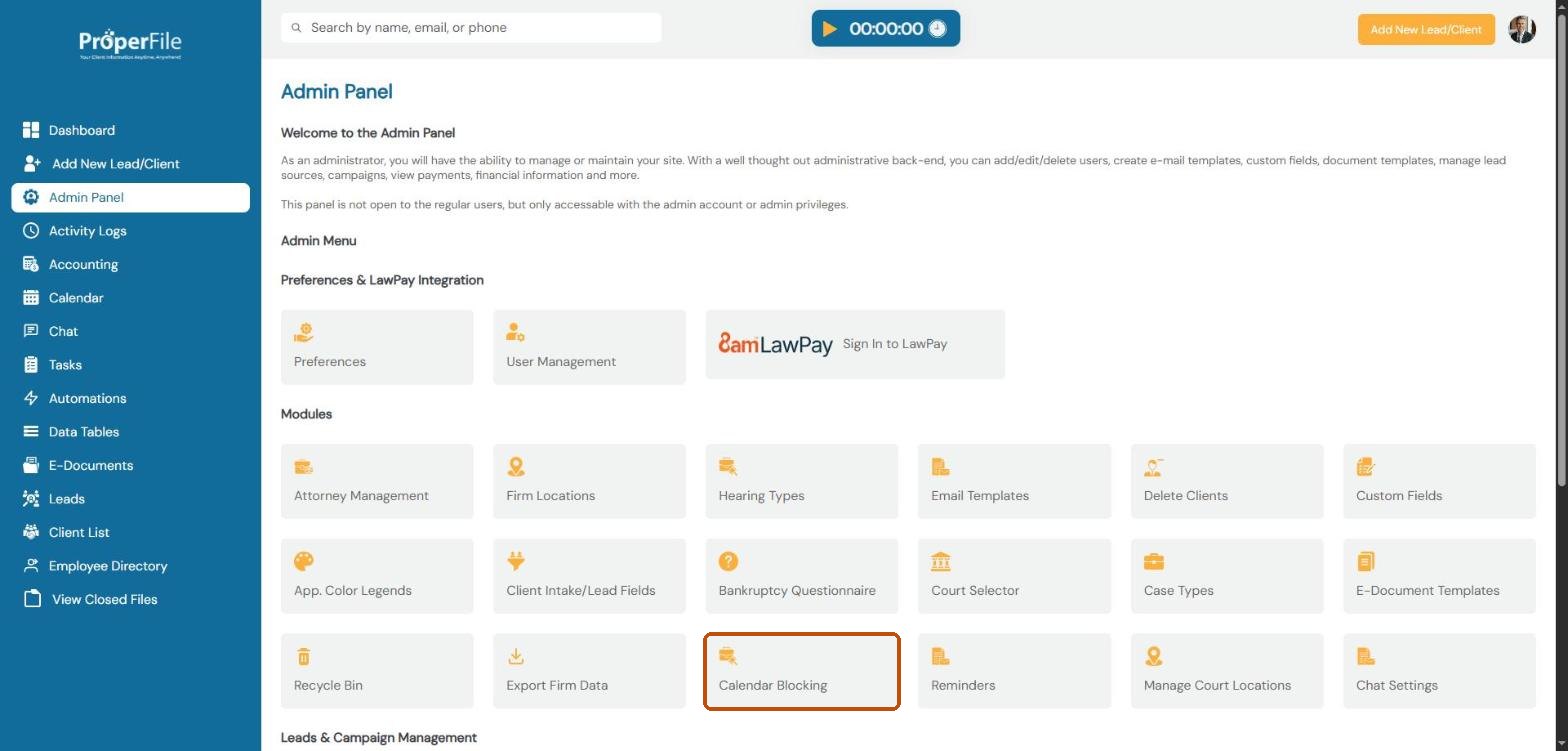
Click Admin Panel in the left menu, then click Calendar Blocking.
Step 2
Click Add Block
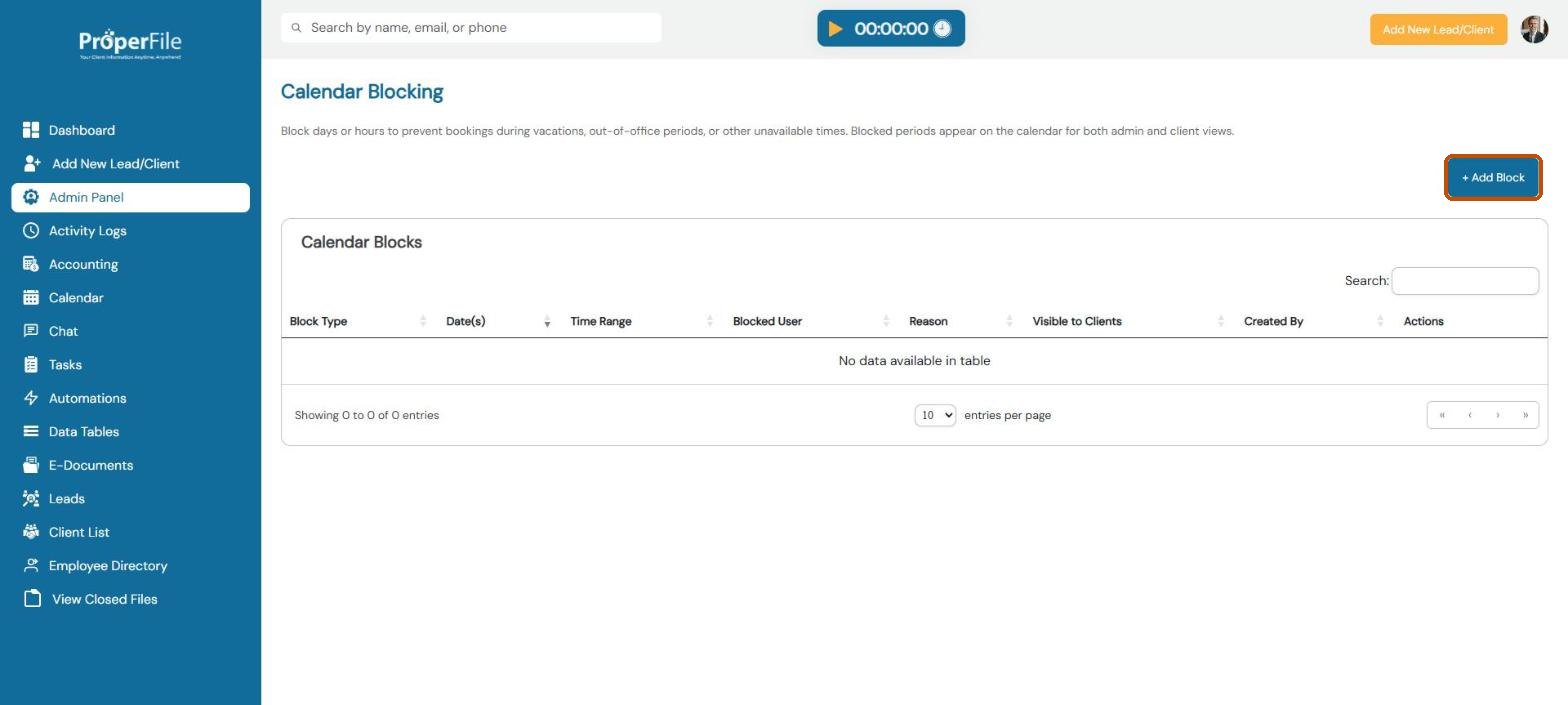
The list shows every block with its dates, time range, attorney, reason and who created it. Click + Add Block.
Step 3
Fill in the block and add it
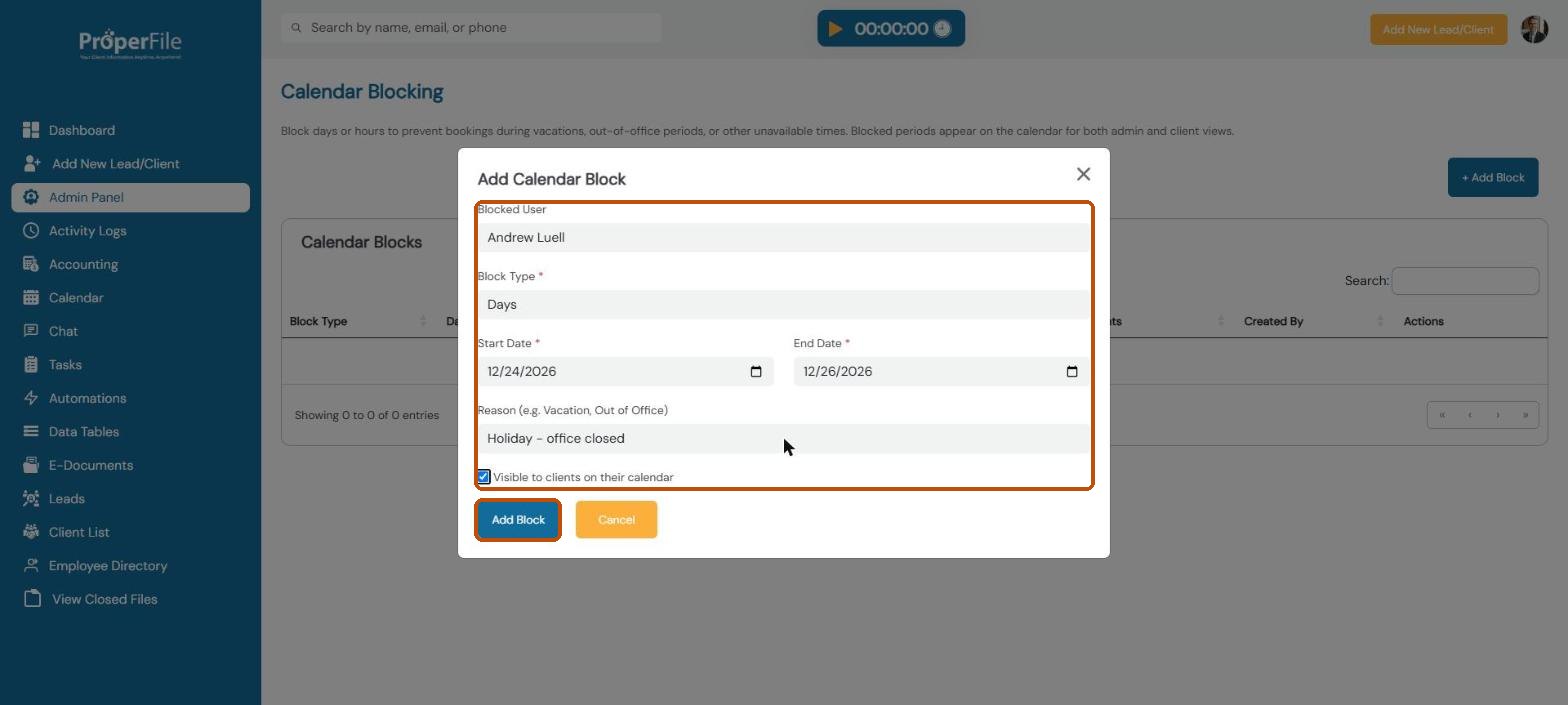
Choose the attorney the block is for, or leave General Block to block the whole firm. Choose Days for whole days or Hours for part of a day, then set the dates (and times). Add a reason such as Vacation. Tick Visible to clients on their calendar if clients should see it. Click Add Block.
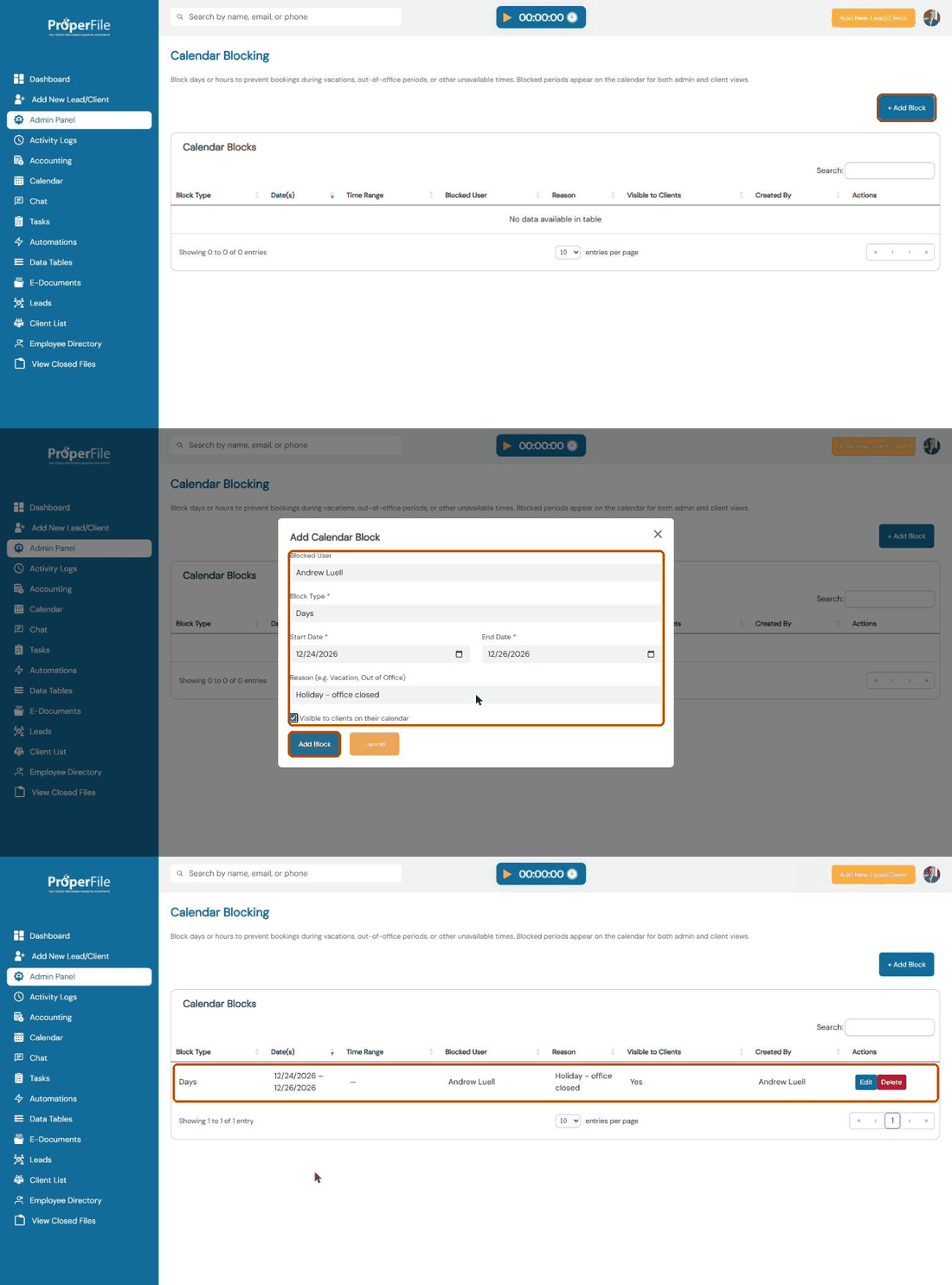
Watch it: blocking off a holiday
Step 4
Change or remove a block
The block now appears in the list and on the calendar. Use Edit to change the dates or Delete to remove it.
What’s next
Keep going
Next, track where your clients come from with Lead sources and ad placement. All guides are in the Help Center.