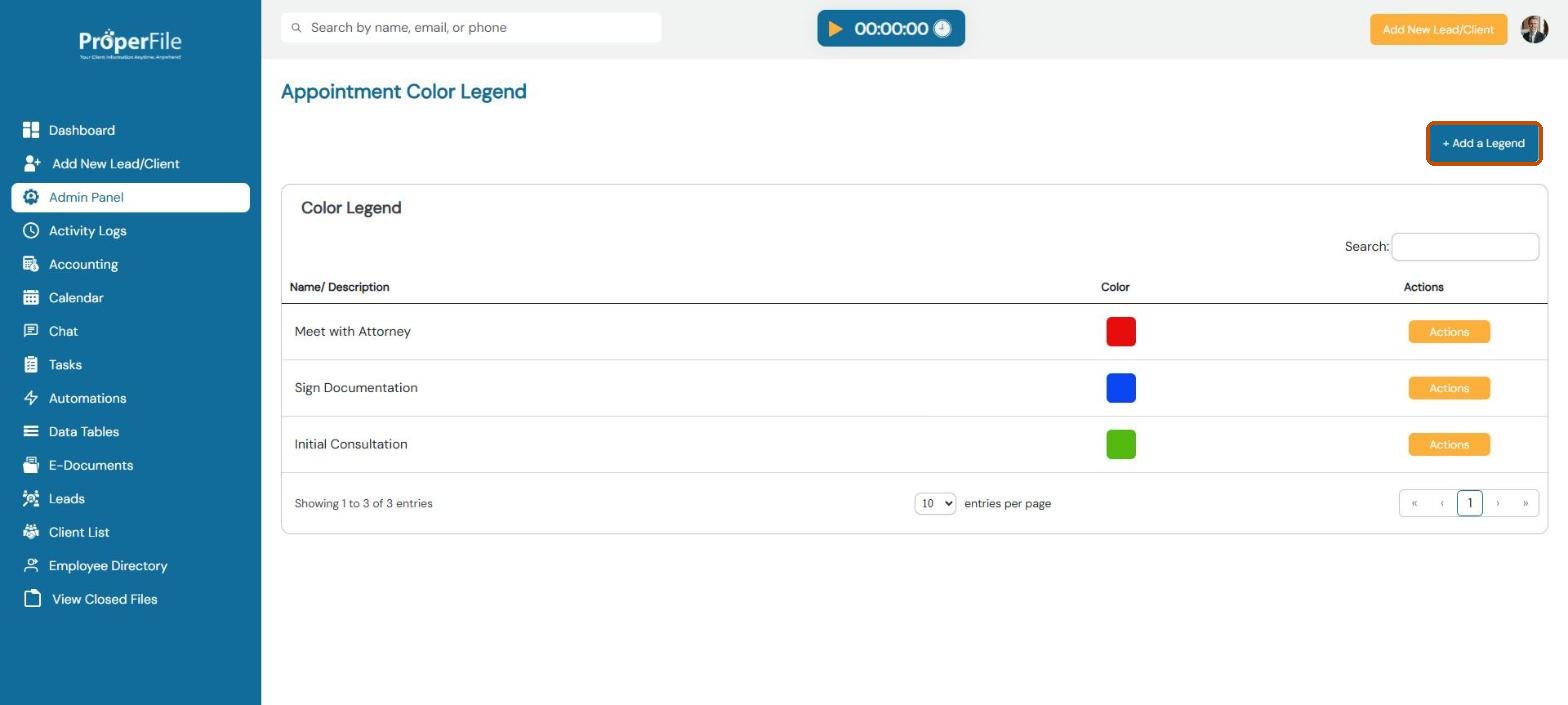
Give every hearing and appointment its own color so you can read your calendar at a glance. Hearing types are court events, set up per case type, such as a Meeting of Creditors in bankruptcy. Appointment types, in the color legend, are your own meetings, such as an initial consultation.
Time needed: about 5 minutes.
Step 1
Open Hearing Types
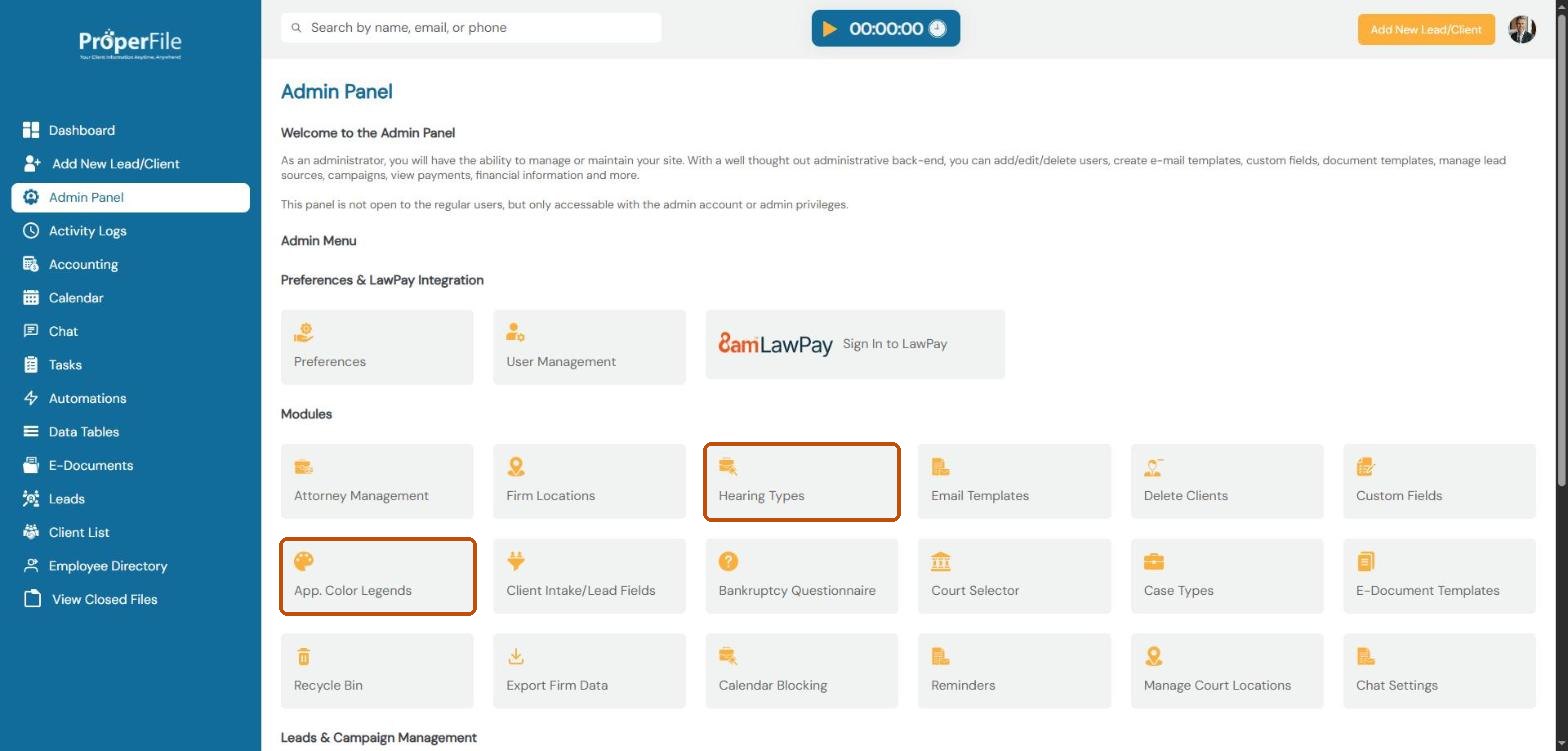
Click Admin Panel in the left menu, then click Hearing Types. (You’ll use App. Color Legends in step 5.)
Step 2
Pick a case type
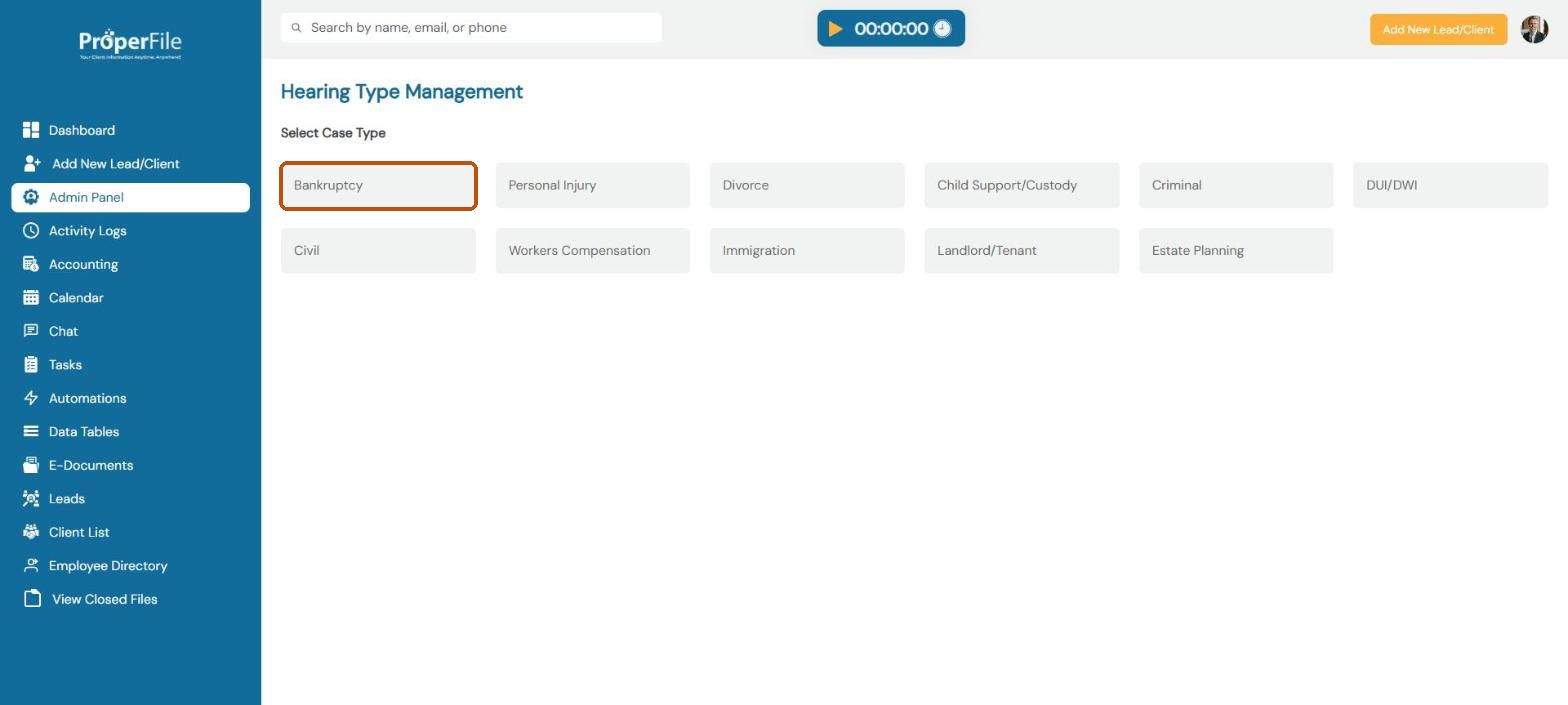
Click the case type whose hearings you want to set up, for example Bankruptcy.
Step 3
Review the hearing types and add one
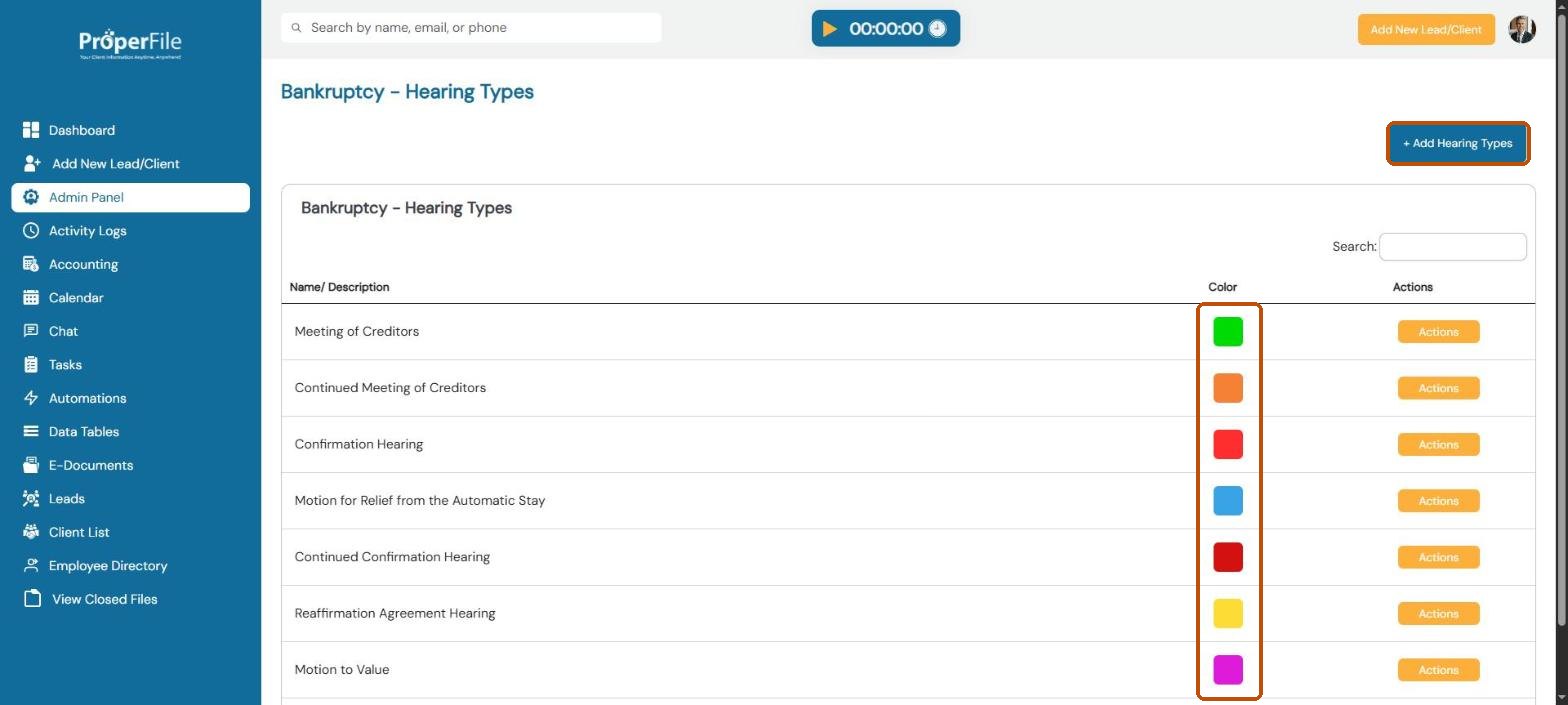
You’ll see this case type’s hearings and the color each shows on the calendar. Click + Add Hearing Types to add another. Use Actions next to a hearing type to edit or remove it.
Step 4
Name it, pick a color and submit
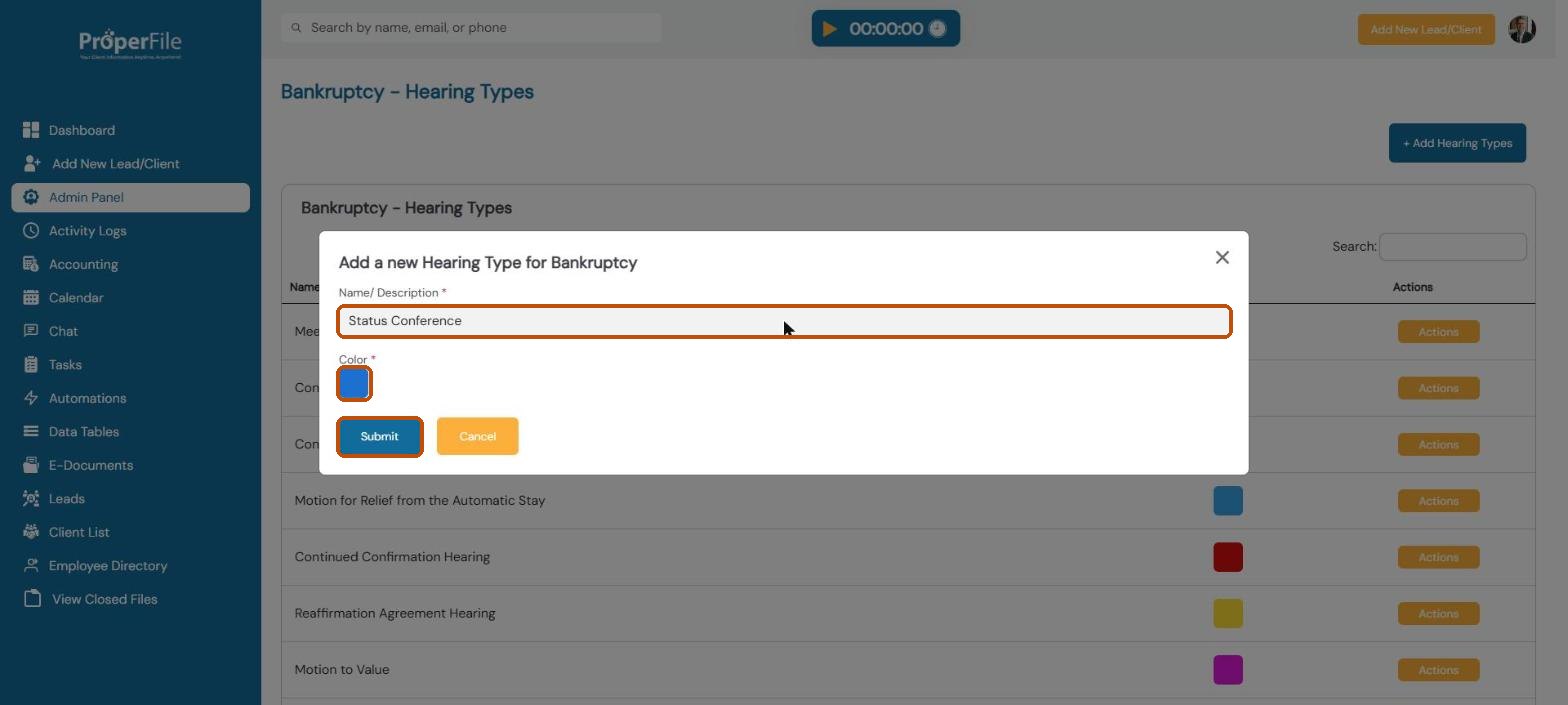
Type the hearing’s name, click the color square to choose its color, and click Submit.
Tip: pick colors that are easy to tell apart, such as one for first hearings and a darker shade of the same color for continued hearings.
Step 5
Open the appointment color legend
Go back to the Admin Panel and click App. Color Legends. You’ll see your appointment types and their colors. Click + Add a Legend.
Step 6
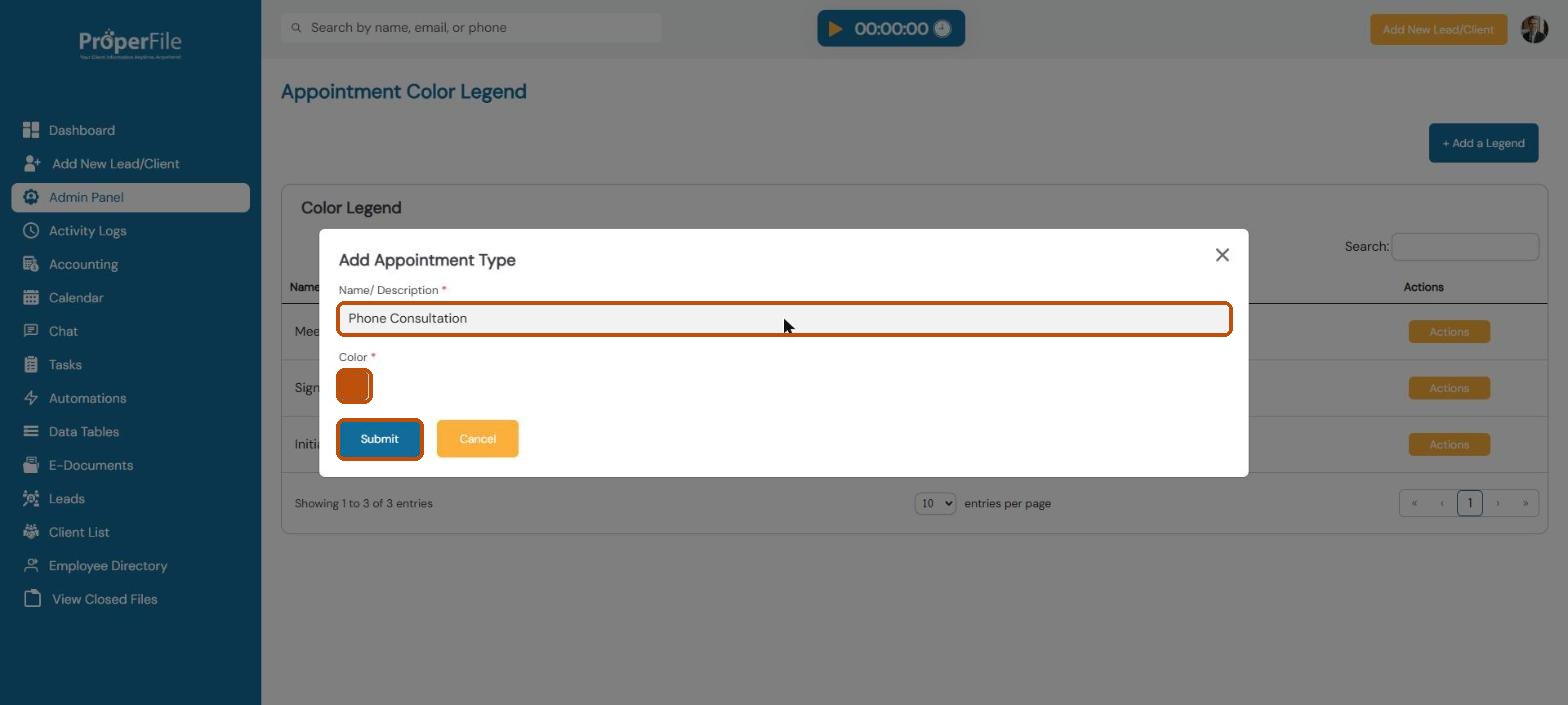
Name the appointment type, pick a color and submit
Type the appointment type, such as Phone Consultation, choose a color and click Submit. It’s now a choice when you schedule an appointment, and shows in that color on the calendar.
What’s next
Keep going
Next, choose the courts you file in with Courts and court locations. All guides are in the Help Center.