Each case type has its own intake questionnaire: the questions a new client answers about their situation. You can add questions one at a time, or let ProperFile’s AI write a full set from a description or from the intake form you already use.
Time needed: about 10 minutes.
Step 1
Open Client Intake/Lead Fields
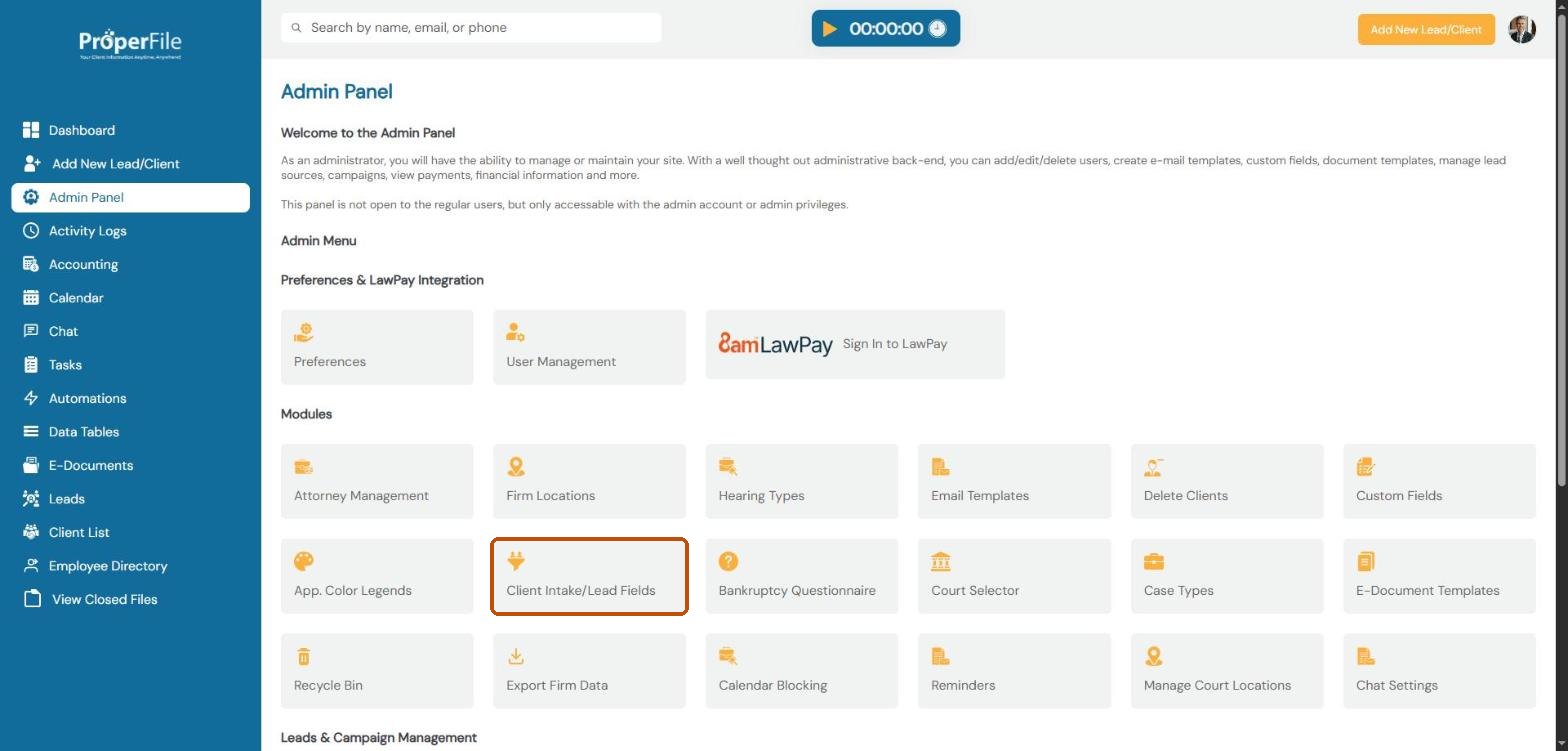
Click Admin Panel in the left menu, then click Client Intake/Lead Fields.
Step 2
Pick a case type
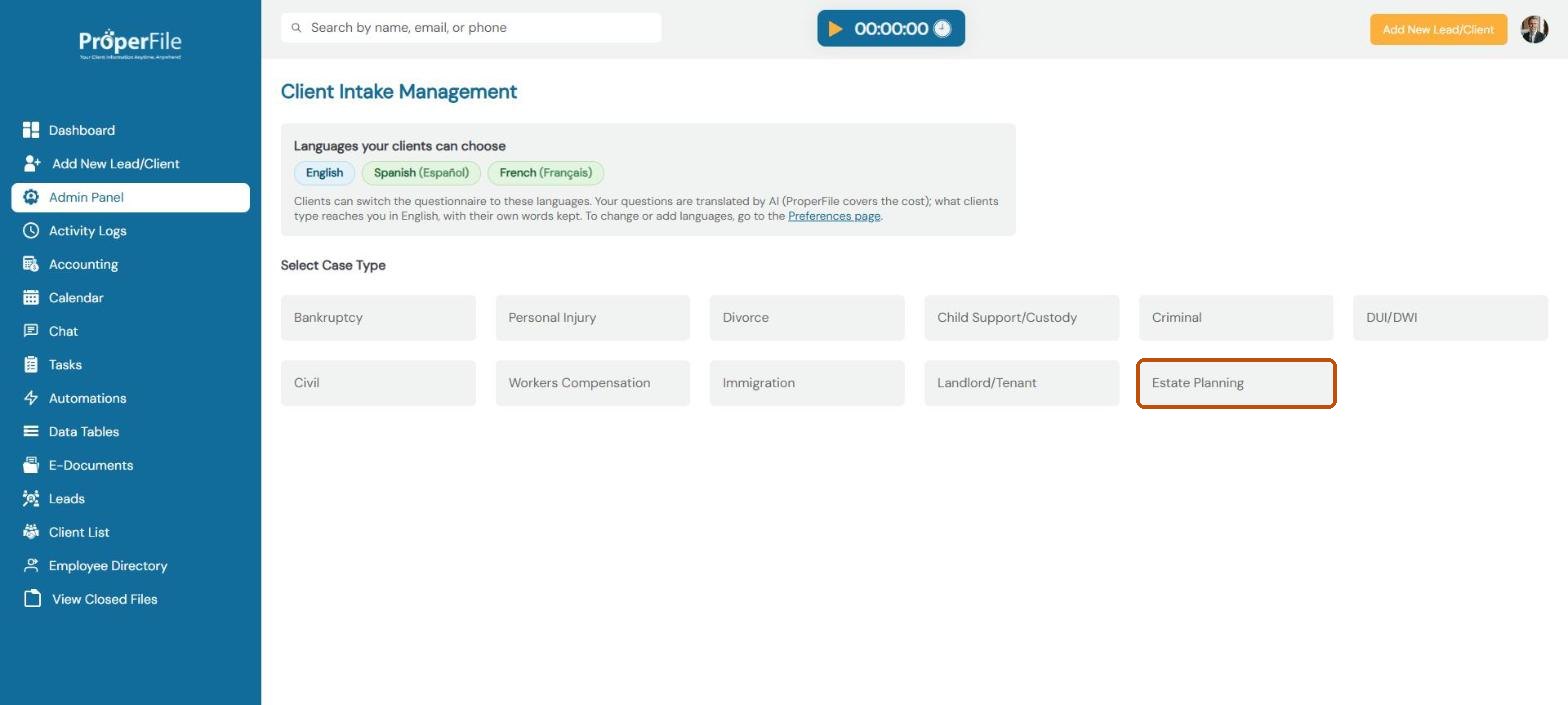
At the top you’ll see the languages your clients can answer in (you choose these on the Preferences page). Click the case type whose questions you want to set up.
Step 3
Choose how to add questions
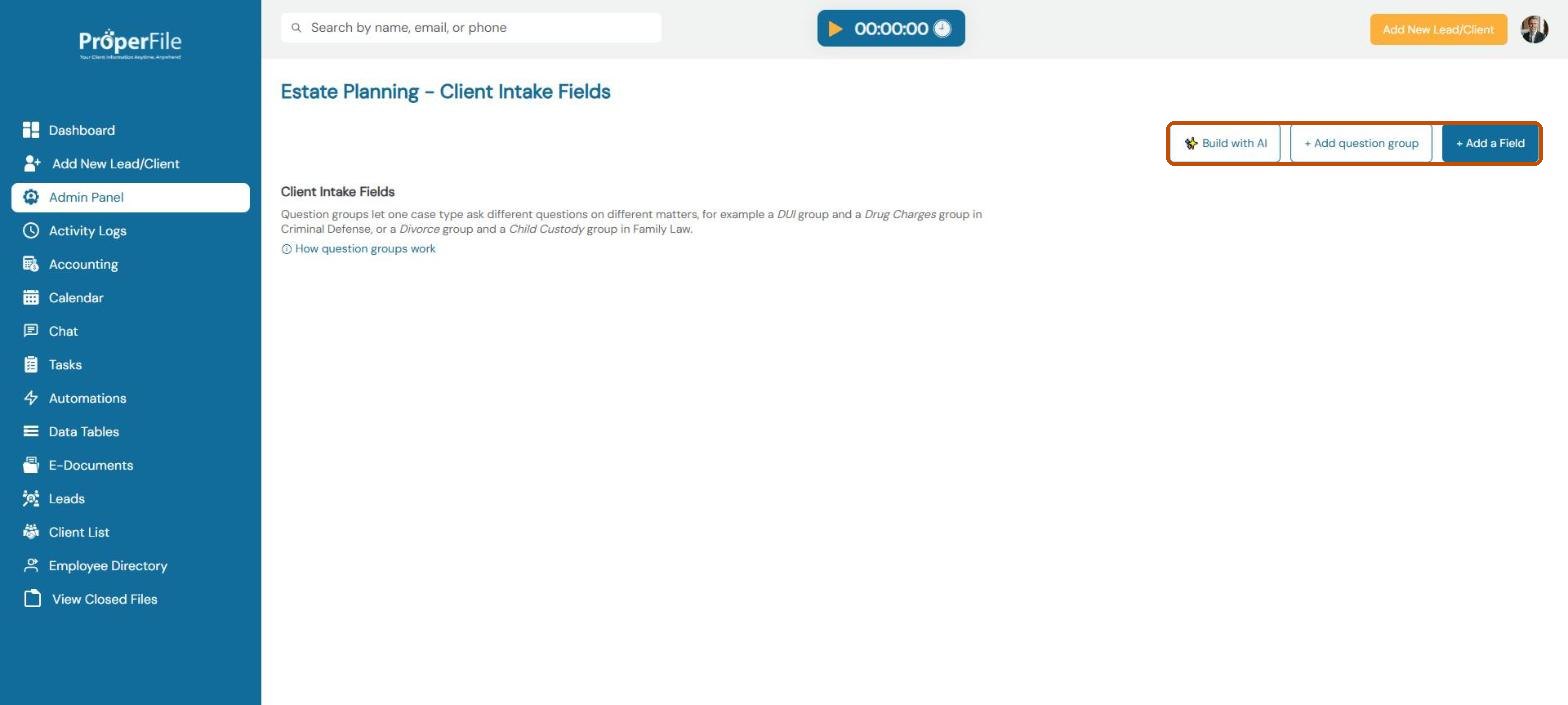
You have three buttons:
+ Add a Field: add one question yourself
Build with AI (or Add questions with AI once you have questions): let AI suggest questions
+ Add question group: a set of questions only some matters need
Step 4
Add a question yourself
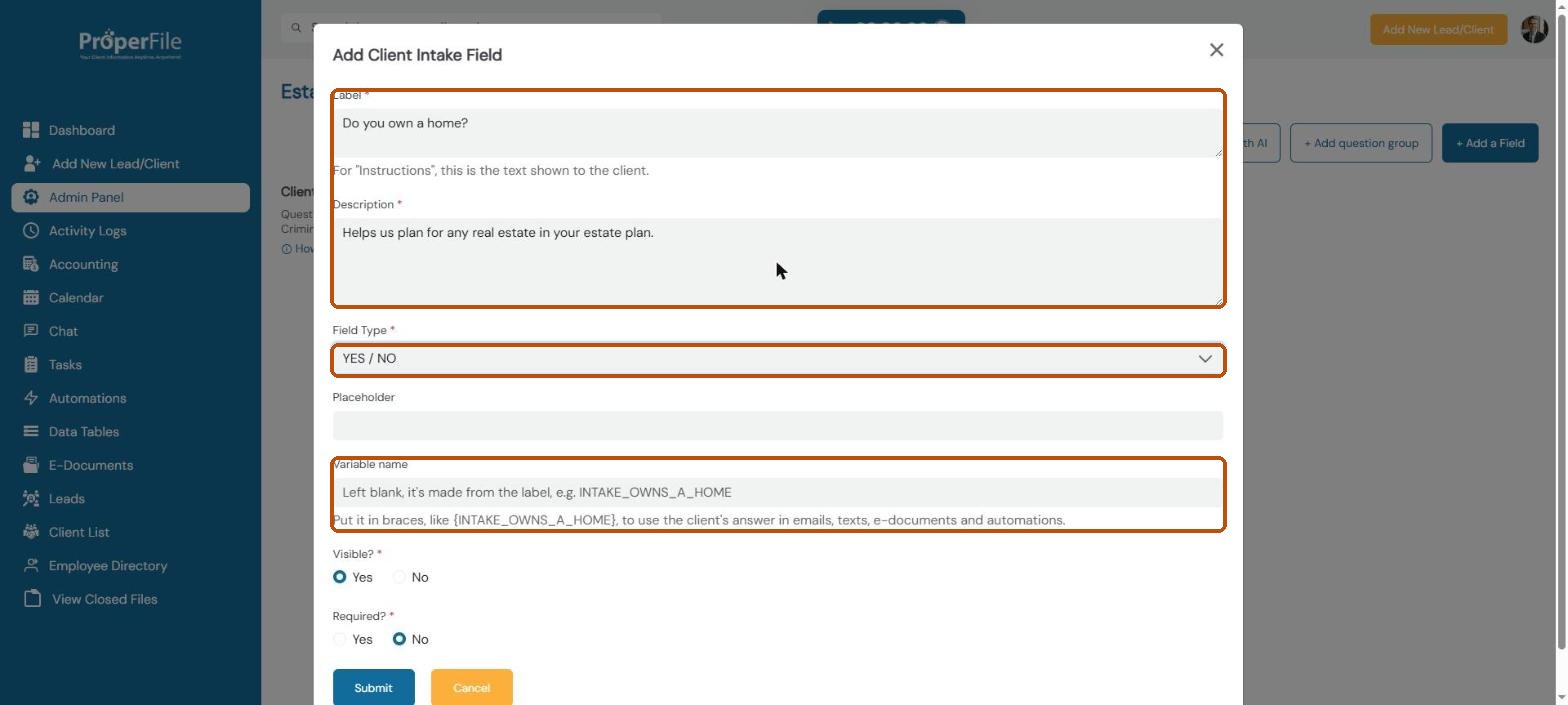
Click + Add a Field. Type the question in Label, add a short Description, and pick a Field Type such as Yes/No, text, date, drop-down list or checkboxes. Choose whether it’s Visible and Required, then click Submit.
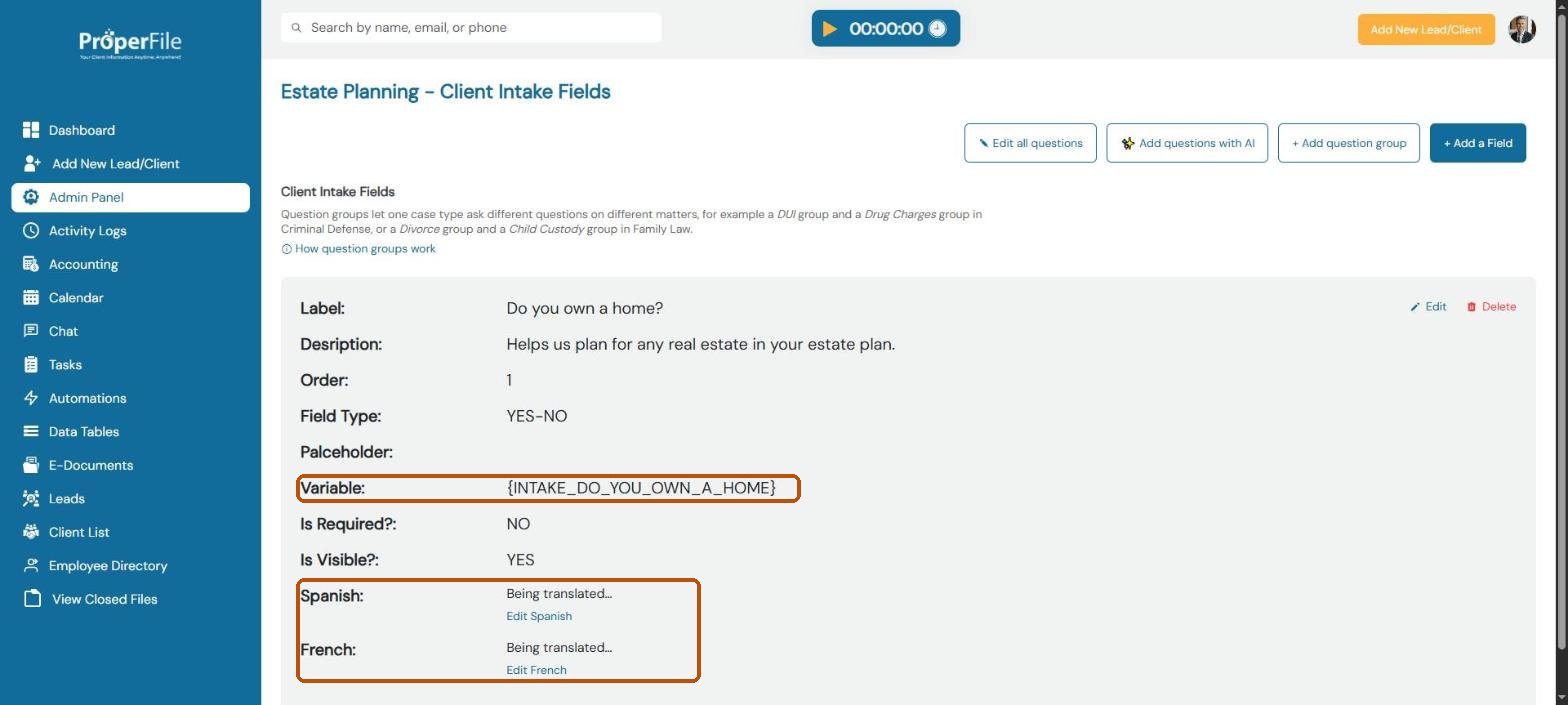
Tip: leave Variable name blank and ProperFile makes one from the question. Put it in braces, such as {INTAKE_DO_YOU_OWN_A_HOME}, to use the client’s answer in emails, texts, e-documents and automations. Choose Instructions as the field type to show text with no answer box.
Step 5
Check the question and its translations
The question appears in the list with its variable name. If you offer other languages, ProperFile translates it automatically; you’ll see Being translated… for a moment. Click Edit Spanish (or another language) to adjust a translation.
Step 6
Or let AI write your questions
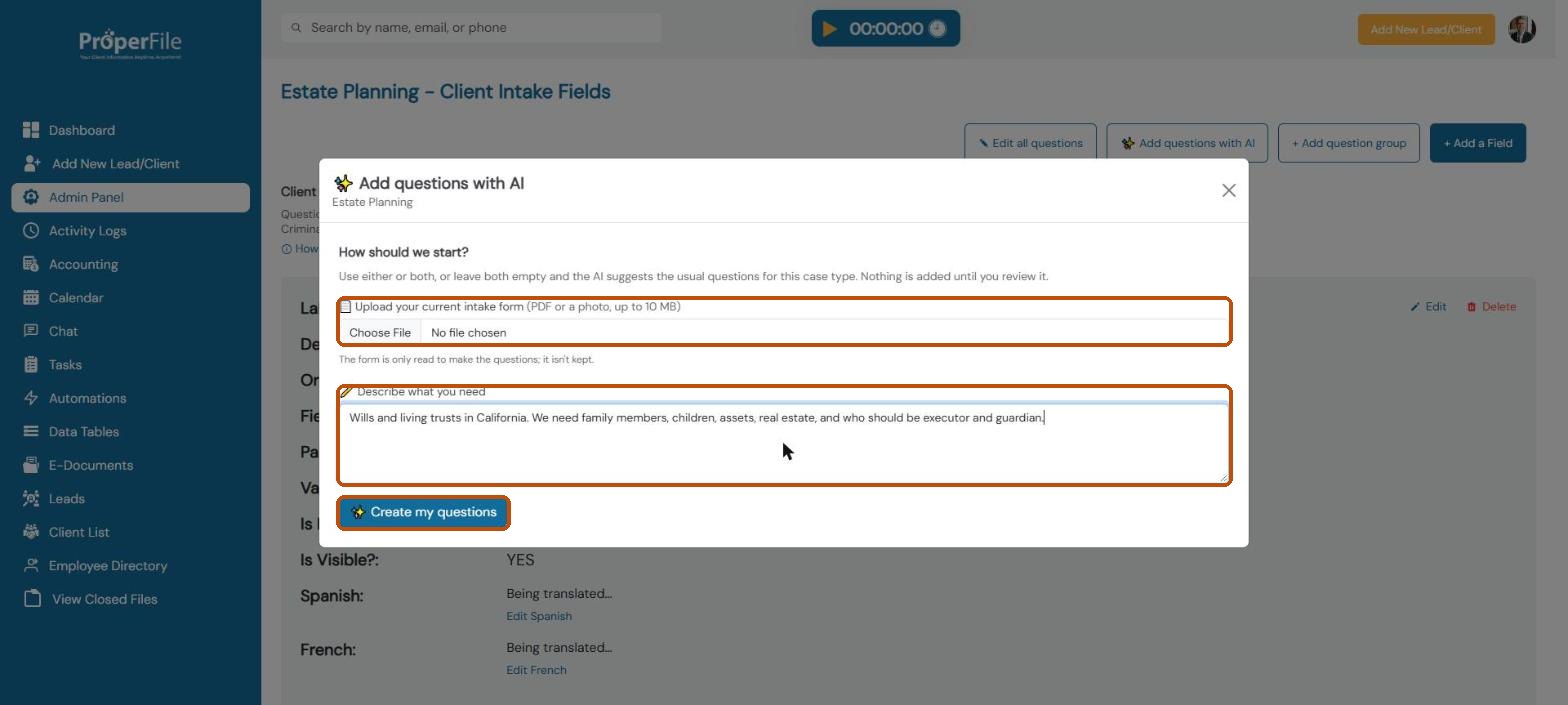
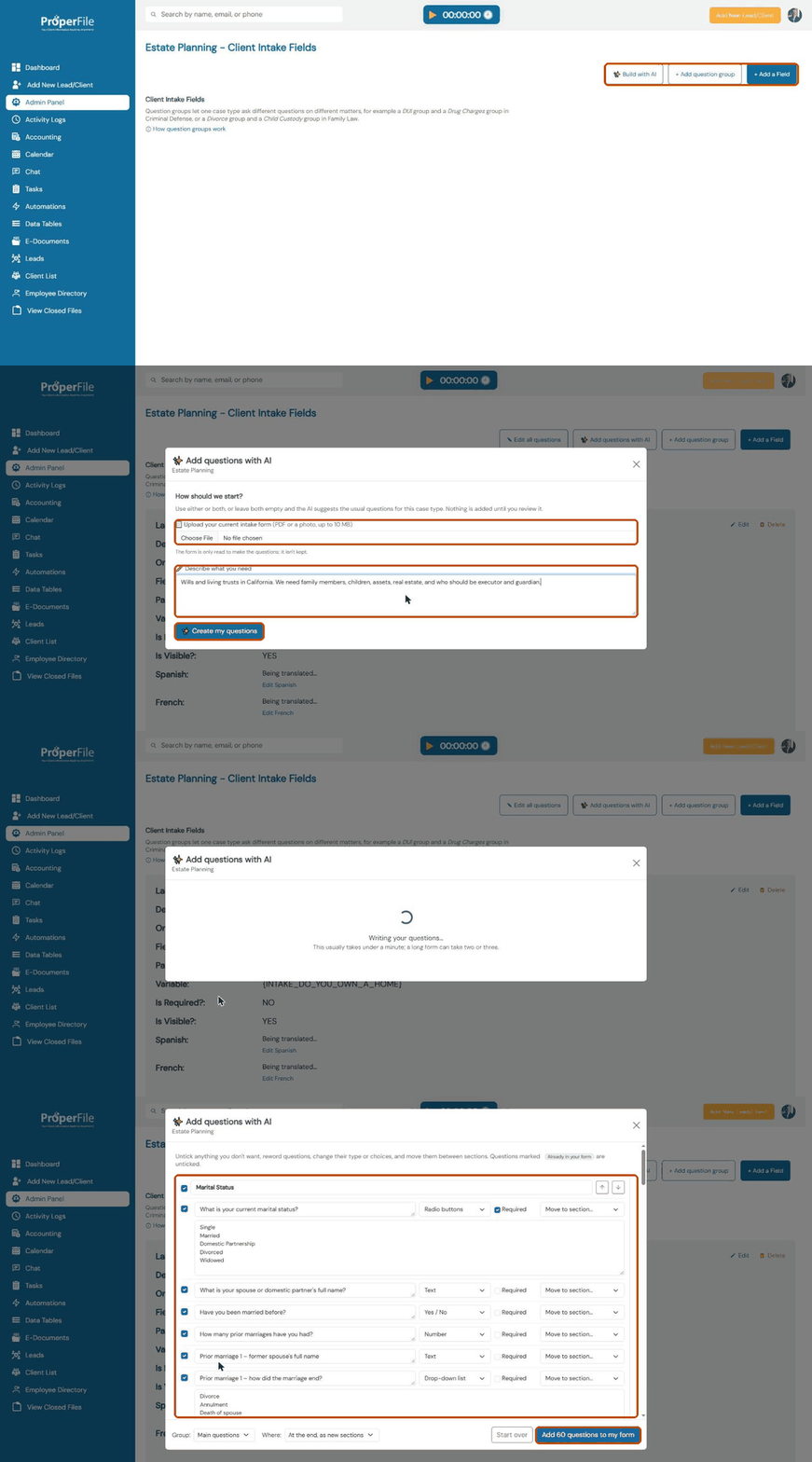
Click Build with AI or Add questions with AI. Upload the intake form you use today (PDF or photo, up to 10 MB), describe what you need, or both. Then click Create my questions. Leave both empty and the AI suggests the usual questions for this case type.
Watch it: creating intake questions with AI
Step 7
Review the AI’s questions and add them
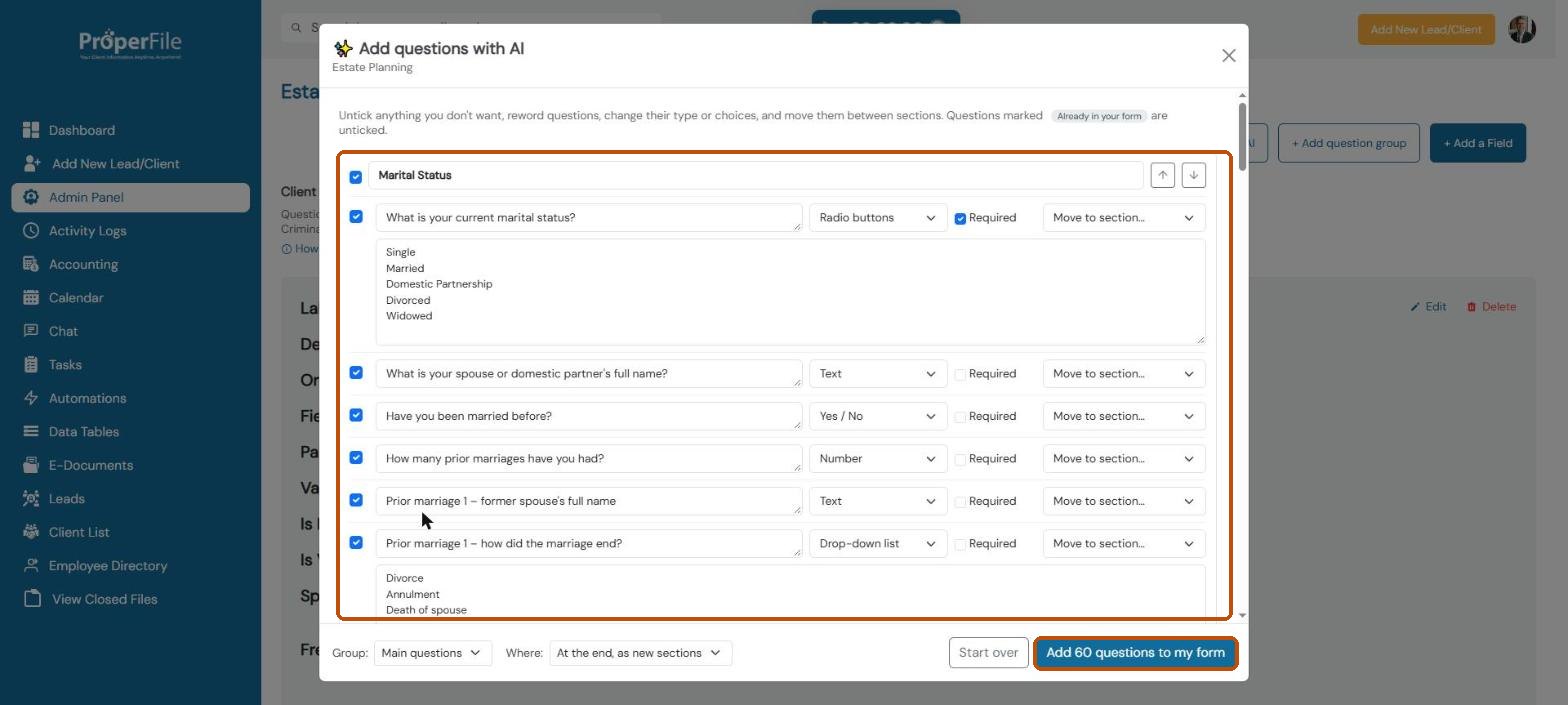
After a minute or so you’ll see the suggested questions, sorted into sections. Untick anything you don’t want, reword questions, change their type or choices, and move them between sections. Questions already in your form are marked and left unticked. When you’re happy, click Add … questions to my form.
Tip: nothing is added until you click the Add button. Your uploaded form is only read to write the questions; it isn’t kept.
Step 8
Use question groups for different kinds of matters
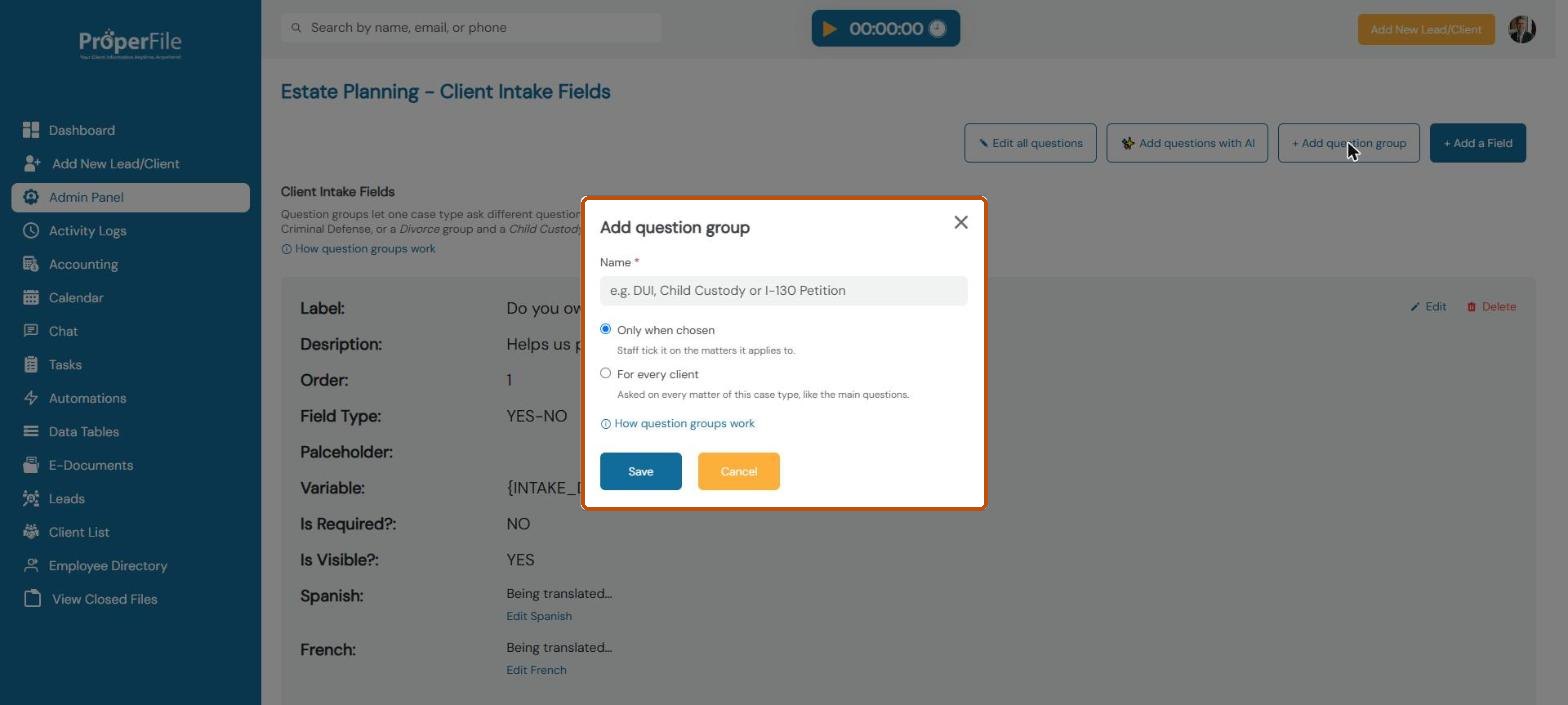
Question groups let one case type ask different questions for different matters, for example a DUI group and a Drug Charges group in Criminal Defense. Click + Add question group, name it, and choose:
Only when chosen: staff tick the group on the matters it applies to
For every client: asked on every matter of this case type, like the main questions
Click Save, then add questions to the group.
What’s next
Keep going
Next, build documents your clients sign online in E-document templates. All guides are in the Help Center.