Keep a list of the outside attorneys you work with, such as appearance attorneys, and of your firm’s office addresses. Your office addresses are the locations you pick from when you schedule appointments and set up users.
Time needed: about 5 minutes.
Step 1
Open Attorney Management
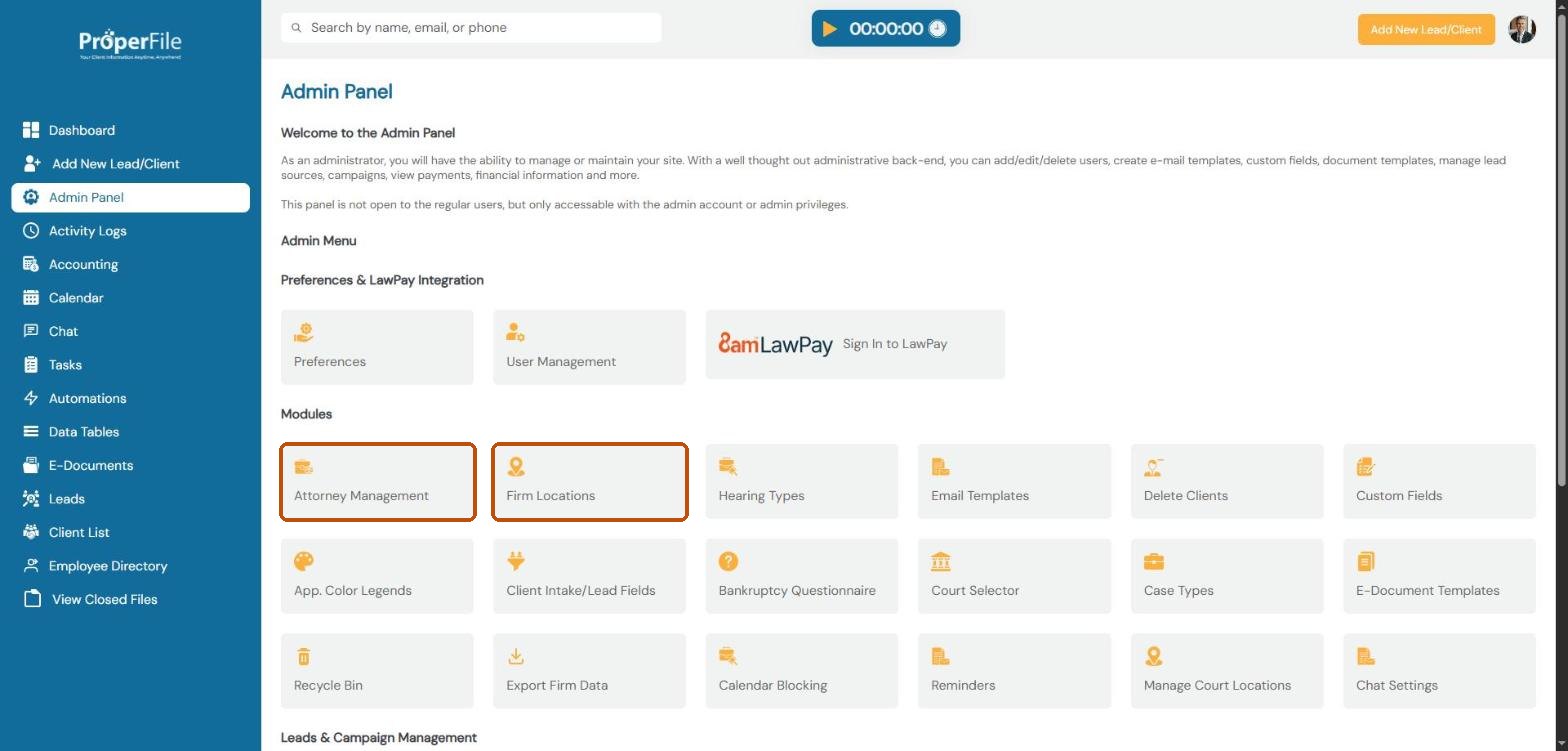
Click Admin Panel in the left menu, then click Attorney Management. (Firm Locations is right next to it; you’ll use it in step 4.)
Step 2
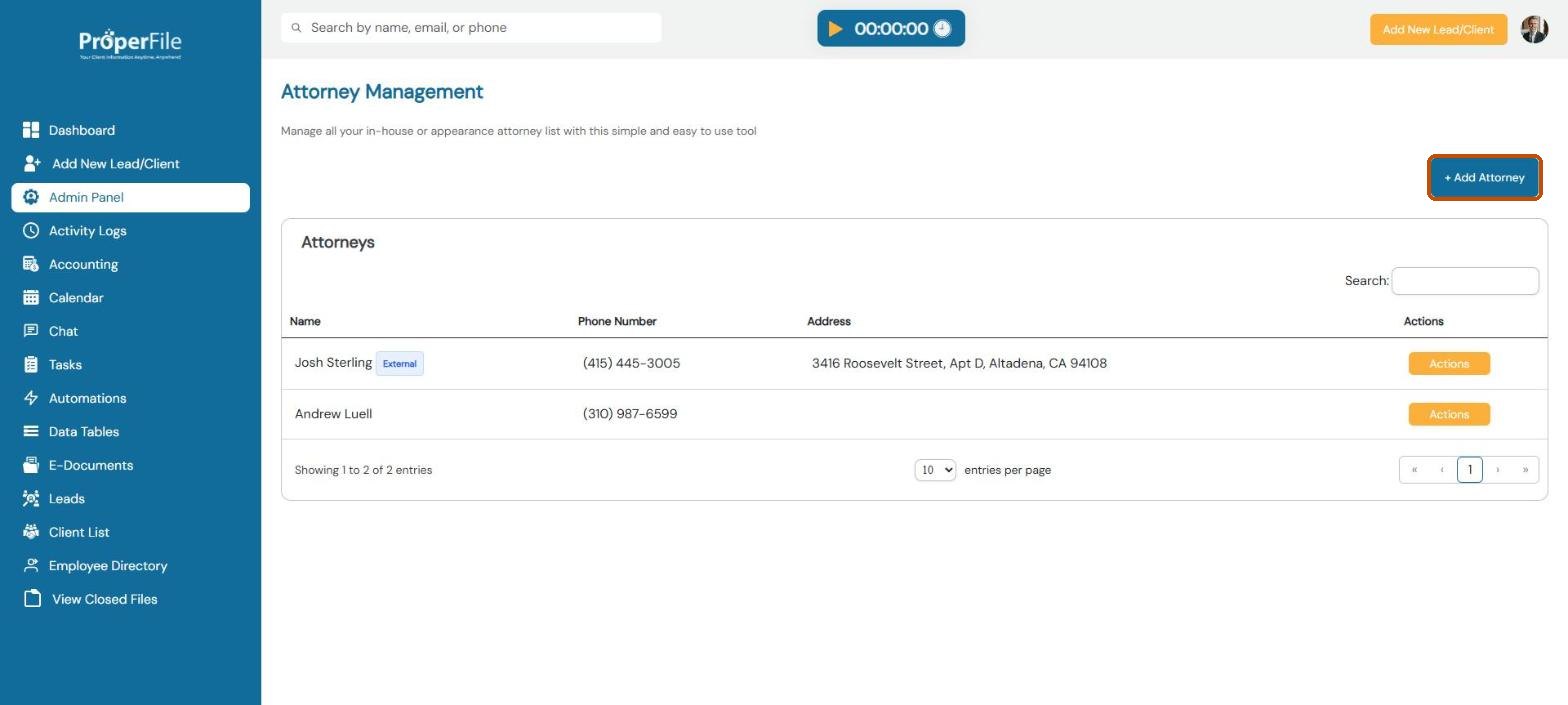
Click Add Attorney
The list shows each attorney’s name, phone number and address. Attorneys marked External can use the Attorney Portal. Click + Add Attorney.
Step 3
Enter the attorney’s details and submit
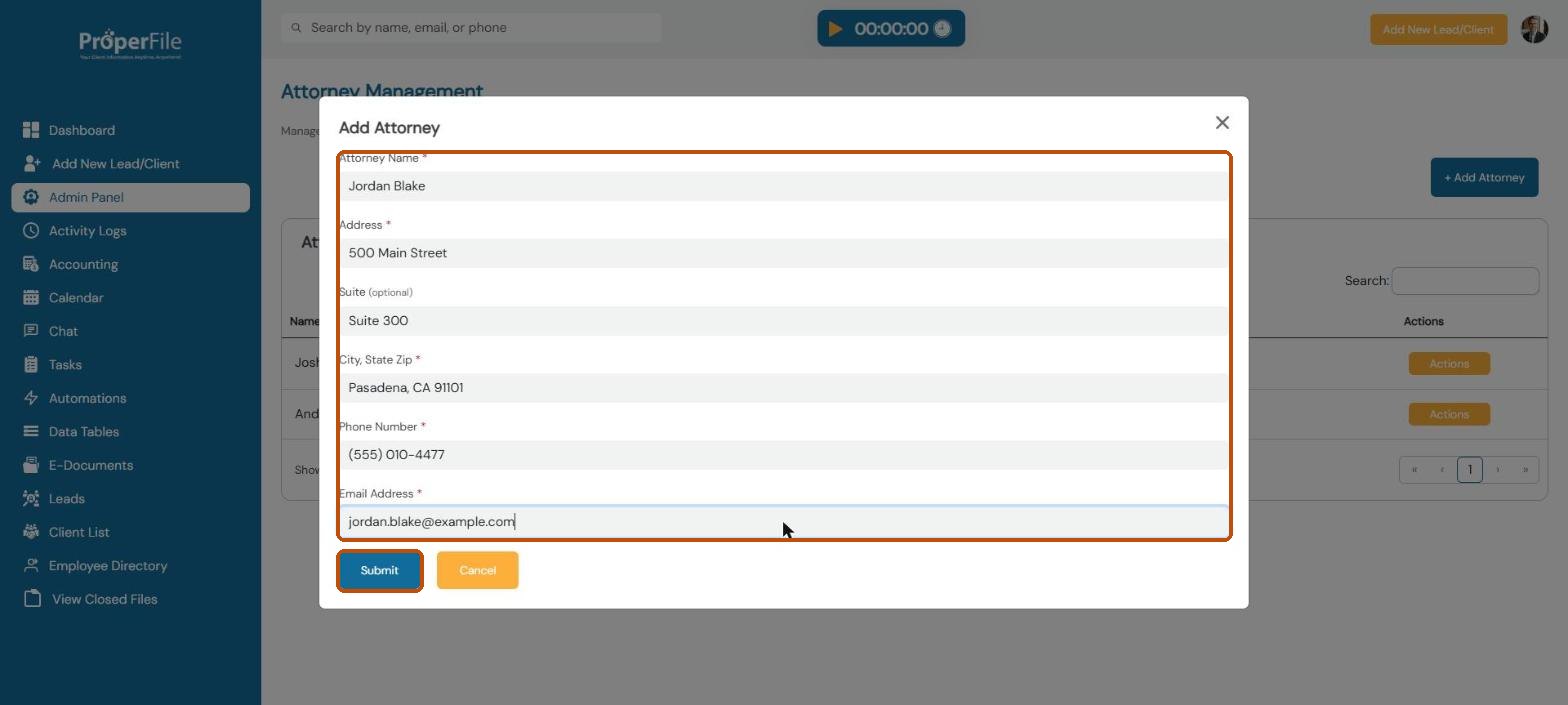
Fill in the attorney’s name, address, suite (optional), city, state and ZIP, phone number and email address. Click Submit.
Tip: ProperFile emails the attorney an invitation to the Attorney Portal, so they can see the cases you share with them. Make sure the email address is right. To change or remove an attorney later, use the Actions button next to their name.
Step 4
Add your office locations
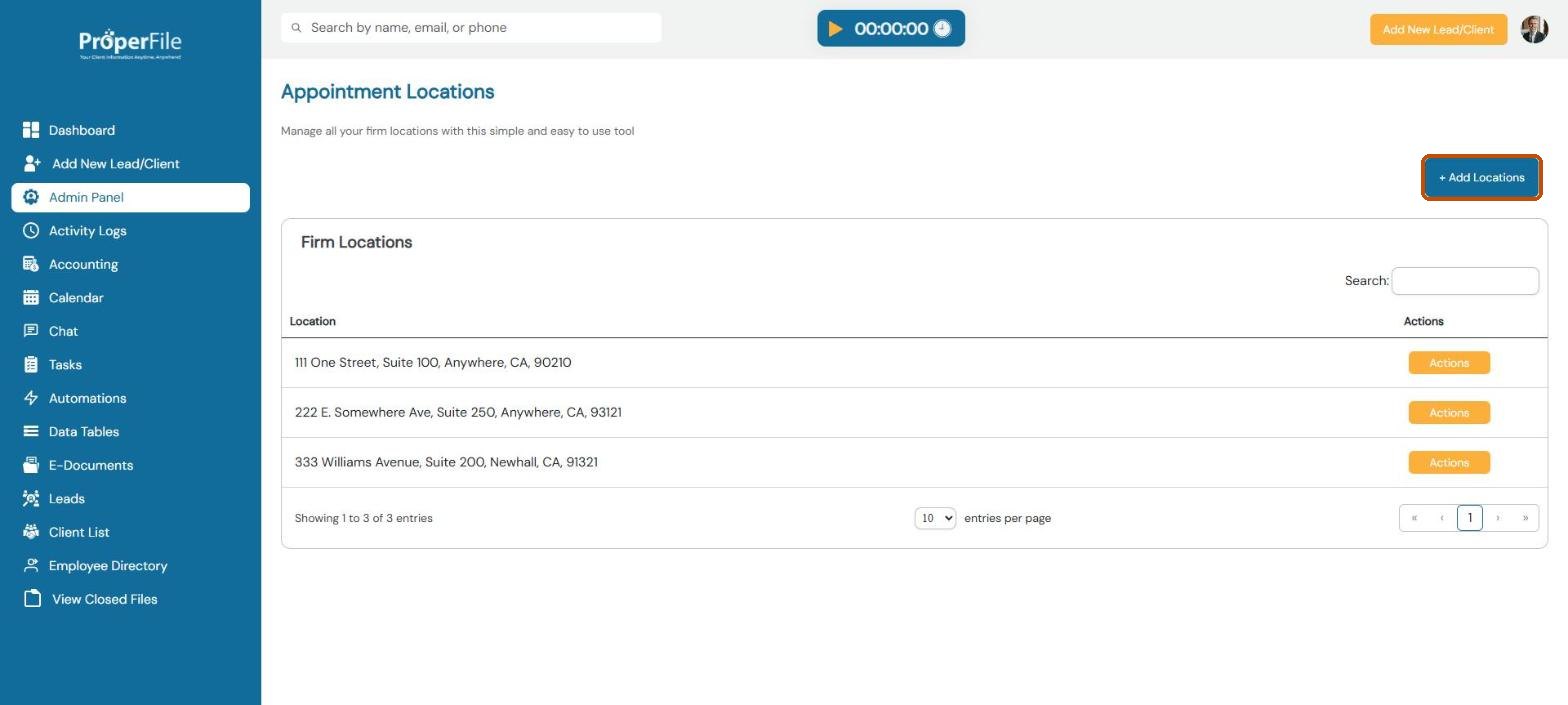
Go back to the Admin Panel and click Firm Locations. You’ll see your current offices. Click + Add Locations.
Step 5
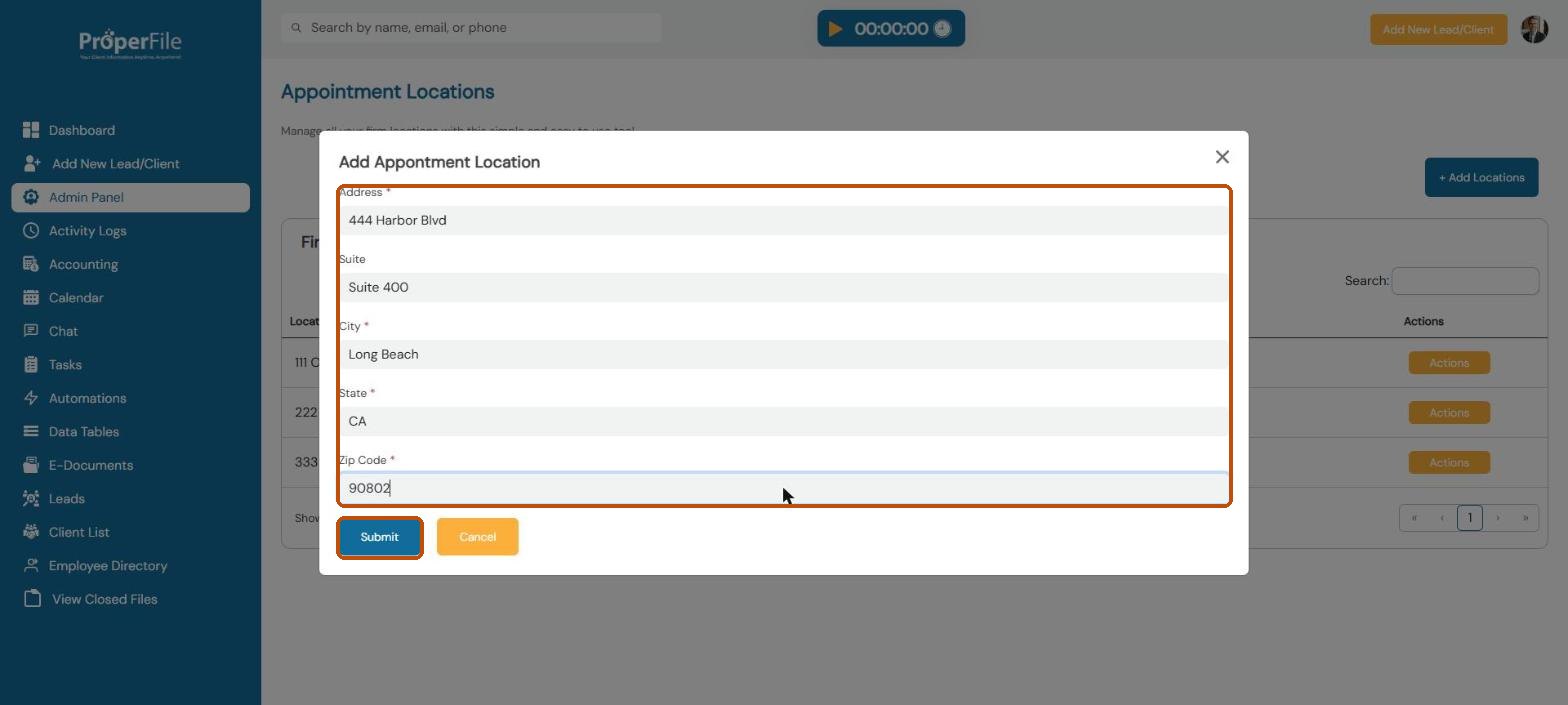
Enter the address and submit
Type the address, suite (optional), city, state and ZIP code, then click Submit. The new office appears in the list and in the location choices for appointments and users.
What’s next
Keep going
Next, set up the kinds of cases you handle in Case types. All guides are in the Help Center.